1
Delivering Interactive Notebook Lessons and Presentations
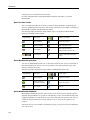
Printing Annotation Snapshots
You can print a snapshot directly from the Screen Annotations folder in MimioStudio
Gallery.
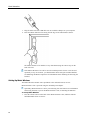
To print a snapshot
1. Select the snapshot to print.
2. Right-click and choose Print.
Deleting Annotation Snapshots
You can delete snapshots from the Screen Annotations folder.
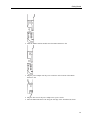
To delete a snapshot
1. Select the snapshot to delete.
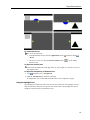
2. Click the Delete button, .
A delete confirmation dialog box appears.
3. Click Yes.
Delivering Interactive Notebook Lessons and Presentations
MimioStudio Notebook can be used to deliver lessons and presentations that were created
in or imported into a MimioStudio Notebook.
Using Fullscreen View
For presenting information, the Fullscreen view can be used to fill the entire screen with the
current page.
The MimioStudio Notebook standard toolbar and all MimioStudio Tools are available in
Fullscreen view.
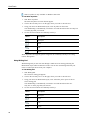
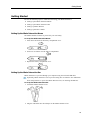
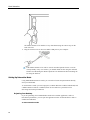
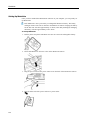
To access the Fullscreen view
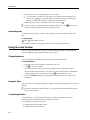
Click the Fullscreen button, .
The current page fills the entire screen and the MimioStudio Notebook standard toolbar
remains visible.
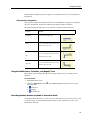
Navigating Through a Presentation
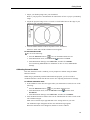
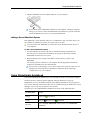
To navigate through a Notebook presentation
Use the MimioStudio Notebook standard toolbar to navigate through the Notebook
presentation.
31