1
Add information
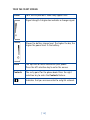
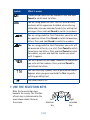
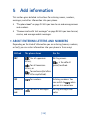
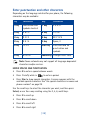
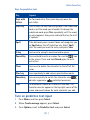
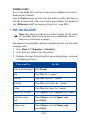
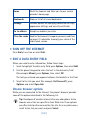
Keys for predictive text
Key
Purpose
Keys with
letters
Use for word entry. Press each key only once for
each letter.
Star key
Press to view the next matching word if the underlined
word is not the word you intended. To change the
underlined word, press Star repeatedly until the word
you want appears. Also, press and hold this key for a list
of symbols.
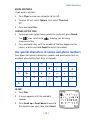
Spell
If the dictionary sees a word it does not recognize, you
see Spell above the left selection key. Select Spell,
enter the word you want to enter, and press Save.
0 key
Press once to accept a word and add a space.
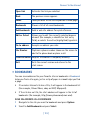
Pound Key
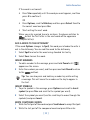
Press and hold to enter a number. You see the
icon
on the screen. Press and hold Pound again to write
text letters.
Clear
Press once to delete the character to the left of the
cursor.
Star key
Press repeatedly to add various punctuation marks.
Pound key
Press once quickly to switch the character case.
indicates uppercase.
indicates lowercase.
160
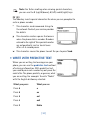
The maximum number of characters available. The
character counter appears in the top right corner of the
screen and counts down for each character you add.
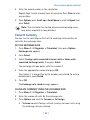
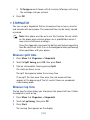
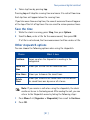
Turn on predictive text input
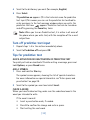
1
Press Menu, and then press Select.
2
When Create message appears, press Select.
3
Press Options, scroll to Predictive text and press Select.
[ 31 ]