1
AVR Assembler User Guide
4.7
Microsoft
Windows
specifics
This section describes the features specific to WAVRASM. Only the menu items specific
to the Assembler are described. It is assumed that the user is familiar with the “Search”
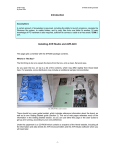
and “Window” menu items. A typical editing session with the Assembler is shown in the
following figure.
4.7.1
Opening Assembly
Files
A new or existing assembly files can be opened in WAVRASM. Theoretically there is no
limit on how many assembly files which can be open at one time. The size of each file
must be less than about 28K bytes due to a limitation in MS-Windows. It is still possible
to assemble files larger than this, but they can not be edited in the integrated editor. A
new editor window is created for every assembly file which is opened.
To create a new assembly file click the
button on the toolbar or choose “File → New”
(ALT-F N) from the menu. To open an existing file click the
button on the toolbar or
choose “File → Open” (ALT-F O) from the menu.
4.7.2
The Integrated
Editor
When WAVRASM is finished loading a file, the text editor will be inactive. Refer to the
section on opening files on how to open a file. Right after a file is loaded into an editor
window of the Assembler, the insertion point appears in the upper left corner of the window.
4.7.3
Typing and
Formatting Text
The insertion point moves to the right when typing. If text is written beyond the right margin, the text automatically scrolls to the left so that the insertion point is always visible.
4.7.4
Moving the Insertion
Point
The insertion point can be moved anywhere by moving the mouse cursor to the point
where the insertion point is wanted and click the left button.
Development Tools User Guide
4-21