1
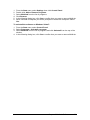
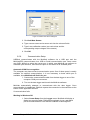
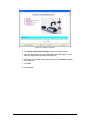
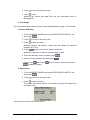
5. Choose one of the four curves by clicking its icon in the toolbox.
6. Use the sliders to change the A, B and C parameters until the new
curve fits the sampled curve.
7. The lower and upper limits of each sliding bar are located on the
sliding bar’s left and right ends, respectively. You can change the
limit values by clicking a limit box, and typing in your new value.
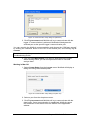
MultiLab will display the resulting equation on the information bar at the bottom of the
toolbox.
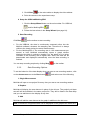
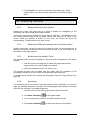
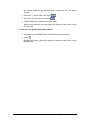
8. Click Add to project
project.
in the toolbox to add the curve to the
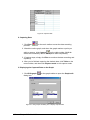
9. To close the manual curve fit toolbox click Exit
in the toolbox.
3.7. Video Motion Analyzer
3.7.1.
Overview
MultiLab’s Video Motion Analyzer enables you to capture position and time from
video movies, convert this to data sets and analyze the data with all of MultiLab’s
analysis tools the same way you would analyze data from the data logger. You can
capture one-body motion or two-body motion. You can select the origin and rotate
the coordinate system.
With the Video Motion Analyzer you can also capture video movies either directly
from video camera connected to the computer or from an external video source such
as VCR.
3.7.2.
Getting Started
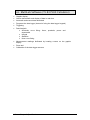
1. Video Motion Analyzer Basics
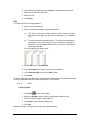
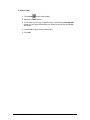
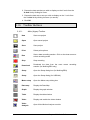
Open the Video Motion Analyzer module
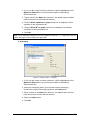
Click Video Analysis
on the main toolbar
Open a movie from MultiLab’s movie library or capture a new movie
Capture position and time
86
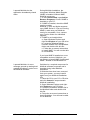
•
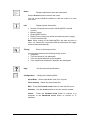
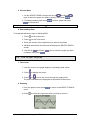
Scaling – Scale the video to the real world dimensions
•
Coordinate system – Set origin and axes direction
•
Step – Set the number of frames you will capture position and time
•
Marking – Mark the position of the body on the frames. MultiLab will
automatically convert it to numerical data
Chapter 3 MultiLab Software