1
Getting Started > Screen Layout
Getting Started
Screen Layout
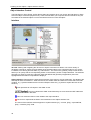
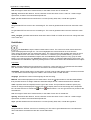
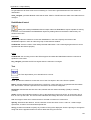
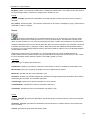
When you start ISA you see an arrangement of screen elements, which is described below.
Plan window
Different views of the scene. By default, the top view of 3D scene is shown. You can change the view using
the flyout menu items on the Plan toolbar.
Perspective View window
3D scenes are viewed here. You may navigate the camera using the mouse or keyboard. ParallelGraphics
Cortona VRML client is used as a viewer in the Perspective View window.
Properties/Events window
This allows you to display and set the object’s properties and events connection.
Scene Tree Window
This window is used for viewing and selecting objects within the hierarchical structure of the current scene.
6