1
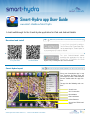
Smart-Hydra navigation
Pan
Rotate & tilt
Zoom
Drag with one finger to pan the map.
Move two fingers horizontally to rotate
the map and vertically to tilt.
Pinch two fingers to zoom in and out
the map.
Smart-Hydra elements
Tip : If you have some doubt, you can always tap the
Third Level Menu
Search Area
These buttons contain the main categories. Tap to activate the second
level menu.
This menu contains the Points of Interest
for the selected category. Tap on the
icons and the corresponding POIs will
appear on the map.
You can search
within categories and all the
resulting Points
of Interest will
appear in the
section below.
Second Level Menu
Device Information
Reset Button
First Level Menu
From this section you can access the
POIs and other media contents.
These
icons
indicate if you
are connected
to internet and if
there is GPS signal. Tap the green arrow
to find your position on the map.
Smart-Hydra Points of Interest
POIs contents
POIs information
This popup
shows the
Point of
Interest
available
contents
Select one icon on the map or
from the POIs list to show it’s
information window. This panel
contains pictures, videos, documents and working hours, you
can also share on Facebook.
for the selected POI.
Smart-Hydra User Guide version 1.0 / © 2013 Smart-Islands Consortium
icon
Tap this icon to reset
the camera and return
to the starting position.