1
1
Installation
1. Download and install the latest version of Eclipse classic (Kepler) on your
machine. The installation files can be downloaded from http://eclipse.
org/downloads/. When using Eclipse, it stores your projects in a folder
called a workspace. Note that the path to this folder must not contain blank
spaces.
2. Ensure that you have the Java Runtime Environment jre7 installed.
3. To install eRAISE do the following:
a. Download one of the files eRAISEUpdate.zip for 32 bit installations and
eRAISEx64Update.zip for 64 bit installations. These files can be found
in the file sharing on CampusNet. The first file can also be found in the
eRAISE repository at https://github.com/kiniry/eRAISE.
b. If you have downloaded eRAISEx64Update.zip, this should be renamed
to eRAISEUpdate.zip
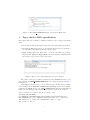
c. Open Eclipse, go to Help→Install New Software, a new window will be
opened
d. Click Add and then select Archive
e. Browse to the location on your machine where the file eRAISEUpdate.zip
was stored in the previous step and select it, then click Open 1
f. Select OK
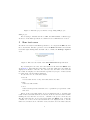
g. Click Select All, then click Next
h. Select eRAISE Feature and click Next
i. Check I accept the terms of the license agreement, then click Finish
j. A security warning appears, click OK
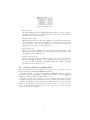
k. The software is being installed and a request to restart Eclipse is shown.
Select Yes to restart Eclipse
1 The
Open action may not be needed for some Linux systems.
2