1
3.2 SQL Server Error Log
3.2 SQL SERVER E RROR LOG
To monitor deadlocks on SQL Server, enable trace flags 1204 and 3605 (if you are
running SQL Server 2000 and have not upgraded to Service Pack 3) in the Startup
Parameters of SQL Server, and then restart the server. This will generate diagnostic
messages in the SQL Server Error Log.
Trace Flag 1204 – returns the type of locks that are participating in the deadlock and
the current command affected.
Trace Flag 3605 – sends the trace output to the error log. This is always done when
you are running SQL Server 2000 Service Pack 3 or later. (If you start SQL Server
from the command prompt, the output also appears on the screen.)
Secondly you should implement a SQL Server alert to notify an operator when a
deadlock occurs so that an investigation of the deadlock scenario can start
immediately.
To enable a trace flag:
1 Open Enterprise Manager.
2 Expand Microsoft SQL Servers and expand SQL Server Group.
3 Right-click the server for which you want to enable the trace flags and select
Properties.
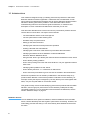
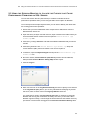
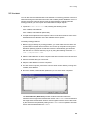
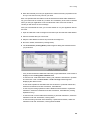
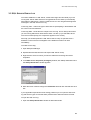
4 In the SQL Server Properties (Configure) window, click Startup Parameters and
the Startup Parameters window appears:
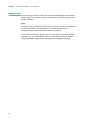
5 Enter the name of the trace flag in the Parameter field and click Add and then click
OK.
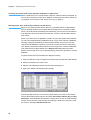
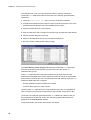
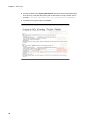
If your application experiences some locking problems you can open the SQL error
log and see the types of locks that were placed and the clients that were involved.
To open the SQL error log:
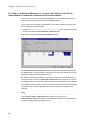
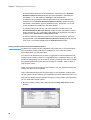
1 Open the Startup Parameters window as described earlier.
37