1
•
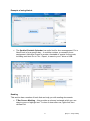
Rapid Set – Change Colours – some people find certain combinations of
font and background colour easier to read. Rapid Set allows you to change
these, for example on a Word document. Black text on a green background is
often preferred – not always though! Once you have selected the colour
scheme you want, you will need to click on Apply.
•
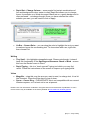
Vu-Bar – Screen Ruler – you can drag the ruler to highlight the text you want
to read and cover the surrounding text. To close down after use, right click,
then choose Exit.
Writing
•
Tiny Spell – this highlights misspelled words. Please note though, it doesn’t
have the functionality of the Spelling and Grammar Check in Word - access
this from the Review menu in Word.
•
Rapid Typing – this is a “teach yourself” typing tool which you may find
useful. Follow the instructions on the screen to improve your typing skills.
Vision
•
Magnifier – drag this over the area you want to read, to enlarge text; it is a bit
like Zoomtext. Press the Enter key to close it down.
•
Sonar – Curser Ring – PLEASE NOTE this is not compatible with our current
Windows system, so it is best not to use at present.
Please note: The information contained in this guide was correct at the time of publication. A more
recent version may be available on the Library website at www.salford.ac.uk/library/guides
3
[Sep 14 – Andy Callen]