1
Online Shipping
Shipping Management
Integration Solutions
SHIPMENT REQUESTS: SHIPMENT SUMMARY
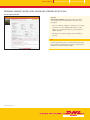
Shipment Summary
Step 2:
When the e-mailed URL link is used to access the program, the
Shipper will see a summary of the Importer’s shipment instructions.
Click the “Accept” button to accept the Importer’s shipment request
as it is written.
OR
If you would like to accept the shipment request but the pickup
address information has changed and needs to be updated, click the
“Modify pickup address and accept” button.
OR
Reject the shipment for any reason by typing a message into the
“Reject reason” field. Click “Reject.”
Note
The “Modify pickup address” button will only be available to the Shipper if the
Importer has indicated that the Shipper has authorisation to update information.
SHIPMENT REQUESTS: SHIPMENT OPTIONS
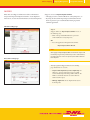
Shipment Details
Step 3A:
Once a request has been accepted, enter additional information such
as the package type, number of pieces, total weight, contents
description, and if dutiable, the declared value.
If the Importer prepared the shipment details on the Shipper’s
behalf, the Shipper will just need to verify and update, if necessary.
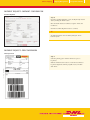
Step 3B:
Use the pull-down menu for “Pickup” to indicate the action
requested.
Additional instructions can be typed into the “Special
instructions” field.
Pickup times can be set up in advance, depending on the country.
Tips
Import Express Online even assists the Shipper in deciding whether the
shipment is considered non-document or document. Click on the “Help me
decide” link located to the right of the “Shipment status” field.
US Shippers with dutiable shipments will also be required to enter a valid ITN or
an FTR exemption from the pull-down menu.