1
Click here
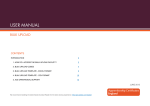
3. On the next screen, you will be presented with a number of drop down boxes.
By using these boxes you can choose what month you want to generate a
payment report for and what local authority area you want to produce a
payment for. You can do this for Middlesbrough, Redcar & Cleveland, Out of
Area and All.
Practice Name will appear here
Use the drop down box to
choose the month
Use the drop down box to choose the
month
Use the drop down box to choose
the month
Once you have selected the month and Local Authority area, click on ‘Generate
Report’
4. After clicking on ‘Generate Report’, a pop up box will appear asking if you want to
‘Open’ or ‘Save’ the payment report. The payment report is generated as a PDF.
Click on the appropriate option, to either open or save the invoice. If you do not wish
8
QuitManger GP Payment Module User Guide