1
Launching your ProNav software
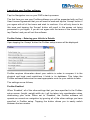
Tap the Navigation icon on your PND’s start-up screen.
The first time you use your ProNav software you will be presented with an End
User License Agreement that you will need to read and tap the ‘Accept’ button if
you agree with all of the terms and wish to continue. You will only have to do
this once and tapping the ‘Accept’ button will result in this screen not being
presented to you again. If you do not agree with the terms of the license then
tap ‘Decline’ and you will exit the software.
ProNav Setup – Entering your Vehicle‟s Details
Upon tapping the ‘Accept’ button the ProNav setup screen will be displayed.
ProNav requires information about your vehicle in order to compare it to the
physical and legal road restrictions it holds in its database. This helps the
ProNav software determine the most appropriate route for your vehicle to take.
The settings are as follows;
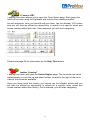
ProNav Enabled
When ‘Enabled’, all of the other settings that you have specified in the ProNav
setup screen (height, weight width etc.) will be taken into consideration when
determining your route. When set to ‘Disabled’, the ProNav software will
operate as normal car navigation by ignoring all of the other settings you have
specified in ProNav setup. Tapping the button allows you to easily switch
between the two modes.
4