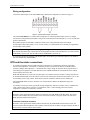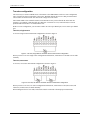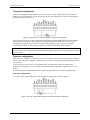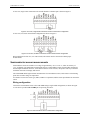
1
Chapter 2 Installing the USB-TEMP What comes with your shipment? The following items are shipped with the USB-TEMP. Hardware USB-TEMP USB cable Software MCC DAQ CD Documentation In addition to this hardware user's guide, you should also receive the Quick Start Guide. This booklet provides an overview of the MCC DAQ software you received with the device, and includes information about installing the software. Please read this booklet completely before installing any software or hardware. Unpacking As with any electronic device, you should take care while handling to avoid damage from static electricity. Before removing the USB-TEMP from its packaging, ground yourself using a wrist strap or by simply touching the computer chassis or other grounded object to eliminate any stored static charge. If any components are missing or damaged, contact us immediately using one of the following methods: Knowledgebase: kb.mccdaq.com Phone: 508-946-5100 and follow the instructions for reaching Tech Support Fax: 508-946-9500 to the attention of Tech Support Email: [email protected] For international customers, contact your local distributor. Refer to the International Distributors section on our website at www.mccdaq.com/International. Installing the software Refer to the Quick Start Guide for instructions on installing the software on the MCC DAQ CD. This booklet is available in PDF at www.mccdaq.com/PDFmanuals/DAQ-Software-Quick-Start.pdf. Installing the hardware To connect the USB-TEMP to your system, turn your computer on, and connect the USB cable to a USB port on your computer or to an external USB hub that is connected to your computer. The USB cable provides power and communication to the USB-TEMP. When you connect the USB-TEMP to a computer for the first time, a Found New Hardware dialog opens when the operating system detects the device. When the dialog closes, the installation is complete. The USB LED should blink and then remain on. This indicates that communication is established between the USB-TEMP and your computer. Caution! Do not disconnect any device from the USB bus while the computer is communicating with the USB-TEMP, or you may lose data and/or your ability to communicate with the USB-TEMP. 8