1
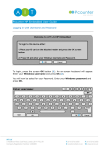
END USER GUIDE Pcounter Client Code Popup ID Point Release ABOUT THIS DOCUMENT This document is intended to give a full explanation of the client code feature available features of the Pcounter utility Pcounter Popup and the HTTP based equivalent PcounterClient. PCOUINTER POPUP/PCOUNTER CLIENT Pcounter Popup (PPOPUP.EXE) or Pcounterclient.exe are utilities that are included with the core Pcounter application. They executable which runs in the background on a client machine and is visible in the system tray. The basic functionality is to allow for user confirmation of a job after they have sent it to print. The job will remain paused in the queue until the user responds to the prompt. Ppopup.exe communicates using Windows RPC Pcounterclient.exe communicates using HTTPS. Pcounterclient.exe/Ppopup.exe are installed on the server in the default location C:\Program Files\Pcounter for NT\NT\Client\ There are 2 recommended methods of loading Popup on a client machine: Add Popup.exe to the user’s Startup folder Include the following command in the user’s login script: START DRIVE:PATH\PPOPUP [/options] It is recommended to copy PPopup.exe to a shared network folder and push out from there via one of the two above methods. Popup will appear in the user’s system tray as a printer icon as below: USER EXPERIENCE When a user chooses to print, upon sending a print job, a box similar to below will be displayed to them: The user will then be able to choose a code from the list and will now be able to retrieve their print job at the terminal RELEASING A PRINT JOB AT THE FINGER PRINT READER (ID POINT TERMINAL) Once you have placed your chosen digit into the reader and you have been authenticated. You will see the following options. Please press F3/ twice to select Print All Jobs. RELEASING A PRINT JOB AT THE FINGER PRINT READER (ID POINT TERMINAL) Continued print job at the fingerprint reader (ID Point terminal) Please then press F4/OK to select, at which point your print jobs will print.