1
Teacher User Guide
Assign Test to Individual Learners
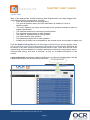
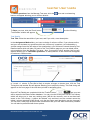
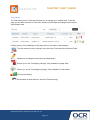
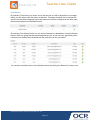
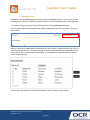
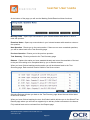
From the Test Assignment page click the Add Learner tab. From here you can select either
All Learners or the individual Learners you want to assign the test to by ticking the check box
next to each Learner’s name in the All Learners section. Add them to the Selected Learners
section by clicking the arrow right button. You may also search for individual Learners using
the search function. Once you have made your selection, click Add Selected Learner(s).
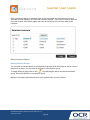
To remove a Learner, use the selection box in the Selected Learners section, then click the
arrow left button.
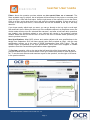
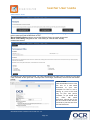
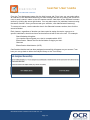
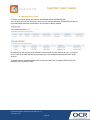
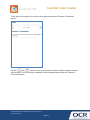
Each Learner, regardless of whether you have opted to assign the test to a group or to
specific individuals, should now have received an email with a link to the test. For example:
Dear Kimberley Houghton
Your teacher has assigned you a test to complete within OCR
ExamCreator. Please click on the link below to begin your test:
Start test
ExamCreator Administrator (OCR).
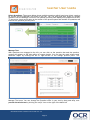
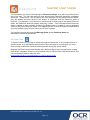
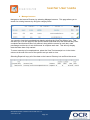
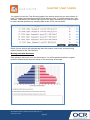
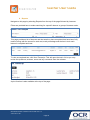
Confirmation that the test has been assigned successfully will appear on your screen. From
here you can go back to either the Subject Library or the Test Library.
OCR ExamCreator Teacher User Guide Ver. 2.2
Page 13