1
Lodge Manager User Guide Version 3.0
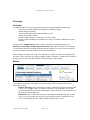
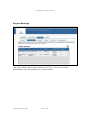
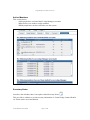
The tabbed blue bar at the top of the page contains the name of your lodge and the logout
button. Below that is a list of forthcoming meetings. Any of these meetings can be
clicked on using the mouse to display further meeting information as well as any lodge
documents such as the summons for that meeting.
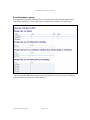
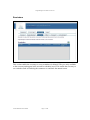
Below the list of forthcoming meetings appears the list of all lodge members. You can
click on any lodge member to get their contact details including email address, telephone
numbers and address details. You can also click on the email symbol
to compose an
email from Lodge Manager. An email window will appear to enter your message.
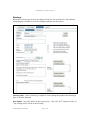
If you have secretary rights, more information will be available. See the Secretary section
of this document for more information.
The final section shows previous lodge meetings. Once a date is past, the meeting
automatically moves into the previous meetings list.
Menus
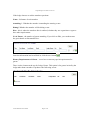
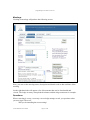
If you have been added into lodge manager by more than one lodge, you will get a list of
all the lodges across a bar at the top:
Clicking on ‘All Lodge Meetings’ allows you to see all your forthcoming meetings at a
glance whereas clicking on one of the individual lodges will display the specific lodge
meetings and also a list of the members for that lodge.
Security
It is important to never give your password to anyone else. Also if you forget your
password, click on ‘I have forgotten my password (click here)’ where you login to Lodge
Manager (https://lodgemanager.co.uk/go/user/login.php). Lodge manager will then send
you an email to reset your password (and send you the new password) so that you can
login again.
© Mint Solutions UK Ltd 2006
Page 21 of 24