1
19
|
CH A P T E R 3 – C RE A T IN G S MA RT N O T E B O O K F ILE S
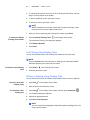
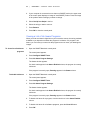
6. To apply the theme to all pages in a file, select Insert theme on all pages, and
then press OK.
OR
To apply the theme to all pages in the current group, select Insert theme on all
pages of current group, and then press OK.
OR
To apply the theme to the current page, select Insert theme on current page
only, and then press OK.
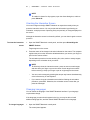
To remove a theme
1. Right-click the whiteboard area.
2. Select Delete Theme.
NOTE
You remove the theme from all the pages to which you applied it.
Extending a Page
If you need more room at the bottom of a page, you can extend the page vertically
without affecting the page's width.
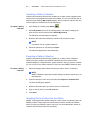
To extend a page
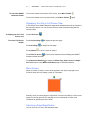
1. If you’re displaying the page in Entire Page view, select a different page
magnification.
2. Press the Extend Page link at the bottom of the page.
Renaming a Page
When you insert a page, SMART Notebook automatically names this page with the
date and time of its creation. You can change this name.
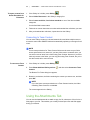
To rename a page
1. If the Page Sorter isn’t visible, press Page Sorter
.
2. Press the thumbnail of the page you want to rename.
3. Press the thumbnail’s menu arrow, and then select Rename Page.
4. Type a new name for the page.
5. Press elsewhere on the screen.
Rearranging Pages
If you want, you can rearrange the order of the pages in a file.
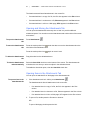
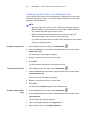
To rearrange pages
1. If the Page Sorter isn’t visible, press Page Sorter
.
2. Press the thumbnail of the page you want to move in the file.