1
my account
my account | user administration
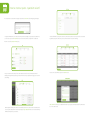
This area displays your company credentials and allows you to upload a company image.
User administration allows you to set up your users and what they can access within the net10 portal. Create
permissions for your portal users by clicking on the edit users button at the bottom of the my account screen.
The upload logo button allows you to upload your company logo, which will appear on all your quotes as standard.
When selecting your company image, you must ensure that the image file size is no larger than 5MB. You can use the
portal to create quotes when specifying for your customers, as a printable PDF document or CSV file*.
The add quotation statement button allows you to add your trading name or mission statement that will then
appear at the bottom of all quotes you create, for example ‘Abacus Ltd, Powering Your Home.’ You can also use this to
add your quote validity period or state your general terms and conditions.
This is where you can create and delete users, and edit account permissions.
use this button
to access
the user
administration
screen
You can view your current portal users in the table on screen.
use this button to
create a new user
use this button
to display
your company
image
use this button to
create a standard
quotation statement
my account | create a new user
this statement will appear on all
quotations. This is where your company’s
terms and conditions can be added
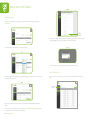
The create new button is where you create a new user. You can apply their appropriate permissions in the tick boxes on
the right of the screen. For example, if a user can create quotations but not edit users, or orders (see example below).
my account | open a credit account
set permissions
for users here
You will need to open your credit account before you begin placing orders. Fill in the required fields, including
finance contact name, company registration number, credit card only account and the amount of credit you are
requesting. You will receive an email confirming when your credit account has been approved.
You can now start ordering your net10 products!
Once opened, this area displays the total credit available to you. You can request a change to your payment terms and
credit limit by clicking on the request to change credit button.
You will receive a response within 24 hours.
my account | change my password
Simply enter your details into the required fields to change your password.
use this button
to request a
change to your
payment terms
*A CSV file is an easily downloaded spreadsheet file, where you can edit and manage quotes.