1
1. Navigating the NOOK
1.5 Turning Pages
1.1 Turning the NOOK on and off
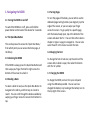
To turn the pages of the book, you can either use the
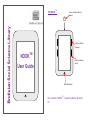
dedicated page turning buttons (see diagram), tap the
edge of the screen, or you can swipe your finger
across the screen. To go quickly to a specific page,
with the book already open, tap at the bottom of the
screen and select ‘Go To.’ You can then either select a
chapter or type in a page to navigate to. You can also
select ‘Search’ in this menu to search the text.
To switch the NOOK on or off, press and hold the
power button on the back of the device for 2 seconds.
1.2 The Quick Nav Button
This can be pressed to access the ‘Quick Nav Menu,’
from which point you can access the home page, or
the library.
1.3 Unlocking the NOOK
If the NOOK is asleep, press the Quick Nav Button and
then swipe your finger from left to right across the
bottom of the screen to unlock it.
1.4 Reading a Book
To select a book to read, use the Quick Nav Button to
navigate to the Library, and then tap on a book to
read it. You can scroll through the books available by
swiping your finger across the screen from bottom to
top.
1.6 Changing the Font
To change the font or text size, tap the centre of the
screen whilst a book is open, then select the button
with the ‘A’ symbol.
1.7. Charging the NOOK
To charge the NOOK, connect it to your computer
using the USB cable provided. You can see how
charged the battery is by looking at the battery icon to
the top right of the screen.