1
mFi™ User Guide
Chapter 1: System Setup
mPower Mac Users
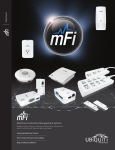
mPower is a mFi Power Strip with independent, switchable
AC ports, and energy monitoring. It has built-in Wi-Fi to
connect to the IP network.
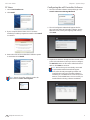
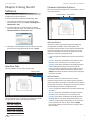
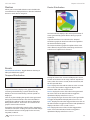
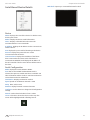
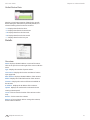
1. Click the Install icon.
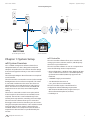
mSensors
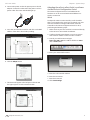
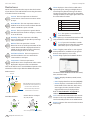
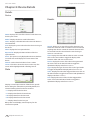
Ubiquiti Networks offers a variety of sensors to connect to
the mPort and your mFi network. These sensors connect
to the mPort using a standard RJ45 cable, except for the
mFi-DS, which connects using a terminal block connector.
Ceiling Mount
Motion Sensor
Wall Mount
Motion Sensor
Temperature
Sensor
mFI-MSC
mFi-MSW
mFi-THS
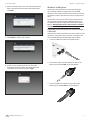
2. Click Continue and follow the on-screen instructions to
install the software.
Current Sensor Door Sensor
mFi-CS
mFi-DS
Hardware Installation
Follow the directions in the Quick Start Guide that
accompanied your Ubiquiti Networks mFi product.
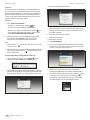
3. Go to Go > Applications and double-click the mFi icon.
For third party products, refer to any documentation you
may have for the product. You may also want to check our
mFi user forum at forum.ubnt.com.
For pinout information, refer to “Pinouts” on page 32.
Software Installation
The mFi Controller software is installed just once when
you initially create a mFi network. Devices can be added at
any time through the controller interface but you do not
need to go through the software installation process every
time you add another mFi device.
Proceed to “Configuring the mFi Controller Software”
on page 4.
Insert the mFi Controller software CD into your CD‑ROM
drive and follow the instructions for your computer type.
Ubiquiti Networks, Inc.
3