1
CHAPTER 7
Troubleshooting your projector
2. Configure the display mode of your computer’s graphics card to make it compatible with the
projector. Refer to your computer’s manual for more information.
3. Optionally, reset the projector as described in Accessing the service menu on page 73 to adjust
the frequency and tracking to their original values.
IMPOR TA N T
This action resets all values to their defaults.
4. If the previous steps don’t resolve the flickering image, replace the projector lamp (see
Replacing the projector lamp module on page 48).
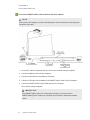
Unaligned projected image
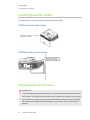
Alignment errors occur when the projected image isn’t perpendicular to the screen. Alignment errors
can occur when you project your image on an uneven surface or a wall that has obstructions, or if you
swivel the projector greater than 2" from its vertical center line as indicated in the LightRaise
interactive projector mounting template (smarttech.com/kb/170271).
The projector image can slip if the projector is moved often or installed in a location prone to vibration,
such as next to a heavy door. Follow these precautions to help prevent the image from becoming
unaligned:
l
Ensure that the installation wall is plumb and square and doesn’t move or vibrate excessively.
l
Ensure that there are no obstructions behind the projector’s wall-mounting bracket and that the
bracket is firmly secured to the wall according to the installation instructions.
l
Ensure that the projection surface is flat and smooth.
Troubleshooting projector errors
System administrators can resolve the following projector errors on their own prior to contacting
SMART Support. Performing initial troubleshooting on your projector will reduce the time of a support
call.
69
smarttech.com/kb/170295