1
Operating Instructions
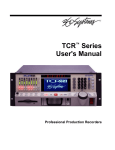
Digital Video Recorder
Model:
BTR-3104/250CD BTR-3108/250CD
BTR-3104/500CD BTR-3108/500CD
BTR-3104/750CD BTR-3108/750CD
BTR-3116/250CD
BTR-3116/500CD
BTR-3116/750CD
Safety Instructions
EMC class
► This video recorder (DVR) is a class A device in accordance with EN 55022.
► This device may cause interference to other equipment in domestic use. In such cases the persons operating the DVR are required to provide appropriate countermeasures, for which they themselves bear the cost.
Importance of these Operating Instructions
► Please read the safety instructions and the other information contained in the Operating Instructions before
connecting up and operating the DVR.
► The Operating Instructions should be kept in a safe place for later reference.
Ambient conditions for the DVR
► The DVR should be protected against excessive heat, dust, damp and vibration.
► The DVR may only be operated at temperatures between +5°C and +40°C, and up to a maximum air
humidity of 90%.
► The DVR may only be operated indoors, and must be protected against incursion of water and damp.
Care of the DVR
► Never switch on the DVR when damp has penetrated it. In such cases, have the DVR checked by a qualified
service engineer.
► Do not place any heavy objects on the DVR.
► Never cover the DVR ventilation slots.
► Never insert metallic objects or any other items into the vents. This may permanently damage the DVR.
► The housing may only be opened by authorised persons. Repairs may only be carried out by qualified
service personnel.
► The DVR must be disconnected from the power supply before its housing is opened.
Getting started with the DVR
► When laying the connecting cables, make sure no weight is placed on them, that they are not kinked or
damaged, and that no damp can penetrate them.
Cleaning the DVR
► The housing of the DVR may only be cleaned with a damp (not wet) cloth,
► Use only a mild detergent. Do not use solvent-containing detergents or petrol. This could permanently
damage the surface finish.
Spare parts
► Use only original spare parts from Videor Technical E. Hartig GmbH.
BTR-31XX
Table of contents
Overview
7
Package contents
7
Basis functions
7
Features
7
Requirements for operation
7
Control options
7
Connections on the rear – BTR-3104
8
Connections on the rear – BTR-3108
9
Connections on the rear – BTR-3116
10
Front panel controls
11
Key to controls
12
Function keys
12
Camera buttons / PTZ functions
13
Menu buttons / PTZ functions
14
Remote control functions
15
Mouse control functions
16
Live mode functions
16
Play mode functions
16
PTZ mode functions
17
Menu overview
18
Accessing the menu
19
Accessing the SYSTEM MENU
19
Accessing the SEARCH MENU
19
Getting started
20
Checklist for starting DVR operation
20
Connecting the remote control and DVR
20
Switching on the DVR
21
Switching off the DVR
21
Administration
22
Defining scheduled entries
22
Deleting recordings
22
Searching for recordings
23
SEARCH BAR
23
TIME/DATE
23
EVENT LIST
24
Menu descriptions – SYSTEM MENU
25
DISPLAY SETUP – SCREEN DISPLAY
26
DISPLAY SETUP – MONITOR SETUP
26
CONFIGURATION – HDD MANAGEMENT
27
CONFIGURATION – TIME/DATE SETUP
28
CONFIGURATION – CAMERA SETUP
29
CONFIGURATION – INTERVAL SETUP31
CONFIGURATION – ALARM SETUP31
BTR-31XX
Table of contents
CONFIGURATION – EVENT POPUP SETUP32
CONFIGURATION – BUZZER SETUP33
CONFIGURATION – PASSWORD SETUP33
CONFIGURATION – SYSTEM INFORMATION33
RECORD SETUP – RECORD CONFIGURATION34
RECORD SETUP – SCHEDULE SETUP35
RECORD SETUP – HOLIDAY SETUP35
BACK-UP – CD-R SETUP36
BACK-UP – USB SETUP36
EXTERNAL DEVICE – TCP/IP SETUP 37
EXTERNAL DEVICE – RS232C SETUP
40
EXTERNAL DEVICE – PANTILT SETUP
41
EXTERNAL DEVICE – SPOT MONITOR SETUP
42
EXTERNAL DEVICE – REMOCON SETUP
42
FACTORY DEFAULT
43
LANGUAGE
43
Using Integrated Remote Station
44
Menu descriptions – Integrated Remote Station
45
IRS main menu
45
IRS SETUP
46
DVR SETUP
47
VIEWER
48
BACKUP
49
PLAYER
50
TRANSMITTER
51
CLIENT
52
CMS
53
Using DDNS Service
54
Menu descriptions – DDNS Service
56
DDNS Service main menu
56
Specifications BTR-3104
57
Specifications BTR-3108
59
Specifications BTR-3116
61
Index
63
Notes on disposal
66
BTR-31XX
Overview
Package contents
●
●
●
●
●
●
●
●
●
Digital video recorder (DVR)
Power supply unit and mains cable
Operating Instructions
Software: Integrated Remote Station (IRS)
Infrared remote control (S Type) including batteries
Mouse
Rubber pad
Hard disk vibration dampers
Screws and mounting brackets
Basis functions
●
●
●
●
Recording video images using multiple cameras
Event-based recording start
Video playback
Search for specific video sequences
Features
●
●
●
●
●
●
●
●
●
●
●
●
JPEG-2000 compression (H.264)
4, 8 or 16 loop-through inputs / VGA, S-VHS/FBAS outputs
Max. recording speed: 200 field images per sec (PAL)
Duplex and triplex mode
Memory capacity 250 GB / 500 GB / 750 GB
Maximum video resolution 720 x 288 pixels (PAL)
Various recording criteria possible
Archiving / retrieving images via USB and CD-R
Digital zoom function (2x)
Integral Motion Detector
Telemetry control functions via RS-485 port
Network connection (Ethernet)
Requirements for operation
● Digital video recorder BTR connected
● At least one camera connected
● At least one monitor connected
Control options
●
●
●
●
●
Front panel
Remote control
Mouse control
Integrated Remote Station (IRS)
DDNS service
BTR-31XX
Connections on the rear – BTR-3104
The following diagram and table describe the interfaces at the rear of BTR-3104:
1
2
FUNCTION
MO NITOR
CAMERA IN
CAUTION
RISK OF ELECTRIC
SHOCK. DO NOT OPEN !
VGA
CH 1
CH 2
CH 3
CH4
I
CAUTION : TO REDUCE THE RISK OF ELECTRICAL SHOCK DO NOT OPEN COVERS.
NO USER SERVICEABLE PARTS INSIDE. REFER SERVICING TO QUALIFIED
SERVICE PERSONNEL.
O
WARNING : TO PREVENT FIRE OR SHOCK HAZARD DO NOT EXPOSE UNITS. NOT
SPECIFICALLY DESIGNED FOR OUTDOOR USE TO RAIN OR MOISTURE
RS - 232 C
11
ETHERNET
10
9
8
SPO T
LOO P
7
6
DC12 V
PO WER
5
4
No.
Designation
Functions/connections
Typical devices
1
VGA
PC monitor
PC monitor
2
CAMERA IN
CH1-CH16
Maximum 16 video channels
Cameras
3
MONITOR
Monitor
Monitor
4
POWER
ON/OFF switch
-
5
Power supply
Power Supply
-
6
SPOT
Spot monitor
Monitor
7
LOOP
CH1-CH16
Maximum 16 loop-through video channels
Cameras
8
PS/2
External interface
Mouse
9
ETHERNET
Network
Network cable
RS 485
Connection to the PTZ camera
PTZ cameras
RELAY
Relay alarm output for external devices
Sirene, warning light
ALARM
Sensor input
Sensors
RS-232 C
External interface
PC (operation via PC keyboard)
10
11
BTR-31XX
Connections on the rear – BTR-3108
The following diagram and table describe the interfaces at the rear of BTR-3108:
1
2
CAUTION
RISK OF ELECTRIC
SHOCK. DO NOT OPEN !
CAUTION : TO REDUCE THE RISK OF ELECTRICAL SHOCK DO NOT OPEN COVERS.
NO USER SERVICEABLE PARTS INSIDE. REFER SERVICING TO QUALIFIED
SERVICE PERSONNEL.
CH1
CH2
CH 3
CH4
CH5
CH6
CH 7
CH 8
MONITOR
WARNING : TO PREVENT FIRE OR SHOCK HAZARD DO NOT EXPOSE UNITS. NOT
SPECIFICALLY DESIGNED FOR OUTDOOR USE TO RAIN OR MOISTURE
VGA
2
4
6
8
10
12
I
ETHERNET
14
O
SPOT
1
3
5
7
9
11
11
13
15
LO OP
RS - 232 C
10
9
8
7
6
DC12 V
5
PO WER
4
No.
Designation
Functions/connections
Typical devices
1
VGA
PC monitor
PC monitor
2
CAMERA IN
CH1-CH16
Maximum 16 video channels
Cameras
3
MONITOR
Monitor
Monitor
4
POWER
ON/OFF switch
-
5
Power supply
Power Supply
-
6
SPOT
Spot monitor
Monitor
7
LOOP
CH1-CH16
Maximum 16 loop-through video channels
Cameras
8
RS-232 C
External interface
PC (operation via PC keyboard)
9
PS/2
External interface
Mouse
10
ETHERNET
Network
Network cable
RS 485
Connection to the PTZ camera
PTZ cameras
RELAY
Relay alarm output for external devices
Sirene, warning light
ALARM
Sensor input
Sensors
11
BTR-31XX
Connections on the rear – BTR-3116
The following diagram and table describe the interfaces at the rear of BTR-3116:
1
2
FUNCTION
ETHERNET
VGA
1
2
3
4
5
6
7 8
5
4
9 10 11 12 13 14 15 16 17 18 19 20 21 22 23 24 25 26
6
7
CAUTION
RS - 232 C
RISK OF ELECTRIC
SHOCK. DO NOT OPEN !
CAUTION : TO REDUCE THE RISK OF ELECTRICAL SHOCK DO NOT OPEN COVERS.
NO USER SERVICEABLE PARTS INSIDE. REFER SERVICING TO QUALIFIED
SERVICE PERSONNEL.
FUNCTION
1
2
3
4
5
6
7
8
9
10
11
12
13
RS 485 DRS 485 D+
GND
RELAY COM
RELAY NC
RELAY NO
GND
ALARM D16
ALARM D15
ALARM D14
ALARM D13
GND
ALARM D12
14
15
16
17
18
19
20
21
22
23
24
25
26
ALARM
ALARM
ALARM
GND
ALARM
ALARM
ALARM
ALARM
GND
ALARM
ALARM
ALARM
ALARM
D11
D10
D9
CH1
CH2
CH 3
CH 4
CH 1
CH2
CH3
CH4
CH 1
CH2
CH 3
CH 4
CH 1
CH 2
CH3
CH4
MONITOR
WARNING : TO PREVENT FIRE OR SHOCK HAZARD DO NOT EXPOSE UNITS. NOT
SPECIFICALLY DESIGNED FOR OUTDOOR USE TO RAIN OR MOISTURE
D8
D7
D6
D5
I
O
D4
D3
D2
D1
SPO T
LOO P
11
10
DC12 V
PO WER
9
8
No.
Designation
Functions/connections
Typical devices
1
VGA
PC monitor
PC monitor
2
ETHERNET
Network
Network cable
RS 485
Connection to the PTZ camera
PTZ cameras
RELAY
Relay alarm output for external devices
Sirene, warning light
ALARM
Sensor input
Sensors
4
RS-232 C
External interface
PC (operation via PC keyboard)
5
PS/2
External interface
Mouse
6
CAMERA IN
CH1-CH16
Maximum 16 video channels
Cameras
7
MONITOR
Monitor
Monitor
8
POWER
ON/OFF switch
-
9
Power supply
Power Supply
-
10
SPOT
Spot monitor
Monitor
11
LOOP
CH1-CH16
Maximum 16 loop-through video channels
Cameras
3
10
BTR-31XX
Front panel controls
The following diagram and table describe the controls on the front panel of the DVR:
1
2
1 / ON
2 /OF F
3/ OP E N
4
5 /NE AR
4/ CL OS E
6/ F AR
7/ WIDE
8 / TE L E
9 /S E T 10 / CL E AR 11 / GOTO 12 / AUTO
13/ F 1
14 / F 2
15/ F3
16 / F 4
CAM E R A /P TZ F UNCTION
J OG
F UNCTION
HOS T
/SHU
T T LE
S E TUP
P TZ
Z OOM
FRZ
K . L OCK
M ODE
P IP
S EQ
Q. P L AY
REC
P L AY
S TOP
S E AR CH
M E NU
▲
NE X T
J. S HUTTLE
RUN
▲
▲
▲
IR
HDD F UL L
RECORD
PL AY
ACTI VE
+
▲
-
ETHERNET
USB
9
No.
2
8
7
6
5
Designation
Function
HDD FULL
Lights up when the hard disk is full
RECORD
Lights up during recording
PLAY
Lights up during playback
ETHERNET
Lights up during network activities
2
USB
USB interfaces (type A and type B)
3
FUNCTION
Function keys
4
1/....- 16/....
● Camera selection
● Password input
● PTZ functions
5
CD-RW
Opens the integrated CD-RW writer
Jog shuttle
● Image-by-image playback in playback mode (when the J. SHUTTLE button is
pressed)
● Changing numerical values in SYSTEM MENU
● Screen navigation in zoom mode
1
6
J. SHUTTLE button to activate the jog shuttle wheel
7
J. SHUTTLE
MENU
(ENTER)
8
NEXT
RUN
Lights up when the jog or shuttle function is activated
ACTIVE
Lights up when the J. SHUTTLE button is pressed
Activating/exiting the SYSTEM MENU
Selects menu option / confirms entry
Moves forward
Menu navigation
9
+-
Increases / decreases a value in the menu area
IR
Infrared receiver
BTR-31XX
11
Key to controls
Function keys
Marking
Meaning
PTZ
Activates PTZ camera functions
ZOOM
Zoom
FRZ
Freezing the screen contents (fixed image)
K. LOCK (KEY LOCK)
Activates key lock. To unlock, press the button for several seconds, and confirm
with the password
MODE
Changing the image display modes
PIP
Display in picture-in-picture mode
SEQ
Activates image change in full-screen mode
Q. PLAY (QUICK PLAY)
Playback of the last recorded 180 images
Alarm recording
REC
Note: Automatic alarm recording starts without taking the scheduler into consideration when you press the REC button on the digital video recorder or on the
remote control.
PLAY
Starts the playback of recorded video data
STOP
Stops alarm recording
SEARCH
Activating/Exiting the SEARCH MENU
12
BTR-31XX
Key to controls, continued
Camera buttons / PTZ functions
After the PTZ button has been pressed, you can use the camera buttons and the arrow keys to control PTZ
cameras. Using the numeric keypad, you may enter numerical values in the SYSTEM MENU (password input).
Marking
1 / ON
2 / OFF
3 / OPEN
4 / CLOSE
5 / NEAR
6 / FAR
7 / WIDE
8 / TELE
9 / SET
10 / CLEAR
11 / GOTO
12 / AUTO
BTR-31XX
Meaning
Camera 1 active
LIGHT ON
Light on
Camera 2 active
LIGHT OFF
Light off
Camera 3 active
IRIS OPEN
Open iris
Camera 4 active
IRIS CLOSE
Close iris
Camera 5 active
FOCUS NEAR
Focus near
Camera 6 active
FOCUS FAR
Wide-angle
Camera 7 active
ZOOM IN
Zoom in
Camera 8 active
ZOOM OUT
Zoom in
Camera 9 active
PRESET SET
Save preset value
Camera 10 active
PRESET CLEAR
Clear preset value
Camera 11 active
PRESET GOTO
Go to preset value
Camera 12 active
AUTO SCAN
Automatic scan
13
Key to controls, continued
Camera buttons / PTZ functions, continued
Marking
13 / F1
14 / F2
15 / F3
16 / F4
Meaning
Camera 13 active
Function key F1 / User 1
Camera 14 active
Function key F2 / User 2
Camera 15 active
Function key F3 / User 3
Camera 16 active
Function key F4 / User 4
Menu buttons / PTZ functions
Marking
Meaning
Menu navigation button
TILT UP
Tilt camera upward
Menu navigation button
TILT DOWN
Tilt camera downward
Menu navigation button
PAN LEFT
Pan camera to the left
Menu navigation button
PAN RIGHT
14
Pan camera to the right
BTR-31XX
Remote control functions
The following diagram and table describe the controls of the remote control:
15
14
1
1
No.
Designation
Function
2
1
MENU
Activating/exiting the SYSTEM
MENU
2
SET, CLEAR, GOTO, AUTO
PTZ camera functions
3
F1, F2, F3, F4
● Activates/inactivates screen
icons
● Change splitscreen mode
4
12
5
11
6
4
0 to 9
● Camera selection
● Password input
7
5
REC
Alarm recording
8
6
MODE
Changing the image display
modes
7
+-
Increases / decreases a value in
the menu area
10
9
8
Playback functions
9
SEQ, FRZ, PIP, ZOOM
Function keys
10
CH + -
Change camera channel
11
BTR-31XX
Menu navigation
12
AUDIO
No function
13
FUNC
No function
14
SEARCH
Activating/Exiting the SEARCH
MENU
15
PTZ
PTZ camera functions on/off
15
Mouse control functions
Live mode functions
Icon
...
Function left mouse button
Function right mouse button
REC
STOP
PLAY
QUICK PLAY
Open SEARCH MENU
-
Open PTZ mode
-
ZOOM
-
FREEZE
-
PIP
-
Activates image change in full-screen
mode
-
No function
-
KEY LOCK
-
Open SYSTEM MENU
-
NEXT
ENTER
Increase numerical value
Decrease numerical value
Image display modes
-
Play mode functions
Icon
...
16
Function left mouse button
Function right mouse button
Playback functions
-
REC
STOP
ZOOM
-
Open SYSTEM MENU
-
No function
-
Image display modes
-
BTR-31XX
Mouse control – functions, continued
PTZ mode functions
Icon
BTR-31XX
Function left mouse button
Function right mouse button
Pan/Tilt movements
-
ENTER
-
Zoom in
Zoom out
Focus near
Wide-angle
MENU
NEXT
Go to preset value
-
Save preset value
-
Increase numerical value
Decrease numerical value
Clear preset value
-
Automatic scan
-
Quit PTZ mode
-
17
Menu overview
The following figure shows the structure of the SYSTEM MENU:
SYSTEM MENU
DISPLAY SETUP
SCREEN DISPLAY
MONITOR SETUP
CONFIGURATION
HDD MANAGEMENT
TIME/DATE SETUP
CAMERA SETUP
INTERVAL SETUP
ALARM SETUP
EVENT POPUP SETUP
BUZZER SETUP
PASSWORD SETUP
SYSTEM INFORMATION
RECORD SETUP
RECORD CONFIGURATION
SCHEDULE SETUP
HOLIDAY SETUP
BACK-UP
CD-R SETUP
USB SETUP
EXTERNAL DEVICE
TCP/IP SETUP
RS232C SETUP
PANTILT SETUP
SPOT MONITOR SETUP
REMOCON SETUP
FACTORY DEFAULT
LANGUAGE
The following figure shows the structure of the SEARCH MENU:
SEARCH MENU
18
SEARCH BAR
TIME/DATE
EVENT LIST
BTR-31XX
Accessing the menu
Accessing the SYSTEM MENU
Requirement:
● Current camera image is displayed.
Step
1
Action
Access using
Key sequence
Activate SYSTEM MENU.
Device
MENU
Result: The password is
requested.
Remote control
MENU
Mouse control
Double-click right button
2
Enter the password (maximum
eight digits).
Factory-set default password:
ADMIN: blank
MANAGER: 1
USER1 - USER8: 2 - 9
3
Confirm entry.
>
(ENTER)
Accessing the SEARCH MENU
Requirement:
● Current camera image is displayed.
Step
Action
1
Activate SEARCH MENU.
BTR-31XX
Access using
Key sequence
Device
SEARCH
Remote control
SEARCH
Mouse control
Double-click right button
>
19
Getting started
Checklist for starting DVR operation
Step
Action
Menu path
1
Connect the peripheral devices in the
required configuration.
2
Switch on DVR and peripheral devices.
3
Specify menu language.
SYSTEM MENU > LANGUAGE
3
Adjust date and time.
SYSTEM MENU > CONFIGURATION >
TIME/DATE SETUP
4
Clear the hard disk.
SYSTEM MENU > CONFIGURATION > HDD
MANAGEMENT > HDD SETUP > HDD CLEAR
COMPLETE
5
Reinitialize the system.
SYSTEM MENU > FACTORY DEFAULT
6
Define passwords.
SYSTEM MENU > CONFIGURATION >
PASSWORD SETUP
7
Set up network (option).
SYSTEM MENU > EXTERNAL DEVICE > TCP/IP
SETUP
and
SYSTEM MENU > EXTERNAL DEVICE >
RS232C SETUP
8
Register peripherals with DVR.
SYSTEM MENU > EXTERNAL DEVICE > ...
9
Set up event types and associated
responses.
SYSTEM MENU > CONFIGURATION >
ALARM SETUP
and
SYSTEM MENU > CONFIGURATION >
EVENT POPUP SETUP
and
SYSTEM MENU > CONFIGURATION >
BUZZER SETUP
10
Set up recording parameters and schedule.
SYSTEM MENU >
RECORD SETUP > ...
Connecting the remote control and DVR
Step
Action
Menu path
1
Select remote control, e.g. S Typ.
SYSTEM MENU > EXTERNAL DEVICE >
REMOCON SETUP
20
BTR-31XX
Getting started, continued
Switching on the DVR
Requirement:
● The peripheral devices are connected.
Step
Action
1
Switch on the digital video recorder at the ON/OFF switch.
2
Switch on monitor.
Result: System starts up automatically and is ready to use.
Switching off the DVR
To avoid losing the video data you must ensure that the DVR is in the SYSTEM MENU when you switch it off.
Step
1
Action
Press the MENU button.
Result: The digital video recorder is in the SYSTEM MENU.
2
Switch off the monitor.
3
Switch off the digital video recorder at the ON/OFF switch.
BTR-31XX
21
Administration
Defining scheduled entries
Note: Ex factory, the DVR is set to continuous recording (100 images per second, resolution 720 x 288 pixels).
Step
Action
Menu path
1
Activate the scheduler.
Result: A week diagram in the form of a
grid menu is displayed.
SYSTEM MENU > RECORD SETUP >
SCHEDULE SETUP
2
Select the required day and time window.
3
Define the recording mode.
+/-
Deleting recordings
You can only delete all recordings. It is not possible to delete recordings of a specific time interval.
Step
Action
Menu path
1
Delete all recordings.
SYSTEM MENU > CONFIGURATION > HDD
MANAGEMENT > HDD SETUP > HDD CLEAR
COMPLETE
2
Enter the password and confirm it.
22
BTR-31XX
Searching for recordings
Searching for recordings
Press the SEARCH button to activate the SEARCH MENU. There are three different methods to locate a video
recording:
● SEARCH BAR
● TIME/DATE
● EVENT LIST
SEARCH BAR
The SEARCH BAR option permits all video data to be searched on a time bar.
Step
1
Action
Activate the SEARCH BAR option.
Result: The time bar is displayed.
2
Use the arrow keys to select the required point as a
percent value of the overall video recording.
3
Confirm input.
Key sequence/menu path
SEARCH MENU > SEARCH BAR
(ENTER)
TIME/DATE
The TIME/DATE search option permits video recordings to be searched on the basis of concrete time and date
specifications.
Step
1
Action
Activate the TIME/DATE option.
Result: Date and time of start and end of the video
recording are displayed.
2
Enter date and time to select the required point.
3
Confirm input.
BTR-31XX
Key sequence/menu path
SEARCH MENU > TIME/DATE
(ENTER)
23
Searching for recordings, continued
EVENT LIST
The EVENT LIST option can be used for locating events on the basis of certain criteria. For example:
● Movements recorded by a specific camera
● Alarm event of a specific alarm input
Step
1
Action
Option EVENT LIST aufrufen.
Result: A chronologically sorted table with saved
events (e.g. alarms) is displayed.
2
Use the arrow keys to select the required point.
3
Confirm entry.
24
Key sequence/menu path
SEARCH MENU > EVENT LIST
(ENTER)
BTR-31XX
Menu descriptions – SYSTEM MENU
The SYSTEM MENU has the following submenus:
DISPLAY SETUP
In the DISPLAY SETUP menu, you can
● define the base settings of the screen display in live mode and in playback
mode
● select the resolution of the VGA monitor
● display a test image
CONFIGURATION
In the CONFIGURATION menu, you can
● configure hard disk parameters
● set time and date
● select camera settings (camera colour setup, motion detection, etc.)
● define the time intervals in live mode
● define the response of the alarm outputs
● select settings of the event popup windows
● define the buzzer setup
● manage the passwords
● display the DVR system information
RECORD SETUP
In the RECORD SETUP menu, you can
● define type and quality of the recording
● configure the time control (scheduler, holiday planning)
BACK-UP
In the BACK-UP menu, you can
● select the settings for a backup of video data on USB stick and CD ROM
EXTERNAL DEVICE
In the EXTERNAL DEVICE menu, you can
● select the network settings
● define the control of PTZ cameras
● define the type of remote control
● configure the display of camera images on the main monitor
FACTORY DEFAULT
In the FACTORY DEFAULT menu, you can reset all or selected settings of the
SYSTEM MENU to their default state.
LANGUAGE
In the LANGUAGE menu, you can select the menu language.
BTR-31XX
25
SYSTEM MENU
DISPLAY SETUP – SCREEN DISPLAY
The SCREEN DISPLAY menu is used for displaying / hiding the individual display options (time/date, icons,
etc.) in live and playback mode.
DISPLAY SETUP
Term
LIVE
PLAYBACK
SCREEN DISPLAY
Menu item
Meaning
TIME/DATE
Activates the display of time and date
ICON DISPLAY
Activates the display of the status icons
DVR STATUS
Activates the DVR status display
REC/PLAY BAR
Activates the REC/PLAY bar
CAMERA TITLE
Activates the display of the camera title
TIME/DATE
Activates the display of time and date
DVR STATUS
Activates the DVR status display
REC/PLAY BAR
Activates the REC/PLAY bar
CAMERA TITLE
Activates the display of the camera title
DISPLAY SETUP – MONITOR SETUP
In the MONITOR SETUP menu, DVR and monitor are tuned to each other.
DISPLAY SETUP
MONITOR SETUP
Term
Menu item
Meaning
VGA SETUP
VGA RESOLUTION
Defines screen resolution and screen frequency of the
optional VGA monitor.
COLOUR BAR TEST
26
Activates the test image
Note: This function is not available with a VGA monitor
BTR-31XX
SYSTEM MENU, continued
CONFIGURATION – HDD MANAGEMENT
In the HDD MANAGEMENT menu, you can
● see hardware information
● see information about video recordings
● format the hard disk
HDD MANAGEMENT
CONFIGURATION
Term
Menu item
BEGIN
RECORD
PLAY
Meaning
Information about recording time, recording date, and
storage location of the image data on the hard disk
Informs about the recording mode:
HDD SETUP
HDD STATUS
HDD INFORMATION
HDD CHANGE SETUP
BTR-31XX
OVERWRITE
The digital video recorder overwrites old video data when the
hard disk is full.
NORMAL
The digital video recorder stops
recording when the hard disk is full
HDD CLEAR
Starts formatting after password input
MASTER-1
Hardware information about the master drive
MASTER-2
Hardware information about the slave drive
SAVE DVR INFO
Saves DVR informations in removable hard disc mode
LOAD DVR INFO
Loads DVR informations in removable hard disc mode
27
SYSTEM MENU, continued
CONFIGURATION – TIME/DATE SETUP
In the TIME/DATE SETUP menu, you can set the system time. A correct setting of time and date is crucial for
locating recorded video data.
CONFIGURATION
Term
TIME/DATE SETUP
Meaning
YEAR
MONTH
DAY
HOUR
Configures date and time
MINUTE
SECOND
Date representation:
DATE FORMAT
EUROPEAN
DD / MM / YYYY
ASIA
YYYY / MM / DD
AMERICAN
MM / DD / YYYY
TIME FORMAT
Defines the time format (12 or 24 hours)
MONTH FORMAT
Changes the representation of the month
28
BTR-31XX
SYSTEM MENU, continued
CONFIGURATION – CAMERA SETUP
In the CAMERA SETUP menu, you can
● select image and camera settings
● configure the motion detection
CONFIGURATION
CAMERA SETUP
Term
Meaning
CAMERA XX
Assigns a name to each camera
CONFIGURATION
CAMERA SETUP
Term
Meaning
CHANNEL
Defines the number of the camera
CAMERA TITLE
CAMERA COLOR SETUP
BRIGHTNESS
CONTRAST
SATURATION
Adjusts the camera colour setup
HUE
CAMERA POSITION
Adjusts the camera image
CONFIGURATION
CAMERA SETUP
Term
Meaning
CH
Defines the number of the camera
CAMERA ACTIVE SETUP
Shows the status of the camera channel:
STATUS
ACTIVE
Digital video recorder receives image data from the camera
LOSS
Digital video recorder does not receive image data from the
camera
LIVE
Defines whether live images of the camera channel are displayed.
REC
Defines whether a camera channel is recorded
BTR-31XX
29
SYSTEM MENU, continued
CONFIGURATION
Term
CAMERA SETUP
MOTION SETUP
Menu item
Meaning
CHANNEL
Defines the number of the camera
SENSITIVITY GRADE
Defines the sensitivity of the motion detection
(maximum sensitivity: 4)
Defines the screen representation of moving areas:
MOTION
CONFIGURATION
MOTION DISPLAY
TYPE
OFF
BOX
CELL
RECORD DURATION
Defines the recording duration after a movement
NUMBER OF CELLS TO
DETECT
Defines the minimum number of cells that must
provide a signal before a movement is reported.
To select/deselect motion-sensitive areas in the
zone window:
● move with arrow keys
● confirm selection with
(ENTER)
MOTION MASK SETUP
30
Repeat these two steps until all desired blocks have
been selected/deselected. The bright cells are active
areas; the motion detection in the shaded cells is
deactivated.
Functions of the MENU button:
ALL ON
Selects all cells
ALL OFF
Deselects all cells
BLOCK ON
Blockwise selection of the areas
under surveillance
BLOCK OFF
Blockwise deselection of the
areas under surveillance
BTR-31XX
SYSTEM MENU, continued
CONFIGURATION – INTERVAL SETUP
In the INTERVAL SETUP menu, you can define the time interval between two image changes.
CONFIGURATION
Term
INTERVAL SETUP
Menu item
Meaning
FULL SCREEN
Defines the frequency of the image changeover in
full-screen mode
PIP SCREEN
Defines the frequency of the image changeover in the
PIP window
EVENT UPDATE
TIME
Defines the minimum time interval between two events
SWITCHING INTERVAL
EVENT RECORD
CONFIGURATION – ALARM SETUP
In the "ALARM SETUP" menu, you can configure the alarm inputs.
CONFIGURATION
ALARM SETUP
Term
Meaning
CHANNEL
Defines the number of the camera
Contact method of alarm input:
ALARM INPUT
DURATION
BTR-31XX
__ (DISABLE)
Not possible
N.O. (NORMAL OPEN)
Normally open
N.C. (NORMAL CLOSE)
Normally closed
Defines the duration of the alarm
31
SYSTEM MENU, continued
CONFIGURATION – EVENT POPUP SETUP
In the EVENT POPUP SETUP menu, you can configure the response of the recorder to events. The system
responds to an event with a popup of the full screen of the related camera channel.
CONFIGURATION
EVENT POPUP SETUP
Term
Meaning
CHANNEL
Defines the number of the camera
POPUP ON/OFF
Activates the popup function upon an event
EVENT
DURATION
32
Defines the type of event to which the system responds with the popup
function.
A (ALARM)
Alarm
M (MOTION EVENT)
Motion
Defines the time the popup is displayed
BTR-31XX
SYSTEM MENU, continued
CONFIGURATION – BUZZER SETUP
In the BUZZER SETUP menu, you can configure the audible functions of the recorder.
CONFIGURATION
BUZZER SETUP
Term
Meaning
ALL
Activates all options of this menu
KEY BEEP
Activates the key beep
VIDEO LOSS
Activates the buzzer when video data is missing
ALARM ACTIVE
Activates the buzzer when an alarm is reported
MOTION DETECT
Activates the buzzer when a movement is reported
CONFIGURATION – PASSWORD SETUP
In the PASSWORD SETUP menu, you can define user ID and password. The password should be changed
when the recorder is put into operation. Contact Videor Technical when you cannot remember the password.
CONFIGURATION
PASSWORD SETUP
Term
Meaning
USER ID
User ID
USER PW
Current password, consisting of a sequence of 1 ... 8 figures
NEW PW
Box to enter a new password
CONFIRM
Box to confirm the new password
CONFIGURATION – SYSTEM INFORMATION
The SYSTEM INFORMATION provides information about hardware, firmware, product ID etc.
CONFIGURATION
BTR-31XX
SYSTEM INFORMATION
33
SYSTEM MENU, continued
RECORD SETUP – RECORD CONFIGURATION
In the RECORD CONFIGURATION menu, you can define the recording parameters. The recording speed is
shown as a quotient: 1/1 means that every image is recorded; 1/4 only every 4th image, for example.
RECORD CONFIGURATION
RECORD CONFIGURATION
Term
Meaning
OVERWRITE
Activates the overwrite function when the hard disk is full
Toggles between DUPLEX mode and TRIPLEX mode:
MULTIPLEX
DUPLEX
Playback, Ethernet
TRIPLEX
Playback, recording, Ethernet
Note: DUPLEX mode permits video data to be played back at optimum image
frequency. However, simultaneously recording is not possible in DUPLEX
mode.
Defines the compression rate during video recording
BASIC
QUALITY
NORMAL
ENHANCED
FINE
SUPER FINE
RESOLUTION
Defines the resolution of the video recording
RECORD IN ALARM
Defines the recording rate in alarm mode
RECORD IN MOTION
Defines the recording rate in motion mode
CONTINUOUS RECORD
Defines the recording rate in continuous mode
34
BTR-31XX
SYSTEM MENU, continued
RECORD SETUP – SCHEDULE SETUP
In the SCHEDULE SETUP menu, you can define recording settings in a week mask.
RECORD CONFIGURATION
SCHEDULE SETUP
In the SCHEDULE SETUP menu, you can define the type of recording for every 2-hour time window. The
following abbreviations are used here:
● A:ALARM : The system is in alarm mode
● M:MOTION : The system is in motion mode
● C:CONTINUOUS : The system is in continuous mode.
The following table explains the functions of the MODE button:
Term
Meaning
TIME CELL
Defines each individual time interval
WEEK
Defines all time windows of a day
TIMEZONE
Defines a specific time window for all days of a week
ALL
Defines all time windows for all days of a week
CLEAR ALL
Deletes page by page
RECORD SETUP – HOLIDAY SETUP
In the HOLIDAY SETUP menu, you can mark holidays and public holidays in a calendar. The recording settings
on holidays correspond to the Sunday settings in the SCHEDULE SETUP menu.
RECORD CONFIGURATION
HOLIDAY SETUP
(ENTER) can be used to identify days as holidays. The maximum number of holidays is 100.
The following table explains the functions of the MODE button:
Term
Meaning
MODE:EDIT HOLIDAY
Base mode
MODE:CLEAR MON DATA
Deletes all holiday entries of a month
MODE:CLEAR ALL DATA
Deletes all holiday entries
BTR-31XX
35
SYSTEM MENU, continued
BACK-UP – CD-R SETUP
In the CD-R SETUP menu, you can copy video data to CD-ROM.
BACK-UP
Term
HDD
CD-R
CD-R SETUP
Menu item
Meaning
START
Shows the end time of the video recording on the hard disk
END
Shows the start time of the video recording on the hard disk
START
Defines start time and start date of the video copy
END
Shows end time and end date of the video copy
SIZE
Defines the size in MB of the video copy that is to be written
BURN
Start writing to CD
BACK-UP – USB SETUP
In the USB SETUP menu, you can copy video data to a USB stick.
BACK-UP
Term
HDD
USB MEDIA
36
USB SETUP
Menu item
Meaning
START
Shows the start time of the video recording on the hard disk
END
Shows the end time of the video recording on the hard disk
START
Defines start time and start date of the video copy
END
Shows end time and end date of the video copy
SIZE
Defines the size in MB of the video copy that is to be copied
BACKUP
Starts the copying process
BTR-31XX
SYSTEM MENU, continued
EXTERNAL DEVICE – TCP/IP SETUP
In the TCP/IP SETUP menu, you can make all the settings that are necessary to ensure network access.
EXTERNAL DEVICE
TCP/IP SETUP
IP CONFIG SETUP
Term
Meaning
MAC ADDRESS
Shows the hardware address of the network access
IP ADDRESS
Defines the IP address of the PC
IP PORT
Defines the IP port
GATEWAY
Defines the gateway
SUBNET MASK
Defines the subnet mask
DHCP SETUP
Shows DHCP SETUP mode
EXTERNAL DEVICE
TCP/IP SETUP
DDNS SETUP
Term
Meaning
DDNS ON/OFF
Activates/deactivates DDNS (dynamic DNS)
DDNS SERVER
Defines DDNS server
Connecting interval between DDNS server and digital video recorder:
INTERVAL
REGISTER
BTR-31XX
D (day)
Days
H (hour)
Hours
M (minute)
Minutes
Registers new IP
37
SYSTEM MENU, continued
EXTERNAL DEVICE
TCP/IP SETUP
CONNECTION SETUP
Term
Meaning
TIMEOUT
Defines time-out when accessing the digital video recorder via Internet
RETRY COUNT
Defines the number of retries
EXTERNAL DEVICE
Term
TCP/IP SETUP
DHCP SETUP
Meaning
You can select from two modes:
DHCP MODE
AUTOMATIC
MANUAL
DNS SERVER
Defines the DNS server
IP ADDRESS
Defines the IP address
SUBNET MASK
Defines the subnet mask
GATEWAY
Defines the gateway
38
BTR-31XX
SYSTEM MENU, continued
EXTERNAL DEVICE
TCP/IP SETUP
Term
Meaning
IP ADDRESS
Defines the IP address
IP PORT
Defines the IP port
EVENT SERVER SETUP
Defines sending mode:
EVENT SERVER TYPE
OFF
Off-state
EVENT
Reports on event
MINUTE
Reports with delay
INTERVAL
Defines connecting interval
EVENT GMT TYPE
Defines VCR local time
EXTERNAL DEVICE
TCP/IP SETUP
Term
Meaning
BITRATE
Bitrate
GROUP OF PICTURES
Group of pictures
FRAME RATE
Frame rate
RESOLUTION
Resolution
BTR-31XX
NVS SETUP
39
SYSTEM MENU, continued
EXTERNAL DEVICE – RS232C SETUP
In the RS232C SETUP menu, you can configure the RS232 C interface.
EXTERNAL DEVICE
RS232C SETUP
Term
Meaning
SPEED
Defines the transmission speed (baud rate)
LENGTH
Defines the number of data bits
STOP BIT
Defines the number of stop bits
Defines the type of the parity protocol:
PARITY
NONE
ODD
EVEN
40
BTR-31XX
SYSTEM MENU, continued
EXTERNAL DEVICE – PANTILT SETUP
In the PANTILT SETUP menu, you can define parameters for PTZ cameras that are connected to the digital
video recorder. This includes specification of
● PTZ camera model and technical specifications
● speed settings
The system knows standard PTZ cameras, such as PELCO D. Implemented protocols exist for such cameras.
For other camera types, you must create the protocol yourself.
EXTERNAL DEVICE
PANTILT SETUP
COMMAND SETTING
Term
Meaning
CHANNEL
Defines the number of the camera
MODEL
PTZ camera according to the specified list
PTZ ID
Defines an unambiguous ID of the PTZ camera
BAUDRATE
Defines the baud rate
CMD DELAY
Defines the command delay
EXTERNAL DEVICE
Term
PANTILT SETUP
SPEED SETUP
Meaning
PAN SPEED
TILT SPEED
ZOOM SPEED
Defines the speed of camera functions
FOCUS SPEED
BTR-31XX
41
SYSTEM MENU, continued
EXTERNAL DEVICE – SPOT MONITOR SETUP
In the SPOT MONITOR SETUP menu, you can define parameters for the connected spot monitor.
EXTERNAL DEVICE
SPOT MONITOR SETUP
Term
Meaning
SWITCHING INTERVAL
Defines the changeover time between camera channels
ALARM POP-UP
Activates the popup function upon an alarm
MOTION POP-UP
Activates the popup function upon a movement
EVENT POP-UP DURATION
Defines the duration of the popup function
EXTERNAL DEVICE – REMOCON SETUP
In the REMOCON SETUP menu, you can define the used remote control.
EXTERNAL DEVICE
REMOCON SETUP
Term
Meaning
REMOCON TYPE
Define typ of the used remote control, e.g. S TYP
42
BTR-31XX
SYSTEM MENU, continued
FACTORY DEFAULT
In the FACTORY DEFAULT menu, you can reset the system to the delivery state. All previously made settings
will be lost. The manufacturer recommends an initialization of the factory settings after the installation of a new
hard disk, or after major system modifications.
FACTORY DEFAULT
Term
Meaning
ALL
Activates all menu options at the same time
SCREEN DISPLAY
Activates the reinitialization of the SCREEN DISPLAY menu
CAMERA SETTING
Activates the reinitialization of the CAMERA COLOUR SETUP menu
MOTION SETUP
Activates the reinitialization of the MOTION SETUP menu
PANTILT SETUP
Activates the reinitialization of the PANTILT SETUP menu
SCHEDULE SETUP
Activates the reinitialization of the SCHEDULE SETUP menu
CONFIGURATION
Activates the reinitialization of the CONFIGURATION menu
RUN
Requests a confirmation (ENTER) for reinitialization
LANGUAGE
In the LANGUAGE menu, you can define the language of the SYSTEM MENU. You can select from ten
languages.
LANGUAGE
BTR-31XX
43
Using Integrated Remote Station
The Integrated Remote Station (IRS) software permits the following, using a network connection:
● view current video images
● search, view and edit recorded video data
● assign certain DVR settings
● remote control of PTZ functions
● create a backup of records on your remote PC
Requirements:
● The network connection is set up.
● A PC with network access to the DVR must be available.
● The IRS software must be installed on the PC (see enclosed software CD).
Using Integrated Remote Station
Step
Action
1
Ask your system administrator about the current access data.
2
Start IRS software.
3
Open the IRS SETUP menu.
4
Enter your access data.
5
Enter the DVR Login ID (admin) and Password (blank, unless otherwise noted) and confirm your
entries.
44
Result: The functionalities of the IRS software are available.
BTR-31XX
Menu descriptions – Integrated Remote Station
IRS main menu
The following diagram and table set out the main menu of the Integrated Remote Station software:
1
2
4
5
6
7
8
No.
Designation
Function
1
IRS SETUP
Permit entry of information for IRS network connection
2
DVR SETUP
Permit change of DVR settings over a network
3
VIEWER
Permit live image display on remote PC (JPEG2000)
4
BACKUP
Permit to back up recordings on remote PC (JPEG2000)
5
PLAYER
Permit to playback and edit recordings on PC
6
TRANSMITTER
Permit remote control of DVR with virtual key functionalities (H.264)
7
CLIENT
Permit transmission of playback and live video data on remote PC (JPEG2000),
PTZ control and backup functionalities
8
CMS
Permit multi access to show live images of many DVR (JEPG2000)
BTR-31XX
45
IRS SETUP
The following diagram and table set out the options of the IRS SETUP menu:
1
2
No.
1
2
46
Designation
CONNECTION
LOGIN
Function
MANUAL
Permit manual input of IP address and IP port
DDNS
Permit use of IP address and port number that is registered in
DDNS Server
MEMBER ID
Input member ID that you registered in DDNS Server
NAME
DVR name that is registered in DDNS Server
ADDRESS
IP address of DVR (manual entry)
PORT
IP port of DVR (manual entry)
ID
ID of DVR
PASSWORD
Password of DVR
BTR-31XX
DVR SETUP
The following diagram and table set out the options of the DVR SETUP menu:
1
2
No.
1
2
3
Designation
Function
MANUAL
Permit manual input of IP address and IP port
ADDRESS
IP address of DVR
PORT NUMBER
IP port of DVR
ID
Login ID of DVR
PASSWORD
Password of DVR
CONNECT
Establish the network connection to DVR
DISCONNECT
Cut the network connection to DVR
CLOSE
Quit DVR SETUP menu
BTR-31XX
47
VIEWER
The following diagram and table set out the options of the VIEWER menu:
1
2
9
4
8
5
6
7
No.
Designation
Function
1
IP, PORT, ID, PW
Network information
CONNECT
Establish the network connection to DVR
DISCONNECT
Cut the network connection to DVR
3
Display
System information: Connection status, operating information
4
CH
Change camera channel
ZOOM
Zoom in/out
FOCUS
Close-up/wide-angle
2
5
6
PTZ camera functions
7
Change splitscreen mode
8
to
9
Display
48
Select camera channel
Monitoring image
BTR-31XX
BACKUP
The following diagram and table set out the options of the BACKUP menu:
1
2
No.
Designation
Function
1
DVR Server Information
Time/date of
● record start
● record end
2
Backup Status
Backup status display
3
Backup Information
● Network settings
● Save file path
● Time/date of record start and end
BTR-31XX
49
PLAYER
The following diagram and table set out the options of the PLAYER menu:
1
2
10
9
4
8
5
6
7
No.
Designation
Function
1
Display
Current time
2
Display
Start time and end of recorded data
3
Change splitscreen mode
4
to
5
CH 1 / CH 4
Skip function in multiscreen mode
OPEN
Open backup files
EDIT
Edit video data
AVI SAVE
Save backup images in avi format
6
Select camera channel
EXIT
Quit
7
SPEED, DELAY
Adjust playback speed
8
Display
Timeline for selecting a single time slot
9
10
50
Playback functions
Display
Monitoring image
BTR-31XX
TRANSMITTER
The following diagram and table set out the options of the TRANSMITTER menu:
1
2
1
4
5
12
6
11
7
8
10
9
No.
Designation
1
2
Function
Quit
IP, PORT, ID, PW
Network information
CONNECT
Establish the network connection to DVR
DISCONNECT
Cut the network connection to DVR
SETUP
Open NVS Setup
4
Display
System information: Connection status, operating information
5
CH
Change camera channel
ZOOM
Zoom in/out
FOCUS
Close-up/wide-angle
3
6
7
PTZ functions
8
Display
Playback navigation
9
ZOOM, FRZ, K.LOCK,
MODE, PIP, SEQ, Q.PLAY
Function buttons, see also „Key to controls“
10
REC, STOP, PLAY, SEARCH
Function buttons, see also „Key to controls“
11
CAMERA
Camera selection/PTZ functions, see also „Key to controls“
12
SETUP
Menu buttons, see also „Key to controls“
13
Display
Monitoring image
BTR-31XX
51
CLIENT
The following diagram and table set out the options of the CLIENT menu:
1
2
8
7
6
4
5
No.
Designation
Function
1
POWER
Quit
2
Display
System information: time/date, connection status, operating information
SEQUENCE
Set image sequence settings
SETTING
Open software configuration screen
PLAYBACK
Open playback screen
3
PTZ camera functions
4
PAN/TILT
ZOOM
Zoom in/out
FOCUS
Close-up/wide-angle
CONNECT
Establish the network connection to DVR
DISCONNECT
Cut the network connection to DVR
6
SCREEN DIVISION
Change splitscreen mode
7
CHANNEL
Select camera channel
8
Display
Monitoring image
5
52
BTR-31XX
CMS
The following diagram and table set out the options of the CMS menu:
8
1
2
7
6
5
4
No.
Designation
Function
Show/hide camera directory tree
1
Show/hide event information area and network information area
Quit
Define image sequence
2
Set automatic image sequence
PTZ camera functions
3
Display
Monitoring image
4
Display
Event information of DVR
5
Display
Network information
6
Display
Camera directory tree
7
Change splitscreen mode
CMS settings
8
Group camera channels
Playback and search video data
BTR-31XX
53
Using DDNS Service
The DDNS Service permits the following functions:
● register your DVR for DDNS
● some online functionalities of the IRS software package are available
Requirements:
● A PC with network access must be available.
● A web browser must be installed on the PC.
Register DVR with direct network access via modem for DDNS Service
Step
Action
1
Start web browser and visit the following web page:
www.j2kip.com
Result: The DDNS Service main menu is opened.
Register as a user. For this purpose, fill in the registry form.
2
Button/menu path
Confirm your entry.
Result: A list of all registrated DVR is displayed.
Member Register > ......
Confirm
3
Register your DVR for DDNS.
● DVR Name
● MAC Address
● IP Address
● IP Port
Result: Your DVR is listed on DDNS web server.
DVR Add
4
DDNS settings at your DVR.
see instruction
„DDNS settings at your DVR“
5
6
54
Click the Refresh-Button of your web browser.
Result: DDNS Service automatically catches your DVR IP
address and Port number.
Refresh
Before using the web viewer, add the DDDS Service webpage
(www.j2kip.com) on Trusted Sites of your browser.
Internet Explorer 7 > Tools >
Internet Options > Security >
Trusted Sites > Sites; Security
level: low
Result: Some online functionalities of the IRS software package
now are available.
BTR-31XX
Using DDNS Service, continued
DDNS settings at your DVR
Step
Action
Menu path
1
Using front panel or remote control, open the IP
CONFIG SETUP menu at your DVR and inspect the
network settings.
SYSTEM MENU > EXTERNEL DEVICE
> TCP/IP SETUP > IP CONFIG SETUP
2
Using front panel or remote control, open the DDNS
SETUP menu.
SYSTEM MENU > EXTERNEL DEVICE
> TCP/IP SETUP > DDNS SETUP
3
Toggle DDNS ON/OFF to ON.
ON
4
Select REGISTER and confirm.
5
BTR-31XX
(ENTER)
Quit the SYSTEM MENU of your DVR.
Result: DDNS is available.
55
Menu descriptions – DDNS Service
DDNS Service main menu
The following diagram and table set out the main menu of the DDNS Service:
6
5
1
4
2
No.
Designation
Function
1
DVR Add
Register your DVR for DDNS
2
Display
List of all registrated DVR
DVR SETUP
Permit change of DVR settings over a network
VIEWER
Permit live image display on remote PC (JPEG2000)
BACKUP
Permit to back up recordings on remote PC (JPEG2000)
PLAYER
Permit to playback and edit recordings on PC
3
TRANSMITTER
Permit remote control of DVR with virtual key functionalities (H.264)
4
MY DVR REGISTER
Register your DVR for DDNS
5
MY DVR LIST
List of all registrated DVR
6
MEMBER REGISTER
User registration
56
BTR-31XX
Specifications BTR-3104
Model
BTR-3104/250CD
BTR-3104/500CD
BTR-3104/750CD
EDP No.
71987
71990
77043
Operation mode
TRIPLEX
Video standard
PAL/NTSC (auto detection)
Video inputs
4x 1 Vss, (F)BAS, 75 Ohm, BNC (75 Ohm termination or loop-through)
Main outputs
FBAS, VGA
Video outputs
1 Vss (F)BAS, (PAL: 50 field image per sec, NTSC: 60 field image per sec),
75 Ohm, BNC; VGA
Spot monitor
FBAS
Audio inputs
no
Alarm inputs
4, inputs programmable as NC/NO
Motion detector
Programmable 16 x 12 (192) grid, 4 sensitivity settings
Alarm outputs
1x directional contact
Recording resolution
max. 720 x 288 (PAL)
Compression method
JPEG-2000, (resolution), H.264 (network transfer)
Picture size
Basic: 14 KB, Normal: 19 KB, Enhanced: 24 KB, Fine: 29 KB,
Super fine: 32 KB (bei 720 x 288 pixel)
Recording rate
max. 200 field images per sec
Recording speed
200 field images per sec at 360 x 144 pixel, 100 field images per sec at 360
x 288 pixel,
50 field images per sec at 720 x 288 pixel (PAL)
Recording medium
SATA hard disk, built-in CD-RW writer
Hard disk capacity
(max. internal)
1000 GB
Hard disk capacity (internal)
250 GB
Playback
Full screen, 4 channel split, PIP, sequence, digital zoom,
freeze at live modus
Zoom function
2x
Writer integrated
CD
Export of picture data
2x USB A&B interface 1.1, CD writer. Network
data export: AVI & JPG
Remote control (external)
Remote control, mouse
Remote access
Remote software (included)
Search function
for time, alarm and event (Jog Shuttle)
Menu languages
German, English, Spanish, French, Italian, Portuguese,
Dutch, Danish, Estonian, Lithuanian
Ethernet port
10Base-T, 100Base-TX, RJ-45
External memory port
USB
BTR-31XX
500 GB
750 GB
57
Specifications BTR-3104, continued
Model
BTR-3104/250CD
Backup
USB stick by 2 GB
BTR-3104/500CD
Ports
RS-232, RS-485, (PTZ control), RS-232C (PC)
Security against unauthorised
use
Key locking, 3 user groups with programmable access
Power Supply
100 VAC~230VAC, 50/60Hz
Power consumption
Approx. 80 W
Temperature range
5°C to 40°C
Housing
Metal with plastic front panel
Colour
Black
Dimensions (H x W x D)
88 x 436 x 396 mm
Weight
Approx. 8.5 kg
Specials
Display of residual record duration. Display at menu
BTR-3104/750CD
Accessories
EDP No.
Short description
71950 / HDD-250J
Hard disk 250GB, SATA for DPR-2016 and BTR-31xx series
71956 / HDD-500J
Hard disk 500GB, SATA for DPR-2016 and BTR-31xx series
58
BTR-31XX
Specifications BTR-3108
Model
BTR-3108/250CD
BTR-3108/500CD
BTR-3108/750CD
EDP No.
71988
72662
77044
Operation mode
TRIPLEX
Video standard
PAL/NTSC (auto detection)
Video inputs
8x 1 Vss, (F)BAS, 75 Ohm, BNC (75 Ohm termination or loop-through)
Main outputs
FBAS, VGA
Video outputs
1 Vss (F)BAS, (PAL: 50 field image per sec, NTSC: 60 field image per sec),
75 Ohm, BNC; VGA
Spot monitor
FBAS
Audio inputs
no
Alarm inputs
8, inputs programmable as NC/NO
Motion detector
Programmable 16 x 12 (192) grid, 4 sensitivity settings
Alarm outputs
1x directional contact
Recording resolution
max. 720 x 288 (PAL)
Compression method
JPEG-2000, (resolution), H.264 (network transfer)
Picture size
Basic: 14 KB, Normal: 19 KB, Enhanced: 24 KB, Fine: 29 KB,
Super fine: 32 KB (bei 720 x 288 pixel)
Recording rate
max. 400 field images per sec
Recording speed
400 field images per sec at 360 x 144 pixel, 200 field images per sec at 360
x 288 pixel,
100 field images per sec at 720 x 288 pixel (PAL)
Recording medium
SATA hard disk, built-in CD-RW writer
Hard disk capacity
(max. internal)
1000 GB
Hard disk capacity (internal)
250 GB
Playback
Full screen, 4/6/8 channel split, PIP, sequence, digital zoom,
freeze at live modus
Zoom function
2x
Writer integrated
CD
Export of picture data
2x USB A&B interface 1.1, CD writer. Network
data export: AVI & JPG
Remote control (external)
Remote control, mouse
Remote access
Remote software (included)
Search function
for time, alarm and event (Jog Shuttle)
Menu languages
German, English, Spanish, French, Italian, Portuguese,
Dutch, Danish, Estonian, Lithuanian
Ethernet port
10Base-T, 100Base-TX, RJ-45
External memory port
USB
BTR-31XX
500 GB
750 GB
59
Specifications BTR-3108, continued
Model
BTR-3108/250CD
Backup
USB stick by 2 GB
BTR-3108/500CD
Ports
RS-232, RS-485, (PTZ control), RS-232C (PC)
Security against unauthorised
use
Key locking, 3 user groups with programmable access
Power Supply
100 VAC~230VAC, 50/60Hz
Power consumption
Approx. 80 W
Temperature range
5°C to 40°C
Housing
Metal with plastic front panel
Colour
Black
Dimensions (H x W x D)
88 x 436 x 396 mm
Weight
Approx. 8.5 kg
Specials
Display of residual record duration. Display at menu
BTR-3108/750CD
Accessories
EDP No.
Short description
71950 / HDD-250J
Hard disk 250GB, SATA for DPR-2016 and BTR-31xx series
71956 / HDD-500J
Hard disk 500GB, SATA for DPR-2016 and BTR-31xx series
60
BTR-31XX
Specifications BTR-3116
Model
BTR-3116/250CD
BTR-3116/500CD
BTR-3116/750CD
EDP No.
71989
77042
77045
Operation mode
TRIPLEX
Video standard
PAL/NTSC (auto detection)
Video inputs
16x 1 Vss, (F)BAS, 75 Ohm, BNC (75 Ohm termination or loop-through)
Main outputs
FBAS, VGA
Video outputs
1 Vss (F)BAS, (PAL: 50 field image per sec, NTSC: 60 field image per sec),
75 Ohm, BNC; VGA
Spot monitor
FBAS
Audio inputs
no
Alarm inputs
16, inputs programmable as NC/NO
Motion detector
Programmable 16 x 12 (192) grid, 4 sensitivity settings
Alarm outputs
1x directional contact
Recording resolution
max. 720 x 288 (PAL)
Compression method
JPEG-2000, (resolution), H.264 (network transfer)
Picture size
Basic: 14 KB, Normal: 19 KB, Enhanced: 24 KB, Fine: 29 KB,
Super fine: 32 KB (bei 720 x 288 pixel)
Recording rate
max. 400 field images per sec
Recording speed
400 field images per sec at 360 x 144 pixel, 200 field images per sec at 360
x 288 pixel,
100 field images per sec at 720 x 288 pixel (PAL)
Recording medium
SATA hard disk, built-in CD-RW writer
Hard disk capacity
(max. internal)
1000 GB
Hard disk capacity (internal)
250 GB
Playback
Full screen, 4/6/8/9/13/16 channel split, PIP, sequence, digital yoom,
freeze at live modus
Zoom function
2x
Writer integrated
CD
Export of picture data
2x USB A&B interface 1.1, CD writer. Network
data export: AVI & JPG
Remote control (external)
Remote control, mouse
Remote access
Remote software (included)
Search function
for time, alarm and event (Jog Shuttle)
Menu languages
German, English, Spanish, French, Italian, Portuguese,
Dutch, Danish, Estonian, Lithuanian
Ethernet port
10Base-T, 100Base-TX, RJ-45
External memory port
USB
BTR-31XX
500 GB
750 GB
61
Specifications BTR-3116, continued
Model
BTR-3116/250CD
Backup
USB stick by 2 GB
BTR-3116/500CD
Ports
RS-232, RS-485, (PTZ control), RS-232C (PC)
Security against unauthorised
use
Key locking, 3 user groups with programmable access
Power Supply
100 VAC~230VAC, 50/60Hz
Power consumption
Approx. 80 W
Temperature range
5°C to 40°C
Housing
Metal with plastic front panel
Colour
Black
Dimensions (H x W x D)
88 x 436 x 396 mm
Weight
Approx. 8.5 kg
Specials
Display of residual record duration. Display at menu
BTR-3116/750CD
Accessories
EDP No.
Short description
71950 / HDD-250J
Hard disk 250GB, SATA for DPR-2016 and BTR-31xx series
71956 / HDD-500J
Hard disk 500GB, SATA for DPR-2016 and BTR-31xx series
62
BTR-31XX
Index
A
D
Access to the SEARCH MENU 19
Access to the SYSTEM MENU 19
Activating PTZ mode 13
Activating the key beep 33
Alarm recording 12
Alarm setup 31
Ambient conditions 3, 58
Assigning names to camera channels 29
Data backup 36
Date setting 28
DDNS
Menu descriptions 56
DDNS settings 37
Defining holidays 35
Defining motion-sensitive areas 29
Deleting configurations 43
Deleting data 27
Deleting the menu settings 43
DHCP settings 37
Disposal 66
Duplex mode 34
B
Backup
CD 36
USB 36
Basic functions 7
Brightness 29
Buzzer setup 33
C
Calendar
Delete 35
Holidays and public holidays 35
Record setup 35
Calendar search 23
Camera colour setup
Camera 29
Changing the date display 28
Changing the password 33
Changing the time display 28
Checklist for getting started 20
Cleaning 3
Colour bar test 26
Configuration 27
Configuring display 26
Configuring motion detector 29
Configuring the event window 32
Configuring the hard disk 27
Configuring the RS232 interface 40
Connecting cameras 8
Connecting PTZ camera 8
Contrast 29
Control options 7
Control protocols 41
Controls
Front panel 11
Mouse control 16
Remote control 15
Copying recordings 36
BTR-31XX
E
EMC class 3
Event
Search 24
Update time 31
Event Log 24
External data storage 36
External devices
Configuring 37
Connecting 8
F
Factory default 43
Find
EVENT LIST 24
Search bar 23
Time/date 23
Formatting 27
Front panel
Controls 11
Function control panel 12
G
Getting started
Video recorder 3, 20
H
Hard disk status indicator 11
Hardware information 33
Hiding icons 26
63
Index, continued
I
R
Image change 31
Integrated Remote Station
Menu descriptions 45
Using 44
IP address 37
Recording
Alarm mode 35
Alarm recording 11
Backup 36
Continuous mode 35
Delete 22
Motion mode 35
Quality 34
Resolution 34
Search 23
Settings 34
Recycling the VCR 66
Reinitialization 43
Reinitializing the system. 43
Remote control
Controls 15
Set system ID 20
Remote Viewer software 45
Restoring default values 43
K
Key lock 12
L
Loading default setup 43
M
Menu descriptions
DDNS service 56
Integrated Remote Station 45
SEARCH MENU 23
SYSTEM MENU 25
Menu language 43
Menu structure 18
Monitor
Configuring display 26
Connecting 8
Mouse control
Controls 16
Multiplex mode 34
N
Network settings 37
P
Package contents 7
Picture-in-picture mode 12
PIP mode 12
Playback
Duplex mode 34
Screen setup 26
Start 12
Triplex mode 34
with jog/shuttle 11
Popup function 32
Product ID 33
PTZ functions 13, 41
PTZ setup 41
64
S
Safety instructions 3
Schedule
Define 22, 35
Delete 43
For responses 22, 35
Scheduled entries 22, 35
Screen setup 26
SEARCH MENU
Access 19
Selecting the menu language 43
Setting automatic overwrite 34
Setting up cameras 29
Shutdown 21
Specifications BTR-3104 57
Specifications BTR-3108 59
Specifications BTR-3116 61
Specifying public holidays 35
Status indicators 11
Storage media
Displaying status 36
Display use 36
Storage type 36
Switching off 21
Switching on 21
System information 33
BTR-31XX
Index, continued
SYSTEM MENU
Access 19
Menu descriptions 25
T
TCP/IP settings 37
Test image 26
Time setting 28
Triplex mode 34
V
VGA monitor
Configuring 26
Connecting 8
Video compression 34
Video loss 29
Video recorder
Getting started 20
Switching off 21
Switching on 21
BTR-31XX
65
Notes on disposal
Correct disposal of this DVR
WEEE (Waste Electrical & Electronic Equipment)
Applicable in the member states of the European Union and other European countries with a separate collection system
The marking on the DVR and on the documentation stipulates that it must not be
thrown away in normal domestic waste at the end of its useful life.
General rules
► Avoid uncontrolled waste disposal: Please dispose of this DVR separately from other waste, so as to avoid
posing a hazard to the environment and to human health.
► Recycle the DVR in order to aid the sustainable reuse of material resources.
Private users
► Contact the retailer from whom you purchased the DVR, or your competent local authority to find out how
you can recycle the DVR in an environmentally friendly way.
Commercial users
► This DVR must not be thrown away with trade waste. To clarify the conditions of disposal, check your
purchase contract or contact your supplier.
66
BTR-31XX
SLD Security & Communications
The Old Forge, Ockham Lane, Ockham, Surrey GU236PH England
Phone +44.1483225633 · Fax +44.1483225634
[email protected] · www.sld.co.uk