Transcript
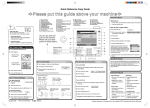
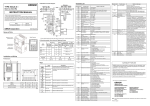
Quick Reference Copy Guide
D0297525
cPlease
put this guide above your machineg
Tips
1. {User Tools/Counter} key
2. Display panel
3. {Clear Modes} key
Press to clear the current settings.
4. {Program} key
Press to register frequently used settings,
or to recall registered settings.
Paper Size
Paper Size
You can check the paper size
using the scale on the exposure glass.
5. {Interrupt} key
6. {Energy Saver} key
7. Main power indicator
8. Operation switch
9. {Login/Logout} key
10. {Simplified Display} key
11. {Sample Copy} key
12. {Start} key
Press to start copying, printing, scanning,
or sending.
13. {#} key (Enter key)
14. {Clear/Stop} key
• Clear: Press to delete a number entered.
• Stop: Press to stop a job in progress.
15. Number keys
16. Function keys
17. Indicators
• To store often used documents centrally and print on demand.
• To reduce network load.
How to use in copy mode...
A Press [Store File].
Standard available:
Auto Paper Select
Selects a suitable size of paper automatically.
B Enter a file name,
Copier:
user name, or
Document Server:
(1. Placing Originals,
2. Basic Copying)
A Press the {Clear Modes} key.
B Place the originals.
password if necessary.
Facsimile:
C Press [OK].
Printer:
D Place the originals.
E Make the scanning settings for the original.
Scanner:
• Exposure Glass
(Face down)
F Press the {Start} key.
▼
• Auto Document
Feeder (Face up)
You can also fax on this
machine!
Please ask your sales
person for this option.
C Make desired settings.
D Enter the number of copies.
E Press the {Start} key.
How to save paper...
(3. Colour Copying)
(2. Basic Copying)
B Press [Dup./Combine/Series].
C Select the original and copy types and/or the orientation.
A Select a colour mode.
D Place the originals, and then press the {Start} key.
→
1-Sided
2-Sided
Copies two 1-sided pages
on one 2-sided page.
(2. Basic Copying)
Auto Reduce/Enlarge
A Press [Auto Reduce / Enlarge].
1
2
→
2-Sided
2-Sided
Copies one 2-sided page
on one 2-sided page.
Combine
1-sided Combine
Copies multiple 1-sided or
2-sided originals on one
side of copy paper.
Copies multiple 2-sided
originals on two sides of
copy paper.
Staple
A Press [Finishing].
B Select one of the stapling positions (Copies will be sorted
GB GB
D029-7525
Advanced features
automatically).
D Enter the number of copies.
E Place the originals, and then
press the {Start} key.
Reduce/Enlarge
Edit/Stamp
• Zoom: You can specify the
reproduction ratio in
• Image Repeat/Double
Copies: The original image
increments of 1%.
• Magnification: You can
is copied repeatedly.
• Centring: Moves image to
specify the horizontal and
vertical reproduction ratios,
punched).
C Press [OK].
D Enter the number of copies.
Staple and Punch can be done at the same time.
For more functions on Combine, see “2. Basic Copying”.
When you press the {Simplified Display} key, the screen
changes to the simplified display. Letters and keys are displayed
at a larger size, making operations easier.
Certain keys do not appear on the simplified display.
E Place the originals, and then press the {Start} key.
C Place the originals, and then press the
{Start} key. (Paper size is selected automatically.)
Printed in France
(2. Basic Copying)
B Select one of the punch hole positions (Copies will be hole
2-sided Combine
Copies multiple 1-sided
originals on two sides of
copy paper.
B Select a ratio, and then press [OK].
Copyright © 2008
How to finish your document...
Punch
A Press [Finishing].
B Select the paper size.
Preset Reduce/Enlarge
A Press [Reduce / Enlarge].
Simplified Display
1
2
C Place the originals, and then press the
{Start} key.
For more functions on Document
Server, see “5. Document Server”.
C Press [OK].
Duplex
How to Reduce/Enlarge...
The machine stores scanned originals in memory and makes
one set of copies.
To find your document, press the
{Document Server} key.
☺
A See if original is 1-sided or 2-sided (duplex).
How to select a colour mode...
(2. Basic Copying)
Why use it...
Auto Image Density
Adjusts the image density (darker/lighter)
automatically for copying.
How to make Copies...
Document Server
Availability of finishing depends on your configuration.
individually.
Series Copies
centre.
• Erase: Erases the centre
and/or all four sides of the
original image.
• Separately copies the front
and back of a 2-sided
• Stamps: Copies with the
date, page numbers, etc.
original onto two sheets.
Booklet/Magazine
Cover/Slip Sheet
• Front Cover / Front/Back
• Copies two or more
originals in page order.
Cover: Create cover sheets.
• Designate: Copies certain
pages of the original onto
designation sheets.
Chapter references in this guide refer to the bundled OI CD; Copy and Document Server Reference.