1
Settings
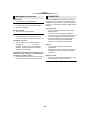
Option menu
Settings
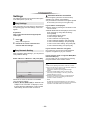
A variety of playback operations and settings can
be performed from this menu.
Available options differ depending on the playing
contents and the condition of the unit.
About Multi User Mode
: Settings of the items with this indication are
saved by the respective users registered in the
HOME menu. (> 15)
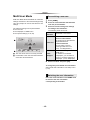
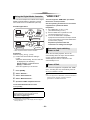
1
Press [OPTION].
≥ When playing music, select “Playback
Settings” and press [OK].
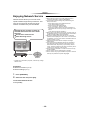
e.g., BD-Video
[BDT260] [BDT161] [BDT160]
Operation Menu
Soundtrack
1 ENG Dolby TrueHD 3/...
Subtitle
–
Angle
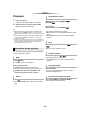
∫ Random
Select whether or not to play random.
∫ Start Slideshow
Start the slideshow.
∫ Status
Show the status messages.
∫ Rotate RIGHT
∫ Rotate LEFT
Rotate the still picture.
∫ Wallpaper
Set the still picture to the wallpaper of HOME
menu. (> 14)
Off
Repeat Play
Status
Primary Video
∫ Repeat Play
Select the item that you want to repeat.
≥ You can repeat the playback of a chapter,
playlist, the entire disc, etc., but the items
displayed will differ depending on the type of
the media.
≥ Select “Off” to cancel.
1MPEG-4 AVC
Secondary Video
∫ Icon Registration
Set the still picture as your user icon. (> 15)
Zoom
Top Menu
Pop-up Menu
2
Select an item and change the settings.
To exit the screen
Press [OPTION].
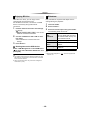
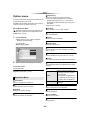
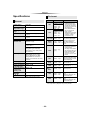
∫ Video
The recording method of original video appears.
∫ Primary Video
The recording method of original primary video
appears.
∫ Secondary Video
Video
∫ Soundtrack
Show or change the soundtrack.
Select on/off for images. The
recording method of original
video appears.
≥ During search/slow motion
or frame-by-frame, only the
primary video is displayed.
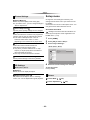
Soundtrack
Select on/off for audio and the
language.
∫ Audio channel
Select the audio channel number.
∫ Zoom
Videos and pictures are magnified.
∫ Subtitle
Change the subtitle settings.
∫ Top Menu
Display Top Menu.
∫ Angle
Select the number of the angle.
∫ Pop-up Menu
Display Pop-up Menu.
Regarding Language : (> 33)
Operation Menu
∫ Menu
Display Menu.
- 22 -