1
4. LED
ways of setting the temperature(s):
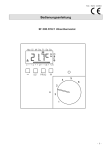
The LED is placed in the top right corner above
the display.
6.1.1. Auto
Select Auto if you want the temperature to be
controlled and operated automatically via the 4event system.
LED signal
Constant red light
Blinks
No light
Indicates
Relay is active
System failure. (see error
messages)
Relay not active or
thermostat turned off
LED
Reset
Standby
5. Buttons
6.1.2. Manual
Here you can cancel the scheduled 4-event
program (e.g. during holidays) and set the
wanted temperature manually. You may want to
adjust the temperature to for example 5°C for
frost protection while you are away.
To set the temperature, do the following:
1. Select Manual.
2. Use the up/down button to raise/lower the
temperature.
3. Press the Accept button to finish.
Please note: The temperature that you set
manually will be valid until you cancel the
manual mode again by selecting Auto.
Navigation
You can use the standby button to turn display
and regulation of temperature on/off. When the
thermostat is switched off, the relay
disengages. The clock will keep going, though.
6.1.3. Comfort
Here you can set a temporary Comfort
temperature (so-called party mode) for a single
event.
When you press the Reset button (use pen to
activate) for 3 seconds, a "Confirm factory
reset" text will be shown on the display. Then
press the Accept button to reset the thermostat,
which will then start up with default values and
display the installation menu.
To set the temperature, do the following:
1. Select Comfort.
2. Use the up/down button to raise/lower the
temperature.
3. Press the Accept button to finish.
The buttons for navigating in the menus and
selecting/changing settings are placed in the
middle.
Up
Back/Cancel
Accept
Forward
Down
Back/Cancel
• Go back in the menus (i.e.
upwards in the menu
hierarchy).
• Cancel changes of current
value.
Forward
• Move forward in the menus
(i.e. downwards in the
menu hierarchy).
• Quick steps upwards when
specifying values, e.g.
temperature.
Up
• Move up in menu.
• Raise current value, e.g.
temperature.
Down
• Move down in menu.
• Lower current value, e.g.
temperature.
Accept/Change • Select item from menu to
see/change/set value.
• Accept new/changed
setting.
6. Menus for Setting Up
the Thermostat
You can program the thermostat and make
various settings by using the menu system. To
open the main menu, press the Accept button.
In the sections below every item on the main
menu will be described in more detail.
6.1. Operation
Here you can choose between three different
Please note: Comfort mode is a temporary,
manual setting that will be automatically
cancelled by the next event in the scheduled 4event system.
6.2. Setting 4-event
If Auto has been selected in the Operation
menu, the 4-event system can be set to
automatically control the temperature settings
for each day in a period of 7 days.
You can select the wanted temperature for Day
and Night, for when you are Out and at Home,
and for the Weekend Day and Weekend Night.
Moreover, you can define when you want each
time period (Day, Night, Out, Home, Weekend
Day, and Weekend Night) to begin.
Please note: You need to use the Down button
to move to the end of the menu.
wanted time.
Press the Accept button to finish.
• Specify the wanted Day temperature.
Use the up/down button to raise/lower the
temperature.
Press the Accept button to finish.
2. Choose Out.
• Specify when Out time begins.
• Specify the wanted temperature when you
are out and away from home (Out temp).
3. Choose Home.
• Specify when Home time begins.
• Specify the wanted temperature when you
are at home (Home temp).
4. Choose Night.
• Specify when Night time begins.
• Specify the wanted Night temperature.
5. Choose Weekend Day.
• Specify when Day time begins on
weekends.
• Specify the wanted Day temperature on
weekends.
6. Choose Weekend Night.
• Specify when Night time begins on
weekends.
• Specify the wanted Night temperature on
weekends.
6.3. Programming
Here you can choose between various
programming options that are used in
connection with scheduling the 4-event system:
• Mon-Fri, Sat-Sun
Will be shown as 5:2 on the display. This
setting allows you to have 5 days with the
same 4-events, and 2 days with the same 2
events. The days 1-5 are controlled by the
settings for Day, Night, Out, Home and
day 6-7 is controlled by the settings for
Weekend Day and Weekend Night.
• Mon-Sat, Sun
Will be shown as 6:1 on the display. This
setting allows you to have 6 days with the
same 4-events, and 1 day with 2 events.
The days 1-6 are controlled by the settings
for Day, Night, Out, Home and day 7 is
controlled by the settings for Weekend Day
and Weekend Night.
• Mon-Sun, 4-events
Will be shown as 7:0 on the display. This
setting allows you to have 7 days with 4
different events (Day, Night, Out, Home).
The days 1-7 are controlled by individual
day settings (Monday – Sunday).
6.4. General Settings
Finally you can specify temperatures and
periods (Day, Night, Out, Home) for each day of
the week (Monday, Tuesday, Wednesday,
Thursday, Friday, Saturday, and Sunday). This
requires, though, that the Mon-Sun, 4-events
option has been selected in the Programming
menu (will be shown as Programming: 7:0 on
the display). Please refer to section about
Programming on page 8.
6.2.1. Example of Scheduling 4-event Set-up
If you in the Programming menu have selected
Mon-Fri, Sat-Sun (shown as Programming: 5:2
on the display) you can set up the 4 periods
(called events) in the following way:
1. Choose Day.
• Specify when Day time begins.
Use the up/down button to mark the
6.4.1. Language
Here you can select the language you want to
be used on the display. You can choose
between the following languages:
• English
• German (Deutsch)
• French (Francais)
• Spanish (Espanol)
• Portuguese (Portogese)
6.4.2. Time
• Here you can select whether 12- or 24-hour
clock should be used.
• Further, you can set the time here. To set
the time, select Set time. Then use the
up/down buttons to adjust the time, and
press the Accept button to finish.