1
STREAMLINES
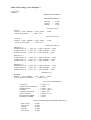
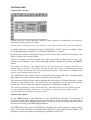
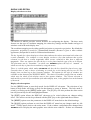
Streamline overview
The formal definition of streamlines states that streamlines are, at all points, tangential to the local
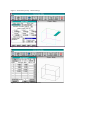
velocity field. FLOWVIS allows a 2-Dimensional plate region to be seeded with streamlines
which can then be followed forwards or backwards.
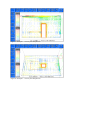
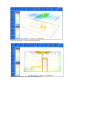
The streamlines are, by default, coloured by the local velocity magnitude but can also be coloured
by any data-base variable or in a single colour.
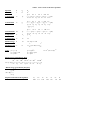
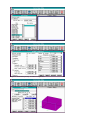
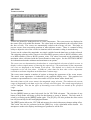
The number of streams seeded can be selected from 1 to 250. These are scattered regularly on the
seed region. The accuracy of the streamlines can be selected using the streamline steps parameter.
This indicates how many steps of calculation should be used to get across a cell. The larger this
value the more accurate the streamlines (and the longer the display takes). The plate region for
streamline seeding can be selected from indicated indices or from a plate (or slab) data selection
menu. The SLAB SELECTION menu is very similar to the VIEW SELECTION menu but the
orientation within the slab menu is not used in any other displays.
Streamlines, particularly ones which get caught in recirculations, may not terminate so
FLOWVIS imposes a number of termination conditions. After a set number of stream following
steps the user is prompted for continuing to following the streamlines.
FLOWVIS will not follow a particular streamline if it exits the domain or if it appears to stop.
The second condition is necessary because streamlines are independent of time and the scaling of
very small local velocities could produce spurious results.
When the streamlines are drawn some may appear to advance faster than others. There is NO
physical significance in this and it is merely a feature of the streamline tracking algorithm used.
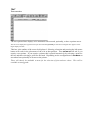
Streamline options
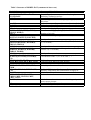
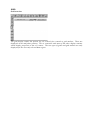
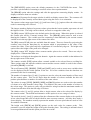
Use the [HELP] button to enter help mode for the STREAMLINES sub-menu. The selection of
any button in help mode will bring up help for that button or group of buttons. The help mode is
exited by selecting on the [HELP] button again. The [F1] key will also perform the same action
but will present help for the last highlighted button.
The [EXIT] option allows the STREAMLINES sub-menu to be exited without any changes taking
effect. This action can also be performed with the [ESC] key or the right-hand mouse button. No
attempts are made to do displays and changes to parameters will be lost.
The [DEFAULTS] option resets the default parameters in the STREAMLINES menu. This
provides a quick method of returning to sensible values after experimentation.