1
13.12 Easy Preset
The Easy Preset button opens a menu of easy to view presets. A bank of 10 Total Presets is shown on the Main
Display. The Total Preset Bank Menu is also available from the Easy Preset menu too, allowing you to easily move
through the banks of Total Presets.
13.13 Quickload
Quickload allows fast access to all Total Presets, Styles, Realdrums, Waves, MP3, Videos and Sounds. You can instantly select one of the fore mentioned items and instantly load them.
Also, the OAS Database can be accessed via the Quickload menu. From the OAS Database, organizing of all OAS
multimedia and aspects is possible.
13.14 Vocalist ‘Harmonizer’ Button (Microphone Controls)
The Harmonizer (Harmoniser) button allows you to access the Vocal Preset Editor for the
optional Vocoder. Presets can be edited and Saved as User Presets.
Micro 1 - This button allows you to connect the Microphone 1 input to the Harmoniser.
Simply press the button to connect it to the Harmoniser, or Press it again to
disconnect from the Harmoniser.
Micro 1 With Effect - This button is used to switch Reverb, Chorus and Delay (Echo) on
or off. When the function is deactivated, the button is grey in colour.
Naturally, both functions can be stored in a Total Preset (When saving a Total Preset, make sure you ‘Tick’ the
Harmonizer option box in order to save the Harmoniser / Vocalist functions).
13.15 Virtual Selection Display
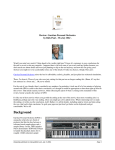
The final part of the Main Display is the ‘Selection Area’. When you press a push button in a sound group, nine sounds
will be displayed for you to select. This is also true of the Accompaniment. If you press a push button in the accompaniment selection group, nine accompaniments will be displayed. To select the style, simply press one of the nine
Yellow buttons. The selected sound or accompaniment will then be highlighted in a pale grey / pink colour.
Here you can see that the ‘CD-Galaxy*’ sound has been selected
Naturally when you select the sounds or accompaniment, the corresponding Selector in the Main Display shows the
new sound assignment. This is also true of the accompaniment. The accompaniment name will change to show the
newly selected accompaniment in the ‘Accompaniment Overview’ bar in the centre of the Main Display.