1
Monitoring Workload Replay Using Enterprise Manager
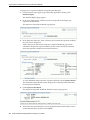
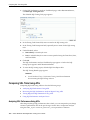
For information about starting replay clients, see "Setting Up Replay Clients" on
page 5-4.
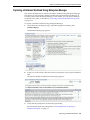
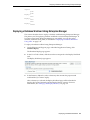
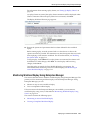
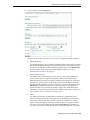
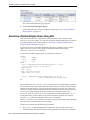
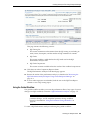
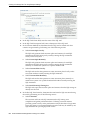
As replay clients are started, the replay client connections will be displayed under
Client Connections. When all replay clients have connected, click Next.
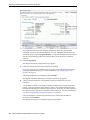
The Replay Workload: Review page appears.
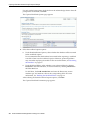
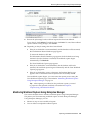
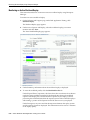
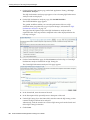
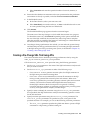
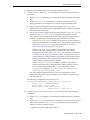
13. Review the options and parameters that have been defined for the workload
replay.
Before starting replay, reset the system clock to a value that is as close to the
capture start time as possible. This minimizes any data divergence that may result
from replaying a time-sensitive workload. For more information, see "Resetting
the System Time" on page 5-2.
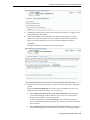
To begin replay, click Submit. If no replay clients are connected, this button will
be disabled. To make changes, click Back. To cancel replay without saving
changes, click Cancel.
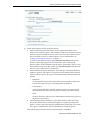
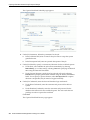
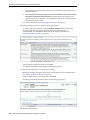
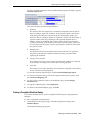
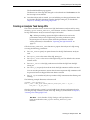
Once the replay is started, the View Workload Replay page appears. For
information about monitoring an active workload replay, see "Monitoring an
Active Workload Replay" on page 5-12.
Monitoring Workload Replay Using Enterprise Manager
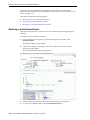
This section describes how to monitor workload replay using Enterprise Manager. The
primary tool for monitoring workload replay is Oracle Enterprise Manager. Using
Enterprise Manager, you can:
■
Monitor or stop an active workload replay
■
View a completed workload replay
If for some reason Oracle Enterprise Manager is unavailable, you can monitor
workload replay using views, as described in "Monitoring Workload Replay Using
Views" on page 5-19.
This section contains the following topics:
■
Monitoring an Active Workload Replay
■
Viewing a Completed Workload Replay
Replaying a Database Workload
5-11