1
Packaging Applications
Appeon for PowerBuilder 2013
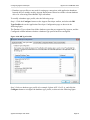
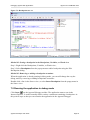
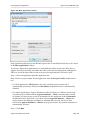
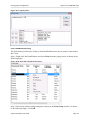
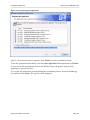
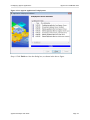
Step 1: Click the Package ( ) button on the Appeon Developer toolbar to open the Appeon
Application Package Wizard.
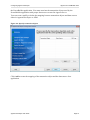
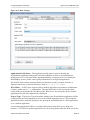
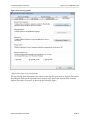
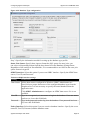
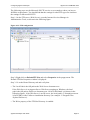
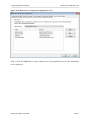
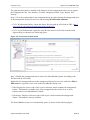
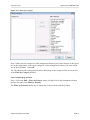
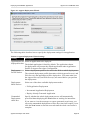
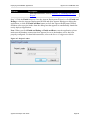
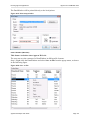
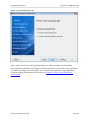
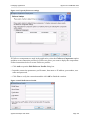
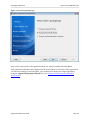
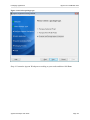
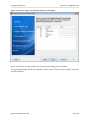
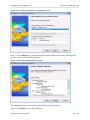
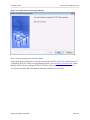
Step 2: Select or create a profile from the dropdown list box and click Next to proceed.
A profile is a configuration file containing the settings that you specify when packaging the
application. You can select an existing profile or create one by entering a name in the text
field. The profile will be automatically saved and listed for selection next time when you
launch the Appeon Application Package Wizard again.
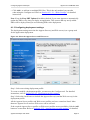
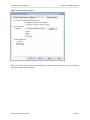
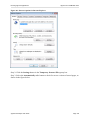
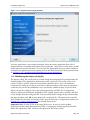
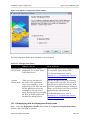
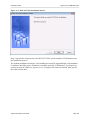
Figure 11.33: Welcome page
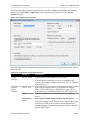
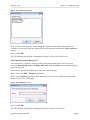
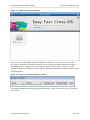
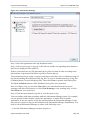
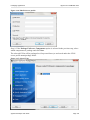
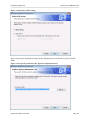
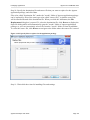
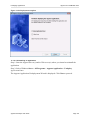
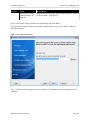
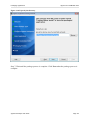
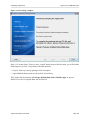
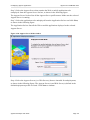
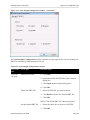
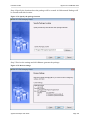
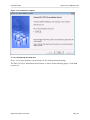
Step 3: Select the Package a Native Mobile Project radio button.
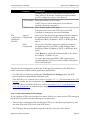
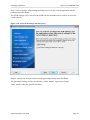
To package a deployment project that can install the application to servers, follow detailed
instructions in Packaging a deployment project.
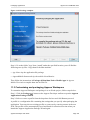
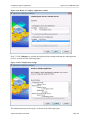
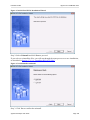
To customize Appeon Workspace and then package Appeon Workspace to an Xcode project,
follow detailed instructions in Customizing and packaging Appeon Workspace.
Appeon Developer User Guide
Page 152