1
Packaging Applications
Appeon for PowerBuilder 2013
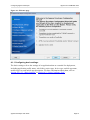
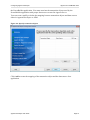
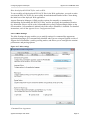
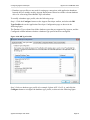
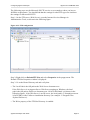
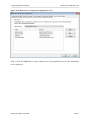
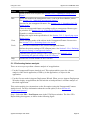
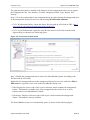
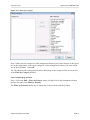
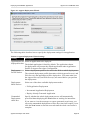
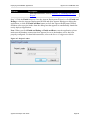
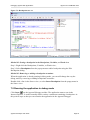
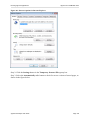
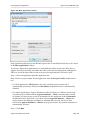
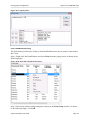
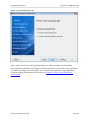
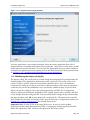
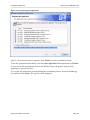
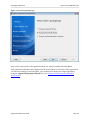
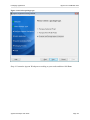
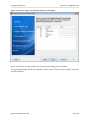
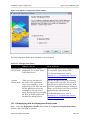
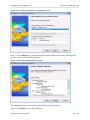
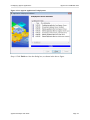
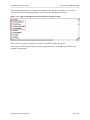
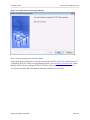
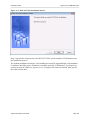
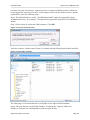
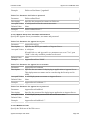
Figure 11.14: Select the configuration file
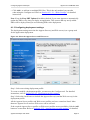
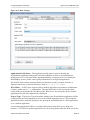
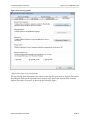
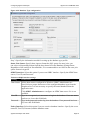
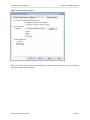
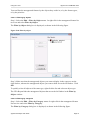
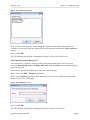
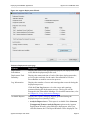
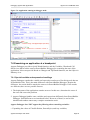
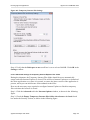
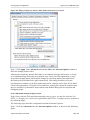
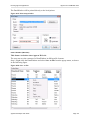
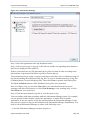
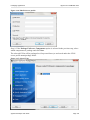
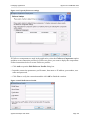
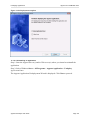
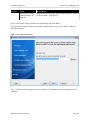
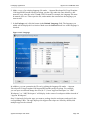
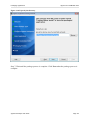
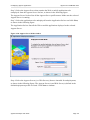
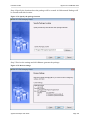
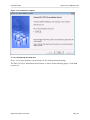
Step 4: Input the Application Profile Name and the Application URL for the application
and click Next.
The Application Profile Name is used as the application name to identify an application.
If you want to install multiple instances of the same application on the same server, you can
run the setup package repeatedly and specify different Application Profile Name here. For
example, input appeon_code_examples_test as the Application Profile Name in the first
installation, and input appeon_code_examples_production as the Application Profile Name
in the second installation. The Application Profile Name will be used as the application
name to distinguish the multiple application instances on the same server, so they can be run
independently from each other.
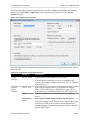
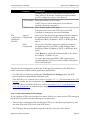
Important Note: If using JEUS as the target Web server, be sure to use the default
Application Profile Name and Application URL. Changing the default Application Profile
Name and Application URL will cause the application files unaccessible.
Appeon Developer User Guide
Page 137