1
ProModel
User Guide
or suffix to differentiate them from the same elements of another sub-model.
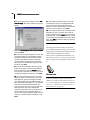
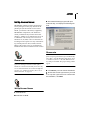
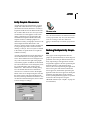
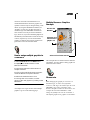
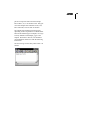
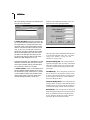
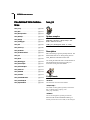
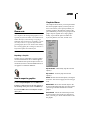
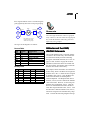
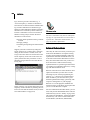
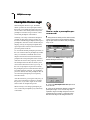
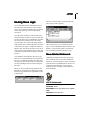
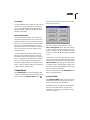
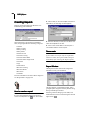
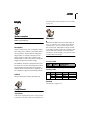
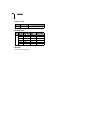
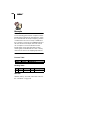
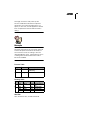
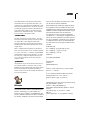
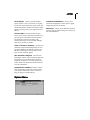
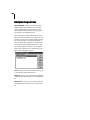
more information on running models, see “Running the Model” on page 395.
For more information on merging models, see
“Model Merging” on page 73.
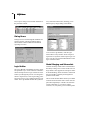
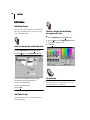
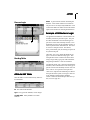
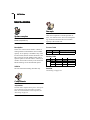
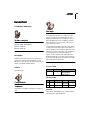
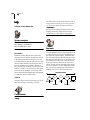
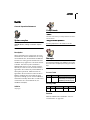
On-Line Help
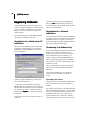
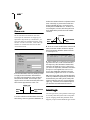
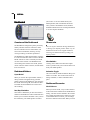
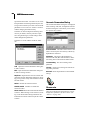
Regardless of where you are in the model building process, the on-line help system is available
to provide context specific definitions and
instructions. The help system can even run in the
background, allowing instant access to help
whenever you need it.
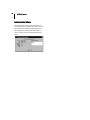
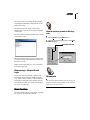
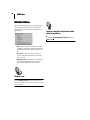
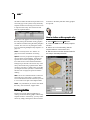
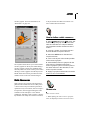
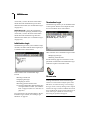
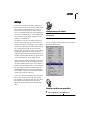
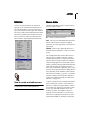
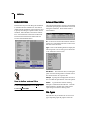
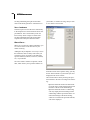
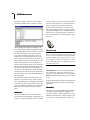
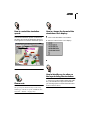
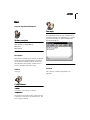
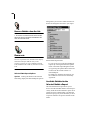
Like all Windows applications, you can locate the
help you need quickly using the standard help
tools.
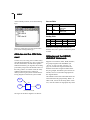
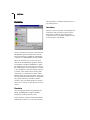
Running Models
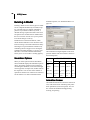
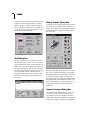
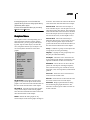
Completed models are run using the Simulation
menu. Model data is automatically checked for
consistency and completeness before each simulation begins.
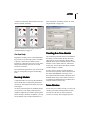
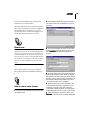
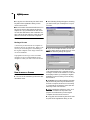
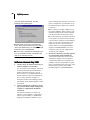
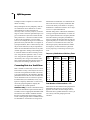
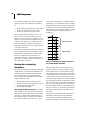
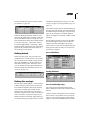
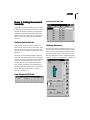
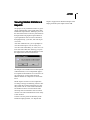
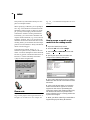
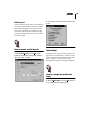
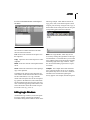
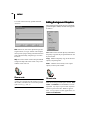
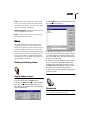
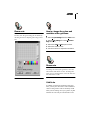
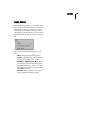
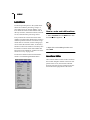
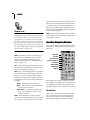
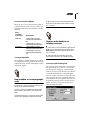
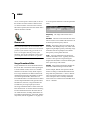
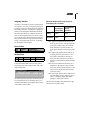
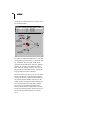
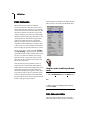
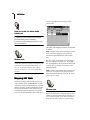
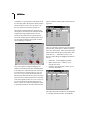
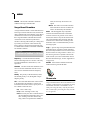
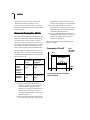
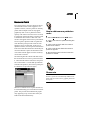
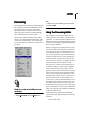
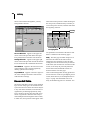
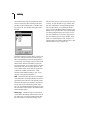
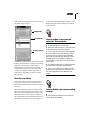
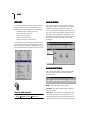
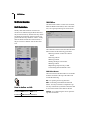
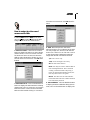
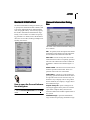
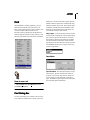
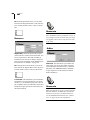
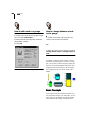
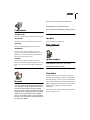
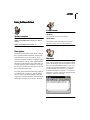
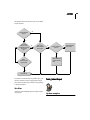
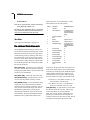
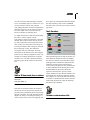
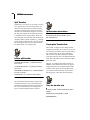
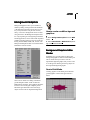
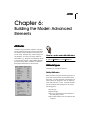
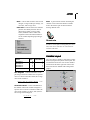
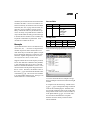
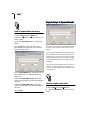
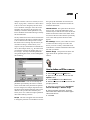
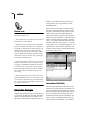
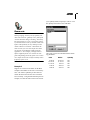
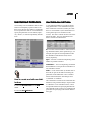
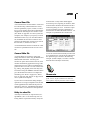
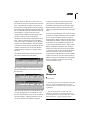
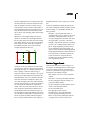
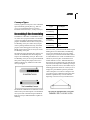
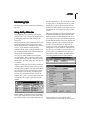
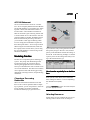
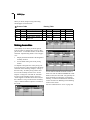
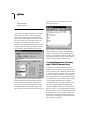
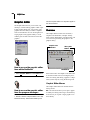
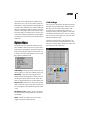
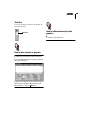
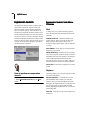
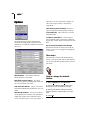
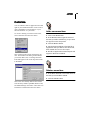
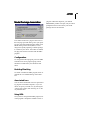
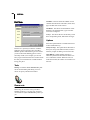
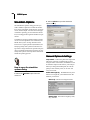
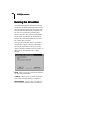
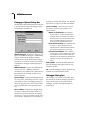
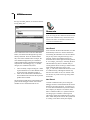
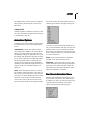
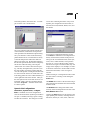
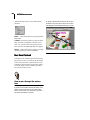
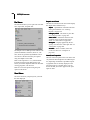
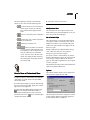
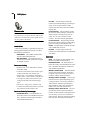
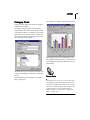
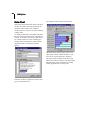
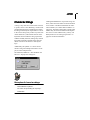
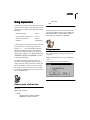
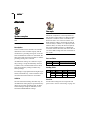
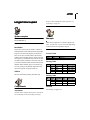
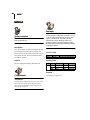
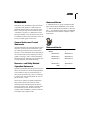
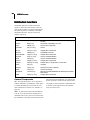
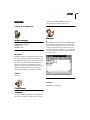
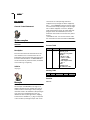
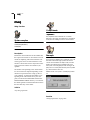
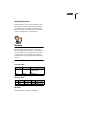
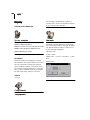
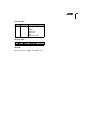
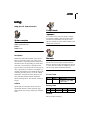
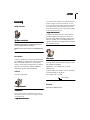
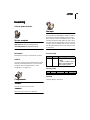
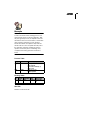
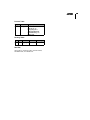
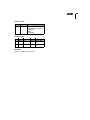
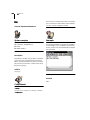
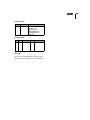
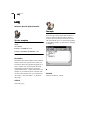
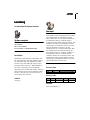
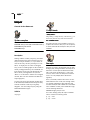
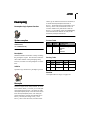
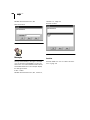
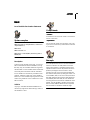
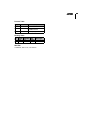
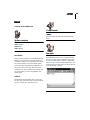
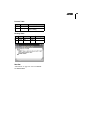
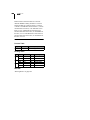
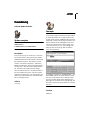
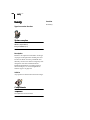
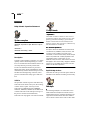
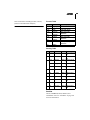
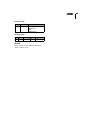
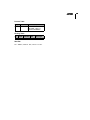
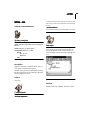
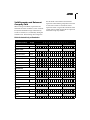
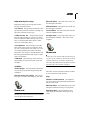
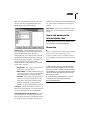
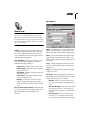
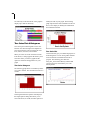
As shown in the dialog below, ProModel allows
you to specify a run length, warm-up period,
number of replications, and other special options
before running a simulation. In addition, you may
run the models with or without animation. For
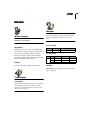
Creating Run-Time Models
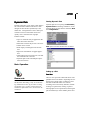
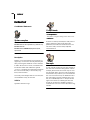
One of the most powerful features in ProModel is
the ability to create models that may be run by
others who do not own the full software. PROMODEL allows you to install the software on any
machine to run a model. However, without the
security key, the user has limited ability to build
or make changes to a model.
You may wish to develop run-time models to
allow the user to perform "what-if" analyses with
the models. PROMODEL encourages you to
develop demonstration models, and allows you to
distribute them freely. These models can be run
by installing ProModel from the CD-Rom onto a
computer without a security key.
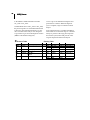
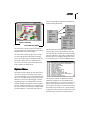
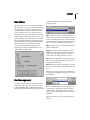
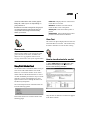
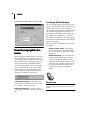
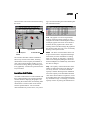
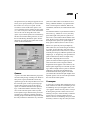
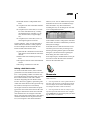
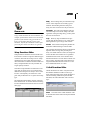
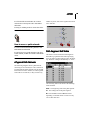
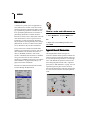
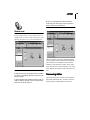
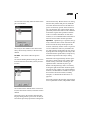
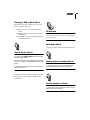
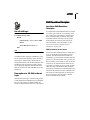
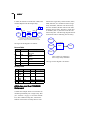
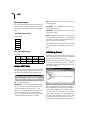
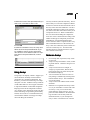
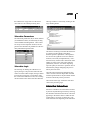
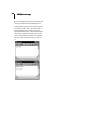
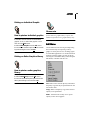
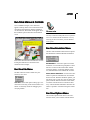
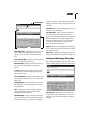
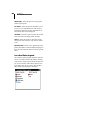
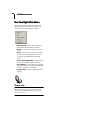
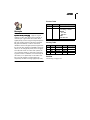
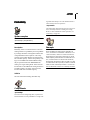
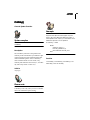
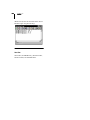
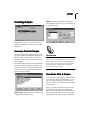
Trace Window
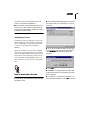
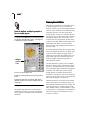
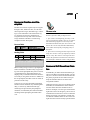
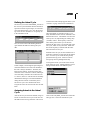
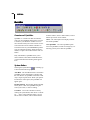
Several tools are available to help you verify and
validate your models. During model execution
you may trace the activity of the simulation
events to see exactly what is happening in the
11