1
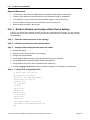
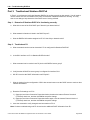
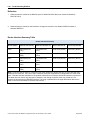
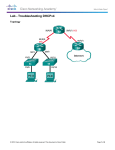
Lab - Troubleshooting DHCPv6 Topology Addressing Table Device Interface IPv6 Address Prefix Length Default Gateway R1 G0/1 2001:DB8:ACAD:A::1 64 N/A S1 VLAN 1 Assigned by SLAAC 64 Assigned by SLAAC PC-A NIC Assigned by SLAAC and DHCPv6 64 Assigned by SLAAC Objectives Part 1: Build the Network and Configure Basic Device Settings Part 2: Troubleshoot IPv6 Connectivity Part 3: Troubleshoot Stateless DHCPv6 Background / Scenario The ability to troubleshoot network issues is a very useful skill for network administrators. It is important to understand IPv6 address groups and how they are used when troubleshooting a network. Knowing what commands to use to extract IPv6 network information is necessary to effectively troubleshoot. In this lab, you will load configurations on R1 and S1. These configurations will contain issues that prevent Stateless DHCPv6 from functioning on the network. You will troubleshoot R1 and S1 to resolve these issues. Note: The routers used with CCNA hands-on labs are Cisco 1941 Integrated Services Routers (ISRs) with Cisco IOS Release 15.2(4)M3 (universalk9 image). The switches used are Cisco Catalyst 2960s with Cisco IOS Release 15.0(2) (lanbasek9 image). Other routers, switches and Cisco IOS versions can be used. Depending on the model and Cisco IOS version, the commands available and output produced might vary from what is shown in the labs. Refer to the Router Interface Summary Table at the end of this lab for the correct interface identifiers. Note: Make sure that the router and switch have been erased and have no startup configurations. If you are unsure, contact your instructor. Note: The default bias template used by the Switch Database Manager (SDM) does not provide IPv6 address capabilities. Verify that SDM is using either the dual-ipv4-and-ipv6 template or the lanbase-routing template. The new template will be used after reboot even if the configuration is not saved. S1# show sdm prefer Follow this configuration to assign the dual-ipv4-and-ipv6 template as the default SDM template: S1# config t S1(config)# sdm prefer dual-ipv4-and-ipv6 default S1(config)# end S1# reload © 2013 Cisco and/or its affiliates. All rights reserved. This document is Cisco Public. Page 1 of 6 Lab – Troubleshooting DHCPv6 Required Resources 1 Router (Cisco 1941 with Cisco IOS Release 15.2(4)M3 universal image or comparable) 1 Switch (Cisco 2960 with Cisco IOS Release 15.0(2) lanbasek9 image or comparable) 1 PC (Windows 7, Vista, or XP with terminal emulation program, such as Tera Term) Console cables to configure the Cisco IOS devices via the console ports Ethernet cables as shown in the topology Part 1: Build the Network and Configure Basic Device Settings In Part 1, you will set up the network topology and clear any configurations if necessary. You will configure basic settings on the router and switch. Then you will load the provided IPv6 configurations before you start troubleshooting. Step 1: Cable the network as shown in the topology. Step 2: Initialize and reload the router and the switch. Step 3: Configure basic settings on the router and switch. a. Disable DNS lookup. b. Configure device names as shown in the topology. c. Encrypt plain text passwords. d. Create a MOTD banner warning users that unauthorized access is prohibited. e. Assign class as the encrypted privileged EXEC mode password. f. Assign cisco as the console and vty passwords and enable login. g. Configure logging synchronous to prevent console messages from interrupting command entry. Step 4: Load the IPv6 configuration to R1. ip domain name ccna-lab.com ipv6 dhcp pool IPV6POOL-A dns-server 2001:DB8:ACAD:CAFE::A domain-name ccna-lab.com interface g0/0 no ip address shutdown duplex auto speed auto interface g0/1 no ip address duplex auto speed auto ipv6 address FE80::1 link-local ipv6 address 2001:DB8:ACAD:A::11/64 end © 2013 Cisco and/or its affiliates. All rights reserved. This document is Cisco Public. Page 2 of 6 Lab – Troubleshooting DHCPv6 Step 5: Load the IPv6 configuration to S1. interface range f0/1-24 shutdown interface range g0/1-2 shutdown interface Vlan1 shutdown end Step 6: Save the running configurations on R1 and S1. Step 7: Verify that IPv6 is enabled on PC-A. Verify that IPv6 has been enabled in the Local Area Connection Properties window on PC-A. Part 2: Troubleshoot IPv6 Connectivity In Part 2, you will test and verify Layer 3 IPv6 connectivity on the network. Continue troubleshooting the network until Layer 3 connectivity has been established on all devices. Do not continue to Part 3 until you have successfully completed Part 2. Step 1: Troubleshoot IPv6 interfaces on R1. a. According to the topology, which interface must be active on R1 for network connectivity to be established? Record any commands used to identify which interfaces are active. b. If necessary, take the steps required to bring up the interface. Record the commands used to correct the configuration errors and verify that the interface is active. c. Identify the IPv6 addresses configured on R1. Record the addresses found and the commands used to view the IPv6 addresses. d. Determine if a configuration error has been made. If any errors are identified, record all the commands used to correct the configuration. e. On R1, what multicast group is needed for SLAAC to function? f. What command is used to verify that R1 is a member of that group? © 2013 Cisco and/or its affiliates. All rights reserved. This document is Cisco Public. Page 3 of 6 Lab – Troubleshooting DHCPv6 g. If R1 is not a member of the multicast group that is needed for SLAAC to function correctly, make the necessary changes to the configuration so that it joins the group. Record any commands necessary to correct the configurations errors. h. Re-issue the command to verify that interface G0/1 has joined the all-routers multicast group (FF02::2). Note: If you are unable to join the all-routers multicast group, you may need to save your current configuration and reload the router. Step 2: Troubleshoot S1. a. Are the interfaces needed for network connectivity active on S1? Record any commands that are used to activate necessary interfaces on S1. b. What command could you use to determine if an IPv6 unicast address has been assigned to S1? c. Does S1 have an IPv6 unicast address configured? If so, what is it? d. If S1 is not receiving a SLAAC address, make the necessary configuration changes to allow it to receive one. Record the commands used. e. Re-issue the command that verifies that the interface now receives a SLAAC address. f. Can S1 ping the IPv6 unicast address assigned to the G0/1 interface assigned to R1? Step 3: Troubleshoot PC-A. a. Issue the command used on PC-A to verify the IPv6 address assigned. Record the command. b. What is the IPv6 unicast address SLAAC is providing to PC-A? c. Can PC-A ping the default gateway address that was assigned by SLAAC? d. Can PC-A ping the management interface on S1? Note: Continue troubleshooting until you can ping R1 and S1 from PC-A. © 2013 Cisco and/or its affiliates. All rights reserved. This document is Cisco Public. Page 4 of 6 Lab – Troubleshooting DHCPv6 Part 3: Troubleshoot Stateless DHCPv6 In Part 3, you will test and verify that Stateless DHCPv6 is working correctly on the network. You will need to use the correct IPv6 CLI commands on the router to determine if Stateless DHCPv6 is working. You may want to use debug to help determine if the DHCP server is being solicited. Step 1: Determine if Stateless DHCPv6 is functioning correctly. a. What is the name of the IPv6 DHCP pool? How did you determine this? b. What network information is listed in the DHCPv6 pool? c. Was the DHCPv6 information assigned to PC-A? How did you determine this? Step 2: Troubleshoot R1. a. What commands can be used to determine if R1 is configured for Stateless DHCPv6? b. Is the G0/1 interface on R1 in Stateless DHCPv6 mode? c. What command can be used to have R1 join the all-DHCPv6 server group? d. Verify that the all-DHCPv6 server group is configured for interface G0/1. e. Will PC-A receive the DHCP information now? Explain? f. What is missing from the configuration of G0/1 that causes hosts to use the DCHP server to retrieve other network information? g. Reset the IPv6 settings on PC-A. 1) Open the Local Area Connection Properties window, deselect the Internet Protocol Version 6 (TCP/IPv6) check box, and then click OK to accept the change. 2) Open the Local Area Connection Properties window again, click the Internet Protocol Version 6 (TCP/IPv6) check box, and then click OK to accept the change. h. Issue the command to verify changes have been made on PC-A. Note: Continue troubleshooting until PC-A receives the additional DHCP information from R1. © 2013 Cisco and/or its affiliates. All rights reserved. This document is Cisco Public. Page 5 of 6 Lab – Troubleshooting DHCPv6 Reflection 1. What command is needed in the DHCPv6 pool for Stateful DHCPv6 that is not needed for Stateless DHCPv6? Why? 2. What command is needed on the interface to change the network to use Stateful DHCPv6 instead of Stateless DHCPv6? Router Interface Summary Table Router Interface Summary Router Model Ethernet Interface #1 Ethernet Interface #2 Serial Interface #1 Serial Interface #2 1800 Fast Ethernet 0/0 (F0/0) Fast Ethernet 0/1 (F0/1) Serial 0/0/0 (S0/0/0) Serial 0/0/1 (S0/0/1) 1900 Gigabit Ethernet 0/0 (G0/0) Gigabit Ethernet 0/1 (G0/1) Serial 0/0/0 (S0/0/0) Serial 0/0/1 (S0/0/1) 2801 Fast Ethernet 0/0 (F0/0) Fast Ethernet 0/1 (F0/1) Serial 0/1/0 (S0/1/0) Serial 0/1/1 (S0/1/1) 2811 Fast Ethernet 0/0 (F0/0) Fast Ethernet 0/1 (F0/1) Serial 0/0/0 (S0/0/0) Serial 0/0/1 (S0/0/1) 2900 Gigabit Ethernet 0/0 (G0/0) Gigabit Ethernet 0/1 (G0/1) Serial 0/0/0 (S0/0/0) Serial 0/0/1 (S0/0/1) Note: To find out how the router is configured, look at the interfaces to identify the type of router and how many interfaces the router has. There is no way to effectively list all the combinations of configurations for each router class. This table includes identifiers for the possible combinations of Ethernet and Serial interfaces in the device. The table does not include any other type of interface, even though a specific router may contain one. An example of this might be an ISDN BRI interface. The string in parenthesis is the legal abbreviation that can be used in Cisco IOS commands to represent the interface. © 2013 Cisco and/or its affiliates. All rights reserved. This document is Cisco Public. Page 6 of 6