1
Centerm Information Co.,Ltd
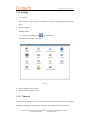
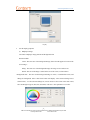
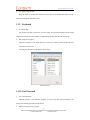
Settings button:
Information button:
2.
How to use.
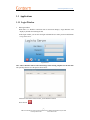
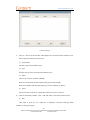
(1) Add new item in “connection manager”, and set “Default” item. Close “connection
manager” or reboot system, enter “Login Window”. Input user name, password, Domain,
and click “Login”, and then it will connect to “Default” server.
(2) Click “Auto Login”, then the user name, password and domain information would be
saved and it would automatically login the server upon powering on.
(3) Click “Remember me” will save user name and domain.
(4) Click “Power” will show “Power” window.
(5) Click “Settings” will show “Setting” window.
(6) Click “Information” will show “About” window.
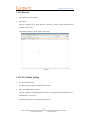
1.1.2 Power
1.
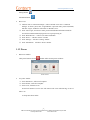
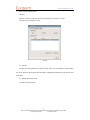
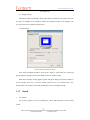
Run Power window
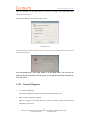
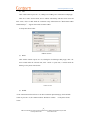
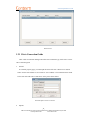
Click power button as shown
, window will be shown picture as follow
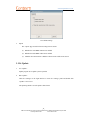
Power window
2.
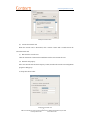
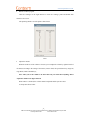
Use power window
1 click “Shut Down”, will turn off computer.
2 click “Restart”, will reboot computer.
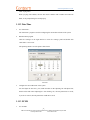
3 click “Lock”, will lock screen.
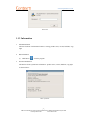
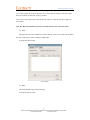
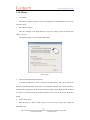
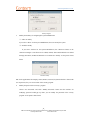
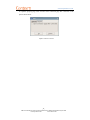
Screen lock function is set for users who want to lock screen when leaving, in case of
other’s use.
As the picture shows follow:
4
ADD:2/F #22 Star-net Science Plaza Juyuanzhou #618 Jinshan Road,Fuzhou Fujian China
[email protected]
www.centerm.com