1
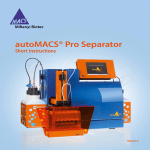
autoMACS™ Pro Separator Short instructions, version 2 aMPro_UserManual_Cover, version2.indd 5 09.04.2009 14:31:38 Uhr I Before you start Note: For users wishing to install the the autoMACS Pro Upgrade Kit please re- Tip: To view the current software version, from the software menu select Option>User Settings> About>Run fer to section 3.2 of the autoMACS Pro Separator User Manual. Software older than version 2.0 cannot perform autolabeling. If in doubt contact your local sales representative or Miltenyi Biotec autoMACS Pro specialist. 1) Choose a magnetic labeling and cell separation approach Positive selection or depletion. Single parameter sorting or MACS® MultiSort Technology. Direct or indirect MACS MicroBeads. Automated magnetic labeling (autolabeling) or manual magnetic labeling. 2) Choose appropriate sample tube rack Select the type of tube rack (e.g. Chill 15) according to the desired number of samples, number of cells and sample volume (see table C in section III). Cool the tube rack at 2–8 oC for at least 3–4 hours. Place MACS Reagent Rack beside the chosen Chill Rack. 3) Prepare cell samples Prepare single-cell suspensions, remove cell aggregates. Avoid excess of dead cells. For manual labeling follow labeling instructions in the MACS MicroBeads datasheet. For automated magnetic labeling prepare cells in appropriate labeling volume as outlined in the datasheet. MACS® Product Strategy Minimum total labeling volume Maximum total labeling volume for first labeling step* Direct MicroBeads** Positive selection 200 µL (2×10⁷ total cells) 6.5 mL (6.5×10⁸ total cells) Cell Isolation Kit Untouched selection 200 µL (4×10⁷ total cells) 6.5 mL (6.5×10⁸ total cells) MicroBead Kits** Positive selection, 200 µL (4×10⁷ total cells) 6.5 mL (6.5×10⁸ total cells) 2-reagent labeling * For less cells use same volumes. ** For target cell frequencies < 5%, removal of the labeling reagent is recommended (i.e. manual magnetic labeling). II How to use the autoMACS Pro Separator 1. Setup and prime the autoMACS Pro Separator Attach filled fluid containers at appropriate positions and empty the waste. Attach the fluid sensor cables accordingly. Note: The connectors and cables for the fluid containers are color-coded: blue for Running Buffer, green for Washing Solution, black for Storage Solution, and red for the waste container. Switch on the autoMACS Pro Separator. After initialization of the instrument, the touchscreen displays the menu Status. Verify that symbols for the bottles (1) and columns (2) are coded green and that the MACS MiniSampler (3) is detected as displayed in Figure 1. Figure 1 Status menu at startup Note: If column symbol is marked in red install a pair of fresh autoMACS Seperation Col- umns (for instructions see section IV). Symbol for Storage Solution remains grey. Rack detection (3) occurs upon starting the separation. For further information on the Status menu, see section III. Select menu tab Separation. Select Wash Now, Rinse and press Run. Figure 2 Selecting a wash program “Rinse” 2a. Define a reagent rack using autolabeling Select menu Reagent. Highlight reagent position (e.g. position R1). Select Read Reagent. The barcode reader will start blinking. Scan 2D code from the reagent vial — optimal reading distance is 0.5–2.5 cm. Place vial on the corresponding position. Repeat the procedure for other reagent vials. Note: Positions R1–R4 on the display correspond to vial positions on the reagent rack. Rack templates can be saved under Save Template and reloaded under Load Template. Information on scanned reagents is displayed in the Info box. If a kit contains more than one vial all reagents must be scanned. Figure 3 Reagent “CD4 MicroBeads, human” (2) was assigned to position R1 (1) on the MACS Reagent Rack 4 2b. Define a reagent rack manually Select menu Reagent. Select reagent position. Select Enter Reagent from the lower navigation bar. Enter the reagent-specific product number Figure 4 Manually entering reagent information using the “Enter Reagent” command Select Ok. If a correct number is inserted the software will immediately rec- ognize the reagent or kit. To confirm, select the reagent from the list by using the touch screen. Figure 5 CD4 MicroBeads, human (product number 130-045-101) was manually entered Place vial on the corresponding position. Repeat the procedure for other reagent vials. 3. Define autoMACS Pro separation template Select menu Separation. Setup the sample position(s). • Autolabeling: Use the Labeling submenu to select a reagent for labeling. Use the Separation and Wash submenus to select the desired separation and wash programs for each sample. Manual labeling: Ensure that no reagent is selected under the Labeling sub- menu (i.e. “/” is highlighted). Use the Separation and Wash submenus to select the desired separation and wash programs for each sample. Enter volume for each sample by touching the volume definition button and selecting the volume in µL. All selected parameters are now displayed for each sample. o Tube rack position o MACS Reagent Kit (short name) o Sample volume o Separation and wash programs Note: Positions on the template correspond to positions in the tube rack: Chill 5 (posi- tions 1–6), Chill 15 (positions 1–5), Chill 50 (positions 1–3). Templates can be saved under Save Template and reloaded under Load Template. Figure 6 Performing MicroBead CD4+ cell separation with autolabeling (left) and without autolabeling (right). The cell separation (Possel) and wash conditions (Qrinse) for both processes are identical. Disabling autolabeling (‘/’) influences the initial sample volume. For manual labeling it is recommended to dilute cells to a volume of 500 µl / 108 total cells (see corresponding datasheet for further information). Sample position 1 Autolabeling using MicroBead CD4, human Positive cell isolation After separation instrument will execute Sleep command Sample volume Figure 7 The selected parameters are displayed on the sample definition template 4. Perform cell separation Dilute single-cell suspension according to the recommendations in the product datasheet. 1) Autolabeling: Dilute cells in volume required for the first labeling step, e.g.: MACS Product Direct MicroBeads - human - rat - non-human primate Direct MicroBeads - mouse Whole Blood MicroBeads (Chill 50) Strategy Reage Cell Minimal 1 107 cells per 80 µL 160 µL 1 107 cells per 90 µL 180 µL 1 Original volume 4 mL – 8 mL 2 107 cells per 40 µL 160 µL 3 107 cells per 30 µL 120 µL nts concentration* volume Positive selection or Depletion Positive selection or Depletion Whole blood or bone marrow Cell Isolation Kits Cell Isolation Kits Untouched selection Untouched MACS Product Strategy Reage Cell Minimal nts concentration* volume 2 107 cells per 60 µL 120 µL selection MicroBead Kits Positive selection or Depletion * When working with fewer cells than the required minimal volume, resuspend cells in the indicated minimal volume. 2) Manual labeling: Dilute cells to a final concentration of 500 µl / 108. Place cells (sample tubes) and fraction collection tubes in the appropriate tube rack. Note: Row “A” holds sample tubes; row “B”: tube for non-labeled fractions; row “C”: tubes for labeled fractions. Racks must be pre-cooled for 3–4 hours. Do not chill below 0 oC. Place tube rack onto the MACS MiniSampler. Note: Verify that position 1 is orientated to the left. - Select Run to start the cell separation. - Select the Status menu to monitor the status of the instrument during operation. 5. Shutdown the autoMACS Pro Separator - Press the shutdown symbol (upper right-hand corner of the display). • - Alternatively, select Sleep program as the last washing step. Turn off the instrument using the main power switch. III Monitoring the autoMACS Pro Separator The autoMACS Pro Separator is a sensor-controlled device. This feature facilitates monitoring the instrument status during operation. For details see the tables below. Further information on the status is displayed by touching the symbols on the screen. 1 “Status” menu A. Bottle status Note: Before you start, make sure that the volume of each solution is sufficient for the defined separation template and that the waste bottle is empty. Container Symbol Symbol color and user action Running Buffer Green: No action required Red: Refill container Washing Solution Gray: Connect bottle sensor Storage Solution Gray: No liquid detection; (70 % Ethanol) visually check volume Green: No action required Waste Red: Empty waste Gray: Connect bottle sensor B. Column status Note: The fill level on the symbol is an indicator for the remaining service life of the autoMACS Pro Column. Symbol Symbol color and user action Green: No action required Red: Exchange column (see section IV) C. Rack detection Note: Rack detection occurs after separation is started. Symbol Features Chill 5 Chill 15 Chill 50 Up to 6 cell separations, max. 5×10⁸ total cells in 2.5 mL per separation Up to 5 cell separations, max. 2.5×10⁹ total cells in 12.5 mL per separation Up to 3 cell separations, max. 4×10⁹ total cells in 50 mL per separation D. MACS MiniSampler detection Note: Detection occurs as soon as the MACS MiniSampler is connected. Symbol Features MACS MiniSampler No action required detected No sampler detected Connect MACS MiniSampler 2 Bottle illumination Tip: Bottle illumination can be switched ON/OFF by selecting Option> User Settings> O_led> and Run Code Status User action Green Ready for separation No action required Blue Instrument operating No action required Yellow Not ready for separation Run wash program (Rinse or Qrinse) Red Error Check display for details Purple Program Sleep is completed Switch off autoMACS Pro Separator Blinking Action required Check screen for required action IV autoMACS Column exchange Replace autoMACS Columns every 2 weeks, or after 100 separations, whichever comes first. 1 Select “Col_ex” program Select menu Option Select Special and Col_ex Press Run When prompted, exchange columns as described in section 2 Figure 8 “Col_ex” program 2 Exchange autoMACS Columns Open front door and note the positions of the columns (column 1: left; column 2: right). Exchange one column at a time. Remove column from slot; unscrew top column connector followed by the bottom column connector as shown in Figure 9. Dispose of the expired column. Point the bottom of the fresh column towards the autoMACS Pro Separator. Insert bottom column connector. Screw in the column by turning it clockwise. Repeat the procedure for the top column connector. Figure 9 Left: Exchange of the column. Right: Starting the “Col_ex” program Push column into the magnet housing, with the top column connector sitting on the guide in the column slot. Repeat installation for the second autoMACS Column. After exchange of separation columns, select Done. The autoMACS Pro Separator system will be automatically primed with Running Buffer and is then ready for cell separation. V Monitoring the autoMACS Pro Separator Rinsing programs Program Qrinse Rinse Description Recommended usage Standard short rinse of separation columns Between separations of Rinse of separation columns and tubing Between and before system with Washing Solution and Running separations of rare cells Buffer (< 5%) and tubing system with Running Buffer frequent cells (> 5 %) Duration 1.5 min 4 min Daily maintenance programs Program Rinse Description Rinse of separation columns and tubing system with Washing Solution and Running Recommended usage Duration Prior to first separation 4 min Buffer Sleep Rinse with Washing Solution followed by filling Before switching OFF the with Storage Solution autoMACS Pro Separator 5 min Periodic maintenance Program Column exchange Safe Pump syringe Store Description Recommended usage Replacement of separation columns Every 2 weeks OR after 100 separations, Duration 6 min whichever comes first Decontamination procedure with MACS Bleach solution Every 3–6 months Cleaning of pump syringe (see user manual) Every 1–3 months Rinse with Washing Solution, followed by Before storing the substitutes longer than 2 weeks Storage Solution; replacement of columns and instrument for a period VII Solutions Solutions required for daily operation Name Running Buffer Washing Solution Description autoMACS Running Buffer (# 130-091-221) autoMACS Pro Washing Solution (# 130-092-987) Storage 70% v/v ethanol in distilled water, diluted from 100% Solution ethanol (without additive) 21 min VIII Choosing the optimal program Note: 1Purity will slightly increase. 2Recovery will slightly decrease. Miltenyi Biotec GmbH Friedrich-Ebert-Straße 68 51429 Bergisch Gladbach Germany Phone +49 2204 8306-0 Fax +49 2204 85197 [email protected] Miltenyi Biotec Inc. 12740 Earhart Avenue Auburn, CA 95602 USA Phone 800 FOR MACS, +1 530 888 8871 Fax +1 530 888 8925 [email protected] Miltenyi Biotec Australia Pty. Ltd. Phone +61 02 8877 7400 www.miltenyibiotec.com [email protected] Miltenyi Biotec B.V. (Benelux) [email protected] Customer service Netherlands Phone 0800 4020120 Customer service Belgium Phone 0800 94016 Customer service Luxembourg Phone 800 24971 Miltenyi Biotec Trading (Shanghai) Co., Ltd. (P.R. China) Phone +86 21 6235 1005 [email protected] Miltenyi Biotec SAS (France) Phone +33 1 56 98 16 16 [email protected] Miltenyi Biotec S.r.l. (Italy) Phone +39 051 646 0411 [email protected] Miltenyi Biotec K.K. (Japan) Phone +81 3 5646 8910 [email protected] Miltenyi Biotec Asia Pacific Pte. Ltd. (Singapore) Phone +65 6238 8183 [email protected] Miltenyi Biotec S.L. (Spain) Phone +34 91 512 12 90 [email protected] Miltenyi Biotec Ltd. (UK) Phone +44 1483 799 800 [email protected] MACS is a registered trademark of Miltenyi Biotec GmbH. Unless otherwise specifically indicated, Miltenyi Biotec products and services are for research use only and not for therapeutic or diagnostic use. Copyright © 2009 Miltenyi Biotec GmbH. All rights reserved. aMPro_UserManual_Cover, version2.indd 4 09.04.2009 14:31:38 Uhr