1
5
Instrument operation using MaxImDL
The observatory software MaxImDL is based on the widely used ASCOM driver standards
for telescopes, cameras, webcams, focuser assemblies, and many other instruments used in
Astronomy. Therefore, all the individual components can be controlled by MaxImDL and
advanced options, e.g. automatic focusing or planetarium utilities, can be used. In addition
the software has a wide range of built-in data reduction utilities and can manage calibration
data flows based on fits-header informations.
This section gives a short overview of basic functionalities of MaxImDL. These should
be sufficient for most applications. For a first glance into the functionalities of MaxImDL
see also the video tutorials (http://www.cyanogen.com/maxim_tut.php) provided by the
manufacturer and/or the MaxImDL user manual.
Note: operation using MaxImDL assumes a well aligned telescope. If the pointing is bad or insufficient repeat the alignment procedure using the hand control
as described in Section. 4.1.1.
5.1
Observatory control
All observatory utilities except the operation of the CCD camera (e.g. telescope pointing,
focusing, planetarium utilities; for the camera operation see Sect. 5.2) are controlled by the
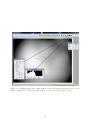
Observatory window (e.g. see Figs. 20-27). The observatory window can be launched by
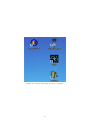
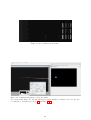
the quick access button in the main panel of MaxImDL (see Fig. 19).
5.1.1
Setup
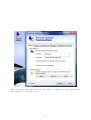
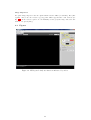
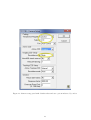
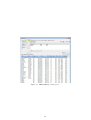
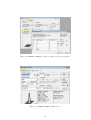
Go to the Setup tab (see Fig. 20). Connect each component separately starting from the
top using the corresponding Connect buttons. For disconnecting start from the bottom.
Note:
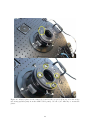
When connecting the Focuser the PWI3 software is launched in the background. Leave it
open and only close it after closing MaxImDL.
Note:
The webcam is only used when using the Spectrograph.
5.1.2
Telescope control
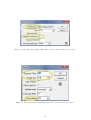
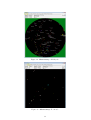
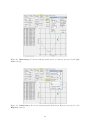
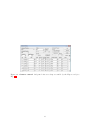
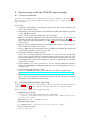
The telescope can be controlled manually by the Telescope tab (see Fig. 21) or one can use
the Go to button for known objects given by the Catalog tab (see Fig. 23) or by using
the right-click option of the mouse by the All Sky tab (see Fig. 24) or the Zoom tab (see
Fig. 25).
Telescope
The information window summarizes the current position, the tracking status and if the
telescope is moving or Idle.
Use the Mount panel to Park/Unpark the telescope and to set sidereal tracking on/off.
It is only possible to enable/disable Sidereal Tracking / No Tracking but setting the Solar
Tracking / Lunar Tracking is only possible using the hand control (see Section 4.1).
The telescope can be moved manually in a similar way as with the keypad on the hand
control by using the keys in the Nudge panel. The speed (the movement corresponding to
one mouse click) can also be set there.
To move the telescope to specific coordinates use the Target Coordinates panel and click
on the Go To button to move the telescope.
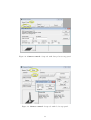
All the other options in this panel should already be correctly set. For example the Site and
Optics settings are directly loaded from the GM4000 mount (see Fig. 22). Note that Alt/Az
can only be displayed by the different panels if the Site and Optics settings are correctly set.
25