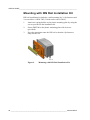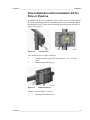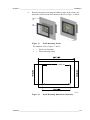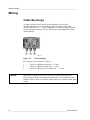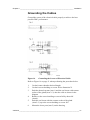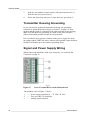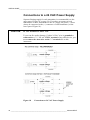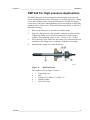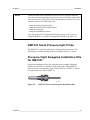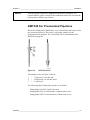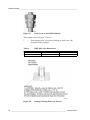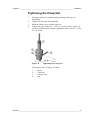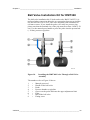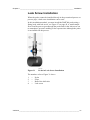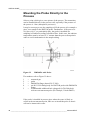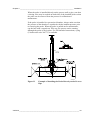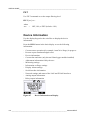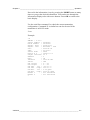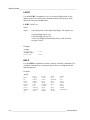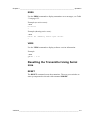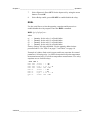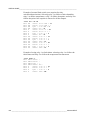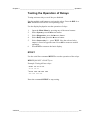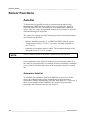
1
USER'S GUIDE Vaisala DRYCAP® Dewpoint and Temperature Transmitter Series DMT340 M210704EN-F PUBLISHED BY Vaisala Oyj P.O. Box 26 FI-00421 Helsinki Finland Phone (int.): +358 9 8949 1 Fax: +358 9 8949 2227 Visit our Internet pages at http://www.vaisala.com/ © Vaisala 2011 No part of this manual may be reproduced in any form or by any means, electronic or mechanical (including photocopying), nor may its contents be communicated to a third party without prior written permission of the copyright holder. The contents are subject to change without prior notice. Please observe that this manual does not create any legally binding obligations for Vaisala towards the customer or end user. All legally binding commitments and agreements are included exclusively in the applicable supply contract or Conditions of Sale. ________________________________________________________________________________ Table of Contents CHAPTER 1 GENERAL INFORMATION.......................................................................... 11 About This Manual ................................................................. 11 Contents of This Manual ..................................................... 11 Version Information ............................................................. 12 Documentation Conventions ............................................... 12 Safety....................................................................................... 13 ESD Protection.................................................................... 13 Recycling ................................................................................ 13 Regulatory Compliances ....................................................... 14 EU Declaration of Conformity.............................................. 14 Transmitters with LAN or WLAN Interface .......................... 14 Transmitters with WLAN Interface ...................................... 15 Patent Notice .......................................................................... 15 Trademarks ............................................................................. 15 License Agreement ................................................................ 15 Warranty.................................................................................. 16 CHAPTER 2 PRODUCT OVERVIEW................................................................................ 17 Introduction to DMT340 ......................................................... 17 Basic Features and Options................................................ 18 Structure of the Transmitter ................................................ 19 Probe Options ..................................................................... 21 CHAPTER 3 INSTALLATION............................................................................................ 23 Mounting the Housing ........................................................... 23 Standard Mounting without Mounting Plate ........................ 23 Wall Mounting with Wall Mounting Kit................................. 24 Mounting with DIN Rail Installation Kit ................................ 26 Pole Installation with Installation Kit for Pole or Pipeline .... 27 Mounting the Rain Shield with Installation Kit ..................... 28 Panel Mounting Frame........................................................ 28 Wiring ...................................................................................... 30 Cable Bushings ................................................................... 30 Grounding the Cables ......................................................... 31 Transmitter Housing Grounding .......................................... 32 Signal and Power Supply Wiring......................................... 32 Connections to a 24 VAC Power Supply ............................ 34 Probe Mounting ...................................................................... 35 DMT342 Small-size Flanged Probe for Use with Sampling Cell ...................................................................... 35 DMT344 For High-pressure Applications............................ 37 DMT347 Small Pressure-tight Probe .................................. 39 VAISALA ________________________________________________________________________ 1 USER'S GUIDE____________________________________________________________________ Pressure-Tight Swagelok Installation Kits for DMT347.......39 DMT348 For Pressurized Pipelines.....................................41 Tightening the Clasp Nut.....................................................43 Ball Valve Installation Kit for DMT348 .................................45 Leak Screw Installation .......................................................47 Mounting the Probe Directly to the Process........................48 Sampling Cell for DMT348 ..................................................50 Optional Modules ...................................................................52 Power Supply Module .........................................................52 Installation ......................................................................53 Warnings ........................................................................54 Galvanic Isolation for Output ...............................................57 Installation ......................................................................57 Third Analog Output ............................................................57 Installation and Wiring ....................................................58 Alarm Relays .......................................................................59 Installation and Wiring ....................................................59 Selecting the Activation State of the Relay ....................59 RS-422/485 Interface ..........................................................61 Installation and Wiring ....................................................62 LAN Interface.......................................................................65 WLAN Interface ...................................................................66 Attaching the WLAN Antenna ........................................67 Data Logger Module............................................................68 8-Pin Connector...................................................................70 CHAPTER 4 OPERATION.................................................................................................71 Getting Started........................................................................71 Display/Keypad .......................................................................72 Basic Display .......................................................................72 Graphic History....................................................................73 Menus and Navigation.........................................................75 Changing the Language .................................................76 Rounding Setting............................................................76 Display Backlight Setting................................................76 Display Contrast Setting.................................................77 Keypad Lock (Keyguard)................................................77 Menu PIN Lock...............................................................77 Factory Settings...................................................................78 Display Alarms.....................................................................78 Configuring a Display Alarm...........................................79 MI70 Link Program for Data Handling ..................................81 Serial Line Communication ...................................................82 User Port Connection ..........................................................83 User Port Operating Modes............................................83 Service Port Connection......................................................84 Connection Cables .........................................................84 Installing the Driver for the USB Cable ..........................84 Using the Service Port....................................................85 LAN Communication ..............................................................85 IP Configuration...................................................................86 Using Display/Keypad ....................................................86 Using Serial Line ............................................................88 Wireless LAN Configuration ................................................89 Using Display/Keypad ....................................................90 2 ___________________________________________________________________ M210704EN-F ________________________________________________________________________________ Using Serial Line ............................................................ 91 Communication Protocol ..................................................... 92 Web Configuration for LAN and WLAN............................... 92 Terminal Program Settings ................................................. 93 Opening a Serial/USB Connection................................. 94 Opening a Telnet Session (LAN/WLAN)........................ 95 List of Serial Commands ..................................................... 96 Getting the Measurement Message from Serial Line ......... 99 Starting Continuous Outputting...................................... 99 Stopping Continuous Outputting .................................... 99 Outputting Reading Once .............................................. 99 Assign an Alias for the SEND Command .................... 100 Communicating with a Transmitter in POLL Mode........... 100 OPEN ........................................................................... 100 CLOSE ......................................................................... 100 Formatting Serial Line Message ....................................... 101 FTIME and FDATE....................................................... 101 FST .............................................................................. 102 General Settings................................................................... 103 Changing the Quantities and Units ................................... 103 Using Display/Keypad.................................................. 103 Using Serial Line .......................................................... 104 FORM........................................................................... 104 UNIT............................................................................. 105 Pressure Compensation Setting ....................................... 106 Using Display/Keypad.................................................. 106 Using Buttons on the Motherboard .............................. 107 Using Serial Line .......................................................... 107 XPRES and PRES .................................................. 107 Date and Time................................................................... 108 Using Display/Keypad.................................................. 108 Using Serial Line .......................................................... 109 Data Filtering ..................................................................... 109 FILT.............................................................................. 110 Device Information ............................................................ 110 LIGHT........................................................................... 112 HELP............................................................................ 112 ERRS ........................................................................... 113 VERS ........................................................................... 113 Resetting the Transmitter Using Serial Line ..................... 113 RESET ......................................................................... 113 Locking Menu/Keypad Using Serial Line .......................... 114 LOCK ........................................................................... 114 Serial Output Settings.......................................................... 115 Using Display/Keypad ....................................................... 115 Using Serial Line ............................................................... 116 SERI............................................................................. 116 SMODE ........................................................................ 117 ADDR ........................................................................... 117 INTV ............................................................................. 118 SDELAY ....................................................................... 118 ECHO........................................................................... 119 Data Recording..................................................................... 120 Selecting the Data Recording Quantities .......................... 120 DSEL............................................................................ 120 View Recorded Data ......................................................... 121 DIR ............................................................................... 121 VAISALA ________________________________________________________________________ 3 USER'S GUIDE____________________________________________________________________ PLAY ............................................................................122 Deleting the Recorded Files ..............................................123 UNDELETE ..................................................................123 Analog Output Settings .......................................................123 Changing the Output Mode and Range ............................123 Analog Output Quantities ..................................................125 AMODE/ASEL ..............................................................126 Analog Output Tests..........................................................127 ITEST ...........................................................................127 Analog Output Fault Indication Setting..............................128 AERR............................................................................128 Operation of Relays..............................................................129 Quantity for Relay Output..................................................129 Measurement-Based Relay Output Modes .......................129 Relay Setpoints ............................................................129 Hysteresis.....................................................................131 Relay Indicating Transmitter Error Status .........................131 Enabling/Disabling the Relays...........................................133 Operation of the Indication LEDs ......................................134 Setting the Relay Outputs .................................................134 RSEL ............................................................................135 Testing the Operation of Relays........................................137 RTEST..........................................................................137 Sensor Functions .................................................................138 AutoCal..............................................................................138 Automatic AutoCal........................................................138 Manual AutoCal............................................................139 Sensor Purge.....................................................................139 Starting and Configuring Sensor Purge ............................140 Using Display/Keypad (Optional) .................................140 Using Serial Line ..........................................................141 PURGE....................................................................141 PUR.........................................................................141 Sensor Warming................................................................142 CHAPTER 5 MODBUS ....................................................................................................143 Overview of MODBUS Protocol Support............................143 Taking MODBUS into Use.................................................144 Enabling Serial MODBUS.....................................................145 Using Display/Keypad (Optional) ......................................145 Using Serial Line ...............................................................145 Enabling Ethernet MODBUS................................................147 Using Display/Keypad (Optional) ......................................147 Using Serial Line ...............................................................148 Diagnostic MODBUS Counters ...........................................150 Viewing Counters Using Display/Keypad..........................150 Viewing Counters Using Service Port ...............................150 Disabling MODBUS ..............................................................151 4 ___________________________________________________________________ M210704EN-F ________________________________________________________________________________ CHAPTER 6 MAINTENANCE ......................................................................................... 153 Periodic Maintenance .......................................................... 153 Cleaning ............................................................................ 153 Changing the Probe Filter ................................................. 153 Calibration and Adjustment ............................................... 153 Error States ....................................................................... 154 Technical Support ................................................................ 156 Product Returns ................................................................... 156 CHAPTER 7 CALIBRATION AND ADJUSTMENT......................................................... 157 Calibration............................................................................. 157 User Calibration and Adjustment ...................................... 157 Opening and Closing the Adjustment Mode ..................... 158 Adjustment Information ..................................................... 159 CTEXT and CDATE ..................................................... 159 Adjusting Dewpoint Td/f ....................................................... 160 Two-Point Relative Humidity Adjustment using Display/Keypad ................................................................. 160 Two-Point Relative Humidity Adjustment using Serial Line ......................................................................... 162 One-Point Dewpoint Adjustment using Display/Keypad ... 162 One-Point Dewpoint Adjustment using Serial Line ........... 164 Adjusting Temperature ........................................................ 165 Adjusting Temperature using Display/Keypad .................. 165 Adjusting Temperature using Serial Line .......................... 166 CT ................................................................................ 166 Adjusting Analog Outputs................................................... 167 Adjusting Analog Outputs using Display/Keypad.............. 167 Adjusting Analog Outputs using Serial Line...................... 168 ACAL............................................................................ 168 CHAPTER 8 TECHNICAL DATA .................................................................................... 169 Specifications ....................................................................... 169 Performance...................................................................... 169 Operating Environment ..................................................... 170 Inputs and Outputs............................................................ 170 Mechanics ......................................................................... 171 Probe Specifications ......................................................... 171 Technical Specifications of Optional Modules .................. 172 Power Supply Module .................................................. 172 Analog Output Module ................................................. 172 Relay Module ............................................................... 172 RS-485 Module ............................................................ 173 LAN Interface Module .................................................. 173 WLAN Interface Module............................................... 173 Data Logger Module .................................................... 173 Options and Accessories .................................................... 174 Dimensions (mm/inch)......................................................... 176 VAISALA ________________________________________________________________________ 5 USER'S GUIDE____________________________________________________________________ APPENDIX A CALCULATION FORMULAS.....................................................................181 APPENDIX B MODBUS REFERENCE .............................................................................185 Function Codes.....................................................................185 Register Map .........................................................................186 Data Encoding ...................................................................186 32-Bit Floating Point Format ........................................186 16-Bit Integer Format ...................................................187 Measurement Data (Read-Only) .......................................188 Status Registers (Read-Only) ...........................................189 Configuration Registers.....................................................189 Exception Status Outputs....................................................190 Diagnostic Sub-Functions ...................................................191 Device Identification Objects ..............................................192 Exception Responses ..........................................................192 6 ___________________________________________________________________ M210704EN-F ________________________________________________________________________________ List of Figures Figure 1 Figure 2 Figure 3 Figure 4 Figure 5 Figure 6 Figure 7 Figure 8 Figure 9 Figure 10 Figure 11 Figure 12 Figure 13 Figure 14 Figure 15 Figure 16 Figure 17 Figure 18 Figure 19 Figure 20 Figure 21 Figure 22 Figure 23 Figure 24 Figure 25 Figure 26 Figure 27 Figure 28 Figure 29 Figure 30 Figure 31 Figure 32 Figure 33 Figure 34 Figure 35 Figure 36 Figure 37 Figure 38 Figure 39 Figure 40 Figure 41 Figure 42 Figure 43 Figure 44 Figure 45 Figure 46 Figure 47 Figure 48 Figure 49 Figure 50 Figure 51 Figure 52 Transmitter Body ...................................................................... 19 Inside the Transmitter............................................................... 20 Probe Options .......................................................................... 21 Standard Mounting ................................................................... 23 Mounting with Wall Mounting Kit .............................................. 24 Dimensions of the Plastic Mounting Plate (mm/inch)............... 24 Mounting with Metal Wall Mounting Plate ................................ 25 Dimensions of Metal Mounting Plate (mm/inch) ...................... 25 Mounting with DIN Rail Installation Kit ..................................... 26 Vertical Pole ............................................................................. 27 Horizontal Pole ......................................................................... 27 Mounting the Rain Shield with Installation Kit .......................... 28 Panel Mounting Frame ............................................................. 29 Panel Mounting Dimensions (mm/inch) ................................... 29 Cable Bushings ........................................................................ 30 Grounding the Screen of Electrical Cable ................................ 31 Screw Terminal Block on the Motherboard .............................. 32 Connections to 24 VAC Power Supply..................................... 34 DMT342 Installation (without the Sampling Cell) ..................... 35 HMP302SC Optional Sampling Cell......................................... 36 DMT344 Probe ......................................................................... 37 Tightening the Nut .................................................................... 38 Cleaning of the Tightening Cone.............................................. 38 DMT347 Probe with Swagelok Installation Kit ......................... 39 DMT347 Probe Installation to Pipeline with Swagelok Installation Kit ........................................................................... 40 DMT348 Probe ......................................................................... 41 Leak Screw in the DMT348 Probe ........................................... 42 Sealing of Fitting Body into Process ........................................ 42 Tightening the Clasp Nut.......................................................... 43 Installing the DMT348 Probe Through a Ball Valve Assembly.................................................................................. 45 Probe in Leak Screw Installation.............................................. 47 DM240FA with Probe ............................................................... 48 Example of Installing the Probe Directly on the Process Pipe . 49 Sampling Cells DMT242SC2 and DMT242SC ........................ 50 Installing the Probe in High Temperatures............................... 51 Power Supply Module .............................................................. 52 Galvanic Output Isolation Module ............................................ 57 Third Analog Output ................................................................. 57 Third Analog Output Selection ................................................. 58 Relay Module ........................................................................... 60 RS-422/485 Module ................................................................. 61 4-Wire RS-485 Bus .................................................................. 63 2-Wire RS-485 Bus .................................................................. 64 LAN Interface Module............................................................... 66 WLAN Interface Module ........................................................... 67 Data Logger Module................................................................. 69 Pinout of the Optional 8-Pin Connector.................................... 70 Basic Display............................................................................ 72 Graphical Display ..................................................................... 73 Graphical Display with Data Logger......................................... 74 Main Views ............................................................................... 75 Alarm Limits Shown on Graph Screen ..................................... 79 VAISALA ________________________________________________________________________ 7 USER'S GUIDE____________________________________________________________________ Figure 53 Figure 54 Figure 55 Figure 56 Figure 57 Figure 58 Figure 59 Figure 60 Figure 61 Figure 62 Figure 63 Figure 64 Figure 65 Figure 66 Figure 67 Figure 68 Figure 69 Figure 70 Figure 71 Figure 72 Figure 73 Figure 74 Figure 75 Figure 76 Figure 77 Figure 78 Figure 79 Figure 80 Figure 81 Figure 82 Figure 83 Figure 84 Figure 85 Figure 86 Figure 87 Figure 88 Figure 89 Figure 90 Figure 91 Figure 92 Figure 93 Figure 94 Figure 95 Figure 96 Figure 97 Figure 98 Figure 99 Display Alarm Active.................................................................79 Display Alarms..........................................................................80 Modifying an Alarm Limit ..........................................................80 Service Port Connector and User Port Terminal on the Motherboard .............................................................................82 Connection Example between PC Serial Port and User Port ..83 Network Interface Menu ...........................................................87 IP Configuration Menu..............................................................87 Wireless LAN Settings..............................................................90 Entering Network SSID.............................................................90 Selecting the Wireless Network Type.......................................90 Web Configuration Interface for WLAN ....................................93 Opening a Serial Connection....................................................94 Opening a Telnet Connection...................................................95 Pressure Set Buttons on the Motherboard .............................107 Device Information on Display...............................................110 Current/Voltage Switches of Output Modules ........................124 Measurement-Based Relay Output Modes ............................130 FAULT/ONLINE STATUS Relay Output Modes.....................132 Relay Availability ....................................................................134 Following AutoCal on the Display...........................................139 Sensor Purge Settings............................................................140 Performing Sensor Purge .......................................................140 Serial Interface Settings .........................................................145 IP Configuration ......................................................................147 Wireless LAN Settings............................................................147 Communication Protocol ........................................................148 MODBUS Counters ................................................................150 Error Indicator and Error Message .........................................154 Starting the Adjustment ..........................................................160 Performing Purge ...................................................................160 Following the RH Trend on Graphical Display .......................161 Ending Adjustment of Point 1 .................................................161 Proceeding to Adjustment of Point 2 ......................................161 Completing Adjustment of Point 2 ..........................................161 Following Stabilization ............................................................163 Proceeding with T d/f Adjustment ............................................163 Completing T d/f Adjustment....................................................163 Dewpoint Accuracy Graph......................................................169 DMT340 Transmitter Body Dimensions .................................176 WLAN Antenna Dimensions ...................................................177 Sampling Cell Dimensions......................................................177 DMT342 Probe Dimensions ...................................................178 DMT344 Probe Dimensions ...................................................178 DMT347 Probe Dimensions ...................................................179 DMT348 Standard Probe Dimensions....................................179 NPT 1/2" Nut Dimensions.......................................................180 DMT348 Optional 400mm Probe Dimensions........................180 8 ___________________________________________________________________ M210704EN-F ________________________________________________________________________________ List of Tables Table 1 Table 2 Table 3 Table 4 Table 5 Table 6 Table 7 Table 8 Table 9 Table 10 Table 11 Table 12 Table 13 Table 14 Table 15 Table 16 Table 17 Table 18 Table 19 Table 20 Table 21 Table 22 Table 23 Table 24 Table 25 Table 26 Table 27 Table 28 Table 29 Table 30 Table 31 Table 32 Table 33 Table 34 Table 35 Table 36 Table 37 Table 38 Table 39 Table 40 Table 41 Table 42 Table 43 Manual Revisions ..................................................................... 12 Quantities and Their Abbreviations .......................................... 17 Optional Quantities and Their Abbreviations ........................... 18 DMT348 Probe Dimensions ..................................................... 42 Connecting the Twisted Pair Wires to the Screw Terminals .... 62 4-Wire (Switch 3: On) ............................................................... 63 2-Wire (Switch 3: Off) ............................................................... 64 Observation Periods and Resolution........................................ 68 Wiring of the Optional 8-Pin Connector.................................... 70 Periods for Trend and Max/Min Calculations ........................... 73 Graph Information Messages................................................... 74 Default Serial Communication Settings for the User Port ........ 83 Communication Settings for the Service Port .......................... 85 IP Settings for the LAN and WLAN Interfaces ......................... 86 Wireless LAN Settings.............................................................. 89 Measurement Commands ........................................................ 96 Formatting Commands............................................................. 96 Data Recording Commands ..................................................... 97 Purge Commands .................................................................... 97 Autocalibration Commands ...................................................... 97 Calibration and Adjustment Commands................................... 97 Setting and Testing the Analog Outputs .................................. 97 Setting and Testing the Relays ................................................ 97 Other Commands ..................................................................... 98 FORM Command Modifiers.................................................... 104 Conversion Factors for Pressure Units .................................. 108 Filtering Levels ....................................................................... 109 Selection of Output Modes ..................................................... 117 Relay State Examples ............................................................ 133 Supported MODBUS Variants................................................ 143 Error Messages ...................................................................... 155 Indicator Led Functions .......................................................... 158 Options and Accessories........................................................ 174 Supported Function Codes .................................................... 185 DMT340 MODBUS Register Blocks....................................... 186 Measurement Data Registers ................................................ 188 Status Registers ..................................................................... 189 Configuration Parameter Registers........................................ 189 Configuration Flag Registers.................................................. 190 DMT340 Exception Status Outputs........................................ 190 DMT340 MODBUS Diagnostics ............................................. 191 DMT340 MODBUS Device Identification ............................... 192 DMT340 MODBUS Exception Responses............................. 192 VAISALA ________________________________________________________________________ 9 USER'S GUIDE____________________________________________________________________ This page intentionally left blank. 10 __________________________________________________________________ M210704EN-F Chapter 1 ________________________________________________________ General Information CHAPTER 1 GENERAL INFORMATION About This Manual This manual provides information for installing, operating, and maintaining Vaisala DRYCAP® Dewpoint and Temperature Transmitter Series DMT340. Contents of This Manual This manual consists of the following chapters: - Chapter 1, General Information, provides general notes for the manual and the product. - Chapter 2, Product Overview, introduces the features, advantages, and the product nomenclature of the DMT340. - Chapter 3, Installation, provides you with information that is intended to help you install the product. - Chapter 4, Operation, contains information that is needed to operate the product. - Chapter 5, MODBUS, contains information that is needed when operating the transmitter using the MODBUS protocol. - Chapter 6, Maintenance, contains information that is needed in basic maintenance of the product. - Chapter 7, Calibration and Adjustment, provides information and instructions concerning the calibration and adjustment of the DMT340. - Chapter 8, Technical Data, provides the technical data of the product. - Appendix A, Calculation Formulas, presents the equations used for the calculated output quantities. - Appendix B, MODBUS Reference, describes the MODBUS functions and data of the transmitter. VAISALA _______________________________________________________________________ 11 USER'S GUIDE____________________________________________________________________ Version Information Table 1 Manual Code M210704EN-F M210704EN-E Manual Revisions Description May 2011. This manual. Applicable from transmitter software version 5.10 onward. Added MODBUS protocol. Updated serial line command descriptions. Updated storage temperature range. Previous version. Added PuTTY terminal application instructions, revised description of the MI70 Link software. Removed instructions for HyperTerminal. Documentation Conventions Throughout the manual, important safety considerations are highlighted as follows: WARNING Warning alerts you to a serious hazard. If you do not read and follow instructions very carefully at this point, there is a risk of injury or even death. CAUTION Caution warns you of a potential hazard. If you do not read and follow instructions carefully at this point, the product could be damaged or important data could be lost. NOTE Note highlights important information on using the product. 12 __________________________________________________________________ M210704EN-F Chapter 1 ________________________________________________________ General Information Safety The DMT340 Dewpoint and Temperature Transmitter delivered to you has been tested for safety and approved as shipped from the factory. Note the following precautions: WARNING Ground the product, and verify outdoor installation grounding periodically to minimize shock hazard. CAUTION Do not modify the unit. Improper modification can damage the product, lead to malfunction, or make the product noncompliant with applicable legislation. ESD Protection Electrostatic Discharge (ESD) can cause immediate or latent damage to electronic circuits. Vaisala products are adequately protected against ESD for their intended use. However, it is possible to damage the product by delivering electrostatic discharges when touching, removing, or inserting any objects inside the equipment housing. To make sure you are not delivering high static voltages yourself: - Handle ESD sensitive components on a properly grounded and protected ESD workbench. When this is not possible, ground yourself to the equipment chassis before touching the boards. Ground yourself with a wrist strap and a resistive connection cord. When neither of the above is possible, touch a conductive part of the equipment chassis with your other hand before touching the boards. - Always hold the boards by the edges and avoid touching the component contacts. Recycling Recycle all applicable material. Dispose of batteries and the unit according to statutory regulations. Do not dispose of with regular household refuse. VAISALA _______________________________________________________________________ 13 USER'S GUIDE____________________________________________________________________ Regulatory Compliances EU Declaration of Conformity The Vaisala Vaisala HUMICAP® Humidity and Temperature Transmitter Series DMT340 is in conformity with the provisions of the following EU directives: - Low Voltage Directive - EMC-Directive Conformity is shown by compliance with the following standards: - EN 60950-1 - EN 61326-1: Electrical equipment for measurement, control, and laboratory use – EMC requirements – for use in industrial locations. - EN 550022: Information technology equipment – Radio disturbance characteristics – Limits and methods of measurement. Transmitters with LAN or WLAN Interface This equipment has been tested and found to comply with the limits for a Class B digital device, pursuant to Part 15 of the FCC Rules. These limits are designed to provide reasonable protection against harmful interference in a residential installation. Operation is subject to the following two conditions: (1) this device may not cause interference, and (2) this device must accept any interference, including interference that may cause undesired operation of the device. This equipment generates, uses and can radiate radio frequency energy and, if not installed and used in accordance with the instructions, may cause harmful interference to radio communications. However, there is no guarantee that interference will not occur in a particular installation. If this equipment does cause harmful interference to radio or television reception, which can be determined by turning the equipment off and on, the user is encouraged to try to correct the interference by one or more of the following measures: - Reorient or relocate the receiving antenna. - Increase the separation between the equipment and receiver. - Connect the equipment into an outlet on a circuit different from that to which the receiver is connected. - Consult the dealer or an experienced radio/TV technician for help. 14 __________________________________________________________________ M210704EN-F Chapter 1 ________________________________________________________ General Information Transmitters with WLAN Interface This device has been designed to operate with a 2 dBi half-wave antenna. Antennas with a gain greater than 2 dB are strictly prohibited for use with this device. The required antenna impedance is 50 ohms. To reduce potential radio interference to other users, the antenna type and its gain should be so chosen that the equivalent isotropically radiated power (e.i.r.p.) is not more than that permitted for successful communication. This Class [B] digital apparatus complies with Canadian ICES-003. Cet appareil numérique de la classe [B] est conforme à la norme NMB003 du Canada. Patent Notice The Vaisala DRYCAP® Dewpoint and Temperature Transmitter Series DMT340 is protected by, for example, the following patents and their corresponding national rights: Finnish patents 98861 and 99164, French patents 6650303 and 9504397, German patents 69418174 and 19513274, Japanese patents 3585973 and 2801156, UK patents 0665303 and 2288465, and U.S. patent 5607564. Trademarks DRYCAP® is a registered trademark of Vaisala Oyj. Windows® is a registered trademark of Microsoft Corporation in the United States and/or other countries. License Agreement All rights to any software are held by Vaisala or third parties. The customer is allowed to use the software only to the extent that is provided by the applicable supply contract or Software License Agreement. VAISALA _______________________________________________________________________ 15 USER'S GUIDE____________________________________________________________________ Warranty Visit our Internet pages for more information and our standard warranty terms and conditions: www.vaisala.com/services/warranty.html. Please observe that any such warranty may not be valid in case of damage due to normal wear and tear, exceptional operating conditions, negligent handling or installation, or unauthorized modifications. Please see the applicable supply contract or Conditions of Sale for details of the warranty for each product. 16 __________________________________________________________________ M210704EN-F Chapter 2 __________________________________________________________ Product Overview CHAPTER 2 PRODUCT OVERVIEW This chapter introduces the features, advantages, and the product nomenclature of the Vaisala DRYCAP® Dewpoint and Temperature Transmitter DMT340 Series. Introduction to DMT340 The DMT340 transmitter measures dewpoint temperature accurately in a measurement range from -60ºC to +80 ºC (-76 ... +176 ºF). The AutoCal feature provides excellent long term stability of the measurement. DMT340 incorporates the advanced DRYCAP® technology, which enables reliable and high-performance dewpoint measurement. Apart from the extended dewpoint measurement range the optional modules provide for more flexibility. See Table 2 below for the quantities that DMT340 measures and calculates. See Table 3 below for the optional quantities measured by DMT340. Table 2 Quantities and Their Abbreviations Quantity Abbreviation Metric Unit Dewpoint/frost point temperature (Td/f ) Mixing ratio (x) Parts per million TDF ºC Non-Metric Unit ºF X H2O g/kg ppmv/ ppmw gr/lb ppmv/ ppmw VAISALA _______________________________________________________________________ 17 USER'S GUIDE____________________________________________________________________ Table 3 Quantity Optional Quantities and Their Abbreviations Abbreviation Metric Unit Non-Metric Unit RH %RH %RH T ºC ºF TDFA ºC atm ºF atm Relative humidity RH Temperature T Dewpoint/frost point in the atmospheric pressure (Td/f ) Absolute humidity (a) A g/m3 gr/ft3 3 Absolute humidity in standard ANTP g/m gr/ft3 pressure and temperature (NTP) Wet bulb temperature (Tw) TW ºC ºF Water vapor pressure (Pw ) PW hPa lb/in2 hPa lb/in2 Water vapor saturation pressure PWS (Pws) Enthalpy (h) H kJ/kg Btu/lb Difference of T and Td/f (∆T) DT ºC ºF Dewpoint temperature (Td )* TD ºC ºF TDA ºC atm ºF atm Dewpoint in the atmospheric pressure (Td )* * Use these parameters only if you need dewpoint over water below 0 ºC/32ºF and not over ice (industry standard) Basic Features and Options - Dewpoint measurement with AutoCal and sensor purge features Sensor warming in high humidities Two analog outputs and a serial interface Several probes for different applications User friendly multilingual display option Calculated output quantities available Different probe mounting kits, sensor protection options and probe cable lengts 2 m, 5 m or 10 m - Support for MODBUS serial communications protocol - USB connectivity for service connections via the optional USB-RJ45 cable - Optional modules: - Galvanic isolation for outputs - AC mains power supply - RS-422/485-module - LAN and WLAN interfaces - Data logger module with real time clock - Additional analog output module - Alarm relay module 18 __________________________________________________________________ M210704EN-F Chapter 2 __________________________________________________________ Product Overview Structure of the Transmitter 1104-001 Figure 1 Transmitter Body The numbers refer to Figure 1 above: 1 2 3 4 5 6 = = = = = = Signal + powering cable gland Cable gland for optional module, or WLAN antenna connector Cable gland for optional module Cover screw (4 pcs) Display with keypad (optional) Cover LED VAISALA _______________________________________________________________________ 19 USER'S GUIDE____________________________________________________________________ 0604-006 Figure 2 Inside the Transmitter The numbers refer to Figure 2 above: 1 2 3 4 = = = = 5 6 7 8 9 10 = = = = = = Service port (RS-232) Dip switches for analog output settings Power supply and signal wiring screw terminals Relay, data logger, RS-422/485, LAN, or WLAN module (optional) Grounding connector Power supply module (optional) Relay, data logger, or analog output module (optional) Dewpoint probe Output isolation module (optional) Adjustment button (Purge button) with indicator LED and pressure set buttons. 20 __________________________________________________________________ M210704EN-F Chapter 2 __________________________________________________________ Product Overview Probe Options DMT342 small-size flanged probe for use with sampling cell DMT344 for high pressure applications DMT347 probe with Swagelok connector DMT348 for pressurized pipelines 0503-019 Figure 3 Probe Options Probe cable lengths are 2 m, 5 m and 10 m. VAISALA _______________________________________________________________________ 21 USER'S GUIDE____________________________________________________________________ This page intentionally left blank. 22 __________________________________________________________________ M210704EN-F Chapter 3 _______________________________________________________________ Installation CHAPTER 3 INSTALLATION Mounting the Housing The housing can be mounted either without the mounting plate or with optional mounting plates. Standard Mounting without Mounting Plate Mount the housing without the mounting plate by fastening the transmitter to the wall with 4 screws, for example, M6 (not provided). 0804-066 Figure 4 Standard Mounting VAISALA _______________________________________________________________________ 23 USER'S GUIDE____________________________________________________________________ Wall Mounting with Wall Mounting Kit When mounting with wall mounting kit the mounting plate (Vaisala order code 214829) can be installed directly on wall or onto a standard wall box (also US junction box). When wiring through back wall, remove the plastic plug from the wiring hole in the transmitter before mounting. 0503-004 Figure 5 Mounting with Wall Mounting Kit The numbers refer to Figure 5 above: 1 2 3 4 = = = = 5 = Plastic mounting plate Mount the plate to wall with 4 screws M6 (not provided) Arched side up Fasten DMT340 to the mounting plate with 4 fixing screws M3 (provided) Holes for wall/junction box mounting 0804-065 Figure 6 Dimensions of the Plastic Mounting Plate (mm/inch) Metal mounting plate is included in rain shield with installation kit and installation kit for pole or pipeline. 24 __________________________________________________________________ M210704EN-F Chapter 3 _______________________________________________________________ Installation 0503-041 Figure 7 Mounting with Metal Wall Mounting Plate The numbers refer to Figure 7 above: 1 2 = = 3 = Mount the plate to wall with 4 screws M8 (not provided) Fasten DMT340 to the mounting plate with 4 fixing screws M6 (provided) Note the position of the arrow when mounting. This side must be up when mounting. 0509-151 Figure 8 Dimensions of Metal Mounting Plate (mm/inch) VAISALA _______________________________________________________________________ 25 USER'S GUIDE____________________________________________________________________ Mounting with DIN Rail Installation Kit DIN rail installation kit includes a wall mounting kit, 2 clip-fasteners and 2 screws M4 x 10 DIN 7985 (Vaisala order code 215094). 1. 2. 3. Attach two spring holders to the plastic mounting plate by using the screws provided in the installation kit. Fasten DMT340 to the plastic mounting plate with 4 screws (provided). Press the transmitter onto the DIN rail so that the clip-fasteners snap into the rail. 0503-002 Figure 9 Mounting with DIN Rail Installation Kit 26 __________________________________________________________________ M210704EN-F Chapter 3 _______________________________________________________________ Installation Pole Installation with Installation Kit for Pole or Pipeline Installation kit for pole or pipeline (Vaisala order code: 215108) includes the metal mounting plate and 4 mounting nuts for pole mounting. When mounting, the arrow in the metal mounting plate must point upward, see Figure 7 on page 25. 0503-006 Figure 10 Vertical Pole The numbers refer to Figure 10 above: 1 = 2 = Fixing brackets (2 pcs) M8 (provided) for 30 ... 102 mm poles. Mounting nuts M8 (4 pcs) 0503-007 Figure 11 Horizontal Pole Number refers to Figure 11 above: 1 = Mounting nuts M8 (4 pcs) VAISALA _______________________________________________________________________ 27 USER'S GUIDE____________________________________________________________________ Mounting the Rain Shield with Installation Kit Vaisala order code: 215109. 0503-008 Figure 12 Mounting the Rain Shield with Installation Kit The numbers refer to Figure 12 above: 1 = 2 = 3 = Fasten the rain shield with installation kit to the metal mounting plate with 2 (M6) mounting screws (provided) Fasten the mounting plate with rain shield with installation kit to the wall or to the pole (see pole installation) Fasten DMT340 to the mounting plate with 4 fixing screws (provided) Panel Mounting Frame To enable a neat and dirt free embedded installation of the transmitter, a panel mounting frame is available as an option (Vaisala order code: 216038). The frame is a thin, flexible plastic frame for the transmitter, with adhesive tape on one side. The frame is used to hide any rough edges of the installation hole, and provide a more finished look. Note that the panel mounting frame is not intended to bear the weight of the transmitter, and does not include any mounting supports. Use the panel mounting frame as follows: 1. 2. 3. Use the frame as a template to mark the required size for the installation hole in the panel. Cut the hole in the panel. Mount the transmitter through the panel with suitable supports. 28 __________________________________________________________________ M210704EN-F Chapter 3 _______________________________________________________________ Installation 4. Remove the paper protecting the adhesive tape on the frame, and attach the frame around the transmitter. Refer to Figure 13 below. 0704-002 Figure 13 Panel Mounting Frame The numbers refer to Figure 13 above: 1 2 = Panel (not included) = Panel mounting frame 0804-083 Figure 14 Panel Mounting Dimensions (mm/inch) VAISALA _______________________________________________________________________ 29 USER'S GUIDE____________________________________________________________________ Wiring Cable Bushings A single electrical cable with a screen and three to ten wires is recommended for power and analog/serial connections. The cable diameter should be 8 ... 11 mm. The number of cable bushings depends on the transmitter options. See the following recommendations for the cable bushings: 0503-010 Figure 15 Cable Bushings The numbers refer to Figure 15 above: 1 2 3 NOTE = = = Cable for signal/powering Ø8 ... 11 mm Cable for optional module Ø8 ... 11 mm Cable for optional power module Ø8 ... 11 mm When there is high electric noise level (for example near powerful electric motor) in the operating environment it is recommended to use shielded cable or take care that the signal cables are separated from other cables. 30 __________________________________________________________________ M210704EN-F Chapter 3 _______________________________________________________________ Installation Grounding the Cables Ground the screen of the electrical cable properly to achieve the best possible EMC performance. 0504-049 Figure 16 Grounding the Screen of Electrical Cable Refer to Figure 16 on page 31 when performing the procedure below. 1. 2. 3. 4. 5. 6. Cut back outer sheath to desired length. Cut back screen braiding or screen foil to dimension X. Push the domed cap nut (item 1) and the seal insert with contact socket of the gland (item 2+3) onto the cable as shown in the diagram Bend over the screen braiding or screen foil by about 90º (item 4). Push the seal insert with the contact socket of the gland (item 2+3) up to the screen braiding or screen foil. Mount the lower part (item 5) on the housing VAISALA _______________________________________________________________________ 31 USER'S GUIDE____________________________________________________________________ 7. 8. Push the seal with the contact socket of the gland and (item 2+3) flush into the lower part (item 5). Fasten the domed cap nut (item 1) onto the lower part (item 5). Transmitter Housing Grounding In case you need to ground the transmitter housing, the grounding connector is found inside the housing; see Figure 1 on page 19. Note anyhow that the probe is connected to the same potential as the housing. Make sure that different groundings are made to the same potential. Otherwise harmful ground currents may be generated. If it is needed to have galvanic isolation of the power supply line from the output signals, DMT340 can be ordered with optional output isolation module.This module prevents harmful grounding loops. Signal and Power Supply Wiring When connecting transmitter with 8-pin connector, see section 8-Pin Connector on page 70. 0605-028 Figure 17 Screw Terminal Block on the Motherboard The numbers refer to Figure 17 above: 1 2 3 = = = Power supply terminals 10 ... 35 VDC, 24 VAC User port (RS-232 terminals) Analog signal terminals 32 __________________________________________________________________ M210704EN-F Chapter 3 _______________________________________________________________ Installation WARNING Make sure that you connect only de-energized wires. 1. 2. 3. 4. 5. 6. 7. Open the transmitter cover by taking out the four cover screws. Insert the power supply wires and signal wires through the cable bushing in the bottom of the transmitter; see the grounding instructions in the previous sections. Connect the analog output cables to terminals: Ch1 +, Ch1-, Ch2+, Ch2-. Connect the RS-232 user port cables to terminals RxD, GND and TxD, more about the RS-232 connection in Section Serial Line Communication on page 82. When wiring the optional modules, see the corresponding section for instructions: - RS-422/485 Interface on page 61 - Alarm Relays on page 59 - Third Analog Output on page 57 - LAN Interface on page 65 - WLAN Interface on page 66 Connect the power supply wires to the connectors: POWER 10...35V+ 24V (+) and (-) terminals. (If using AC voltage, connect always phase to power supply (+) and 0 to power supply (-)). When wiring the power supply module, see section Power Supply Module on page 52. Turn on the power. The indicator LED on the cover lit continuously during normal operation. Close the cover and replace the cover screws. The transmitter is ready for use. VAISALA _______________________________________________________________________ 33 USER'S GUIDE____________________________________________________________________ Connections to a 24 VAC Power Supply Separate floating supply for each transmitter is recommended (see the upper part of Figure 18 on page 34). If you have to connect several transmitters or other instruments to one AC supply, the phase (~) must always be connected to the (+) connector of each transmitter (see the lower part of Figure 18). CAUTION 24 VAC POWER SUPPLY USE To prevent fire and/or damage, if either 24 VAC wire is grounded or connected to a "-", "0", or "GND" terminal of any other device, you must connect the same wire on the "-" terminal also on this instrument. 0703-041 Figure 18 Connections to 24 VAC Power Supply 34 __________________________________________________________________ M210704EN-F Chapter 3 _______________________________________________________________ Installation Probe Mounting NOTE When measuring temperature dependent quantities make sure that the temperature at the measurement point is equal to that of the process, otherwise the moisture reading may be incorrect. DMT342 Small-size Flanged Probe for Use with Sampling Cell The DMT342 probe is a small pressure-tight probe equipped with installation flange. When sampling in pressurized processes, the sampling cell HMP302SC is available as an optional accessory. It may be necessary to use the sampling cell if the process (for example a pipe) is too small for the DMT342 probe. Furthermore, if the process is very hot (>80 °C) or particularly dirty, the probe is installed in a sampling cell behind a cooling coil and/or filter. In this case, the ambient temperature must be at least 10 °C warmer than the process dewpoint in order to avoid condensation in the sample tubing. 0503-018 Figure 19 DMT342 Installation (without the Sampling Cell) VAISALA _______________________________________________________________________ 35 USER'S GUIDE____________________________________________________________________ 0503-017 Figure 20 HMP302SC Optional Sampling Cell The numbers refer to Figure 20 above: 1 2 3 4 5 6 CAUTION NOTE = = = = = = Gas in Probe Gas out Probe Sampling cell Clamp (not needed if sampling cell is supported on the piping) In pressurized processes it is essential to tighten the supporting nuts and screws very carefully to prevent loosening of the probe by the action of pressure. When the DMT340 is installed in a process with a pressure differing from the selected operating pressure at the time of ordering, please enter the pressure value of the process into the transmitter memory, see section Pressure Compensation Setting on page 106. Use the serial line commands XPRES and PRES or the display/keypad. The pressure set buttons on the motherboard inside the transmitter can also be used to set pressure compensation. 36 __________________________________________________________________ M210704EN-F Chapter 3 _______________________________________________________________ Installation DMT344 For High-pressure Applications The DMT344 probe is for the dewpoint measurements in pressurized rooms and industrial processes. The probe is provided with a nut, a fitting screw and a sealing washer. Keep the fitting screw and the nut in place on the body of the probe during handling to prevent damage to the highly polished surface of the probe. Follow the instructions below to achieve a leak-tight assembly: 1. 2. 3. 4. Remove the fitting screw from the nut and the probe. Fasten the fitting screw to the chamber wall with a sealing washer. Tighten the fitting screw into the threaded sleeve with a torque spanner. The tightening torque is 150 ± 10 Nm (110 ± 7 ft-lbs). Insert the body of the probe into the fitting screw and install the nut manually to the fitting screw so that the connection feels tight. Mark both the fitting screw and the nut hex. 0506-029 Figure 21 DMT344 Probe The numbers refer to Figure 21 above: 1 2 3 4 5 = = = = = Tightening cone Nut Fitting screw, M22x1.5 or NPT 1/2" Sealing washer Probe; Ø12 mm VAISALA _______________________________________________________________________ 37 USER'S GUIDE____________________________________________________________________ 5. Tighten the nut a further 30º (1/12) turn or if you have a torque spanner tighten it with a torque of 80 ± 10 Nm (60 ± 7 ft-lbs). 0503-034 Figure 22 NOTE Tightening the Nut When re-tightening the nut after detachment the nut must be tightened without increased effort. 6. Clean and grease the tightening cone of the fitting screw after every tenth detachment. Change the sealing washer every time the fitting screw is detached. Use high-vacuum grease (for example Dow Corning) or a similar grease. 0503-033 Figure 23 Cleaning of the Tightening Cone The numbers refer to Figure 23 above: 1 2 3 4 CAUTION = = = = Fitting screw Sealing washer Tightening cone Clean cotton stick In pressurized processes it is essential to tighten the supporting nuts and screws very carefully to prevent loosening of the probe by the action of pressure. 38 __________________________________________________________________ M210704EN-F Chapter 3 _______________________________________________________________ Installation NOTE When the DMT340 is installed in a process with a pressure differing from the selected operating pressure at the time of ordering, please enter the pressure value of the process into the transmitter memory. You can enter the value in the following ways: - using the display/keypad option - using the buttons on the motherboard - using the serial line - using the MODBUS protocol See section Pressure Compensation Setting on page 106. If you are using MODBUS, see section Configuration Registers on page 189. DMT347 Small Pressure-tight Probe The DMT347 is ideal for tight spaces with threaded connection. The small probe is installed using the threaded fitting bodies, see below. Pressure-Tight Swagelok Installation Kits for DMT347 Swagelok installation kit for the dewpoint probe includes Swagelok connector with ISO1/2" thread (Vaisala order code: SWG12ISO12), ISO3/8" thread (Vaisala order code: SWG12ISO38) or NPT1/2" thread (Vaisala order code: SWG12NPT12). 0503-042 Figure 24 DMT347 Probe with Swagelok Installation Kit VAISALA _______________________________________________________________________ 39 USER'S GUIDE____________________________________________________________________ 0503-021 Figure 25 DMT347 Probe Installation to Pipeline with Swagelok Installation Kit The numbers refer to Figure 25 above: 1 2 3 4 5 1. = = = = = Probe Duct connector ISO1/2", ISO3/8" or NPT1/2" thread Swagelok connector Ferrules Preparing Installation. The connector options are the following: a. R3/8" ISO (Swagelok code SS-12M0-1-6RTBT) b. 1/2" NPT (Swagelok code SS-12M0-1-8BT) c. 1/2" ISO (Swagelok code SS-12M0-1-8RPBT) Note that the connector inner diameters extend for Ø12 mm probe. 2. 3. Probe position. Before the final tightening check that the upper edge of the connector nut is in line with the upper edge of the probe. Otherwise the sealing may not be gas tight. Gas tight sealing a. Turn the connector nut finger tight and draw a vertical mark on the nut and the fitting body. b. Be sure that the probe position follows step 2. c. Tighten the connector nut with a wrench 1 and 1/4 turns (360º +90º) with the help of marks you drew. The connector has now a gas tight connection to the probe. Excess tightening can damage the probe. d. Connector can be disconnected and re-installed. In reinstallation first turn the connector nut finger tight and then with wrench 1/4 turn (90º). Use teflon tape or thread sealant to seal the connection between the Swagelok connector and the process, see Figure 28 on page 42. 40 __________________________________________________________________ M210704EN-F Chapter 3 _______________________________________________________________ Installation NOTE If the Swagelok connector is tightened at an incorrect position, it is possible that the probe will not fit the calibration station. Be sure that the probe position follows step 2 above. DMT348 For Pressurized Pipelines Due to the sliding fit the DMT348 is easy to install into and remove from the pressurized process. The probe is especially suitable for the measurements in pipelines. See section Ball Valve Installation Kit for DMT348 on page 45. 0503-020 Figure 26 DMT348 Probe The numbers refer to Figure 26 above: 1 2 3 = = = Clasp nut, 27 mm hex nut Fitting body, 24 mm hex head Leak screw The following three fitting body options are available: - Fitting Body Set ISO1/2 with leak screw - Fitting Body ISO1/2 solid structure (without leak screw) - Fitting Body NPT1/2 solid structure (without leak screw) VAISALA _______________________________________________________________________ 41 USER'S GUIDE____________________________________________________________________ 0503-005 Figure 27 Leak Screw in the DMT348 Probe The number refers to Figure 27 above: 1 = Non-leaking screw (A) (factory setting) or leak screw (B) (included in the package) Table 4 Probe type Standard Optional DMT348 Probe Dimensions Probe Dimension 178 mm 400 mm Adjustment Range 120 mm 340 mm 0506-031 Figure 28 Sealing of Fitting Body into Process 42 __________________________________________________________________ M210704EN-F Chapter 3 _______________________________________________________________ Installation Tightening the Clasp Nut 1. 2. 3. 4. Adjust the probe to a suitable depth according to the type of installation. Tighten the clasp nut first manually. Mark the fitting screw and the clasp nut. Tighten the nut a further 50 … 60º (ca. 1/6 turn) with a wrench. If you have suitable torque spanner, tighten the nut to max 45 ± 5 Nm (33 ± 4 ft-lbs). 0505-276 Figure 29 Tightening the Clasp Nut The numbers refer to Figure 29 above: 1 = Probe 2 = Clasp nut 3 = Fitting screw 4 = Pen VAISALA _______________________________________________________________________ 43 USER'S GUIDE____________________________________________________________________ CAUTION Take care not to damage the probe body. A damaged body makes the probe less tight and may prevent it from going through the clasp nut. CAUTION In pressurized processes it is essential to tighten the supporting nuts and screws very carefully to prevent loosening of the probe by the action of pressure. NOTE Take care not to over tighten the clasp nut to avoid difficulties when opening it. NOTE When the DMT340 is installed in a process with a pressure differing from the selected operating pressure at the time of ordering, please enter the pressure value of the process into the transmitter memory, see section Pressure Compensation Setting on page 106. Use the serial line commands XPRES and PRES or the display/keypad. The pressure set buttons on the motherboard inside the transmitter can also be used to set pressure compensation. 44 __________________________________________________________________ M210704EN-F Chapter 3 _______________________________________________________________ Installation Ball Valve Installation Kit for DMT348 The ball valve installation kit (Vaisala order code: BALLVALVE-1) is preferred when connecting the probe to a pressurized process or pipeline. Use the ball valve set or a 1/2" ball valve assembly with a ball hole of ø14 mm or more. If you install the probe (ø12 mm) in a process pipe, please note that the nominal size of the pipe must be at least 1 inch (2.54 cm). Use the manual press handle to press the probe into the pressurized (< 10 bar) process or pipeline. 0507-043 Figure 30 Installing the DMT348 Probe Through a Ball Valve Assembly The numbers refer to Figure 30 above: 1 2 3 4 5 6 7 8 = = = = = = = = Manual press tool Handle of the ball valve Probe Process chamber or pipeline Groove on the probe indicates the upper adjustment limit Filter Ball of the ball valve Fitting screw VAISALA _______________________________________________________________________ 45 USER'S GUIDE____________________________________________________________________ NOTE The probe can be installed in the process through the ball valve assembly provided that the process pressure is less than 10 bars. This way, the process does not have to be shut down when installing or removing the probe. However, if the process is shut down before removing the probe, the process pressure can be max. 20 bars. NOTE When measuring temperature dependent quantities make sure that the temperature at the measurement point is equal to that of the process, otherwise the moisture reading may be incorrect. Follow the steps below to install the DMT348 probe through a ball valve assembly. After the installation, the probe should be sitting in the process chamber or pipeline as shown in Figure 30 on page 45. 1. 2. 3. 4. 5. 6. 7. 8. 9. 10. NOTE Shut down the process if the process pressure is more than 10 bars. If the pressure is lower there is no need to shut down the process. Close the ball valve. Seal the threads on the fitting body; refer to Figure 28 on page 42. Attach the fitting body to the ball valve and tighten it. Slide the clasp nut of the probe toward the filter, as far as it will go. Insert the probe to the fitting body, and manually tighten the clasp nut to the fitting body. Open the ball valve. Push the probe through the ball valve assembly into the process. If the pressure is high, use the pressing handle that is provided with the probe. If you push the probe hard without using the handle, you may damage the cable. Note that the probe must be pushed so deep that the filter is completely inside the process flow. Mark the fitting screw and the clasp nut. Tighten the clasp nut with a fork spanner a further 50 ... 60º (ca. 1/6 turn). If you have a suitable torque spanner, tighten the nut to max 45 ± 5 Nm (33 ± 4 ft-lbs). Refer to Figure 29 on page 43. Take care not to tighten the clasp nut more than 60° to avoid difficulties when opening it. If you wish to remove the probe from the process, note that you have to pull the probe out far enough. You cannot close the valve if the groove on the probe body is not visible. 46 __________________________________________________________________ M210704EN-F Chapter 3 _______________________________________________________________ Installation Leak Screw Installation When the probe cannot be installed directly in the pressurized process or process pipe, a leak screw installation can be used. In this installation method, you must install the DMT348 probe using a fitting body with leak screw, see Figure 27 on page 42. A small sample flow from the process goes through the probe and via the leak screw out to atmospheric pressure enabling a fast response time although the probe is not installed in the process. 0503-036 Figure 31 Probe in Leak Screw Installation The numbers refer to Figure 31 above: 1 2 3 4 = = = = Probe Filter Ball of the ball valve Leak screw VAISALA _______________________________________________________________________ 47 USER'S GUIDE____________________________________________________________________ Mounting the Probe Directly to the Process Select a point, which gives a true picture of the process. The transmitter can be installed directly in the process wall, especially if the pressure of the process is 1 bar (atmospheric processes). It may be necessary to use the sampling cell if the process (for example a pipe) is too small for the DMT348 probe. Furthermore, if the process is very hot (>80 °C) or particularly dirty, the probe is installed in a sampling cell behind a cooling coil and/or filter. In this case, the ambient temperature must be at least 10 °C warmer than the process dewpoint in order to avoid condensation in the sample tubing. 0503-016 Figure 32 DM240FA with Probe The numbers refer to Figure 32 above: 1 2 3 4 = = = = 5 = measured gas probe DM240FA flange (thread G1/2" ISO) use R1/2" ISO fitting body for DMT348 probe with DM240FA flange recommended additional hole (plugged) for Td field check reference measurement probe (for example, Vaisala DM70) If the probe is installed in process pipes where the water is likely to collect at the measurement point, take care to install the probe so that it will not be immersed in water. 48 __________________________________________________________________ M210704EN-F Chapter 3 _______________________________________________________________ Installation When the probe is installed directly on the process wall or pipe, note that a closing valve may be needed on both sides of the installed probe so that the probe can be removed from the process for calibration or maintenance. If the probe is installed in a pressurized chamber, always make sure that the pressure of the chamber is equalized with the ambient pressure prior to removing the probe. When the probe is pulled out for maintenance, cap the hole with a capped nut. This way, the process can be running although the probe is not in place. For ISO threaded connections, a plug (Vaisala order code 218773) is available. 0706-001 Figure 33 Example of Installing the Probe Directly on the Process Pipe VAISALA _______________________________________________________________________ 49 USER'S GUIDE____________________________________________________________________ Sampling Cell for DMT348 It may be necessary to use a sampling cell if the process (for example a pipe) is too small for the DMT348 probe. Furthermore, if the process is very hot (>80 °C) or particularly dirty, the probe is installed in a sampling cell behind a cooling coil and/or filter. In this case, the ambient temperature must be at least 10 °C warmer than the process dewpoint in order to avoid condensation in the sample tubing. Sampling Cell with Swagelok Connectors (Vaisala order code: DMT242SC2) and Sampling Cell with Female Connectors (Vaisala order code: DMT242SC) are available as an option. 0506-026 Figure 34 Sampling Cells DMT242SC2 and DMT242SC The numbers refer to Figure 34 above: 1 2 3 4 = = = = Male pipe weld connector Swagelok 1/4" G1/2" G1/4" G3/8" 50 __________________________________________________________________ M210704EN-F Chapter 3 _______________________________________________________________ Installation An overpressure in the process is necessary to create a flow through the sampling cell. Note that the pressure of the sampling cell must not differ from that of the process because dewpoint temperature changes with pressure. In dirty processes, it may be necessary to use a filter between the cooling coil and the sampling cell. One more simple way of using the sampling cell with user provided accessories is shown in the figure below.The flow through the sampling cell is controlled with the needle valve and the pressure is kept equal to that of the process. 0503-022 Figure 35 Installing the Probe in High Temperatures VAISALA _______________________________________________________________________ 51 USER'S GUIDE____________________________________________________________________ Optional Modules Power Supply Module The mains power connection may be connected to the power supply module only by an authorized electrician. A readily accessible disconnect device shall be incorporated in the fixed wiring. 0506-027 Figure 36 Power Supply Module The numbers refer to Figure 36 above: 1 2 3 = = = 4 5 = = Connect AC mains voltage wires to these terminals Grounding terminal In case the module is not installed in the factory: Connect wires from these terminals to the POWER 10 ... 35V 24V terminals of the motherboard. + - 52 __________________________________________________________________ M210704EN-F Chapter 3 _______________________________________________________________ Installation Installation 1. 2. 3. 4. 5. 6. 7. Disconnect the power. Remove the protective plug from the cable gland and thread the wires. In case the power supply module is installed in the factory, continue with the step 5. To attach the module, open the transmitter cover and fasten the power module to the bottom of the housing with four screws. See the position on page 18. Connect the wires from the terminals of the power supply module marked with + and - to the terminals POWER 10 ... 35 V 24V on the motherboard of the transmitter. Connect the AC mains voltage wires to the power supply module terminals marked with N and L. Attach the grounding wire to the grounding terminal on the righthand side of the transmitter. Connect the power. The LED on the cover of the transmitter is lit continuously during normal operation. WARNING Do not detach the power supply module from the transmitter when the power is on. WARNING Do not connect the mains power to power supply module when it is not installed in the transmitter. WARNING Always connect protective ground terminal. VAISALA _______________________________________________________________________ 53 USER'S GUIDE____________________________________________________________________ Warnings Dieses Produkt entspricht der Niederspannungsrichtlinie (2006/95/EWG). - Das Netzmodul darf nur von einem dazu befugten Elektriker angeschlossen werden. - Trennen Sie das Netzmodul nicht vom Messwertgeber, wenn der Strom eingeschaltet ist. - Verbinden Sie das Netzmodul nur mit der Spannungsquelle, wenn es im Messwertgeber DMT340 montiert ist. - Das Erdungskabel muss zum Schutz immer angeschlossen sein. Ce produit est conforme à la Directive relative à la Basse Tension (2006/95/EEC). - Seul un électricien compétent est habilité à raccorder le module d’alimentation au secteur. - Ne pas détacher le module d’alimentation du transmetteur lorsqu’il est en service. - Ne pas raccorder le secteur au module d’alimentation lorsque celui-ci n’est pas installé dans le transmetteur DMT340. - Toujours raccorder un bornier de protection à la terre. Tämä tuote on pienjännitedirektiivin (2006/95/EEC) mukainen. - Vaihtovirtaliitännän saa kytkeä tehonsyöttömoduuliin ainoastaan valtuutettu sähköasentaja - Älä irrota tehonsyöttömoduulia lähettimestä, kun virta on kytkettynä. - Älä kytke verkkovirtaa tehonsyöttömoduuliin, jos kyseistä moduulia ei ole asennettu DMT340 lähettimeen. - Kytke aina maadoitusliittimet. Denna produkt uppfyller kraven i direktivet om lågspänning (2006/95/EEC). - Nätanslutningen (växelströmsanslutningen) får bara anslutas till strömförsörjningsmodulen av en behörig elektriker. - Ta inte loss strömförsörjningsmodulen från mätaren när strömmen är på. - Anslut inte strömförsörjningsmodulen till nätet när den inte är installerad i DMT340-mätaren - Anslut alltid en skyddande jordningsplint. Questo prodotto è conforme alla Direttiva sul basso voltaggio (2006/95/CEE). - La conduttura elettrica può essere collegata al modulo di alimentazione elettrica soltanto da un elettricista autorizzato. - Non staccare l’alimentazione elettrica dal trasmettitore quando è acceso. - Non collegare la corrente elettrica al modulo di alimentazione elettrica se non è installato nel trasmettitore DMT340. - Collegare sempre il morsetto protettivo a terra! 54 __________________________________________________________________ M210704EN-F Chapter 3 _______________________________________________________________ Installation Dette produkt er i overensstemmelse med direktivet om lavspænding (2006/95/EØS). - Netstrømskoblingen til må kun tilsluttes strømforsyningsmodulet af en autoriseret elinstallatør - Strømforsyningsmodulet må ikke løsgøres fra senderen, mens spændingen er sluttet til. - Slut ikke netspændingen til strømforsyningsmodulet, når det ikke er installeret i DMT340senderen - Forbind altid den beskyttende jordklemme! Dit product voldoet aan de eisen van de richtlijn 2006/95/EEG (Laagspanningsrichtlijn). - De stroom kan aan de stroomtoevoer module aangesloten worden alleen door een bevoegde monteur. - Het is niet toegestaan de stroomtoevoer module van de transmitter los te koppelen wanneer de stroom aan is. - Het is niet toegestaan de stroom aan de stroomtoevoer module aan te sluiten als deze niet in een DMT340-transmitter is gemonteerd. - Altijd beschermend aardcontact aansluiten! Este producto cumple con la directiva de bajo voltaje (2006/95/EEC). - La conexión de la alimentación principal al módulo de alimentación sólo puede realizarla un electricista autorizado. - No desenchufe el módulo de alimentación del transmisor cuando esté encendido. - No conecte la alimentación principal al módulo de alimentación cuando no esté instalado en el transmisor DMT340. - Conecte siempre el terminal de protección de conexión a tierra. See toode vastab madalpinge direktiivile (2006/95/EEC). - Voolukaabli võib vooluallika mooduli külge ühendada ainult volitatud elektrik. - Ärge ühendage vooluallika moodulit saatja küljest lahti, kui vool on sisse lülitatud. - Ärge ühendage voolukaablit vooluallika mooduli külge, kui seda pole DMT340-tüüpi saatjasse paigaldatud. - Ühendage alati kaitsev maandusklemm! Ez a termék megfelel a Kisfeszültségű villamos termékek irányelvnek (2006/95/EGK). - A hálózati feszültséget csak feljogosított elektrotechnikus csatlakoztathatja a tápegységmodulra. - A bekapcsolt távadóról ne csatolja le a tápegységmodult. - Ne csatlakoztassa a hálózati feszültséget a tápegységmodulhoz, ha az nincs beépítve a DMT340 távadóba. - Feltétlenül csatlakoztasson földelő védőkapcsot! VAISALA _______________________________________________________________________ 55 USER'S GUIDE____________________________________________________________________ Šis produktas atitinka direktyvą dėl žemos įtampos prietaisų (2006/95/EB). - Elektros tinklą su energijos tiekimo moduliu sujungti gali tik įgaliotas elektrikas. - Niekada neišimkite energijos tiekimo modulio iš siųstuvo, kai maitinimas yra įjungtas. - Jei energijos tiekimo modulis nėra įmontuotas DMT340 siųstuve, nejunkite jo į elektros tinklą. - Visada prijunkite prie apsauginės įžeminimo jungties! Šis produkts atbilst Zemsprieguma direktīvai (2006/95/EEC). - Strāvas pieslēgumu var pieslēgt pie barošanas avota moduļa tikai autorizēts elektriķis. - Neatvienot barošanas avota moduli no raidītāja, kad pieslēgta strāva. - Nepievienot strāvu barošanas avota modulim, ja tas nav uzstādēts DMT340 raidītājā - Vienmēr pievienot aizsargājošu iezemētu terminālu ! Ten produkt spełnia wymogi Dyrektywy niskonapięciowej (2006/95/EEC). - Napięcie zasilające powinno zostać podłączone do modułu zasilacza tylko przez wykwalifikowanego elektryka. - Nie wolno odłączać modułu zasilacza od nadajnika, kiedy zasilanie jest włączone. - Nie wolno podłączać napięcia zasilającego do modułu zasilacza, kiedy nie jest on zamontowany w nadajniku DMT340. - Zawsze należy podłączać zabezpieczający zacisk uziemiający! Tento výrobek vyhovuje Směrnici pro nízké napětí (2006/95/EEC). - Připojení síťového napájení k napájecímu modulu smí provádět pouze oprávněný elektrikář. - Neodpojujte napájecí modul od snímače při zapnutém napájení. - Nepřipojujte síťové napájení k napájecímu modulu, pokud není instalován ve snímači DMT340. - Vždy zapojte ochrannou zemnící svorku! 56 __________________________________________________________________ M210704EN-F Chapter 3 _______________________________________________________________ Installation Galvanic Isolation for Output If galvanic isolation of the power supply line from the output signals is needed, DMT340 can be ordered with optional output isolation module. This module prevents harmful grounding loops. Installation NOTE Output isolation module is not needed when using the power supply module. 0506-030 Figure 37 Galvanic Output Isolation Module Number refers to Figure 37 above: 1 = Output isolation module Third Analog Output 0503-030 Figure 38 Third Analog Output The numbers refer to Figure 38 above: 1 2 3 = = = Flat cable pins Screw terminals for signal line Dip switches to select the output mode and range VAISALA _______________________________________________________________________ 57 USER'S GUIDE____________________________________________________________________ Installation and Wiring 1. 2. 3. 4. 5. 6. 7. NOTE Disconnect the power. In case the analog output module is installed in the factory, continue with the step 4. To attach the module, open the transmitter cover and fasten the analog output module to the position for MODULE 2 with four screws. Refer to Figure 2 on page 20. Connect the flat cable between the analog output module and the motherboard's connector for MODULE 2. Take out the protective plug from the cable gland and thread the wires. Connect the wires to the screw terminals marked with Ch+ and Ch- . Select the current/voltage output by setting ON either of the switches 1 or 2. Select the range by setting ON one of the switches 3 ... 7. Only one of the switches 1 ... 2 can be ON at a time. Only one of the switches 3 ... 7 can be ON at a time. 0508-029 Figure 39 8. 9. Third Analog Output Selection Connect the power. Select the quantity and scale the channel via the serial line or display/keypad, see section Analog Output Quantities on page 125. For testing the analog output, see section Analog Output Tests on page 127. For fault indication setting, see section Analog Output Fault Indication Setting on page 128. 58 __________________________________________________________________ M210704EN-F Chapter 3 _______________________________________________________________ Installation Alarm Relays DMT340 can be equipped with one or two configurable relay modules. Each module contains two configurable relays. See the contact ratings in section Technical Specifications of Optional Modules on page 172. Installation and Wiring 1. 2. 3. 4. 5. 6. CAUTION Disconnect the power. In case the relay-module is installed in the factory, continue with the step 5. To attach the module, open the transmitter cover and fasten the relay module to the bottom of the housing with four screws. See the position in Figure 2 on page 20. When the mains power is in use attach the grounding wire to the grounding terminal. Connect the flat cable between the relay module and the motherboard's pins MODULE 2 or MODULE 1. Take out the protective plug from the cable gland and thread the relay wires. Connect the wires to the screw terminals: NO, C, and NC. For installations in the USA: If your transmitter has both the relay module and a LAN or WLAN module, the maximum voltage you are allowed to connect to the relay module is 50 V. Selecting the Activation State of the Relay The middlemost C terminal and either one of the terminals NO/NC shall be connected. The polarity can be freely selected. NO C NC Normally open Common relay Normally closed Relay NOT activated: Relay IS activated: C and NC outputs are closed, NO is open C and NO outputs are closed, NC is open. Connect the power and close the cover. For instructions on how to operate the relay (for example, selecting quantity for the relay output and setting the relay setpoints), see section Operation of Relays on page 129. VAISALA _______________________________________________________________________ 59 USER'S GUIDE____________________________________________________________________ 0503-037 Figure 40 Relay Module The numbers refer to Figure 40 above: 1 2 3 4 = = = = Indication led for the relay 1 or 3 Relay test buttons Flat cable pins Indication led for relay 2 or 4 WARNING The relay module may contain dangerous voltages even if the transmitter power has been disconnected. Before working on the relay module you must switch off both the transmitter and the voltage connected to the relay terminals. WARNING Do not connect the mains power to relay unit without grounding the transmitter. 60 __________________________________________________________________ M210704EN-F Chapter 3 _______________________________________________________________ Installation RS-422/485 Interface The RS-422/485 Interface enables communication between an RS-485 network and the DMT340 transmitter. The RS-485 interface is isolated and offers a maximum communications rate of 115 200 bits/s. (For maximum bus length of 1 km, use bit rate 19200 b/s or less.) When selecting an RS-232 to RS-485 converter for the network, avoid self-powered converters, as they do not necessarily support the needed power consumption. NOTE RS-232 User Port on DMT340 main board cannot be used and connected when RS-485 module is connected. Service port is operating normally. 1102-023 Figure 41 RS-422/485 Module The numbers refer to Figure 41 above: 1 2 3 NOTE = = = Flat cable pins Selection switches Screw terminals for wiring The data lines on earlier versions of the RS-422/485 module are marked A and B instead of D1+ and D0-. When the line is idle, D1+ has positive voltage compared to D0-. When connecting the module, be prepared to swap the D1+ and D0wires if you have a communication problem. VAISALA _______________________________________________________________________ 61 USER'S GUIDE____________________________________________________________________ Installation and Wiring 1. 2. 3. 4. 5. Disconnect the power. In case the RS-422/485-module is installed in the factory, continue with the item 4. To attach the module, open the transmitter cover and fasten the RS-422/485 module to the bottom of the housing with four screws. Connect the flat cable between the RS-422/485 module and the motherboard's pins MODULE1 (Communications). Pull the network wirings through the cable gland. Connect the twisted pair wires (1 or 2 pairs) to the screw terminals as presented in Table 5: Table 5 Connecting the Twisted Pair Wires to the Screw Terminals Screw Terminal Data Line (2-wire RS-485) Data Line (4-wire RS-485/422) 1 2 3 4 5 (not connected) (not connected) Common D0D1+ Rx D0Rx D1+ Common Tx D0Tx D1+ To avoid problems in the RS-422/485 network, the Common terminal should be wired to the corresponding terminals of the other devices. 6. NOTE If you use RS-422 or RS-485 to connect just one DMT340 to a master computer,enable the internal termination of DMT340 by switching switches 1 and 2 ON. Make sure that the master's end of the line is also terminated (by using master's internal termination or with a separate terminator). If you are connecting many transmitters to the same RS-485 bus, make sure that switches 1 and 2 are OFF and terminate the bus with separate terminators at both ends. This allows removing any transmitter without blocking the bus operation. If you use the internal termination of the transmitter at the end of the RS-485 bus (instead of using separate terminators) removing that transmitter will block the bus operation. 7. Use the bus type (4-wire/2-wire) to select the selection switch 3. In 4-wire mode RS-485 master sends data to the DMT340 through terminals Rx D1+ and Rx D0- and receives data from DMT340 through terminals Tx D1+ and Tx D0-. 62 __________________________________________________________________ M210704EN-F Chapter 3 _______________________________________________________________ Installation Termination Termination 120R Rx D0Rx D1+ Common Tx D0Tx D1+ 120R Stub RS485 bus master Junction box Twisted pair Address NN Switch Term off Term off 2/4 wire on RS422 off 5 4 3 2 1 Tx D0Tx D1+ Common Rx D0Rx D1+ Stub RS485-1 Junction box Twisted pair Address MM Switch Term off Term off 2/4 wire on RS422 off 5 4 3 2 1 Tx D0Tx D1+ Common Rx D0Rx D1+ 120R 120R Stub RS485-1 Junction box Termination Baud > 19.2K Stub < 10ft, 3m Baud > 112K Stub < 1ft, 0.3m Termination 1102-028 Figure 42 4-Wire RS-485 Bus Table 6 4-Wire (Switch 3: On) RS-485 master Tx D1+ Tx D0Rx D1+ Rx D0- Data → → ← ← DMT340 Rx D1+ Rx D0Tx D1+ Tx D0- VAISALA _______________________________________________________________________ 63 USER'S GUIDE____________________________________________________________________ Termination 120R D0D1+ Common Stub RS485 bus master Junction box Address NN Switch Term off Term off 2/4 wire off RS422 off Common D0D1+ 5 4 3 2 1 Stub RS485-1 Junction box Twisted pair Address MM Switch Term off Term off 2/4 wire off RS422 off Common D0D1+ 5 4 3 2 1 120R Stub RS485-1 Termination Junction box 1102-027 Figure 43 2-Wire RS-485 Bus Table 7 2-Wire (Switch 3: Off) RS-485 master Data D1+ ↔ D0↔ 8. 9. DMT340 D1+ D0- When operating in communication mode RS-422, set both switches 3 and 4 to ON position (4-wire wiring is required for RS-422 mode). Connect the power and close the cover. 64 __________________________________________________________________ M210704EN-F Chapter 3 _______________________________________________________________ Installation LAN Interface The optional LAN interface enables an Ethernet connection to the transmitter. The user can establish a virtual terminal session using a Telnet client program such as PuTTY or by using MODBUS TCP protocol. When the LAN Interface is in use, serial communication using the RS-232 User Port is disabled. The LAN interface module must be installed at the factory (when ordering the transmitter), or by a Vaisala Service Center. Once installed, the module is automatically used by the transmitter. The physical connection to the network is made to the RJ45 connector on the LAN interface module, using a standard twisted pair Ethernet cable (10/100Base-T). Transmitters with the optional LAN interface are delivered pre-installed with a suitable cable and cable gland. The LAN interface can use both static and dynamic network settings. If the interface is configured to use dynamic settings, the network where the LAN interface is connected must have a DHCP server that provides the settings. The network configuration can be done using the optional display and keypad, or by using the service port. For instructions, see section LAN Communication on page 85. The LAN interface also provides a web configuration interface, which you can access by entering the IP address of the LAN interface in the address field of a web browser. For instructions on how to verify the current settings and status of the LAN interface, see section Device Information on page 110. CAUTION The LAN interface is designed to be used in trusted network environments (trusted corporate LAN or VPN-based connection over internet). Avoid connecting the transmitter directly to a public network because the device can be attacked by a malicious user through the network. VAISALA _______________________________________________________________________ 65 USER'S GUIDE____________________________________________________________________ 0709-003 Figure 44 LAN Interface Module The numbers refer to Figure 44 above: 1 2 = = Flat cable connector RJ45 connector with indicator LEDs for link and activity WLAN Interface The optional WLAN interface enables a wireless Ethernet connection (IEEE 802.11b) to the transmitter. The user can establish a virtual terminal session using a Telnet client program such as PuTTY or by using MODBUS TCP protocol. When the WLAN Interface is in use, serial communication using the RS-232 User Port is disabled. The interface supports Wired Equivalent Privacy (WEP) and Wi-Fi Protected Access (WPA, WPA2). For WEP, 64 and 128 bit encryption is supported, with open system or shared key authentication. WPA is used in the Pre-Shared Key (PSK) mode, with either TKIP or CCMP (also known as AES) encryption. Similarly to the LAN Interface, the WLAN interface can use both static and dynamic network settings. If the interface is configured to use dynamic settings, the network where the WLAN interface is connected must have a DHCP server that provides the settings. The WLAN interface also provides a web configuration interface, which you can access by entering the IP address of the WLAN interface in the address field of a web browser. 66 __________________________________________________________________ M210704EN-F Chapter 3 _______________________________________________________________ Installation CAUTION The WLAN interface is designed to be used in trusted network environments (trusted corporate LAN or VPN-based connection over internet). Avoid connecting the transmitter directly to a public network because the device can be attacked by a malicious user through the network. 0802-103 Figure 45 WLAN Interface Module The numbers refer to Figure 45 above: 1 2 = = Flat cable connector Connector for antenna cable (connected to transmitter cover) Attaching the WLAN Antenna The LAN interface module must be installed at the factory (when ordering the transmitter), or by a Vaisala Service Center. Before taking the transmitter into use, you must attach the antenna of the WLAN interface into the RP-SMA connector on the transmitter cover. The location of the antenna is shown in Figure 92 on page 177. VAISALA _______________________________________________________________________ 67 USER'S GUIDE____________________________________________________________________ Data Logger Module The optional data logger module extends the data storage for the measurement data. When the data logger is present, this storage is automatically used by the transmitter. The stored data can be browsed using the optional display module, and accessed through the serial connections. See sections Graphic History on page 73 and Data Recording on page 120. The data logger module contains non-volatile flash memory providing 4 years and 5 months of storage for 4 parameters at a 10-second sampling interval. When the memory is full, the data recording will not stop. Instead, the oldest data is overwritten. For each parameter and observation period, the module stores the minimum and maximum values during the interval, as well a data trend value that is averaged from samples taken during the interval (see Table 8 on page 68). Table 8 Observation Periods and Resolution Observation Period 3 hours 1 day 10 days 2 months 1 year 4 years Period for Trend/Max/Min Calculations (Resolution) 90 seconds 12 minutes 2 hours 12 hours 3 days 12 days The quantities that are logged are the same that have been selected for measurement using the display/keypad or the serial line. When taking the transmitter into use, verify that the desired quantities are selected. If you change the quantities later, the transmitter will start logging the new quantities, and stop logging the quantities that are no longer selected. Changing the quantities does not delete any measurement data that is already in memory. However, the data of any removed quantity cannot be accessed unless the quantity is re-activated first. The data logger module has a real time clock with a battery back-up. The clock has been set to the Coordinated Universal Time (UTC) at the factory, and its time cannot be set by the user. The data that is stored in the logger's memory is timestamped using the logger's clock. When date and time are set on the transmitter, they are stored to the transmitter's memory as an offset from the time on the logger's clock. When browsing the stored data, the time offset is applied to the timestamps shown in the graphical history, and data outputted from the serial port. The timestamps in the data logger's memory remain as they were originally stored. 68 __________________________________________________________________ M210704EN-F Chapter 3 _______________________________________________________________ Installation You can compensate for the clock drift (less than ±2 min/year) by setting the time on the transmitter. This updates the time offset used on the display and the serial port. You can set the time by using the keypad/display or the serial commands. 0706-068 Figure 46 Data Logger Module The numbers refer to Figure 46 above: 1 2 = = Flat cable pins Battery After a reset or a power up, it will usually take at least 10 seconds before the data logger module is initialized. The instrument will not start up before the data logger module is ready. The indicator LED on the module will blink green during normal operation. If the LED is lit in red color, there is a problem with the module. The transmitter will also indicate the problem by activating the "Internal error on add-on module" error. If the module is not operating correctly, the transmitter must be sent to Vaisala for maintenance. The data logger module must be installed at the factory (when ordering the transmitter), or by a Vaisala Service Center. Once installed, the module is automatically used by the transmitter. When the module requires a new battery, the transmitter must be sent to Vaisala for maintenance. VAISALA _______________________________________________________________________ 69 USER'S GUIDE____________________________________________________________________ 8-Pin Connector 1104-126 Figure 47 Pinout of the Optional 8-Pin Connector Table 9 Wiring of the Optional 8-Pin Connector Pin Wire 1 2 White Brown Serial Signal RS-232 (EIA-232) Data out TX (Serial GND) 3 4 5 6 7 8 Green Yellow Grey Pink Blue Shield/Red Supply Supply + Data in RX Cable shield Analog Signal RS-485 (EIA-485) D1+ (Serial GND) Signal GND (for both channels) Ch 2+ Ch 1 + Supply Supply Supply + Supply + D0Cable shield Cable shield 70 __________________________________________________________________ M210704EN-F Chapter 4 ________________________________________________________________ Operation CHAPTER 4 OPERATION This chapter contains information that is needed to operate this product. Getting Started Within a few seconds after power-up the LED on the cover of the transmitter is lit continuously indicating normal operation. When the transmitter is turned on the first time, the language selection window opens: Select the language with ▼▲ arrow buttons and press the SELECT button (the left-hand button). The pressure has an effect on humidity calculations and accuracy. Therefore, accurate calculations can be achieved only when the ambient pressure is taken into consideration. See page 106 for instructions on how to set the pressure. Start-up time for DMT340 transmitter is in total about 6 minutes. The ouputs (serial and analog) are activated 3 seconds after powering up the DMT340. If the data logger module is installed, the it may take up to 18 seconds for the outputs to be activated. In addition, 10 seconds after the measurement the outputs will freeze for about 6 minutes due to the sensor self diagnostics procedure (Sensor Purge and Autocal). The frozen output value will be the value the DMT340 transmitter reached during the 10 seconds of measurement. After the self diagnostics procedure the outputs are operational again. VAISALA _______________________________________________________________________ 71 USER'S GUIDE____________________________________________________________________ Display/Keypad Basic Display Display shows you the measurement values of the selected quantities in the selected units. You can select 1... 4 quantities for the numerical basic display (see section Changing the Quantities and Units on page 103). 0706-009 Figure 48 Basic Display The numbers refer to Figure 48 above: 1 2 3 = = = INFO shorcut button GRAPH shortcut button changes the display into a curve mode Selected quantities Press the INFO button (in the basic display) to see the device information views, see section Device Information on page 110. NOTE From any view, even in the absence of an EXIT button, a four-second press on the right-hand function button takes you directly to the basic display. 72 __________________________________________________________________ M210704EN-F Chapter 4 ________________________________________________________________ Operation Graphic History The graphical display shows the data trend or min/max graph of the selected quantities, one at a time. The graph is updated automatically while measuring. 0706-01 Figure 49 Graphical Display Trend graph: Shows you a curve of average values. Each value is a calculated average over a period. See Table 10. Max/min graph: Shows you the minimum and maximum values in a form of curve. Each point shows the absolute minimum and maximum observed during the time period represented by the data point. See Table 10 on page 73. Table 10 Periods for Trend and Max/Min Calculations Observation Period Period for Trend/Max/Min Calculations (Resolution) 3 hours 1,5 minutes 1 day 12 minutes 10 days 2 hours 2 months 12 hours 1 year 3 days 4 year* 12 days * Shows the maximum logging period of the data logger module (available when data logger module is installed) Use the following functions in the graphical display: - Press the NEXT button to change between the trend graph and max/min graph for the quantities selected for display. - Press the EXIT button to return to the basic display. - Press the ▼▲ arrow buttons to zoom in and out in the graph window. - Press the ◄► arrow buttons move the cursor (vertical bar) along the time axis. The cursor mode allows you to observe individual measuring points. The numerical value at the cursor position is shown at the left upper corner. The right upper corner shows the time from the present to the chosen moment (without the logger module), or the date and time at the cursor position (when the logger module is installed). VAISALA _______________________________________________________________________ 73 USER'S GUIDE____________________________________________________________________ - If the optional data logger module is installed, you can scroll the cursor off the screen to move to a new point on the time axis. The new date will be displayed, and the cursor will be centered at the date where the cursor scrolled off the screen. 0706-030 Figure 50 Graphical Display with Data Logger If the data logger module is installed, you can move quickly on the time axis: zoom out, move the cursor, and zoom back in. The time that is shown below the graph is adjusted with the current time offset of the transmitter. If you change the transmitter's date and time setting, the displayed timestamps in the history graph change accordingly. For an explanation of the effect of changing the date and time manually, see section Data Logger Module on page 68. Table 11 Graph Information Messages Failure Message Power outage No data System error T meas. error RH meas. error Adj. mode active Autocal Interpretation Power failure (marked also with dashed vertical line) Quantity has not been selected for the display General device or power supply problem Temperature measurement/sensor failure Humidity measurement/sensor failure Adjustment mode active (data recorded in the adjustment mode is not displayed) Autocal performed (only shown in 3 h graphs) A question mark after time tells you that at least one power failure (dashed vertical line) has occurred after the chosen moment. In this case, the actual time difference between the present and the cursor position is not exactly known. If the data logger module is installed, the time is known and the question marks are not present. 74 __________________________________________________________________ M210704EN-F Chapter 4 ________________________________________________________________ Operation Menus and Navigation You can change settings and select functions in the menus. 1. 2. 3. 4. 5. Open the Main Menu by pressing any of the ▲▼◄► arrow buttons in the basic (numeric) display mode. Move in the menus by using the ▲▼ arrow buttons. Open a submenu with ► button. Press ◄ to return to the previous level. Function button EXIT returns you back to the basic display. Adjustment menu is displayed only when ADJ button (on the motherboard inside the transmitter) is pressed. 0706-011 Figure 51 Main Views Some menu items, such as Relay outputs in the Interfaces menu, are only shown if supported by the transmitter and the installed options. VAISALA _______________________________________________________________________ 75 USER'S GUIDE____________________________________________________________________ Changing the Language 1. Go back to the basic display by keeping the right-hand pressed for four seconds. 2. 3. Open the Main menu by pressing any of the ▼▲◄► buttons. Scroll to the System menu option, and press the ► button. The menu option is indicated with the wrench symbol. Scroll to the Language menu option, and the left-hand button. The menu option is indicated with the flag symbol. Select the language with the ▼▲ buttons, and confirm the selection by pressing the left-hand button. Press the right-hand button to exit to the basic display. 4. 5. 6. button Rounding Setting Round off one decimal by using the Rounding function . The default setting is rounding on. Rounding has no effect on quantities without decimals. 1. 2. 3. 4. Open the Main Menu by pressing any of the ▲▼◄► arrow buttons. Select ►Display and confirm by pressing the ► arrow button. Select Rounding and press ON/OFF button. Press EXIT to return to the basic display. Display Backlight Setting As a default the display backlight is always on. In the automatic mode the backlight stays on for 30 seconds from the last press of the button. When pressing any button, the light turns on again. 1. 2. 3. 4. 5. Open the Main Menu by pressing any of the ▲▼◄► arrow buttons Select ►Display, press the ►arrow button. Select Backlight, press the CHANGE button. Select On/Off/ Automatic, press the SELECT button. Press EXIT to return to the basic display. 76 __________________________________________________________________ M210704EN-F Chapter 4 ________________________________________________________________ Operation Display Contrast Setting Display contrast is automatically adjusted based on the ambient temperature. However, depending on the installation location and viewing direction, it may be necessary to fine-tune the contrast manually. 1. 2. 3. 4. 5. Open the Main Menu by pressing any of the ▲▼◄► arrow buttons. Select ►Display, press the ►arrow button. Select Contrast, press the ADJUST button. Adjust the contrast by pressing the ◄► arrow buttons. Press OK and EXIT to return to the basic display. Keypad Lock (Keyguard) This function locks the keypad and prevents unintentional key presses. 1. 2. Keep pressing the left-hand function button for 4 seconds to lock the keypad (at any display). To unlock the keypad, press the OPEN button for 4 seconds. Menu PIN Lock You can prevent unauthorized changes of the device settings by activating the menu PIN lock. When this function is activated, the basic display, graphical view, and device information displays are available but access to the menus is locked. The key symbol indicates the activation of this feature. 1. 2. 3. 4. 5. Open the Main Menu by pressing any of the ▲▼◄► arrow buttons. Select System, press the ► arrow button. Select Menu PIN, press the ON button. Enter a PIN code by using the ▲▼ arrow buttons. Press OK to confirm the setting. Now the PIN lock is on and a key symbol is shown in a display. Press EXIT to return to the basic display. Returning to the menu is possible only by entering the correct PIN code. When you want to turn off the PIN lock, go to the menu by giving the PIN code and select System, Menu PIN, press OFF button. In case you have forgotten the PIN code, open the transmitter cover and press the ADJ button once. Wait for a few seconds and the adjustment menu opens. Select Clear menu PIN, press CLEAR. VAISALA _______________________________________________________________________ 77 USER'S GUIDE____________________________________________________________________ NOTE You can also disable the keypad completely with serial command LOCK. See section Locking Menu/Keypad Using Serial Line on page 114. Factory Settings Use the display/keypad to restore the factory settings. This operation does not affect the adjustments. Only settings available in the menus are restored. 1. 2. 3. Press any of the arrow buttons to open the Main Menu. Select System by pressing the ► arrow button. Select Factory settings and press the REVERT button to confirm your selection. Press the YES button to reset all settings to the factory defaults. See section General Settings on page 103 for a description of the other menu options. Display Alarms The Display Alarm feature provides two independently configurable alarms for transmitters with the display/keypad option. Each alarm tracks a selected quantity, with a freely configurable limit values. Each alarm also has a configurable hysteresis value to prevent unnecessary triggering when the measurement fluctuates around an alarm limit. The alarms can be configured for any quantity supported by the transmitter. The configuration of the Display Alarms can only be done using the display/keypad option. You can have the alarm activate inside or outside the specified range by setting the limits correctly: - To have the alarm activate when the measured quantity is outside the specified range, set the Act. above limit higher than the Act. below limit. - To have the alarm activate when the measured quantity is inside the range, set the Act. above limit lower than the Act. below limit. The alarm limits are shown on the graph display as thicker dotted lines. When a display alarm is activated, the automatic scaling of the graph display always keeps the limits in view. 78 __________________________________________________________________ M210704EN-F Chapter 4 ________________________________________________________________ Operation 1103-062 Figure 52 Alarm Limits Shown on Graph Screen When an alarm is activated, an alarm note is displayed on the display, and the lights of the display will blink. If the data logger module is installed, the alarm note includes the time and date of the alarm. 1103-063 Figure 53 Display Alarm Active Multiple alarms can be active at the same time; the alarm that was triggered first will be shown on the display. The next active alarm is revealed when the currently shown alarm is acknowledged by pressing the OK button. Activated alarms are only shown on the screen; there are no alarm messages output to the serial line. After an alarm has been acknowledged, you must refer to the data graphs to see when the measured quantities have exceeded the limits. You may use the optional relay outputs as alarm outputs by configuring them separately; see section Setting the Relay Outputs on page 134. Configuring a Display Alarm 1. 2. Enter the Main Menu by pressing an arrow key on the keypad. Use the arrow keys to select Display, followed by Alarms, to open the Display Alarms menu. The Display Alarms menu shows the currently enabled and disabled alarms. VAISALA _______________________________________________________________________ 79 USER'S GUIDE____________________________________________________________________ 0802-069 Figure 54 3. NOTE Display Alarms Use the arrow keys to select an alarm to configure. The alarm editing page opens. Changes you do on the alarm editing page will take effect immediately, and may cause an alarm to appear on the screen. 4. 5. To select a quantity for the alarm, press the Change button and select the quantity from the list. To modify or remove the alarm limit values, move the selection over the Act. above or Act. below field and press the Set button. You will be prompted to Modify or Remove the value. 0802-070 Figure 55 6. 7. 8. Modifying an Alarm Limit When modifying the value, use the arrow up and down buttons to change the value under the cursor. Left and right arrow buttons move the cursor. Select the OK button to accept the modified value, or Cancel to undo the modification. Set a suitable Hysteresis value to prevent the alarm from being triggered unnecessarily by small measurement changes that pass the alarm limit repeatedly. Set or clear the Alarm enable checkbox to enable or disable the alarm. Press the Exit button to leave the alarm configuration screen and return to the basic view. 80 __________________________________________________________________ M210704EN-F Chapter 4 ________________________________________________________________ Operation MI70 Link Program for Data Handling The real-time window function of the MI70 Link program allows you to monitor transmitter readings directly with a PC when transmitter is temporarily connected with a serial or USB cable. You can also transfer recorded data from the main transmitter memory in numeric or graphical format, for further use in a spreadsheet program (such as Microsoft Excel) or virtually any other application. Follow the steps below to connect your transmitter to the MI70 Link program using the serial interface: 1. 2. 3. 4. Connect your PC to the transmitter. Refer to section Serial Line Communication on page 82. Check that the DMT340 is powered. Start the MI70 Link program. Start using the program. There is usually no need to select a COM port manually, the MI70 Link software can detect it automatically. The MI70 Link program, and the optional connection cables, are available from Vaisala. See list of accessories in section Options and Accessories on page 174. VAISALA _______________________________________________________________________ 81 USER'S GUIDE____________________________________________________________________ Serial Line Communication Connect the serial interface by using either the user port or the service port. For permanent interfacing to host system, use the User Port. You can change the serial settings and operate in RUN, STOP, POLL, and MODBUS modes. For temporary connections use the service port. Service port is always available with fixed serial settings. 0605-039 Figure 56 Service Port Connector and User Port Terminal on the Motherboard The numbers refer to Figure 56 above: 1 2 = = Service port connector User Port Terminals 82 __________________________________________________________________ M210704EN-F Chapter 4 ________________________________________________________________ Operation User Port Connection Use suitable serial cable between the user port RxD, GND and TxD screw terminals and the PC serial port. Table 12 ANALOG OUTPUTS USER PORT POWER RS-232 10…36 V= 24 V~ Parameter Bauds Parity Data bits Stop bits Flow control Default Serial Communication Settings for the User Port Value 4800 Even 7 1 None + – RxD GND TxD Ch1+ Ch1– Ch2+ Ch2– 1 2 3 4 5 6 7 8 9 IOIOI 0506-033 Figure 57 Connection Example between PC Serial Port and User Port Connections to pins 4,6,7 and 8 are required only if your software requires hardware handshaking. User Port Operating Modes When the transmitter is powered up, it will behave according to its configured operating mode: - In STOP mode, the transmitter outputs the software version and the command prompt (if echo is on). - In RUN mode a measurement output starts immediately. - In POLL or MODBUS mode, the transmitter does not output anything after power-up. For a description of the modes, see section SMODE on page 117. NOTE RS-232 User Port cannot be used when a communication module (LAN, WLAN, or RS-422/485 Interface) has been installed. VAISALA _______________________________________________________________________ 83 USER'S GUIDE____________________________________________________________________ Service Port Connection Connection Cables To connect to the service port, you need a suitable cable with an RJ45 connector. Depending on the connections of your PC, you can either use the Serial Connection Cable (optional accessory 19446ZZ) or the USBRJ45 Serial Connection Cable (optional accessory 219685). The USB cable enables you to connect the transmitter to a PC via a standard type A USB port. Note that the USB cable does not enable high speed data transfer, since the bit rate is limited by the serial interface of the service port. Installing the Driver for the USB Cable Before taking the USB cable into use, you must install the provided USB driver on your PC. The driver is compatible with Windows 2000, Windows XP, Windows Server 2003, and Windows Vista. 1. 2. 3. 4. 5. Check that the USB cable is not connected. Disconnect the cable if you have already connected it. Insert the media that came with the cable, or download the driver from www.vaisala.com. Execute the USB driver installation program (setup.exe), and accept the installation defaults. The installation of the driver may take several minutes. After the driver has been installed, connect the USB cable to a USB port on your PC. Windows will detect the new device, and use the driver automatically. The installation has reserved a COM port for the cable. Verify the port number, and the status of the cable, using the Vaisala USB Instrument Finder program that has been installed in the Windows Start menu. Windows will recognize each individual cable as a different device, and reserve a new COM port. Remember to use the correct port in the settings of your terminal program. If you are using the Vaisala MI70 Link application, you do not need to check the COM port, as the MI70 Link detects the USB connection automatically. There is no reason to uninstall the driver for normal use. However, if you wish to remove the driver files and all Vaisala USB cable devices, you can do so by uninstalling the entry for Vaisala USB Instrument Driver from the Add or Remove Programs (Programs and Features in Windows Vista) in the Windows Control Panel. 84 __________________________________________________________________ M210704EN-F Chapter 4 ________________________________________________________________ Operation Using the Service Port 1. 2. 3. Unfasten the screws on the transmitter cover, and open the transmitter. Connect the desired cable (serial interface cable or USB cable) to your PC and the service port connector on the transmitter. For location of the service port, refer to Figure 56 on page 82. Open a terminal program and set the communication settings as follows: Table 13 Communication Settings for the Service Port Parameter Bauds Parity Data bits Stop bits Flow control Value 19200 None 8 1 None For a detailed explanation of using a terminal program, see section Terminal Program Settings on page 93. 4. Power-up the DMT340. LAN Communication To enable LAN communication, a LAN or WLAN interface must be physically connected to the network, and the networking settings must be suitable for your network. For a description of interfaces, see sections LAN Interface on page 65 and WLAN Interface on page 66. The LAN and WLAN interfaces both operate by accessing the serial interface (User Port) of the transmitter. All commands and protocols that are available using the serial interface are available through the LAN and WLAN interfaces; refer to section List of Serial Commands on page 96. For instructions on how to connect using a terminal program, see section Terminal Program Settings on page 93. VAISALA _______________________________________________________________________ 85 USER'S GUIDE____________________________________________________________________ IP Configuration The IP settings of the LAN and WLAN interfaces are described in Table 14. The current settings can be viewed on the serial line or using the device information display; see section Device Information on page 110. Table 14 IP Settings for the LAN and WLAN Interfaces Parameter Automatic configuration (DHCP) Web configuration IP Address Netmask Gateway MAC Description If enabled, the transmitter will retrieve its network settings (including the IP Address) from a server in the network. If disabled, static network settings are used instead. If enabled, the settings of the interface can be changed using a web browser. The configuration page can be accessed by browsing to the IP address of the transmitter. The four part network ID of the transmitter. Must be set manually if automatic configuration is not used. Example value: 192.168.0.222 Used together with the IP address to determine which network the transmitter is a part of. Must be set manually if automatic configuration is not used. A common netmask is 255.255.255.0 IP address of the server that enables the transmitter to access other networks. Must be set manually if automatic configuration is not used. Example value: 192.168.0.1 The MAC address is the unique hardware address of the LAN or WLAN interface. Cannot be changed. Using Display/Keypad You can configure the IP settings of the LAN and WLAN interfaces using the display/keypad as follows: 1. 2. 3. Press any of the arrow buttons to open the Main Menu. Press the ► arrow button to select Interfaces. Press ► arrow button to select Network settings. There will be a delay as the transmitter refreshes the network information. 86 __________________________________________________________________ M210704EN-F Chapter 4 ________________________________________________________________ Operation 4. You are now in the Network Interface menu. Selecting the IP configuration option opens the IP configuration menu. 1102-015 Figure 58 5. Network Interface Menu The Network Interface menu also allows you to configure the Communication Protocol, enable or disable the Web configuration option, or Disconnect all users that are currently accessing the LAN or WLAN interface. In the IP configuration menu, select Automatic configuration (DHCP), or enter the IP address, Netmask and Gateway manually. If automatic configuration is enabled, manual configuration cannot be done. 0709-004 Figure 59 6. IP Configuration Menu To enter a value manually, use the ▲▼ arrow buttons to select the parameter to change, and press Change. A cursor will appear in the first digit. Move the cursor using the ◄► arrow buttons, and change the value under the cursor using the ▲▼ arrow buttons. Confirm the selection by pressing OK. After configuring the desired parameters, press EXIT to apply the changes and return to the basic display. VAISALA _______________________________________________________________________ 87 USER'S GUIDE____________________________________________________________________ Using Serial Line Use the serial line command NET to view or set the network settings for the LAN and WLAN interfaces. You can also refresh the network information or disconnect all active connections. NET [REFRESH] [DISCONNECT] [DHCP WEB] [DHCP IP SUBNET GATEWAY WEB]<cr> where REFRESH = DISCONNECT = DHCP = WEB = IP = SUBNET = GATEWAY = Updates the network information and displays it Disconnects all current sessions ON or OFF. Enables or disables the automatic IP configuration. ON or OFF. Enables or disables the Web Configuration page. The four part network ID of the transmitter. Must be set manually if automatic configuration is not used. Used together with the IP address to determine which network the transmitter is a part of. Must be set manually if automatic configuration is not used. IP address of the server that enables the transmitter to access other networks. Must be set manually if automatic configuration is not used. Examples: >net refresh OK DHCP : IP address : Subnet mask : Default gateway: Web config. : MAC address : Status : > >net on off DHCP : IP address : Subnet mask : Default gateway: Web config. : MAC address : Status : OK > OFF 192.168.0.101 255.255.255.0 192.168.0.1 OFF 00:40:9d:2c:d2:05 Not connected ON 192.168.0.104 255.255.255.0 192.168.0.1 OFF 00:40:9d:2c:d2:05 Connected 88 __________________________________________________________________ M210704EN-F Chapter 4 ________________________________________________________________ Operation >net off 192.168.0.101 255.255.255.0 192.168.0.1 off DHCP : OFF IP address : 192.168.0.101 Subnet mask : 255.255.255.0 Default gateway: 192.168.0.1 Web config. : OFF MAC address : 00:40:9d:2c:d2:05 Status : Connected OK > Wireless LAN Configuration The settings of the WLAN interface are described in Table 15. The current settings can be viewed on the serial line or using the device information display; see section Device Information on page 110. - CCMP encryption is called AES in some networking products. - The WLAN interface supports both WPA and WPA2 (also known as 802.11i) security when either WPA-PSK mode is selected. - If your WLAN network is using some other security method than listed below, you must set up a temporary WLAN network with any of these settings and then use the web configuration to set WLAN security settings for the actual network. See section Web Configuration for LAN and WLAN on page 92. Table 15 Parameter SSID Security type Wireless LAN Settings Description The service set identifier (that is, network name) of the wireless network to connect to. 1 … 32 characters. The security type of the wireless network. The options are: OPEN OPEN/WEP WPA-PSK/TKIP WPA-PSK/CCMP Security key All other choices except OPEN require a security key; see below. The encryption key or passphrase that is used with an encrypted network. VAISALA _______________________________________________________________________ 89 USER'S GUIDE____________________________________________________________________ Using Display/Keypad You can configure the Wireless LAN settings using the display/keypad as follows: 1. 2. 3. 4. Press any of the arrow buttons to open the Main Menu. Press the ► arrow button to select Interfaces. Press the ► arrow button to select Network settings. There will be a delay as the transmitter refreshes the network information. Press the ► arrow button to select Wireless LAN settings. 0802-111 Figure 60 5. Wireless LAN Settings The Name entry on the page shows the SSID of the currently selected wireless network. To change the SSID, press the SET button. Use the ▲▼ arrow buttons to change the character under the cursor, and ◄► arrow buttons to more the cursor. Press the OK button when done. 0802-110 Figure 61 6. Entering Network SSID To change the currently selected Network type, select the Type entry and press the Change button. Select the new type from the list and press the Select button. 0802-112 Figure 62 Selecting the Wireless Network Type 90 __________________________________________________________________ M210704EN-F Chapter 4 ________________________________________________________________ Operation 7. 8. If you have selected an encrypted network type (WEP or WPA), you must enter the security key to be used. Select the Key/passphrase entry and press the Set button. Enter the key in the same way as the SSID, and press the OK button. With the WEP encryption you must enter the encryption key in hexadecimal (10 hexdecimals for 64-bit encryption or 26 hexadecimals for 128-bit encryption). A WPA key must be 8 … 63 ASCII characters. After setting the wireless network parameters, press the Exit button in the Wireless Network Settings menu. You will be asked to confirm the new settings. Note that when new settings are saved, all currently active WLAN connections are disconnected. Using Serial Line Use the serial line command WLAN to view or set the wireless network settings. If you set an encrypted network type, you will be asked to enter the security key. With the WEP encryption you must enter the encryption key in hexadecimal (10 hexdecimals for 64-bit encryption or 26 hexadecimals for 128-bit encryption) or with plain ASCII characters (5 characters for 64-bit encryption or 13 characters for 128-bit encryption). A WPA key must be 8 … 63 ASCII characters. WLAN [SSID TYPE]<cr> Where SSID TYPE = = Network name in 1 … 32 characters Security type of the wireless network. The options are: OPEN OPEN/WEP WPA-PSK/TKIP WPA-PSK/CCMP Examples: >wlan ? Network SSID Type > : WLAN-AP : OPEN >wlan accesspoint wpa-psk/tkip Network SSID : accesspoint Type : WPA-PSK/TKIP WPA-PSK phrase ? thequickbrownfox Save changes (Y/N) ? y OK > VAISALA _______________________________________________________________________ 91 USER'S GUIDE____________________________________________________________________ Communication Protocol When a Telnet connection is established via the LAN or WLAN interface, the session has the same communication mode, run interval, poll address and echo settings as the serial port (user port) session would have. These settings can be changed using the display/keypad, using the serial line (user port or service port), or on-the-fly during the Telnet session. The display menu path to the Communication Protocol settings is: Main Menu ► Interfaces ► Network Interface ► Communication Protocol. The commands for changing the settings are SMODE, INTV, ADDR, and ECHO. Web Configuration for LAN and WLAN The LAN and WLAN interfaces both have a web configuration page that is accessible using a browser. If you have not disabled the page from the network settings, you can access it with a web browser at the IP address of the interface. When accessing the web configuration page, you must first log in. Username: user Password: vaisala The web configuration page provides similar network configuration options as the serial line and the display/keypad. It also has additional options for advanced users. For example, there are more options for securing the wireless network. If these additional options are used, they will appear as custom configurations when viewed from the serial line or the display/keypad. 92 __________________________________________________________________ M210704EN-F Chapter 4 ________________________________________________________________ Operation 1102-017 Figure 63 Web Configuration Interface for WLAN Terminal Program Settings The instructions below describe how to connect to the DMT340 using the PuTTY terminal application for Windows. Perform the necessary cabling and configuration of the transmitter before following the instructions. PuTTY is available for download at www.vaisala.com. NOTE PuTTY cannot be used to access the transmitter through the User Port if the transmitter is configured to use the MODBUS protocol. However, you can always use PuTTY to access the transmitter through the Service Port. VAISALA _______________________________________________________________________ 93 USER'S GUIDE____________________________________________________________________ Opening a Serial/USB Connection 1. 2. 3. Power up the DMT340 and start the PuTTY application. Select the Serial & USB settings category, and check that the correct COM port is selected in the Serial or USB line to connect to field. Change the port if necessary. If you are using a Vaisala USB cable, you can check the port that it uses by clicking the USB Finder... button. This opens the Vaisala USB Instrument Finder program that has been installed along with the USB drivers. Check that the other serial/USB line settings are correct for your connection, and change if necessary. The default settings (shown in Figure 1) are used by the Service Port of the DMT340. 0810-070 Figure 64 4. Opening a Serial Connection Click the Open button to open the connection window and start using the serial line. If PuTTY is unable to open the serial port you selected, it will show you an error message instead. If this happens, restart PuTTY and check the settings. 94 __________________________________________________________________ M210704EN-F Chapter 4 ________________________________________________________________ Operation Opening a Telnet Session (LAN/WLAN) NOTE The instructions below assume that the LAN/WLAN interface on the transmitter is correctly configured and the network connection is already done. 1. 2. 3. Power up the instrument and start the PuTTY application. If your transmitter acquires a network address using DHCP, wait for a minute for this to complete, then verify the address from the transmitter. In the Session window, select the Telnet connection type. Enter the IP address of your transmitter in the Host Name (or IP address) field. Use the default Telnet port 23. 0810-071 Figure 65 4. Opening a Telnet Connection Click the Open button to open the connection window and start using the Telnet session. If PuTTY is unable to connect the IP address you entered, it will show you an error message instead. If this happens, check the IP address and the connections, restart PuTTY, and try again. VAISALA _______________________________________________________________________ 95 USER'S GUIDE____________________________________________________________________ List of Serial Commands All commands can be issued either in uppercase or lowercase. In the command examples, the keyboard input by the user is in bold type. The notation <cr> refers to pressing the carriage return (Enter) key on your computer keyboard. Enter a <cr> to clear the command buffer before starting to enter commands. In the tables below, the bold text in the brackets is the default setting. Table 16 Measurement Commands Command R S INTV [0 ... 255 S/MIN/H] Description Start the Continuous Outputting Stop the Continuous Outputting Set the Continuos Output Interval (for RUN mode) Output the reading once Set the Serial Interface mode SEND [0 ... 255] SMODE [STOP/RUN/POLL/MODBUS] SDELAY View or set user port (RS232 or RS485) answer minimum delay SERI [baud p d s] User Port Settings (Default: 4800 E 7 1) ADDR [0 ... 255] Set the transmitter address (for POLL and MODBUS modes) NET View or set networking parameters for LAN and WLAN interfaces WLAN View or set wireless network parameters for WLAN interface OPEN [0 ... 255] Open Temporarily Connection to a POLL Mode Device CLOSE Close the Temporary Connection (Back to POLL Mode) Table 17 Command FORM FST SCOM FDATE FTIME Formatting Commands Description Set the output format of SEND and R commands Add the state of Autocal, purge and sensor warming in connection with SEND and R commands Assign a new command name that works like the SEND command Add date to R and SEND outputs Add time to output to SEND and R outputs 96 __________________________________________________________________ M210704EN-F Chapter 4 ________________________________________________________________ Operation Table 18 Data Recording Commands Command DIR PLAY [0 ... 24] [START END] DSEL DELETE UNDELETE Table 19 Command PUR PURGE Table 20 Command AUTO AUTOCAL Table 21 Command FCRH IKØ CT ACAL Table 22 Command ASEL ITEST AMODE AERR ASCL Table 23 Command RSEL RTEST Description Lists trend log files Output recorded data file. Start and end times can only be specified if the data logger module is installed. The times must be given in the following format: yyyy-mm-dd hh:mm:ss Select data recording and display quantities (1 ... 4). Delete all data files, including the memory of the optional data logger module Recover the deleted files that have not been overwritten Purge Commands Description Purge settings Start manual purge Autocalibration Commands Description Autocal settings Start manual autocal Calibration and Adjustment Commands Description RH two-point adjustment Td/f one-point-adjustment T one or two-point adjustment Perform analog output adjustment Setting and Testing the Analog Outputs Description Configure analog output quantities and scales Test analog outputs Display analog output mode Change the error output Analog output scaling Setting and Testing the Relays Description Configure relay settings Test relays VAISALA _______________________________________________________________________ 97 USER'S GUIDE____________________________________________________________________ Table 24 Command ? ?? CDATE CODE CTEXT DATE DSEND ECHO ERRS FIND HELP LIGHT LOCK MODBUS MODS MOL/MOLI PRES RESET TEST TIME UNIT VERS XPRES Other Commands Description Output the information about the device Output the information about the device in POLL-state Adjust the output date/set date when adjustment enabled Display the order configuration code of the transmitter Display the adjustment information text/set information text when adjustment enabled Set date. Output the reading, also in poll mode. Turn the serial interface echo ON/OFF Display transmitter error messages All devices in POLL mode send their addresses List the currently available commands Set the display backlight mode Lock the menu or disable the keypad View MODBUS diagnostic counters Display module status View/set molecular weight parameter Set the value for pressure compensation Reset the device Self-diagnostics information Set time. Display output units Display the software version information Set pressure (temporarily) 98 __________________________________________________________________ M210704EN-F Chapter 4 ________________________________________________________________ Operation Getting the Measurement Message from Serial Line Starting Continuous Outputting Enter the R command to start the continuous output of measurements. R<cr> Example: >r Tdf=-20.6 'C H2O= 958 ppmV x= >r Tdf=-20.7 'C H2O= 958 ppmV T= 23.8 'C RH= 0.6 g/kg 3.3 %RH If a value is too long to fit to the allocated space in the output, or if there is an error in outputting the quantity, the value is displayed with stars ‘*’. You can change the format of the output with the following commands: - Outputting interval can be changed with the INTV command. - Output message format can be changed with the FORM command. Stopping Continuous Outputting Use the S command to end the RUN mode. After this command all other commands can be used. You can also press the Esc button or reset the transmitter to stop the outputting. S<cr> See command SMODE to change the default (power-up) operation mode. Outputting Reading Once Use the SEND command to output the reading once in STOP mode. The output format depends on which parameters the transmitter can output. SEND<cr> Examples: >send Tdf= -5.8 'C H2O= 3715 ppmV x= 2.3 g/kg VAISALA _______________________________________________________________________ 99 USER'S GUIDE____________________________________________________________________ >send Tdf= -5.9 'C Td= -6.6 'C Tdfa= -5.9 'C Tda= -6.6 'C H2O= 3696 ppmV x= 2.3 g/kg RH= 13.9 %RH a= 2.7 g/m3 aNTP= 3.0 g/m3 T= 22.2 'C dT= 28.1 'C Assign an Alias for the SEND Command Use the SCOM command to assign a new command that works like the SEND command. The standard SEND command of the transmitter will always function normally whatever the SCOM definition may be. Command names are case-insensitive. SCOM<cr> Example (assigning the command MEASURE as an alias for the SEND command): >scom Send command : >measure Tdf= -5.8 'C H2O= ? measure 3715 ppmV x= 2.3 g/kg > You can remove the SCOM definition by pressing Esc when entering the command name: >scom Send command : measure ? <esc> > Communicating with a Transmitter in POLL Mode OPEN When all transmitters on the RS-485 bus are in POLL mode the OPEN command sets one transmitter temporarily to STOP mode so that other commands can be entered. OPEN [aa] where aa = Address of the transmitter (0 ... 255) CLOSE The CLOSE command switches the transmitter back to the POLL mode. 100 _________________________________________________________________ M210704EN-F Chapter 4 ________________________________________________________________ Operation Example: >OPEN 2 (opens the line to transmitter 2, other transmitters stay in POLL mode) >CRH ... >CLOSE (for example, calibration performed) (line closed) Formatting Serial Line Message NOTE Instead of using the FTIME, FDATE and FST commands described in this section, you can use the FORM command with modifiers TIME, DATE, and STAT. See section FORM on page 104. FTIME and FDATE FTIME and FDATE commands will enable/disable output of time and date to the serial line. To add time to R and SEND outputs press FTIME [x]. FTIME<cr> To add date to R and SEND outputs press FDATE [x] FDATE<cr> where x = ON or OFF Example: >send Tdf=-20.6 'C H2O= 959 ppmV T= 23.9 'C RH= 3.3 %RH >ftime on Form. time : ON >send 23:08:27 Tdf=-20.6 'C H2O= 959 ppmV T= 23.9 'C RH= 3.3 %RH >fdate on Form. date : ON >send 2000-01-31 23:08:46 Tdf=-20.6 'C H2O= 960 ppmV T= 23.9 'C RH= 3.3 %RH > VAISALA ______________________________________________________________________ 101 USER'S GUIDE____________________________________________________________________ FST Use the FST command to include the status of purge, sensor warming and AutoCal in output from the SEND and R commands. FST [x]<cr> where x = ON or OFF (default) Example: >fst on Form. status : ON >send N 0 RH= 40.1 %RH T= 24.0 'C Td= 9.7 8.7 g/m3 x= 7.5 g/kg Tw= 15.6 'C ppm= 11980 pw= 12.00 h= 43.2 kJ/kg >purge Purge started, press any key to abort. >send S 134 RH= 40.2 %RH T= 24.1 'C Td= 9.8 8.8 g/m3 x= 7.5 g/kg Tw= 15.7 'C ppm= 12084 pw= 12.10 h= 43.5 kJ/kg > 'C Tdf= hPa pws= 'C Tdf= hPa pws= 9.7 'C a= 29.91 hPa 9.8 'C a= 30.11 hPa where the state of the probe is indicated by the following letters and values: N...xxx = Normal operation H...xxx = Purge S...xxx = Sensor cooling after purge A...xxx = AutoCal w...xxx = Sensor warming where xxx where xxx where xxx = Probe heat power = Sensor temperature (ºC) = Sensor temperature (ºC) where xxx where xxx = Sensor temperature (ºC) = Sensor heat power See section General Settings on page 103 for a description of the other serial commands. 102 _________________________________________________________________ M210704EN-F Chapter 4 ________________________________________________________________ Operation General Settings Changing the Quantities and Units To change quantities and units use serial commands or the optional display/keypad. See Table 2 on page 17 for available quantities and Table 3 on page 18 for optional quantities. NOTE Only the quantities selected when ordering the device can be selected as an output quantity. Using Display/Keypad Use display/keypad to select the display output quantities. 1. 2. 3. 4. 5. Press any of the arrow buttons to open the Main Menu. Press the ► arrow button to select Display. Press ► arrow button to select Quantities. Select the quantity by using the ▲▼ arrow buttons. Confirm the selection by pressing SELECT. You can select 1 ... 4 display quantities at a time. Press EXIT to return to the basic display. To select display units:. 1. 2. 3. 4. 5. NOTE Press any of the arrow buttons to open the Main Menu. Press the ► arrow button to select Display. Use the ▲▼arrow buttons to select Units. Confirm the selection by pressing the right-hand arrow button. Use the ▲▼ arrow buttons to select display units. Confirm the selection by pressing CHANGE. The unit changes from metric to non-metric or the other way round. Press EXIT to return to the basic display. Changing the units by using the display/keypad has no effect on the serial output units. VAISALA ______________________________________________________________________ 103 USER'S GUIDE____________________________________________________________________ Using Serial Line Use the serial line command FORM to change the format, and the command UNIT to select metric or non-metric output units. FORM Use the serial line command FORM to change the format or select a certain quantities for the output commands SEND and R. FORM [x]<cr> where x = Formatter string The formatter string consists of quantities and modifiers. If no formatter string is entered, the command will display the currently active formatter string. Note that the hash symbol "#" is shown as a backslash "\" when viewing the current formatter string. When entering the command, use the abbreviations of the quantities. For more information on quantities, see Table 2 on page 17 and Table 3 on page 18. The modifiers are presented in Table 25 below. Table 25 Modifier x.y #t #r #n “" #xxx U5 ADDR ERR STAT SN TIME DATE CS2 CS4 CSX FORM Command Modifiers Description Length modifier (number of digits and decimal places) Tabulator Carriage-return Line feed String constant Special character, code "xxx" (decimal), for example #027 for ESC Unit field and length (length optional) Transmitter address [00...255] Error flags for P, T, Ta, RH [0000 ... 1111], 0 = no error Transmitter status in 7 character field, for example: N 0 no heating h 115 probe heating active, power 115/255 H 159.0 purge heating active, temperature 159ºC S 115.0 purge cooling active, temperature 115ºC X 95.0 sensor heating active, temperature 95ºC Transmitter serial number Time [hh:mm:ss] Date [yyyy-mm-dd] Modulus-256 checksum of message sent so far, ascii encoded hexadecimal notation Modulus-65536 checksum of message sent so far, ascii encoded hexadecimal notation NMEA xor-checksum of message sent so far, ascii encoded hexadecimal notation 104 _________________________________________________________________ M210704EN-F Chapter 4 ________________________________________________________________ Operation Example: >form "Td=" 4.2 rh U5 #t "T=" t U3 #r #n Td= 3.30ºC T= 22.18'C >send Td= 3.30ºC T= 22.18'C >form "Tfrost=" tdf U3 #t "Temp=" t U3 #r#n Tfrost= -21.6'C Temp= 22.2'C > Command ‘FORM /’ will return the default output format. The default output format depends on the device configuration. >form / Tdf=-21.6 'C H2O= > 874 ppmV T= 22.2 'C RH= 3.3 %RH UNIT Use the UNIT command to select metric or non-metric output units, and change the unit for the H2O quantity: UNIT [x]<cr> where x = Unit system to be used. Options are: M (metric units) N (non-metric units) UNIT H2O [y]<cr> where y NOTE = Unit to be used for H20. Options are: PPMV (parts per million by volume) PPMW (parts per million by weight) This command changes both the serial output and display units. When you want to output both metric and non-metric units simultaneously on the display, select the display units later by using the display/keypad. VAISALA ______________________________________________________________________ 105 USER'S GUIDE____________________________________________________________________ Examples: >unit m Output units > : metric >unit h2o ppmv H2O units : ppmV > Use the MOL/MOLI command to view/set mole weight parameter that will be used in calculating H2O ppmw. Pressure Compensation Setting The pressure has an effect on humidity calculations and accuracy. Therefore, accurate calculations can be achieved only when the process pressure is taken into consideration. Note that conversions from mmHg and inHg are defined at 0°C and for mmH2O and inH2O at 4°C. NOTE Pressure compensation is intended to be used in normal air only. When measuring in other gases, please contact Vaisala for further information. NOTE Fixed pressure compensation value of 1013.25 hPa is used when in adjustment mode. Using Display/Keypad Use display/keypad to set the pressure compensation. To select the pressure unit using display/keypad see section Changing the Quantities and Units on page 103. 1. 2. 3. 4. 5. Press any of the arrow buttons to open the Main Menu. Select Measuring and press the ►arrow button to confirm your selection. Select Pressure compensation and press the ►arrow button to confirm you selection. Press SET and enter the pressure value by using the arrow buttons. Press OK and EXIT to return to the basic display. 106 _________________________________________________________________ M210704EN-F Chapter 4 ________________________________________________________________ Operation Using Buttons on the Motherboard Pressure set buttons (Pchk and Pset) can be used to set the process pressure. 0504-052 Figure 66 Pressure Set Buttons on the Motherboard The numbers refer to Figure 66 above: 1 2 = = Pressure set button Pressure check button Press check button (Pchk) and a red led will flash the current pressure setting in bara. Press the set button (Pset) to set the pressure value. The number of presses equals the number of bara to be set (for example, three presses = three bara). After a few seconds, the red led will confirm the setting by flashing the new pressure value. Using Serial Line XPRES and PRES Command XPRES must be used if the value is changed frequently (for example, by an automatic system that updates the value). Its value is not retained at reset, and when set to 0; last value set with PRES is used instead. Use the serial line and do the following: PRES [aaaa.a]<cr> XPRES [aaaa.a]<cr> where aaaa.a = Absolute process pressure (hPa) VAISALA ______________________________________________________________________ 107 USER'S GUIDE____________________________________________________________________ Example: >pres Pressure >pres 2000 Pressure > Table 26 : 1013.00 hPa ? : 2000.00 hPa Conversion Factors for Pressure Units From mbar PaN/m2 mmHg torr inHg mmH2O inH2O atm at bar psia 1) 1) Psia = psi absolute. To: hPa 1 0.01 1.333224 33.86388 0.09806650 2.490889 1013.25 980.665 1000 68.94757 Example: 29.9213 inHg = 29.9213 x 33.86388 hPa = 1013.25 hPa Date and Time Using Display/Keypad If the optional Data Logger Module is installed, you can change the time and date using the display/keypad. 1. 2. 3. 4. 5. 6. Press any of the arrow buttons to open the Main Menu. Select System and press the ►arrow button to confirm your selection. Select Date and time and press the ►arrow button. Press the SET button to enter the adjustment mode, and use the arrow buttons to select and change the values. You can also change the date and time formats that are shown in the graphs. The selected formats are only used in graphical display, they do not change the formats that are used in the serial communication. Press EXIT to return to the basic display. 108 _________________________________________________________________ M210704EN-F Chapter 4 ________________________________________________________________ Operation Using Serial Line To set time enter the TIME command. To set date enter the DATE command. TIME<cr> DATE<cr> These time and date settings are shown on the timestamps of PLAY command. When you want to include time and date in the R and SEND commands, use the FTIME and FDATE commands. Example: NOTE >time Time : 13:42:49 ? >date Date : 2007-05-31 ? If the optional Data Logger Module is not installed, time and date available on the serial ports (only) are cleared to 2000-01-01 00:00:00 at reset or at power failure. Data Filtering The averaging data filter calculates a average over a certain period of time. The lowest measurement noise is achieved with the extended filtering. There are three filtering levels available. Table 27 Setting OFF ON (default) EXTENDED Filtering Levels Filtering Level No filtering Standard = short filtering (about 15 s moving average) Extended filtering (default: 1 min average) Use display/keypad to set the filtering level. 1. 2. 3. 4. 5. Press any of the arrow buttons to open the Main Menu. Select Measuring by pressing the ► arrow button. Select Filtering and press CHANGE to confirm your selection. Select Off/Standard/Extended and press SELECT to confirm your selection. Press EXIT to return to the basic display. VAISALA ______________________________________________________________________ 109 USER'S GUIDE____________________________________________________________________ FILT Use FILT command to set the output filtering level. FILT [xxx]<cr> where xxx = OFF, ON, or EXT (default = ON) Device Information Use the display/keypad or the serial line to display the device information. Press the INFO button in the basic display to see the following information: - Current sensor operation (for example, AutoCal or Purge) in progress Present or past unacknowledged errors Device information Current date and time (only shown if data logger module installed) Adjustment information fed by the user Measuring settings Information on Purge settings Display Alarm settings Serial interface information Network settings and status of the LAN and WLAN interfaces Analog output information Relay output information 1103-064 Figure 67 Device Information on Display 110 _________________________________________________________________ M210704EN-F Chapter 4 ________________________________________________________________ Operation Proceed in the information views by pressing the MORE button as many times as you get the desired information. You can browse through the information displays also with arrow buttons. Press OK to return to the basic display. Use the serial line command ? to check the current transmitter configuration. Command ?? is similar but can also be used if the transmitter is in POLL mode. ?<cr> Example: >? DMT340 / 5.10.0 Serial number : Batch number : Adjust. date : Adjust. info : Date : Time : Serial mode : Baud P D S : Output interval: Address : Echo : Pressure : Filter : Ch1 output : Ch2 output : Ch1 Tdf low : Ch1 Tdf high : Ch2 H2O low : Ch2 H2O high : Module 1 : Module 2 : > D1140055 D0750008 2008-03-17 Helsinki / FIN 2000-01-02 01:33:57 STOP 19200 N 8 1 10 s 0 ON 1013.25 hPa OFF 0...1V 0...1V -20.00 'C 100.00 'C 0.00 ppmV 5000.00 ppmV not installed not installed VAISALA ______________________________________________________________________ 111 USER'S GUIDE____________________________________________________________________ LIGHT Use the LIGHT command to view or set the backlight mode of the display (optional). Issuing the command without specifying a mode shows the current backlight mode. LIGHT [mode]<cr> where mode = Operating mode of the display backlight. The options are: ON (backlight always on) OFF (backlight always off) AUTO (backlight automatically turns on and off when keypad is used) Example: >light Backlight >light auto Backlight > : OFF : AUTO HELP Use the HELP command to list the currently available commands. The available commands are determined by the device configuration and installed options. Example: >help ? ASEL CT DSEL FILT LIGHT PRES SCOM SWARM UNIT ACAL CDATE CTEXT DSEND FORM LOCK PUR SDELAY SYSTEM VERS ADDR CLOSE DATE ECHO HELP MODBUS PURGE SEND TEST XHEAT AERR CON DELETE ERRS INTV MODS R SERI TIME XPRES ALSEL CRH DIR FCRH ITEST PLAY RESET SMODE UNDELETE > 112 _________________________________________________________________ M210704EN-F Chapter 4 ________________________________________________________________ Operation ERRS Use the ERRS command to display transmitter error messages, see Table 31 on page 155. Example (no active errors): >errs No errors > Example (showing active error): >errs Error: E2 > Humidity sensor open circuit. VERS Use the VERS command to display software version information. Example: >vers DMT340 / 5.10 > Resetting the Transmitter Using Serial Line RESET The RESET command resets the transmitter. The user port switches to start-up output mode selected with command SMODE. VAISALA ______________________________________________________________________ 113 USER'S GUIDE____________________________________________________________________ Locking Menu/Keypad Using Serial Line LOCK Use the LOCK command to prevent the user from entering the menu using the keypad, or to lock the keypad completely. You can optionally set a 4-digit PIN code, for example 4444. If a PIN code has been set, the user will be prompted to enter the code when trying to access the menu. Entering the code correctly will disable the lock until the user returns back to the basic view. LOCK [x] [yyyy]<cr> where x = Keypad locking level, range 0...2. The options are: 0 - No lock (enables full access) 1 - Menu locked, but graphs are accessible 2 - Keypad completely disabled yyyy = 4-digit PIN code. The code can only be set when keypad locking level is 1. Examples: >lock 1 4444 Keyboard lock > : 1 [4444] >lock 1 Keyboard lock > : 1 114 _________________________________________________________________ M210704EN-F Chapter 4 ________________________________________________________________ Operation Serial Output Settings The communication settings for the user port can be changed via the serial line or by using the optional display/keypad. The communication settings for the service port are fixed and not changeable. NOTE If a communication module (LAN, WLAN, or RS-422/RS-485 Interface) has been installed, the user port is not accessible. Any changes to the settings are applied to the interface provided by the module, if applicable. Using Display/Keypad 1. 2. 3. 4. 5. 6. 7. 8. 9. Press any of the arrow buttons to open the Main Menu. Select Interfaces and press the ►arrow button to confirm your selection. Select Serial interface and press the ►arrow button to confirm your selection. Select Bit rate and Serial format by pressing the CHANGE button. Use the ▲▼ arrow buttons to select and press SELECT to confirm your selection. Select the Protocol to be used by the serial output by pressing the CHANGE button. Select the option using the ▲▼ arrow buttons and press SELECT. This is the same serial mode setting that is changed by the SMODE serial command. - RUN mode continuously outputs the measurement message at the set interval. If you select the RUN mode, set the desired RUN interval also. - POLL mode enables multiple transmitters to share the same RS485 line. If you select the POLL mode, select the Device address also, as each transmitter on the line must have an unique address. - In STOP mode, transmitter remains silent after reset or power up, waiting for commands. - In MODBUS mode, only MODBUS protocol communication is available. See Chapter 5, MODBUS, on page 143. Select the RUN interval and the unit. Press OK to confirm. Select the Device address and press SET to confirm. Select ECHO, and press ON to turn to it on, OFF to turn it off. Press EXIT to return to the basic display. The new user port settings set using the display/keypad are effective immediately. VAISALA ______________________________________________________________________ 115 USER'S GUIDE____________________________________________________________________ Using Serial Line NOTE You can use the serial commands to change/view the user port settings even if you are currently connected to the service port. SERI Use the SERI command to set the communication settings for the user port. Changed settings will be activated at next reset or power up. SERI [b p d s]<cr> where b = p d s = = = Bit rate (110, 150, 300, 600, 1200, 2400, 4800, 9600,19200, 38400, 57600, 115200) Parity (n = none, e = even, o = odd) Data bits (7 or 8) Stop bits (1 or 2) The settings can be changed one parameter at a time or all parameters at once. Example (changing all parameters): >SERI 600 N 8 1 600 N 8 1 > Example (changing parity only): >SERI O 4800 O 7 1 116 _________________________________________________________________ M210704EN-F Chapter 4 ________________________________________________________________ Operation SMODE Use the SMODE command to set the user port start-up operating mode. SMODE [xxxx]<cr> where xxx = STOP, RUN, POLL, or MODBUS. Table 28 Selection of Output Modes Mode STOP RUN POLL Measurement Output Only with the SEND command. Automatic output. Only with the SEND [addr] command. MODBUS Must be read from the transmitter using MODBUS protocol. Available Commands All (default mode). Only command S. SEND [addr] and OPEN [addr]. Other commands available after opening a line to the transmitter using the OPEN command. Use with RS-485 buses where multiple transmitters can share the same line. MODBUS protocol only; see Chapter 5, MODBUS, on page 143. Selected output mode will be activated at next reset or power up. ADDR Use the ADDR command to set the device address of the transmitter. Addresses are required for POLL mode and MODBUS mode (serial MODBUS). ADDR [aa]<cr> where aa = Device address of the transmitter, range 0 ... 255 (default = 0) Example (changing the transmitter address from 0 to 52): >addr Address > : 0 ? 52 VAISALA ______________________________________________________________________ 117 USER'S GUIDE____________________________________________________________________ INTV Use the INTV command to set the RUN mode output interval. The time interval is used only when the RUN mode is active. INTV [xxx yyy]<cr> where xxx yyy = Delay, range 1 – 255. = Unit: S, MIN or H. Example (setting the output interval to 10 minutes): >intv 10 min Output interval: 10 min > Setting RUN output interval to zero enables the fastest possible output rate. SDELAY With the SDELAY command you can set delay (response time) for user port, or view currently set delay value. Adjusting the delay may be needed when half-duplex communication (typically two-wire RS-485) is used. The delay value corresponds to tens of milliseconds (for example, 5 = 0.050s minimum answer delay). The value can be set between 0 ... 254. Example: >sdelay Serial delay : 0 ? 10 >sdelay Serial delay : 10 ? 118 _________________________________________________________________ M210704EN-F Chapter 4 ________________________________________________________________ Operation ECHO Use the ECHO command to set the user port echo. The command either enables or disables echo of characters received. ECHO [x]<cr> where x NOTE = ON (enabled, default) or OFF (disabled) When using the RS-485 Interface with a 2-wire connection, always disable echo. When using a RS-232, RS-422/485 4-wire connection, LAN, or WLAN, you can enable or disable it as you wish. VAISALA ______________________________________________________________________ 119 USER'S GUIDE____________________________________________________________________ Data Recording Data recording function is always on and collects data automatically into the memory of the device. If the optional data logger module is installed, the transmitter uses it automatically. Recorded data does not disappear from the memory when the power is switched off. Collected data can be observed in a form of a graph in the graphical view of the display or it can be listed out by using the serial line or MI70 Link program. Selecting the Data Recording Quantities If the device is provided with the optional display, the recorded quantities are always those selected for the display. Up to four quantities can be recorded at a time. See section Changing the Quantities and Units on page 103 for instructions on how to select the display quantities with the keypad. DSEL Use the serial line command DSEL [xxx] to select the quantities to be recorded if the transmitter is not equipped with display/keypad. You may also dump the logged data to the serial line in numeric form with the following commands. DSEL [xxx]<cr> where xxx = Data recording quantity. See Table 2 and Table 3 on page 17 for the quantities. Enter the command without parameters and press ENTER to display the current recording parameters. Example: >dsel rh t tdf RH T Tdf 120 _________________________________________________________________ M210704EN-F Chapter 4 ________________________________________________________________ Operation View Recorded Data If the device is provided with the optional display, the graphical display shows the data of the selected quantities, one at a time. See section Graphic History on page 73 for details about graphical display. DIR Use the serial line and enter the DIR command to check the available files. DIR<cr> Without the data logger module, the transmitter records five files (five observation periods) for each selected quantity. The data logger raises the number of recorded files to six for each quantity. Thus, the total amount of the files varies between 5 and 24. See Table 10 on page 73. Select, for example, two quantities (T and Tdf). The last column illustrates the number of data points that has been stored in the file. Example (data logger module installed): >dir File 1 T 2 T 3 T 4 T 5 T 6 T 7 Tdf 8 Tdf 9 Tdf 10 Tdf 11 Tdf 12 Tdf > description (90 s intervals) (12 min intervals) (2 h intervals) (12 h intervals) (3 d intervals) (12 d intervals) (90 s intervals) (12 min intervals) (2 h intervals) (12 h intervals) (3 d intervals) (12 d intervals) Oldest data available 2007-05-30 05:25:30 2007-05-29 05:48:00 2007-05-19 02:00:00 2007-03-23 12:00:00 2006-04-20 00:00:00 2002-12-16 00:00:00 2007-05-30 05:25:30 2007-05-29 05:48:00 2007-05-19 02:00:00 2007-03-23 12:00:00 2006-04-20 00:00:00 2002-12-16 00:00:00 No. of points 1555200 194400 19440 3240 540 135 1555200 194400 19440 3240 540 135 Example (without data logger module): >dir File 1 T 2 T 3 T 4 T 5 T 6 Tdf 7 Tdf 8 Tdf 9 Tdf 10 Tdf > description (90 s intervals) (12 min intervals) (2 h intervals) (12 h intervals) (3 d intervals) (90 s intervals) (12 min intervals) (2 h intervals) (12 h intervals) (3 d intervals) Oldest data available 2008-04-11 20:41:11 2008-04-10 21:03:41 2008-03-31 18:03:41 2008-02-04 12:03:41 2007-03-04 00:03:41 2008-04-11 20:41:11 2008-04-10 21:03:41 2008-03-31 18:03:41 2008-02-04 12:03:41 2007-03-04 00:03:41 No. of points 135 135 135 135 135 135 135 135 135 135 VAISALA ______________________________________________________________________ 121 USER'S GUIDE____________________________________________________________________ PLAY Use the PLAY command to output the selected file to the serial line. If the data logger module is installed, you can specify an interval to be outputted. Data in the output is <TAB> delimited. This is compatible with most spreadsheet programs. Before giving the command, set the local date and time with TIME and DATE commands, if needed. PLAY [x] [start_date start_time end_date end_time]<cr> where x start_date start_time end_date end_time = Number of the data file that will be outputted, range 0...18. The numbers correspond to the output of the DIR command; refer to the example on page 121. Selecting number 0 will output all data files. = Starting date of the interval to be outputted. Must be given in the following format: yyyy-mm-dd. = Starting time of the interval to be outputted. Must be given in the format hh:mm:ss or h:mm. = Ending date of the interval to be outputted. Must be given in the following format: yyyy-mm-dd. = Ending time of the interval to be outputted. Must be given in the format hh:mm:ss or h:mm. Example: >play 7 2007-05-05 00:00:00 2007-05-06 00:00:00 Tdf (12 min intervals) 2007-05-05 00:00:00 121 Date Time trend min max yyyy-mm-dd hh:mm:ss 'C 'C 'C 2007-05-05 00:00:00 -22.60 -22.63 -22.57 2007-05-05 00:12:00 -22.55 -22.58 -22.53 2007-05-05 00:24:00 -22.50 -22.53 -22.45 2007-05-05 00:36:00 -22.43 -22.45 -22.41 2007-05-05 00:48:00 -22.35 -22.41 -22.32 2007-05-05 01:00:00 -22.31 -22.33 -22.29 ... NOTE Output of large amounts of recorded data can result in huge data files and take a long time, up to several days for the entire memory of the data logger. To make it easier to process the data it is recommended to select the largest suitable data interval, and to specify the start and end times carefully. 122 _________________________________________________________________ M210704EN-F Chapter 4 ________________________________________________________________ Operation Deleting the Recorded Files You can delete the recorded data files using the keypad/display, or the DELETE command on the serial line. The deletion is always done for all data; you cannot delete individual files. Note that the transmitter automatically overwrites the old data when the memory is full, so manual deletion of the recorded files is not necessary in normal use. To delete the data files using the keypad/display: 1. 2. 3. CAUTION Press any of the arrow buttons to open the Main Menu. Select System by pressing the ► arrow button. Select Clear graph memories by pressing the CLEAR button. Press the YES button to confirm the selection. This function clears the entire data history of the transmitter, including all graphs and the content of the optional data logger module. UNDELETE Similarly to the DELETE command, the UNDELETE command is used without any arguments. It will recover all deleted data that has not been overwritten yet. Analog Output Settings The analog outputs are set in the factory according to the order form. In case you want to change the settings, follow these instructions. See section Third Analog Output on page 57. Changing the Output Mode and Range Both output channels have their own dip switch module with 8 switches, see the position in Figure 2 on page 20 (dip switches for analog output settings). 1. 2. Select the current/voltage output, switch ON either of the switches, 1 or 2. Select the range,switch ON one of the switches from 3 to 7. VAISALA ______________________________________________________________________ 123 USER'S GUIDE____________________________________________________________________ 0503-045 Figure 68 Current/Voltage Switches of Output Modules The numbers refer to Figure 68 above: NOTE 1 2 = = 3 = Current/voltage selection output switches (from 1 to 2) Current/voltage range selection switches (from 3 to 7) in analog output 1 and 2 Switches for service use only. Keep in OFF position always. Only set one mode and one range switch to ON for one output channel. The rest of the switches must remain OFF. 124 _________________________________________________________________ M210704EN-F Chapter 4 ________________________________________________________________ Operation Example: 0 ... 5 V voltage output selected for channel 1 and 4...20 mA selected for channel 2. 1 2 3 4 5 6 7 8 1 2 3 4 5 6 7 8 NOTE OFF █ ON Selection █ Voltage output selected █ 0 ... 5 V selected █ Current output selected █ 4 ... 20 mA selected █ █ █ █ █ █ █ █ █ █ █ If you have customized the error output setting (AERR), check that the set error values are still valid after changing the output mode/range. See section Analog Output Fault Indication Setting on page 128. Analog Output Quantities Use the display/keypad to change and scale the analog output quantities. 1. 2. 3. 4. 5. 6. 7. Press any of the arrow buttons to open the Main Menu. Select Interfaces by pressing the ► arrow button. Select Analog outputs by pressing the ► arrow button. Select Output 1/2/3 by pressing the ► arrow button. Select Quantity by pressing the ▲▼ arrow buttons. Confirm your selection by pressing CHANGE. Select the quantity by using the arrow buttons. Press SELECT to confirm your selection. Select Scale, lower limit, by pressing the ▲▼arrow buttons. Press SET to confirm your selection. Press OK to confirm your setting. VAISALA ______________________________________________________________________ 125 USER'S GUIDE____________________________________________________________________ 8. 9. Select the upper limit by pressing the ▲▼arrow buttons. Use the arrow buttons to set the upper limit value. Press SET to confirm your selection. Press OK to confirm your setting. Press EXIT to return to the basic display. AMODE/ASEL Use the serial line to select and scale the analog output quantities. Check the analog output modes with the AMODE command. AMODE<cr> Example: >amode Ch1 output Ch2 output > : 0...1V : 0...1V Select and scale the quantities for the analog outputs with the command ASEL. Note that the optional quantities can be selected only if they have been selected when ordering the device. ASEL [xxx yyy zzz]<cr> where xxx = yyy = zzz = Quantity of channel 1 Quantity of channel 2 Quantity of the optional analog output channel 3 Always enter all the quantities for all outputs. For quantities and their abbreviations see Table 2 on page 17. Use the ASEL command as shown in the example below when using a device with two analog outputs. Example: >asel td t Ch1 Td low Ch1 Td high Ch2 T low Ch2 T high > : : : : -20.00 100.00 -40.00 180.00 'C 'C 'C 'C ? ? ? ? 126 _________________________________________________________________ M210704EN-F Chapter 4 ________________________________________________________________ Operation Analog Output Tests Use the display/keypad for testing to test the operation of the analog by forcing the outputs to known values. Measure then the values with a current/voltage meter. Use the display/keypad for testing. 1. 2. 3. 4. 5. 6. Press any of the arrow buttons to open the Main Menu. Select System by pressing the ► arrow button. Select Diagnostics by pressing the ► arrow button. Select Analog output tests by pressing the ► arrow button. Select one of the testing options Force 0 %/50%/100% of scale. Press TEST to confirm your selection. All outputs are tested simultaneously. The actual output value depends on the selected range. Press OK to stop testing. Press EXIT to return to the basic display. ITEST Use the serial line to test the operation of the analog outputs. Use the ITEST [aa.aaa bb.bbb] command to force the analog outputs to entered values. The set values remain valid until you enter the command ITEST without parameters or RESET the transmitter. ITEST [aa.aaa bb.bbb cc.ccc]<cr> where aa.aaa = Current or voltage value to be set for channel 1 (mA or V) bb.bbb = Current or voltage value to be set for channel 2 (mA or V) cc.ccc = Current or voltage value to be set for channel 3 (optional) (mA or V) Example: >itest 20 5 Ch1 (Td ) Ch2 (T ) >itest Ch1 (Td ) Ch2 (T ) > : : : : * * -23.204 'C 22.889 'C 20.000 mA 5.000 mA H'672A H'34F9 16.238 mA 8.573 mA H'FFFE H'5950 VAISALA ______________________________________________________________________ 127 USER'S GUIDE____________________________________________________________________ Analog Output Fault Indication Setting Factory default state for analog outputs during error condition is 0 V/ 0mA. Please be careful when selecting the new error value. The error state of the transmitter should not cause unexpected problems in process monitoring. Use the display/keypad to set the analog output fault indication. 1. 2. 3. 4. 5. 6. Press any of the arrow buttons to open the Main Menu. Select Interfaces by pressing the ► arrow button. Select Analog Outputs by pressing the ► arrow button. Select Output 1/2/3 by pressing the ► arrow button. Select Fault indication. Press SET to confirm your selection. Enter the fault indication value by using the arrow buttons. Press OK to confirm your setting. This value is outputted if a transmitter error occurs. Press EXIT to return to the basic display. AERR Use the serial line AERR command to change the error output. AERR<cr> Example: >aerr Ch1 error out Ch2 error out > : 0.000V ? 5.0 : 0.000V ? 5.0 NOTE The error output value must be within a valid range for the output type. NOTE The error output value is displayed only when there are minor electrical faults such as a humidity sensor damage. When there is a severe device malfunction, the error output value is not necessarily outputted. 128 _________________________________________________________________ M210704EN-F Chapter 4 ________________________________________________________________ Operation Operation of Relays Quantity for Relay Output A relay monitors the quantity chosen for the relay output. Any of the quantities available can be chosen. Measurement-Based Relay Output Modes Relay Setpoints When the measured value is in between the "above" and "below" values, the relay is passive. When choosing lower value as "above" value and higher value as "below" value, the relay is passive when the measured value is not between the setpoints. You can also set only one setpoint. See Figure 69 on page 130 for illustrative examples of the different measurement-based relay output modes. VAISALA ______________________________________________________________________ 129 USER'S GUIDE____________________________________________________________________ 1102-007 Figure 69 Measurement-Based Relay Output Modes Mode 4 is usually used if an alarm needs to be triggered when the measured value exceeds a safe range. The relay is active when measurement is in range, and is released if the value goes out of range or the measurement fails. NOTE If the measurement of the selected quantity fails or the transmitter loses its power, the relay is released. 130 _________________________________________________________________ M210704EN-F Chapter 4 ________________________________________________________________ Operation Hysteresis Hysteresis function is to prevent the relay switching back and forth when measured value is near to the setpoint values. Relay is activated when the measured value passes the exact value of the setpoint. When returning and passing the setpoint again relay is released only until the value reaches the setpoint increased/decreased by the hysteresis value. Hysteresis should be smaller than difference of the setpoints. Example: When the 'active above' value is -30 ºC and the hysteresis value is 2 ºC, relay activates when the dewpoint reaches -30 ºC. As the dewpoint then decreases, relay releases at -32 ºC. >rsel tdf Rel1 Tdf Rel1 Tdf Rel1 Tdf Rel1 Tdf Rel2 T Rel2 T Rel2 T Rel2 T > NOTE t above: below: hyst : enabl: above: below: hyst : enabl: - ? -30 -30.00 'C ? 5.00 'C ? 2 ON ? 30.00 'C ? 20.00 'C ? 1.00 'C ? ON ? If both setpoints are specified and "above" setpoint is lower than "below" setpoint, the hysteresis works in the opposite direction, that is, relay is released when the measured value passes the exact value of the setpoint. Relay Indicating Transmitter Error Status You can set a relay to follow the operation status of the device. By selecting FAULT/ONLINE STATUS for output quantity a relay changes state on the basis of the operation status as follows: FAULT STATUS Normal operation: relay active (C and NO outputs are closed) Not measuring state (error state or power off): relay released (C and NC outputs are closed) VAISALA ______________________________________________________________________ 131 USER'S GUIDE____________________________________________________________________ ONLINE STATUS Live measurement (data available): relay active (C and NO outputs are closed) No live data (for example: error state, sensor purge or adjustment mode): relay released (C and NC outputs are closed) See Figure 70 on page 132 for illustrative examples of the FAULT/ONLINE STATUS relay output modes. 1102-040 Figure 70 FAULT/ONLINE STATUS Relay Output Modes FAULT/ONLINE STATUS relays are usually used in conjunction with an analog output to obtain validity information for the output value. NOTE If transmitter loses its power, all status-based relays are released similarly to the case of an instrument failure. 132 _________________________________________________________________ M210704EN-F Chapter 4 ________________________________________________________________ Operation Table 29 Relay State Examples Criterion for Relay Activation Transmitter Operation Status NC-C Connected NO-C Connected Not chosen Power off Td/f below -10 °C* Measured Td/f above -10 °C Measured Td/f below -10 °C Td/f above -10 °C * Measured Td/f above -10 °C Measured Td/f below -10 °C Measurement OK Fault status Error active Measurement live Online status Purge, AutoCal, or sensor warming active * Hysteresis has an effect when relay switching is based on live measurement. See section Hysteresis on page 131. Enabling/Disabling the Relays You can deactivate the relay outputs for example for service purposes of your system. VAISALA ______________________________________________________________________ 133 USER'S GUIDE____________________________________________________________________ Operation of the Indication LEDs Relay is activated: LED is lit. Relay is not activated: LED is not lit. Setting the Relay Outputs NOTE When you have only one relay module installed, its relays are called “relay 1” and “relay 2”. When you have two relay modules, the relays of the module connected to slot MODULE 1 are called “relay 1” and “relay 2” and relays connected to slot MODULE 2 are called “relay 3” and “relay 4”. 0706-013 Figure 71 Relay Availability Number refers to Figure 71 above: 1 = Lists enabled relays. Activation state shown in black. Disabled relays are not shown. Use the display/keypad to set the relay outputs. 1. Press any of the arrow buttons to open the Main Menu. 2. Select Interfaces, confirm by pressing the ►arrow button. 3. Select Relay outputs, confirm by pressing the ►arrow button. 4. Select Relay 1/2/3/4, confirm by pressing the ►arrow button. 5. Select the Quantity, confirm by pressing Change. Select the Quantity by using the arrow buttons. Confirm your selection by pressing Select. (Press Fault Status when the relay follows the transmitter error.) Press Change to to set the value. 6. Select Act. above / Act. below. Press SET to confirm your selection. If asked, select MODIFY if you want to set the setpoint by using the arrow buttons. Select REMOVE if you want to remove the setpoint. 134 _________________________________________________________________ M210704EN-F Chapter 4 ________________________________________________________________ Operation 7. 8. Select Hysteresis Press SET. Set the hysteresis by using the arrow buttons. Press OK. Select Relay enable, press ON/OFF to enable/disable the relay. RSEL Use the serial line to select the quantity, setpoints and hysteresis or enable/disable the relay outputs. Enter the RSEL command. RSEL [q1 q2 q3 q4]<cr> where q1 = Quantity for the relay 1 or Fault/Online q2 = Quantity for the relay 2 or Fault/Online q3 = Quantity for the relay 3 or Fault/Online q4 = Quantity for the relay 4 or Fault/Online Factory setting: All relays disabled. Use the quantity abbreviations presented above. See Table 2 on page 17 and Table 3 on page 18. Example of window limit switch (upper and lower setpoints for control parameter): Selecting relay 1 to follow dewpoint/frost point temperature measurement and relay 2 to follow temperature measurement. Two relay setpoints are set for both relays. >rsel tdf Rel1 Tdf Rel1 Tdf Rel1 Tdf Rel1 Tdf Rel2 T Rel2 T Rel2 T Rel2 T > t above: below: hyst : enabl: above: below: hyst : enabl: - ? -10 - ? -30 0.00 'C ? 5 OFF ? on - ? 30 - ? 20 0.00 'C ? 1 OFF ? on VAISALA ______________________________________________________________________ 135 USER'S GUIDE____________________________________________________________________ Example of normal limit switch (one setpoint for relay activation/deactivation): Selecting relay 1 to follow relative humidity, relay 2 to follow temperature, relay 3 to follow dewpoint, and relay 4 to follow dewpoint. One setpoint is chosen for all the outputs. >rsel rh t td td Rel1 RH above: 60.00 %RH ? 70 Rel1 RH below: 70.00 %RH ? Rel1 RH hyst : 2.00 %RH ? 2 Rel1 RH enabl: ON ? on Rel2 T above: 50.00 'C ? 60 Rel2 T below: 40.00 'C ? Rel2 T hyst : 2.00 'C ? 2 Rel2 T enabl: ON ? on Rel3 Td above: 5.00 'C ? 10 Rel3 Td below: 0.00 'C ? Rel3 Td hyst : 1.00 'C ? 1 Rel3 Td enabl: OFF ? on Rel4 Td above: 0.00 'C ? 20 Rel4 Td below: 0.00 'C ? Rel4 Td hyst : 0.00 'C ? 2 Rel4 Td enabl: OFF ? on > Example of using relay 1 as fault alarm: selecting relay 1 to follow the fault status and relay 2 to follow the temperature measurement. >rsel fault t Rel1 FAUL above: Rel1 FAUL below: Rel1 FAUL hyst : Rel1 FAUL enabl: Rel2 T above: Rel2 T below: Rel2 T hyst : Rel2 T enabl: ON ? 0.00 'C ? 30 0.00 'C ? 0.00 'C ? 2 OFF ? ON 136 _________________________________________________________________ M210704EN-F Chapter 4 ________________________________________________________________ Operation Testing the Operation of Relays Testing activates relays even if they are disabled. Use the module push buttons to activate the relays. Press the REL 1 or REL 2 button to activate the corresponding relay. Use the display/keydpad to test the operation of relays. 1. 2. 3. 4. 5. 6. Open the Main Menu by pressing any of the arrow buttons. Select System, press the ►arrow button. Select Diagnostics, press the ►arrow button. Select Relay tests, press the ►arrow button. Select Invert relay 1... , press TEST. Now the selected relay output is forced to opposite state. Press OK to return to normal operation. Press EXIT to return to the basic display. RTEST Use the serial line command RTEST to test the operation of the relays. RTEST [ON/OFF ON/OFF]<cr> Example: Testing all four relays. >rtest on on on on ON ON ON ON > >rtest off off off off OFF OFF OFF OFF Enter the command RTEST to stop testing. VAISALA ______________________________________________________________________ 137 USER'S GUIDE____________________________________________________________________ Sensor Functions AutoCal To obtain the best possible accuracy in measurements taken in dry environments, DMT340 has a built-in AutoCal. During the AutoCal, DMT340 adjusts the dry-end reading to correspond to the calibrated values. This is a unique and patented method to avoid errors in accuracy when monitoring low dewpoints. The AutoCal is carried out if the following criteria for the measurement environment are fulfilled: - Relative humidity must be <2 % (DMT340 DRYCAP® M-sensor). - Temperature must be 0<T<80 ºC (or sensor warming activated for 40<T<80 ºC). - Humidity environment must be stable. The maximum change in the dewpoint can be 2 ºC in 15 seconds. NOTE AutoCal cannot operate if the above conditions are not fulfilled. If the adjustment in the AutoCal reaches a preset maximum value or if the AutoCal correction fails, for example, because of unstable conditions, a new AutoCal will take place later (if the automatic AutoCal is turned on). Automatic AutoCal As a default, the automatic AutoCal in DMT340 is turned on. In this mode, the calibration takes place automatically if the dewpoint or temperature changes significantly, typically more than 10 ºC. However, if there are no changes in the conditions, the AutoCal will take place repeatedly after one hour from the last AutoCal. 138 _________________________________________________________________ M210704EN-F Chapter 4 ________________________________________________________________ Operation Manual AutoCal To check that AutoCal has taken place for obtaining the most accurate measurement in a very dry environment, you can perform Autocal manually before measuring as follows: 1. 2. 3. 4. Open the Main Menu by pressing any of the arrow buttons. Select Measuring, press the ►arrow button. Select Manual AutoCal, press the ►arrow button. Press START to start AutoCal. If the AutoCal conditions are not fulfilled, a note appears on the display informing that the calibration cannot be made. 0706-014 Figure 72 5. Following AutoCal on the Display Press EXIT to return to the basic display. You can also perfom Autocal manually by using the pressure set and check buttons on the motherboard. By pressing both buttons simultaneously, Autocal is performed, see Figure 66 on page 107. Sensor Purge Sensor Purge is a feature available for the DMT340 DRYCAP® M-sensor. The Purge should be carried out to achieve the shortest response times and the best long-term stability. Sensor Purge is an automatic procedure, in which the sensor is dried. Thus, the sensor will response very fast when installing the probe from an ambient to a dry gas. This will also ensure together with AutoCal the best measurement accuracy and long-term stability. As a default, the interval Purge and power-up Purge are turned on automatically in DMT340. It is recommended not to turn them off. The sensor Purge can also be started manually. If enabled, power-up Purge will start always about 10 seconds after reset. If the power is continuously turned on in DMT340, the automatic sensor Purge will be performed at an interval of 24 hours. VAISALA ______________________________________________________________________ 139 USER'S GUIDE____________________________________________________________________ A sensor purge should be performed always before calibration (see the calibration instructions) or when there is a reason to believe that a sensor has become exposed to an interfering chemical. Starting and Configuring Sensor Purge Using Display/Keypad (Optional) 1. Open the Main Menu by pressing any of the ▼▲◄► arrow buttons. 2. Select ►Measuring, press ►button. 3. Select ►Purge, press ► button. 1103-067 Figure 73 4. Sensor Purge Settings - Start the sensor purge manually by selecting Start purge now and pressing START. - Select Purge on power-up by using the arrow buttons. Press On/Off to turn the start-up purge on/off. - Set the automatic purge interval by selecting Interval: ..., press SET. Set the purge interval and the unit (minutes/hours) by using the arrow buttons. The interval must be 10 min … 48 h. Press OK. - If you have the data logger module installed, you can also specify the Date and Time when the purge is performed next. Press EXIT to return to the basic display. 1103-066 Figure 74 Performing Sensor Purge 140 _________________________________________________________________ M210704EN-F Chapter 4 ________________________________________________________________ Operation Using Serial Line PURGE Use the PURGE command to start the sensor purge immediately. PURGE<cr> Example: >purge Purge started, press any key to abort. > The prompt '>' appears when the heating period is over. However, the transmitter outputs are locked to the values measured before performing sensor purge until the settling time is over. PUR With PUR command you can enable or disable automatic and power-up sensor purge and set the interval for automatic purge. The default purge interval is 24 hours. If the sensor is exposed to chemicals it is recommended to have the sensor purge done at least once in 720 min (=12 hours). In applications where the chemical exposure is not likely, the interval can be longer. PUR<cr> If the transmitter has a data logger module installed, you can also set the starting date and time for the interval purge. After the set time has been reached, the interval purge will be performed at the set interval. This functionality can be used to make sure the sensor purge starts at a specific time of the day. Do not change the settings for duration, settling, temperature, temperature difference, or purge triggering unless instructed by Vaisala personnel. Type PUR and press ENTER to proceed. Skip unchanged values by pressing ENTER. Input changed values in the format shown by the current value (for example, date and time). The maximum interval is 14400 minutes (=10 days). VAISALA ______________________________________________________________________ 141 USER'S GUIDE____________________________________________________________________ Example (no data logger module installed): >pur Interval Purge Interval Power-up Purge Duration Settling Temperature Temp. diff. Trigger Purge RH trigger > : : : : : : : : : ON ? 1440 min ? ON ? 120 s ? 240 s ? 160 'C ? 0.5 'C ? OFF ? 20 %RH ? Example (with data logger module installed): >pur Interval Purge : Interval : Next Purge date: Next Purge time: Power-up Purge : Duration : Settling : Temperature : Temp. diff. : Trigger Purge : RH trigger : > ON ? 1440 min ? 2011-03-31 ? 12:00:00 ? ON ? 120 s ? 240 s ? 160 'C ? 0.5 'C ? OFF ? 20 %RH ? NOTE To activate the new interval settings immediately, reset the transmitter. NOTE When sensor purge in power-up is enabled, wait about 6 min after power up before taking measurements. The output channels are locked for the first operation minutes to the initial measured values Sensor Warming DMT340 contains a sensor warming function, that is, when humidity reaches a set limit (default: 70%RH), sensor warming operation is activated automatically. Sensor warming continues as long as the humidity is above that limit. When the warming starts, the sensor operation indicator is displayed on the optional display and relays configured as "online status" (if any) will be released. Warming does not affect Td/f,Td/f atm, Td,Td atm, x, H2O and Pw quantities, all others will be frozen. 142 _________________________________________________________________ M210704EN-F Chapter 5 ________________________________________________________________ MODBUS CHAPTER 5 MODBUS This chapter contains information that is needed when operating the transmitter using the MODBUS protocol. Overview of MODBUS Protocol Support The DMT340 transmitter can be accessed using the MODBUS serial communication protocol. Support for MODBUS protocol is available on all DMT340 transmitters as a standard feature from software version 5.10 onward. The supported MODBUS variants and the connections they use are listed in Table 30 below. Table 30 Supported MODBUS Variants Supported MODBUS Variant MODBUS RTU (Serial MODBUS) Connections RS-232 (standard User Port) RS-422/428 Interface (optional module) MODBUS TCP (Ethernet MODBUS) LAN Interface (optional module) WLAN Interface (optional module) The supported MODBUS functions, registers, configuration options, and diagnostics are described in Appendix B, MODBUS Reference, on page 185. Note the following limitations of the MODBUS implementation: - MODBUS TCP mode accepts only one TCP connection at a time. Design the system so that only one MODBUS TCP client accesses the transmitter. - MODBUS TCP can process reliably only one MODBUS transaction at a time. Reduce the polling rate of the client to avoid nested transactions. VAISALA ______________________________________________________________________ 143 USER'S GUIDE____________________________________________________________________ Taking MODBUS into Use To take the MODBUS protocol into use on the DMT340, you must perform some configuration tasks using the built-in display and keypad (optional) or a PC connected to the serial line. For example, you can connect to the service port using the USB service cable (Vaisala order code: 219685). The transmitter must be powered from a suitable power supply during configuration. Instructions for performing the configuration are provided in the following sections: - Enabling Serial MODBUS on page 145 - Enabling Ethernet MODBUS on page 147 After configuring the transmitter, perform the transmitter installation and wiring according to the instructions in Chapter 3, Installation, on page 23. The configuration instructions assume you are familiar with the use of the transmitter. Additional details on the display/keypad, service port use, and serial commands are available in other sections of this manual: - The use of the display/keypad option is described in section Using Display/Keypad on page 86. - If this is the first time you are using the USB service cable, you can find detailed instructions in section Service Port Connection on page 84. You must install the required driver before using the service cable. - Configuration of the LAN and WLAN Interfaces is decribed in section LAN Communication on page 85. - The serial commands available through the service port are described beginning from section List of Serial Commands on page 96. 144 _________________________________________________________________ M210704EN-F Chapter 5 ________________________________________________________________ MODBUS Enabling Serial MODBUS In addition to enabling the MODBUS protocol in the device, MODBUS over RS-232 or RS-485 needs the following software settings: serial bit rate, parity, number of stop bits, and MODBUS device address. Using Display/Keypad (Optional) 1. 2. 3. Open the Main Menu by pressing any of the ▼▲◄► arrow buttons. Navigate to Interfaces ► Serial Interface. On the Serial Interface settings screen: - Enable the MODBUS protocol. - Change the baud rate and parity if necessary. - Set the MODBUS device address. 1101-033 Figure 75 4. Serial Interface Settings After changing the settings, press the EXIT button. The MODBUS configuration is now complete, as configuration changes made with the display and keypad are effective immediately. Using Serial Line 1. 2. 3. 4. Open the transmitter cover. Connect power supply wiring (if not using the power supply module) and power up the transmitter. Connect the USB service cable between a computer and the service port of the transmitter. Start the Vaisala USB Instrument Finder program (which has been installed on the computer along with the USB service cable driver), and check the COM port that the cable is using. VAISALA ______________________________________________________________________ 145 USER'S GUIDE____________________________________________________________________ 5. 6. Open a terminal program, and connect to the service port. The fixed settings serial line settings of the service port are 19200, 8, 1, N. Use the SMODE command to enable the MODBUS mode: >smode modbus Serial mode > 7. : MODBUS If necessary, use the SERI command to check and/or change the serial interface settings for the User Port. For example, to set the User Port serial settings to 19200 N 8 1, issue the following command: >seri 19200 N 8 1 NOTE The number of data bits must always be 8 for MODBUS RTU. Serial MODBUS interface of the DMT340 does not work with baud rates 115, 150, and 300 b/s. 8. Use the ADDR command to set the MODBUS address of the transmitter. For example, to set the MODBUS address to 52, issue the following command: >addr 52 9. You must set a non-zero address or MODBUS RTU will not work. The MODBUS configuration is now complete. Reset or power cycle the transmitter to enable the MODBUS mode, and proceed with the installation of the transmitter and the wiring of the serial interface. 146 _________________________________________________________________ M210704EN-F Chapter 5 ________________________________________________________________ MODBUS Enabling Ethernet MODBUS In addition to enabling the MODBUS protocol in the device; MODBUS TCP needs the following software settings: IP address, subnet mask, and default gateway address. Also network name (SSID) and security settings must be configured if wireless network is used. Using Display/Keypad (Optional) 1. 2. 3. Open the Main Menu by pressing any of the ▼▲◄► arrow buttons. Navigate to Interfaces ► Network Settings ► IP Configuration. On the IP Configuration screen, set the network configuration settings, and exit to save the changes. 1101-034 Figure 76 4. 5. IP Configuration Navigate back to the Network Settings menu. If you are using the WLAN interface, select Wireless LAN Settings. On the Wireless LAN Settings screen, set the network name (SSID) and security options, and exit to save the changes. 1101-036 Figure 77 6. Wireless LAN Settings Navigate back to the Network Settings menu. Select Communication Protocol. VAISALA ______________________________________________________________________ 147 USER'S GUIDE____________________________________________________________________ 7. On the Communication Protocol screen, enable the MODBUS protocol. Press the EXIT button to save the changes. Note that the device address setting is not relevant for MODBUS TCP. In the MODBUS mode, the transmitter will respond to all valid MODBUS messages with any “unit identifier” value. 1101-034 Figure 78 8. Communication Protocol The MODBUS configuration is now complete, as configuration changes made with the display and keypad are effective immediately. Using Serial Line 1. 2. 3. 4. 5. 6. Open the transmitter cover. Connect power supply wiring (if not using the power supply module) and power up the transmitter. Connect the USB service cable between a computer and the service port of the transmitter. Start the Vaisala USB Instrument Finder program (which has been installed on the computer along with the USB service cable driver), and check the COM port that the cable is using. Open a terminal program, and connect to the service port. The fixed settings serial line settings of the service port are 19200, 8, 1, N. Use the SMODE command to enable the MODBUS mode: >smode modbus serial mode > : MODBUS 148 _________________________________________________________________ M210704EN-F Chapter 5 ________________________________________________________________ MODBUS 7. NOTE Configure the networking parameters of the interface you are using: After transmitter startup, it may take a few minutes for the network interface to become available for configuration. a. Use the NET command to configure the networking parameters of both LAN and WLAN Interface. You can, for example, enter the command without parameters and enter the settings as prompted: >net DHCP : ON ? OFF IP address : 0.0.0.0 ? 143.154.142.102 Subnet mask : 0.0.0.0 ? 255.255.0.0 Default gateway: 0.0.0.0 ? Web config. : ON ? OFF Save changes (Y/N) ? y OK > b. If you are using the WLAN Interface, use the WLAN command to configure the network name (SSID) and security settings. For example: >wlan Network SSID : NAME ? NETWORKID Type : OPEN ? WPA-PSK/TKIP WPA-PSK phrase ? thequickbrownfox Save changes (Y/N) ? y OK > For a description of the available settings, see section Wireless LAN Configuration on page 89. 8. The MODBUS configuration is now complete. Reset or power cycle the transmitter to enable the MODBUS mode, and proceed with the installation of the transmitter. VAISALA ______________________________________________________________________ 149 USER'S GUIDE____________________________________________________________________ Diagnostic MODBUS Counters DMT340 has diagnostic counters that can be used to pinpoint MODBUS problems. The counters are always active when the MODBUS protocol is enabled. Viewing Counters Using Display/Keypad You can use the display/keypad option to view and clear the counters. Enter the Main Menu and navigate to System ► Diagnostics ► MODBUS Counters. 1101-037 Figure 79 MODBUS Counters Viewing Counters Using Service Port Use the MODBUS command to view the counters: MODBUS<cr> Example: >modbus Bus messages : Bus comm. error: Bus exceptions : Slave messages : Slave no resp. : Last message : > 0 0 0 0 0 In addition to the diagnostic counters, the last message (received or transmitted) is shown in hexadecimal format. If the last message was a broadcast message, the suppressed response message is shown. The last message displayed may be incomplete if there is active MODBUS traffic while using the MODBUS command. 150 _________________________________________________________________ M210704EN-F Chapter 5 ________________________________________________________________ MODBUS MODBUS RTU only: If the last received message was rejected because of bad CRC checksum, the MODBUS command displays the message with corrected CRC (last two bytes updated). To clear the counters, select again the MODBUS mode with the SMODE command: >smode modbus Disabling MODBUS If you stop using MODBUS with the transmitter, set the transmitter to some other operating mode using the display/keypad option or the SMODE command. For example, to return the transmitter to the RUN mode where the measurements are output at regular intervals, issue the following command through the service port: >smode run Alternatively, you can enter the Main Menu using the display/keypad option, and change the mode from the Interfaces submenu. The other communication settings of the output interface (User Port, LAN interface, or WLAN interface) will remain as configured, but the MODBUS protocol will be disabled. VAISALA ______________________________________________________________________ 151 USER'S GUIDE____________________________________________________________________ This page intentionally left blank. 152 _________________________________________________________________ M210704EN-F Chapter 6 ______________________________________________________________ Maintenance CHAPTER 6 MAINTENANCE Periodic Maintenance Cleaning Clean the transmitter enclosure with a soft, lint-free cloth moistened with mild detergent. Changing the Probe Filter 1. 2. Turn the filter counter-clockwise to loosen it. Remove the filter from the probe. Be careful not to touch the sensor with the filter. Without the filter in place, the sensor is easily damaged – handle the probe carefully. 3. Install a new filter on the probe. When using the stainless steel filter, take care to tighten the filter properly (recommended force 5 Nm). New filters can be ordered from Vaisala, see Available Options and Accessories Table 33 on page 174. Calibration and Adjustment The DMT340 is fully calibrated and adjusted as shipped from factory. Typical calibration interval is two years. Depending on the application it may be good to make more frequent checks. Calibration must be done always when there is a reason to believe that the device is not within the accuracy specifications. It is recommended that calibration and adjustment should be carried out in a Vaisala Service Center. For contact information of Vaisala Service Centers, see www.vaisala.com/services/servicecenters.html. VAISALA ______________________________________________________________________ 153 USER'S GUIDE____________________________________________________________________ Error States In error state the affected quantities are not measured and the output is shown as follows: - Analog channel outputs 0 mA or 0 V (you can use the serial line command AERR or display/keypad to change this fault indication value, see section Analog Output Fault Indication Setting on page 128). - Serial port outputs stars "***" instead of measurement data. - Display shows "----" instead of measurement data. - Cover LED is blinking. - Error indicator is shown on the display. 0706-017, 1103-069 Figure 80 Error Indicator and Error Message Number refers to Figure 80 above: 1 = Error indicator The error indicator disappears when the error state is over and you have checked the error message. Press the INFO button to display the error message. You can also check the error message via the serial interface by using the command ERRS. In case of constant error, please contact Vaisala Technical Support. See section Technical Support on page 156. 154 _________________________________________________________________ M210704EN-F Chapter 6 ______________________________________________________________ Maintenance Table 31 Error Code E0 E1 E2 E3 E4 E5 E6 E7 E9 E10 E11 E12 … E13 E14 E15 E18 E19 E20 … E22 E24 … E25 E26 E28 … E29 E30 E31 Error Messages Error Message Humidity sensor measurement malfunction. Humidity sensor short circuit Humidity sensor open circuit Temperature sensor open circuit. Temperature sensor short circuit. Temperature measurement malfunction Temperature sensor current leak. Internal ADC read error Checksum error in the internal configuration memory Internal EEPROM read error Internal EEPROM write error Add-on module 1 (or 2) connection failure Device internal temperature out of range Internal RAM memory or software checksum error Internal ADC reference voltage out of range Internal analog output reference voltage out of range Configuration switches for analog output 1/2/3 set incorrectly Internal error in add-on module 1 (or 2) Communication module installed in incorrect addon module slot Unknown/incompatible module installed in add-on module slot 1 (or 2) Internal analog voltage out of range Internal system voltage out of range Action Check the integrity of the humidity probe and the probe cable. Clean the probe from dirt, water, ice or other contaminants. Check the integrity of the humidity probe and the probe cable. Check the integrity of the humidity probe and the probe cable. Clean the probe from dirt water, ice or other contaminants. Internal transmitter failure. Remove the transmitter and return the faulty unit to Vaisala Service. Internal transmitter failure. Remove the transmitter and return the faulty unit to Vaisala Service. Turn off the power and check the module connection. Turn on the power. Ensure that the operating temperature is within the valid range. Internal transmitter failure. Remove the transmitter and return the faulty unit to Vaisala Service. Check and re-set the switches, see page 58. Disconnect the power and check the module connection. Disconnect the power and change the communication module to another module slot. Ensure that the module is compatible with the DMT340. Internal transmitter failure. Remove the transmitter and return the faulty unit to Vaisala Service. Check that the supply voltage is correct and the power supply can provide enough power for the instrument. VAISALA ______________________________________________________________________ 155 USER'S GUIDE____________________________________________________________________ Technical Support For technical questions, contact the Vaisala technical support by e-mail at [email protected]. Provide at least the following supporting information: - Name and model of the product in question Serial number of the product Name and location of the installation site Name and contact information of a technically competent person who can provide further information on the problem Product Returns If the product must be returned for service, see www.vaisala.com/services/return.html. For contact information of Vaisala Service Centers, see www.vaisala.com/services/servicecenters.html. 156 _________________________________________________________________ M210704EN-F Chapter 7 ___________________________________________________Calibration and Adjustment CHAPTER 7 CALIBRATION AND ADJUSTMENT Calibration DMT340 is fully calibrated and adjusted as shipped from the factory. The typical calibration interval is two years. Calibration must always be done when there is reason to believe that the device is not within the accuracy specifications. It is recommended that the device is sent to a Vaisala Service Center for calibration and adjustment. For contact information of Vaisala Service Centers, see www.vaisala.com/services/servicecenters.html. Vaisala hand-held dewpoint meter DM70 can also be used to calibrate the transmitter. User Calibration and Adjustment When adjusting DMT340, the reading is changed to correspond to the reference value. After the adjustment, the original calibration certificate shipped with the product is no longer valid. NOTE Dewpoint calibration should be carried out in Vaisala or in other laboratory conditions. The reference condition of the dewpoint must be traceable to the appropriate standards. The user adjustment requires a stable humidity generator capable of producing the required humidities and a calibrated reference dewpoint meter. For adjustment, the probe and the reference dewpoint meter are connected to the humidity generator output, the reference condition is adjusted and let to stabilize. After the probe and the reference dewpoint meter are stabilized, the DMT340 reading is adjusted to correspond the reference value. VAISALA ______________________________________________________________________ 157 USER'S GUIDE____________________________________________________________________ For the adjustment of DMT340 equipped with DRYCAP®180M-sensor, the reference low dewpoint temperature should be between -57 °C and 67 °C (-70.6 °F ... -88.6 °F) in the gas temperature of approx. +20 °C. To ensure the correctness of the adjustment, the reference dewpoint meter must be calibrated at a recognized laboratory with a known uncertainty and traceability to national or international standards. To see when the adjustment was made last, select Adjustment information (with keypad INFO button in the main view, or with serial commands ? and CDATE) or check the date from the Device information. See section Device Information on page 110. Opening and Closing the Adjustment Mode Open the transmitter cover. The buttons needed in the adjustment are on the left-hand side of the motherboard, see Figure 2 on page 20. Press the ADJ button to enable the adjustment mode. The indicator LED indicates the adjustment availability. Table 32 Indicator Led Functions Indicator Led Function LED off LED on LED blinking evenly LED blinking with short pulses Description adjustment locked adjustment available measurement not stabilized performing Purge/Autocal Press the ADJ key again to disable the adjustment mode. NOTE Fixed pressure compensation of 1013.25 hPa is used when in adjustment mode. Adjustments should be performed at ambient pressures. 158 _________________________________________________________________ M210704EN-F Chapter 7 ___________________________________________________Calibration and Adjustment Adjustment Information These data are shown on the device information. (see section Device Information on page 110. Use the display/keypad to feed the adjustment information. 1. 2. 3. 4. 5. If you are not in the adjustment menu, press the ADJ button on the motherboard to open the ADJUSTMENT MENU. Press the ► arrow button to select Adjustment info. Select Date, press SET. Enter the date by using the arrow buttons. Press OK. Select i, press CHANGE. Enter information text including 17 characters at maximum by using the arrow buttons. Press OK. Press EXIT to return to the basic display. CTEXT and CDATE Use the serial line command CTEXT to enter text in to the adjustment information field. First press the adjustment button on the motherboard inside the transmitter. Example: >ctext Adjust. info > : (not set) ? -60ºC IKØ Use the CDATE command to input date to the adjustment information field. Set the adjustment date in format YYYY-MM-DD. Example: >cdate Adjust. date > : (not set) ? 2004-05-21 Press the adjustment button on the motherboard inside the transmitter to disable the adjustment function. VAISALA ______________________________________________________________________ 159 USER'S GUIDE____________________________________________________________________ Adjusting Dewpoint Td/f Before adjusting dewpoint, first carry out the two-point relative humidity adjustment, which will ensure the basic adjustment level. After that, continue with the actual Td/f adjustment. Two-Point Relative Humidity Adjustment using Display/Keypad For DMT340 M-sensor, the humidity references of 0 % (for example Nitrogen) and 10 ... 20 % are required. NOTE For the DMT340 M-sensor both reference humidities must be below 20 %RH. To make the adjustment, follow the instructions below. Use preferably the display keypad and let the display information guide you through the two-point RH adjustment process. 1. 2. 3. Press the Adjustment button ADJ on the motherboard inside the transmitter to enable adjustments. Select Adjust Td measurement, press the ►arrow button. Select 2-point RH adjustment, press Start. Press OK to perform purge of point 1. 0706-018 Figure 81 Starting the Adjustment 0706-019 Figure 82 Performing Purge 160 _________________________________________________________________ M210704EN-F Chapter 7 ___________________________________________________Calibration and Adjustment 4. Press GRAPH to follow the RH and T stabilization on graphical display: 0706-020 Figure 83 5. Following the RH Trend on Graphical Display Follow the instructions on the display. Use the arrow buttons to enter the actual humidity of the reference used. 0706-021 Figure 84 6. Ending Adjustment of Point 1 Continue adjustment of point 2 as instructed by the display: 0706-022 Figure 85 7. 8. Proceeding to Adjustment of Point 2 Follow the purge progress and wait for stabilization of Point 2 as in Figure 82 on page 160. Press READY when stabilized. Use the arrow buttons to enter the actual humidity of the reference used. Follow the instructions on the display to complete the RH adjustment. 0706-023 Figure 86 Completing Adjustment of Point 2 VAISALA ______________________________________________________________________ 161 USER'S GUIDE____________________________________________________________________ Two-Point Relative Humidity Adjustment using Serial Line Perform purge before adjustment. Use the PURGE command. See section PURGE on page 141. Then press adjustment button on the motherboard inside the transmitter to enable adjustments Perform adjustment with the FCRH command. Wait at least 1 hour before adjusting each point. FCRH<cr> Example: >fcrh RH : 3.90 Ref1 ? 0 Press any key when ready ... RH : 3.90 Ref2 ? 15 OK > One-Point Dewpoint Adjustment using Display/Keypad Before proceeding with the T d/f adjustment you must perform the RH adjustment. For DMT340 DRYCAP® M-sensor, the reference temperature of the dewpoint should be -57 ˚C ... -67 ˚C (-70.6 ˚F ... -88.6 ˚F). Use preferably the display/keypad to perform one-point dewpoint T d/f adjustment. To adjust the dewpoint, follow the instructions below: 1. 2. 3. 4. Press the ADJ button on the motherboard to open the ADJUSTMENT MENU. Press the ► arrow button to select Adjust Td measurement. Select by pressing 1-point Td adjustment. Press START to start adjusting. Leave the sensor to stabilize for at least 5 hours. Follow the instructions on the display. 162 _________________________________________________________________ M210704EN-F Chapter 7 ___________________________________________________Calibration and Adjustment 0706-024 Figure 87 5. 6. Following Stabilization Purge will be performed next. Follow the purge progress on the display. Let the sensor stabilize for at least 1 hour after the purge before proceeding with the adjustment. Press READY when stabilized. 0706-025 Figure 88 7. 8. Proceeding with T d/f Adjustment Enter the actual reference frostpoint temperature. The transmitter performs T d/f adjustment. This may take up to one minute. 0706-026 Figure 89 9. NOTE Completing T d/f Adjustment After adjustment wait for sensor to cool down which will take 2 minutes at the maximum. The adjustment is now completed. Several AutoCals can be necessary after this adjustment has been performed until the transmitter reaches full accuracy. VAISALA ______________________________________________________________________ 163 USER'S GUIDE____________________________________________________________________ One-Point Dewpoint Adjustment using Serial Line 1. 2. 3. 4. Let the sensor stabilize for at least 5 hours. Use the PURGE command to start the manual purge. See section PURGE on page 141. Wait at least 1 hour. Then press adjustment button on the motherboard inside the transmitter to enable adjustments. Use the IKØ command to perform the adjustment. IKØ<cr> Example: >ik0 Tf : -19.74 'C Ref ? -60 Wait for AutoCal data...OK > 5. NOTE Press the adjustment button on the motherboard inside the transmitter to disable adjustments. Several AutoCals can be necessary after this adjustment has been performed until the transmitter reaches full accuracy. 164 _________________________________________________________________ M210704EN-F Chapter 7 ___________________________________________________Calibration and Adjustment Adjusting Temperature Adjusting Temperature using Display/Keypad Use preferably the display/keypad to adjust the temperature. 1. 2. 3. 4. 5. 6. Press the ADJ button on the motherboard to open the ADJUSTMENT MENU Press the ► arrow button to select Adjust T measurement. Select by pressing 1-point or 2-point adjustment. Press START to start adjusting. Remove the filter from the probe and insert the probe into a reference temperature. Wait at least 30 minutes for the sensor to stabilize. Follow the stabilization from the GRAPH display. Press READY when stabilized. Enter the reference temperature using the arrow buttons. When carrying out the 2-point adjustment proceed to the next adjustment point and carry out the procedure as described in the previous item. Note that the difference between the two temperature references must be at least 30 ºC. 7. 8. Press OK. Press YES to confirm the adjustment. Press OK to return to the adjustment menu 9. Press EXIT to return to the basic display. VAISALA ______________________________________________________________________ 165 USER'S GUIDE____________________________________________________________________ Adjusting Temperature using Serial Line CT Use the serial line command CT to adjust the temperature. 1. 2. 3. 4. Press the ADJ button on the motherboard to open the adjustment mode. Remove the probe filter and insert the probe into the reference temperature. Use the CT command and press ENTER. Type C and press ENTER to check if the reading is stabilized. Let the reading stabilize, enter the reference temperature after the question mark and press ENTER three times. When having another reference temperature (2-point calibration) press ENTER twice and insert the probe to the second reference. When the reading is stabilized, enter the second reference temperature after the question mark and press ENTER. Please, note that the difference between the two temperature references must be at least 30 ºC. Example (one-point adjustment): >ct T : 16.06 Ref1 ? c T : 16.06 Ref1 ? c T : 16.06 Ref1 ? c T : 16.06 Ref1 ? c T : 16.06 Ref1 ? c T : 16.06 Ref1 ? 16.0 Press any key when ready ... T : 16.06 Ref2 ? OK > OK indicates that the calibration has succeeded. 5. 6. Press the ADJ button on the motherboard to close the adjustment mode. Take the probe out of the reference conditions and replace the filter. 166 _________________________________________________________________ M210704EN-F Chapter 7 ___________________________________________________Calibration and Adjustment Adjusting Analog Outputs In the analog output calibration the analog output is forced to the following values: current output voltage output = 2 mA and 18 mA = 10 % and 90 % of the range Connect DMT340 to a calibrated current/voltage meter in order to measure either current or voltage depending on the selected output type. Use the display/keypad or the serial line to do this. Adjusting Analog Outputs using Display/Keypad 1. 2. 3. 4. 5. 6. 7. Press the ADJ button on the motherboard to open the ADJUSTMENT MENU. Press the ► arrow button to select Adjust analog outputs. Select the output to be adjusted Adjust analog output 1/2/3, press START. Measure the first analog output value with a multimeter. Enter the measured value by using the arrow buttons. Press OK. Measure the second analog output value with a multimeter. Enter the measured value by using the arrow buttons. Press OK. Press OK to return to the adjustment menu. Press EXIT to close the adjustment and to return to the basic display. VAISALA ______________________________________________________________________ 167 USER'S GUIDE____________________________________________________________________ Adjusting Analog Outputs using Serial Line ACAL Use the serial line to perform the analog output adjustment. Use the ACAL command and enter the multimeter reading. ACAL<cr> Example (current outputs): >ACAL Ch1 Ch1 Ch2 Ch2 > I1 I2 I1 I2 (mA) (mA) (mA) (mA) ? ? ? ? 2.046 18.087 2.036 18.071 Press the adjustment button on the motherboard inside the transmitter again to disable the adjustment function. 168 _________________________________________________________________ M210704EN-F Chapter 8 ____________________________________________________________ Technical Data CHAPTER 8 TECHNICAL DATA Specifications Performance Measured variables Dewpoint Sensor Vaisala DRYCAP®180M Measurement range For continuous use -70 ... +80 °C (-94 ... +176 °F) Td -70 ... +45 °C (-94 ... +113 °F) Td Accuracy Dewpoint temperature (°C) up to 20 bar / 290 psia 20 ... 50 bar / 290 ... 725 psia 80 70 60 50 40 30 20 10 0 -10 -20 -30 -40 -50 -60 -70 -80 see the accuracy graph +1 °C Td Not recommended area for continuous measurement Wa te r satu por r va Td 3°C cy ± er a r u t Acc or bet n atio line Td 2°C cy ± er a r u c tt Ac or be Dewpoint measurement range lower limit -40 -30 -20 -10 0 10 20 30 40 50 60 70 80 Temperature of measured gas (°C) 0503-039 Figure 90 Dewpoint Accuracy Graph VAISALA ______________________________________________________________________ 169 USER'S GUIDE____________________________________________________________________ Response time 63% [90%] at +20°C gas temperature Flow rate 1 l/min and 1 bar pressure -60 -> -20 °C Td (-76 -> -4 °F Td) 5s [10s] -20 -> -60 °C Td (-4 -> -76 °F Td) 45s [10min] Temperature Measurement range 0 ... +80 °C (+32 ... +176 °F) Accuracy ±0.2 °C at room temperature Temperature sensor Pt 100 IEC 751 1/3 class B Relative humidity Measurement range 0 ... 70 %RH Accuracy (RH <10 %RH, at + 20 °C) ±0.004 %RH + 20% of reading ppmv (dry) Measurement range (typical) 10 ... 2500 ppm Accuracy (at + 20 °C, 1 bar) 1 ppm + 20% of reading Other measurement parameters available (depends on model) mixing ratio, absolute humidity, pressure dewpoint calculated to 1 bar, temperature difference (T-Td), water vapor pressure Operating Environment Mechanical durability for transmitter body with display Storage temperature range without display with display Pressure and temperature range for probes Measured gases Electromagnetic compatibility up to +180 °C (+356 °F) -40 ... +60 °C (-40 ... +140 °F) 0 ... +60 °C (32 ... +140 °F) -55 … +80 °C (-67 … +176 °F) -40 … +80 °C (-40 … +176 °F) see probe specifications non corrosive EN61326-1: Electrical equipment for measurement, control, and laboratory use – EMC requirements – for use in industrial locations Inputs and Outputs Operating voltage with optional power supply module Default start-up time after sensor Purge and Autocal Start-up time after power-up Power consumption at 20 °C (Uin 24VDC) RS-232 Uout 2 x 0 ... 1V / 0 ... 5V / 0 ... 10V Iout 2 x 0 ... 20 mA display and backlight during sensor purge Analog outputs (2 standard, 3rd optional) current output voltage output Accuracy of analog outputs at 20 °C Temperature dependence of the analog outputs 10 ... 35 VDC, 24 VAC 100 ... 240 VAC 50/60 Hz About 6 min 3s max 25 mA max 25 mA max 60 mA + 20 mA + 110 mA max 0 ... 20 mA, 4 ... 20 mA 0 ... 1 V, 0 ... 5 V, 0 ... 10 V ± 0.05 % full scale ± 0.005 %/°C full scale 170 _________________________________________________________________ M210704EN-F Chapter 8 ____________________________________________________________ Technical Data External loads current ouputs 0 ... 1V output 0 ... 5V and 0 ... 10V outputs Max wire size Digital outputs Protocols Relay outputs (optional) Display (optional) Menu languages RL < 500 ohm RL > 2 kohm RL > 10 kohm 0.5 mm2 (AWG 20) stranded wires recommended RS-232 RS-422/485 (optional) LAN (optional) WLAN (optional) ASCII commands MODBUS RTU MODBUS TCP 0.5 A, 250 VAC, SPDT LCD with backlight, graphic trend display Chinese, English, Finnish, French, German, Japanese, Russian, Spanish, Swedish Mechanics Cable bushing Conduit fitting User cable connector (optional) option 1 option 2 Probe cable diameter Probe cable lengths Probe tube material Housing material Housing classification Housing weight M20x1.5 for cable diameter 8 ... 11mm/0.31..0.43" 1/2" NPT M12 series 8- pin (male) with plug (female) with 5 m / 16.4 ft black cable with plug (female) with screw terminals 5.5 mm 2 m, 5 m or 10 m AISI 316L G-AlSi 10 Mg (DIN 1725) IP 65 (NEMA 4X) 1.2 kg Probe Specifications Operating temperatures for probes* -40 ... +80 °C (-40…+176 °F) Pressure ranges for probes DMT342 DMT344 DMT347 DMT348 with Ball Valve * Mechanical durability 0 … 50 bar / 0 ... 725 psia 0 … 50 bar / 0 ... 725 psia 0 … 10 bar / 0 ... 145 psia 0 … 40 bar / 0 ... 580 psia 0 … 20 bar / 290 psia up to +180 °C (+356 °F) VAISALA ______________________________________________________________________ 171 USER'S GUIDE____________________________________________________________________ Technical Specifications of Optional Modules Power Supply Module Operating voltage Connections Bushing Operating temperature Storage temperature 100 ... 240 VAC 50/60 Hz screw terminals for 0.5 ... 2.5 mm2 wire (AWG 20 ... 14) for 8 ... 11 mm diameter cable -40 ... +60 °C (-40 ... +140 °F) -40 ... +70°C (-40 ... +158 °F) UL file number E249387 Analog Output Module Outputs Operating temperature range Power consumption Uout 0 ... 1 V Uout 0 ... 5V/0 ... 10V Iout 0 ... 20 mA External loads current outputs Max load + cable loop resistance 0 ... .1 V 0 ... 5 V and 0 ... 10 V Storage temperature range 3-pole screw terminal Max wire size 0 ... 20 mA, 4 ... 20 mA, 0 ... 1 V, 0 ... 5 V, 0 ... 10 V -40 ... +60 °C (-40 ... +140 ºF) max 30 mA max 30 mA max 60 mA RL< 500 ohms 540 ohms RL> 2000 ohms RL> 10 000 ohms -55 ... +80 °C (-67 ... +176 ºF) 1.5 mm2 (AWG16) Relay Module Operating temperature range Operating pressure range Power consumption at 24 V Contacts SPDT (change over), for example, Contact arrangement Form C Imax Imax Safety standard for the relay component Storage temperature range 3-pole screw terminal / relay Max wire size -40 ... +60 ºC (-40 ... +140 ºF) 500 ... 1300 mmHg max 30 mA 0.5 A 250 VAC 0.5 A 30 VDC IEC60950 UL1950 -55 ... +80 ºC (-67 ... +176 ºF) 2.5 mm2 (AWG14) 172 _________________________________________________________________ M210704EN-F Chapter 8 ____________________________________________________________ Technical Data RS-485 Module Operating temperature range Operating modes Operating speed max Bus isolation Power consumption at 24V External loads standard loads Storage temperature range Max wire size -40 ... +60 ºC (-40 ... +140 ºF) 2-wire (1-pair) half duplex 4-wire (2-pair) full duplex 115.2 kbaud 300VDC max 50 mA 32 RL> 10kohm -55 ... +80 ºC (-67 ... +176 ºF) 1.5 mm2 (AWG16) LAN Interface Module Operating temperature range Storage temperature range Operating humidity range Power consumption at 24V Ethernet type Connector IPv4 address assignment Protocols Max number of Telnet/MODBUS clients -40 ... +60 ºC (-40 ... +140 ºF) -40 ... +85 ºC (-40 ... +185 ºF) 5 … 95 %RH max 60 mA 10BASE-T 100BASE-TX 8P8C (RJ45) DHCP (automatic), static Telnet, MODBUS TCP 1 WLAN Interface Module Operating temperature range Storage temperature range Operating humidity range Power consumption at 24V Supported standards Connector IPv4 address assignment Protocols Max number of Telnet/MODBUS clients Security -20 ... +60 ºC (-4 ... +140 ºF) -40 ... +85 ºC (-40 ... +185 ºF) 5 … 95 %RH max 80 mA 802.11b RP-SMA DHCP (automatic), static Telnet, MODBUS TCP 1 WEP 64/128, WPA2/802.11i Data Logger Module Operating temperature range Storage temperature range Power consumption at 24V Logged parameters Logging interval Maximum logging period Logged points Accuracy of the clock Battery lifetime at -40 ... +30 ºC (-40 ... +86 ºF) at +30 ... +60 ºC (+86 ... +140 ºF) -40 ... +60 ºC (-40 ... +140 ºF) -55 ... +80 ºC (-67 ... +176 ºF) max 10 mA up to four with trend/min/max values for each 10 s (fixed) 4 years 5 months 13.7 million points / parameter better than ± 2 min/year 7 years 5 years VAISALA ______________________________________________________________________ 173 USER'S GUIDE____________________________________________________________________ Options and Accessories Table 33 Options and Accessories Description MODULES Relay module Analog Output Module Isolated RS485 Module Power Supply Module Galvanic Isolation Module FILTERS Sintered Filter AISI 316L Stainless Steel Filter TRANSMITTER MOUNTING ACCESSORIES Wall Mounting Kit Installation Kit for Pole or Pipeline Rain Shield with Installation Kit DIN Rail Clips with Installation Plate Panel Mounting frame PROBE MOUNTING ACCESSORIES Sampling Cell with ISO1/2" Female Connectors Sampling Cell with ISO1/2" Swagelok Connectors Installation Flange ISO1/2 DMT342 Sampling Cell for Probe with Flange 5 pcs O-ring Set Size 14.1×1.6 DMT344 Fitting Body M22×1.5 Fitting Body NPT1/2 DMT347 Swagelok for 12mm Probe 3/8" ISO Thread Swagelok for 12mm Probe 1/2" ISO Thread Swagelok for 12mm Probe 1/2" NPT Thread DMT348 Fitting Body ISO1/2 Solid Structure (without leak screw) Fitting Body NPT1/2 Solid Structure (without leak screw) Fitting Body Set ISO 1/2 (with leak screw) Fitting Body Set (ISO 1/2 + NPT 1/2) Ball Valve ISO1/2 with Welding Joint Manual Press Leaking Screw with Allen Key Thread Adapter ISO1/2 to NPT1/2 Plug Kit (ISO 1/2) CONNECTION CABLES Serial Interface Cable USB-RJ45 Serial Interface Cable MI70 Connection Cable with RJ45 Connector OUTPUT CABLES FOR 8-PIN CONNECTOR Connection Cable 5m 8-pin M12 Female, Black Female Connector 8-pin M12 with Screw Terminals Male Connector 8-pin M12 with Cable and Adapter Order Code RELAY-1 AOUT-1 RS485-1 POWER-1 DCDC-1 HM47280SP HM47453SP 214829 215108 215109 215094 216038 DMT242SC DMT242SC2 DM240FA HMP302SC 216026 17223SP 17225SP SWG12ISO38 SWG12ISO12 SWG12NPT12 DRW212076SP NPTFITBODASP ISOFITBODASP THREADSETASP BALLVALVE-1 HM36854SP 216027 210662SP 218773 19446ZZ 219685 211339 212142 212416 214806SP 174 _________________________________________________________________ M210704EN-F Chapter 8 ____________________________________________________________ Technical Data Description CABLE BUSHINGS Cable Gland M20×1.5 for 8 ... 11mm Cable Cable Gland M20×1.5 for 11 ... 14mm Cable Conduit Fitting M20×1.5 for NPT1/2 Conduit Dummy Plug M20×1.5 WINDOWS SOFTWARE Software Interface Kit OTHER HMK15 Calibration Adapter for 12 mm Probes with >7 mm Sensor Pins Order Code 214728SP 214729 214780SP 214672SP 215005 211302SP VAISALA ______________________________________________________________________ 175 USER'S GUIDE____________________________________________________________________ Dimensions (mm/inch) 0506-035 Figure 91 DMT340 Transmitter Body Dimensions 176 _________________________________________________________________ M210704EN-F Chapter 8 ____________________________________________________________ Technical Data 0804-035 Figure 92 WLAN Antenna Dimensions 0506-034 Figure 93 Sampling Cell Dimensions VAISALA ______________________________________________________________________ 177 USER'S GUIDE____________________________________________________________________ 0503-044 Figure 94 DMT342 Probe Dimensions 0804-059 Figure 95 DMT344 Probe Dimensions 178 _________________________________________________________________ M210704EN-F Chapter 8 ____________________________________________________________ Technical Data 0804-129 Figure 96 DMT347 Probe Dimensions 0704-054 Figure 97 DMT348 Standard Probe Dimensions VAISALA ______________________________________________________________________ 179 USER'S GUIDE____________________________________________________________________ 0704-056 Figure 98 NPT 1/2" Nut Dimensions 0704-055 Figure 99 DMT348 Optional 400mm Probe Dimensions 180 _________________________________________________________________ M210704EN-F Appendix A ______________________________________________________ Calculation Formulas APPENDIX A CALCULATION FORMULAS This Appendix contains the formulas used for the calculated output quantities. The DMT340 series transmitters measure relative humidity and temperature. From these values dewpoint, mixing ratio, absolute humidity and enthalpy in normal pressure are calculated using the following equations: Dewpoint: Td Tn m 1 Pw log A (1) Pw is the water vapor pressure. The parameters A, m, and Tn depend on temperature according to the following table: t <0 °C * 0 ... 50 °C 50 ... 100 °C 100 ... 150 °C 150 ... 180 °C A 6.1134 6.1078 5.9987 5.8493 6.2301 m 9.7911 7.5000 7.3313 7.2756 7.3033 Tn 273.47 237.3 229.1 225.0 230.0 1) Used for frostpoint calculation if the dewpoint is negative Mixing ratio: x 621.99 P p-P w (2) w VAISALA ______________________________________________________________________ 181 USER'S GUIDE____________________________________________________________________ Absolute humidity: a 216.68 (3) Pw T Enthalpy: h (T 273.15) (1.01 0.00189 x) 2.5 x (4) The water vapour saturation pressure Pws is calculated by using two equations (5 and 6): 3 T CiT i (5) i o where: T Ci C0 C1 C2 C3 = = = = = = temperature in K coefficients 0.4931358 -0.46094296 * 10-2 0.13746454 * 10-4 -0.12743214 * 10-7 3 ln Pws bi b4 ln i (6) i 1 where: bi b-1 b0 b1 b2 b3 b4 = = = = = = = coefficients -0.58002206 * 104 0.13914993 * 101 -0.48640239 * 10-1 0.41764768 * 10-4 -0.14452093 * 10-7 6.5459673 182 _________________________________________________________________ M210704EN-F Appendix A ______________________________________________________ Calculation Formulas The water vapor pressure is calculated using: Pw RH Pws 100 (7) Parts per million by volume is calculated using: ppmv 106 Pw p Pw (8) Symbols: Td = Pw = Pws = RH = x = p = a = T = h = dewpoint temperature (°C) water vapour pressure (hPa) water vapour saturation pressure (Pa) relative humidity (%) mixing ratio (g/kg) atmospheric pressure (hPa) absolute humidity (g/m3) temperature (K) enthalpy (kJ/kg) VAISALA ______________________________________________________________________ 183 USER'S GUIDE____________________________________________________________________ This page intentionally left blank. 184 _________________________________________________________________ M210704EN-F Appendix B ______________________________________________________ MODBUS Reference APPENDIX B MODBUS REFERENCE This appendix describes the MODBUS functions and data of the transmitter. Function Codes DMT340 supports all MODBUS conformance class 0 and class 1 function codes defined in Open MODBUS/TCP Specification, Release 1.0. Table 34 Supported Function Codes Function Code 01 (0x01) 02 (0x02) 03 (0x03) 04 (0x04) 05 (0x05) 06 (0x06) 07 (0x07) 08 (0x08) 15 (0x0F) 16 (0x10) 22 (0x16) 23 (0x17) 43 / 14 (0x2B / 0x0E) Name Read Coils Read Discrete Inputs Read Holding Registers Read Input Registers Write Single Coil Write Single Register Read Exception Status Diagnostics Write Multiple Coils Write Multiple Registers Mask Write Register Read/Write Multiple Registers Read Device Identification Notes Class 1 Class 1 Class 0 Class 1 Class 1 Class 1 Class 1 Class 2 Class 0 Class 2 Class 2 Class 0 function codes are enough to access all measurement data and configuration settings of the DMT340 transmitter. In addition, all class 1 and some class 2 commands are also supported giving better compatibility and allowing more efficient communication when needed. MODBUS diagnostic and device identification data can be read out only with the function codes dedicated for those purposes (08 and 43 / 14). VAISALA ______________________________________________________________________ 185 USER'S GUIDE____________________________________________________________________ Register Map All data available via the MODBUS interface is grouped in six contiguous blocks of registers as described in Table 35 below. Table 35 Address 0001…0068 0257…0290 0513…0517 0769…0790 1025…1035 1281…1288 DMT340 MODBUS Register Blocks Data Format 32-bit IEEE float 16-bit signed integer Bit field 32-bit IEEE float 16-bit signed integer Bit field Description Measurement data (read-only) Status registers (read-only) Configuration settings Configuration flags The addresses are 1-based decimal MODBUS data model addresses without the first digit (e.g. 0xxxx, 1xxxx, 3xxxx, or 4xxxx). Subtract 1 to get address field values used in MODBUS Protocol Data Unit (PDU). The register map is the same for all MODBUS function codes. For example, function codes 03 and 04 return exactly same result, as do 01 and 02. Function codes 01 and 02 return 0 if the corresponding register has value 0x0000 and 1 if the register is non-zero. Writing with function codes 05 or 15 effectively writes value 0x0000 or 0x0001 in the register(s). Data Encoding All numeric values are available both in 32-bit IEEE floating point and 16-bit signed integer formats. 32-Bit Floating Point Format Floating point values are represented in standard IEEE 32-bit floating point format. Least-significant 16 bits of floating point numbers are placed at the smaller MODBUS address as specified in Open MODBUS TCP Specification, Release 1.0. This is also known as “little-endian” or “Modicon” word order. NOTE Despite the specification, some MODBUS masters may expect “big-endian” word order (most-significant word first). In such case, you must select “word-swapped” floating point format in your MODBUS master for DMT340 MODBUS registers. 186 _________________________________________________________________ M210704EN-F Appendix B ______________________________________________________ MODBUS Reference A “quiet NaN” value is returned for unavailable values. Writing any NaN or infinite value is silently ignored. A Quiet NaN is, for example, 0x7FC00000; however, the master should understand any NaN value. NOTE A complete 32-bit floating point value should be read and written in a single MODBUS transaction (e.g. function codes 05, 06, and 22 do not have an effect on floating point values). 16-Bit Integer Format 16-bit integer values are scaled to include the necessary decimals (see corresponding register table for the scaling factor). Negative values (when applicable) are represented in 2’s complement (65535 = -1, 65534 = -2, etc.). NOTE Measurement parameters with normally positive values (for example, 0 … 100 %RH) may occasionally return small negative values because of measurement inaccuracy. These negative values are returned as large 16bit integer values (2’s complement). If the scaled value does not fit in the range 0…65535 (16-bit range), the value is “wrapped” to the range by adding or subtracting 65536 as many times as needed. For example, mixing ratio (x) value 658.92 g/kg is returned in 16-bit integer format as 356 (0x0164). You will need to add suitable offset to the 16-bit data in the MODBUS master to get valid value out: 356 (16-bit register value) + 65536 (offset) = 65892 --> 658.92 g/kg (scaled by ×0.01). However, most of the measurement data values do not need any offset. A zero 16-bit value is returned for unavailable values. There is no way to distinguish missing values from actual zero values if the zero value is included in the valid measurement range of the parameter. VAISALA ______________________________________________________________________ 187 USER'S GUIDE____________________________________________________________________ NOTE If your MODBUS master supports 32-bit floating point values, always use them instead of 16-bit integer registers. The use of 16-bit integer values is not recommended in critical applications because you cannot distinguish true zero values from zero values generated by measurement failures. In addition to this, 2’s complement makes negative values look like large positive values, which must be taken into account when utilizing the 16-bit register values. When writing 16-bit values in configuration registers, they are always processed as signed integers in the range of -32768…+32767. You shall use the floating point registers to write values outside this 16-bit signed integer range. Maximum writable value is 32767 also for configuration registers that do not accept negative values. Measurement Data (Read-Only) Table 36 Name RH T Td Td/f Td/f (atm) Td (atm) a x Tw H2O pw pws h ΔT aNTP H2O Measurement Data Registers Float 0001…0002 0003…0004 0007…0008 0009…0010 0011…0012 0013…0014 0015…0016 0017…0018 0019…0020 0021…0022 0023…0024 0025…0026 0027…0028 0031…0032 0033…0034 0065…0066 Integer 0257 (×0.01) 0258 (×0.01) 0260 (×0.01) 0261 (×0.01) 0262 (×0.01) 0263 (×0.01) 0264 (×0.01) 0265 (×0.01) 0266 (×0.01) 0267 (×1) 0268 (×0.1) 0269 (×0.1) 0270 (×0.01) 0272 (×0.01) 0273 (×0.01) 0289 (×1) Unit % °C °C °C °C °C g/m³ g/kg °C ppmV hPa hPa kJ/kg °C g/m³ ppmW Available measurements depend on the instrument configuration. Values may be unavailable also in case of device failure; Read status registers or exception status outputs to check for failures. NOTE Only real-time data can be read from the instrument. Data that is recorded in the transmitter’s memory (internal memory or data logger module) cannot be read through MODBUS. 188 _________________________________________________________________ M210704EN-F Appendix B ______________________________________________________ MODBUS Reference Status Registers (Read-Only) Table 37 Status Registers Name Fault status Online status Error code (bits 15…0) Error code (bits 31…16) Address 0513 0514 0516 0517 Description 1 = No errors 1 = Online data available Bit field that represents the error codes listed in Table 31 on page 155. Active errors are set to 1. For example, if bit 14 is set to 1, error code E14 is active. Error information can retrieved also with function code 08, sub-function 02. NOTE Basic status information of the DMT340 transmitter is also available with the Read Exception Status function code 07. For details, see section Exception Status Outputs on page 190. Configuration Registers Configuration parameter registers are used to configure the measurement. Writing out-of-range values is silently ignored. Table 38 Configuration Parameter Registers Name Pressure setting default value Pressure setting temporary value Sensor purge interval Molecular weight for ppmw calculation Float 0769…0770 Integer 1025 (×1) Valid Range 0…9999 hPa 0771…0772 1026 (×1) 0…9999 hPa 0773…0774 0775…0776 1027 (×1) 1028 (×0.001) 10…2880 min 0…999.999 g/mol If you modify the pressure setting repeatedly, modify the temporary value at register 0771...0772 (1026) instead of the permanent setting at register 0769…0770 (1025). Set the temporary value to zero to return to the default pressure setting. Non-metric units are not available on MODBUS. If they are needed, calculate the conversion outside the transmitter. VAISALA ______________________________________________________________________ 189 USER'S GUIDE____________________________________________________________________ Configuration flags are used to select some basic options of the instrument and to manually start the sensor operations. Table 39 Configuration Flag Registers Name Standard filtering on/off Extended filtering on/off Automatic sensor purge on/off Address 1281 1282 1283 Start-up sensor purge on/off Sensor purge in progress 1284 1285 AutoCal in progress 1286 Description 1 = Filtering on 1 = Extended filtering on 1 = Automatic purge on. See configuration register 0773…0774 (1027). 1 = Start-up purge on 1 = Purge in progress (write 1 for manual start) 1 = AutoCal in progress (write 1 for manual start) Flags 1281 and 1282 are mutually exclusive. Some of the configuration registers might not have an effect depending on the instrument model and configuration. Other configuration settings are not usually needed and are not available using the MODBUS interface. The service cable must be used to change other configuration settings if needed. Exception Status Outputs Exception status outputs (read with function code 07) tell the summary of the DMT340 transmitter status as described in Table 40 below. Table 40 Output 0 (0x01) 1 (0x02) DMT340 Exception Status Outputs Name Fault status Online status Description 1 = No errors 1 = Online data available Status information is available also with register access; see section Status Registers (Read-Only) on page 189. 190 _________________________________________________________________ M210704EN-F Appendix B ______________________________________________________ MODBUS Reference Diagnostic Sub-Functions DMT340 supports some of the MODBUS diagnostic functions described in the MODBUS Application Protocol Specification V1.1b. These diagnostic functions are accessed with function code 08. See Table 41 below for details. Table 41 Code 00 (0x00) 01 (0x01) 02 (0x02) 04 (0x04) 10 (0x0A) 11 (0x0B) 12 (0x0C) 13 (0x0D) 14 (0x0E) 15 (0x0F) DMT340 MODBUS Diagnostics Sub-Function Name Return Query Data Restart Communications Option Return Diagnostic Register Notes Cancels the “Listen Only” mode. Data field must be set to “00 00” for Restart Communications Option. Sub-Function 01 with data field “FF 00” is rejected. Non-zero if there are active transmitter errors. For same error information, see status registers 0516 and 0517. The value of the Diagnostic Register is a logical OR of these two status registers. Force Listen Only Mode Puts device “off-line” Clear Counters and Diagnostic Register cannot be Diagnostic Register cleared Return Bus Message Count Total number of messages seen on the bus/interface Return Bus Communication Number of messages with bad Error Count MODBUS RTU CRC or MODBUS TCP frame Return Bus Exception Error Number of MODBUS exception Count responses sent Return Slave Message Count Number of MODBUS messages processed Return Slave No Response Number of MODBUS messages Count received without sending a response. This happens for received broadcast messages (MODBUS RTU only) or when DMT340 is in the “Listen Only” mode. Although MODBUS Diagnostics are standardized only for serial line devices, DMT340 supports the same diagnostic functions also on MODBUS TCP. NOTE Resetting, powering up the transmitter, or reselecting the MODBUS mode (by serial command or with the user interface) resets all MODBUS diagnostic counters and cancels any “Listen Only” mode. VAISALA ______________________________________________________________________ 191 USER'S GUIDE____________________________________________________________________ Device Identification Objects DMT340 MODBUS conforms to the extended identification level defined in the MODBUS Application Protocol Specification V1.1b. Both stream access and individual access to the objects is supported. Table 42 DMT340 MODBUS Device Identification Object Id 0x00 0x01 0x02 0x03 0x04 0x80 0x81 Object Name VendorName ProductCode MajorMinorVersion VendorUrl ProductName SerialNumber CalibrationDate 0x82 CalibrationText Description “Vaisala” Product code (e.g. “DMT340”) Software version (e.g. “5.10”) “http://www.vaisala.com/” Product name of the instrument Serial number (e.g. “D0710040”) Date of the last calibration (e.g. “2011-02-07”, empty if not available) Information text of the last calibration (empty if not available) Exception Responses Exception responses from the transmitter are according to the MODBUS Application Protocol Specification V1.1b. Table 43 Code 01 02 03 DMT340 MODBUS Exception Responses Name ILLEGAL FUNCTION ILLEGAL DATA ADDRESS ILLEGAL DATA VALUE Reason Unsupported function code Address out of valid ranges Otherwise invalid request Accessing unavailable (unsupported or temporarily missing) registers inside ranges specified in Table 36 does not generate an exception. “Unavailable” value (a quiet NaN for floating point data or zero for integer data) is returned instead. An exception is generated only for any access outside the register blocks defined in section Register Map on page 186. 192 _________________________________________________________________ M210704EN-F Appendix B ______________________________________________________ MODBUS Reference VAISALA ______________________________________________________________________ 193 www.vaisala.com *M210704EN*