1
SPECCHIO
User Guide
Page 21
of 103
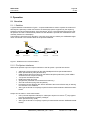
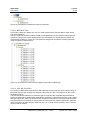
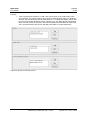
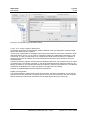
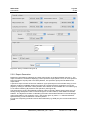
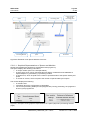
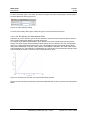
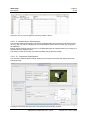
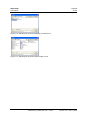
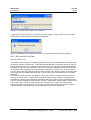
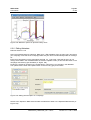
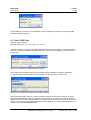
Figure 11: Connect to a database dialog
Starting from version 2.0, a database version check is carried out.
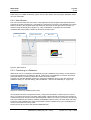
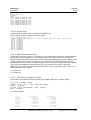
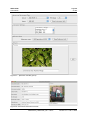
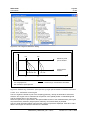
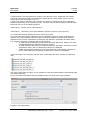
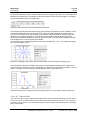
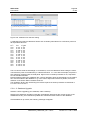
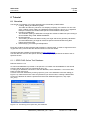
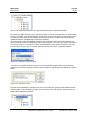
If a database with the wrong version is connected, a warning message is shown (Figure 12). The
connection will still be set up, however, some functions will not work on older database versions.
Old databases should be upgraded by the database administrator using the Upgrade function (see
5.2.11.6).
Figure 12: Database version warning message
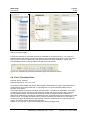
5.2.4 Creating a new Campaign
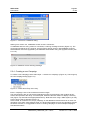
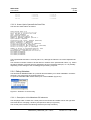
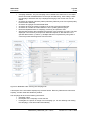
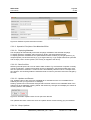
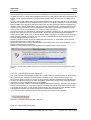
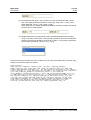
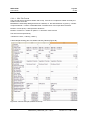
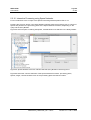
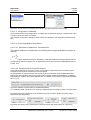
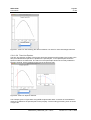
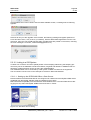
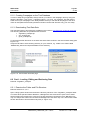
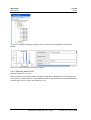
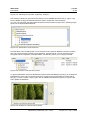
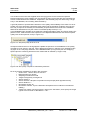
To create a new Campaign, select ‘Data Input ‘->‘Create new campaign’ (Figure 13). This brings up
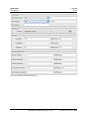
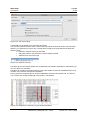
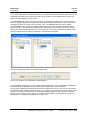
the new campaign dialog (Figure 14).
Figure 13: Create New Study menu entry
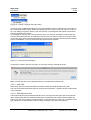
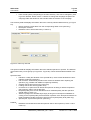
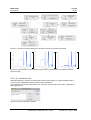
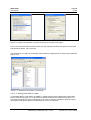
Enter a campaign name of 45 characters maximum length.
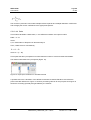
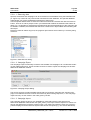
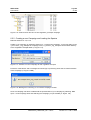
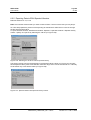
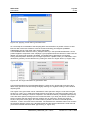
The main directory path is a file system pathname pointing to the directory that contains all hierarchies and spectra of this study. To set the path, select the ‘Browse’ button to display a directory
tree (Figure 15) and select the appropriate directory. Note that when using a UNIX system you may
have to enter a dot as filename (see 5.2.1).
Click ‘Create’ to create the new, empty campaign on the database. Note that there is no check if a
campaign of the same name already exists. It is technically feasible to have two campaigns named
the same. However, it is suggested to check on existing campaigns to avoid multiple campaigns
with identical names.
\SPECCHIO_UserGuide_V2.1.1.docx
Version 2.1.1 / 02.11.2010