1
MIDAS 4.0 EXPRESS
Users Guide
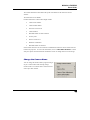
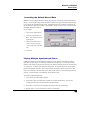
Overriding the Default Record Rate
MiDAS 4.0 Express knows the rate at which the video was recorded for all MiDAS-generated
images. If you are importing a file from another acquisition program, MiDAS 4.0 Express may
not recognize the configuration file format. If MiDAS 4.0 Express is unable to determine the
rate at which the video was recorded, it will default to 30 fps. In such a case, you may override
the default MiDAS 4.0 Express
rate, as follows:
1.
Click on the Options menu.
2.
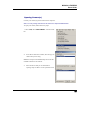
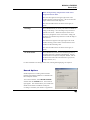
Click on Override Record
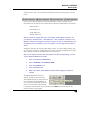
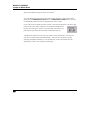
Rate. The window shown at
right appears:
3.
Either use the slider bar to
select or directly type the
correct frame rate in the edit
box.
4.
Click OK.
Playing Multiple Synchronized Videos
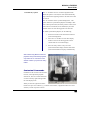
If multiple windows are in the MiDAS 4.0 Express console, then the video display window
with the active blue stripe across the top is addressed by the Play tab. You may synchronize
multiple video images in playback by using the sync button in the Play tab on the Control Panel
or by using the “s” button on the Playback shortcut bar. This option allows for synchronized
playback of multiple video files. When synchronized, the frame position of each of the video
files is incremented (or decremented) by the same amount relative to some starting position for
each file. Associated data is automatically synchronized as well.
To enable synchronized playback:
1.
Click on the first video display window.
2.
Position the video at the desired first frame for synchronized playback. This sets the
starting position to the current frame for that video display.
3.
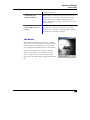
Select the “s” checkbox in the playback shortcut bar under the video image.
4.
Repeat steps 1 to 3 for each video you desire to synchronize.
49