1
3.1.1
Navigation
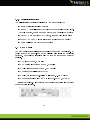
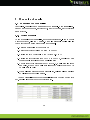
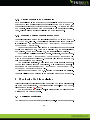
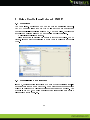
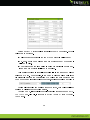
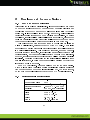
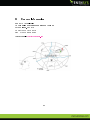
It is possible to navigate into the CastXplorer-C's menus by using the button
on the right.
3.1.2
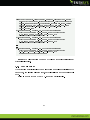
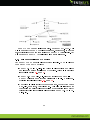
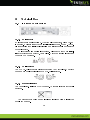
Press 'UP' or 'DOWN' to go to the previous/next item,
Press 'RIGHT' to validate (go inside menu)
Press 'LEFT' to cancel (go up one level)
Key settings
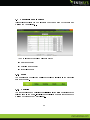
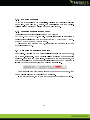
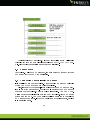
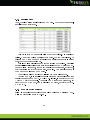
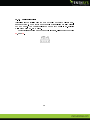
It is possible to change the key settings by using the front panel and the
button. It can be very useful when one does not have access to the web user
interface and wants, for instance, to change the network settings.
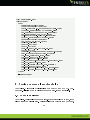
As an example, here is the step by step procedure to change the IP address
for the Control Eth.
interface:
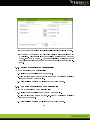
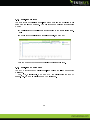
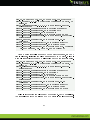
1. Press 'DOWN' until the arrow (left side) is displayed next to 'Network'
2. Press 'RIGHT' to go inside the 'Network' menu
3. Press 'RIGHT' to go inside the 'Control' menu
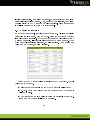
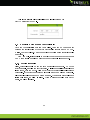
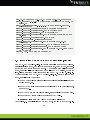
4. Press 'RIGHT' to go inside the 'CTRL IP Address' menu The LCD now
displays the current IP address. Press 'RIGHT' to switch to edit mode.
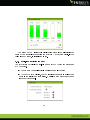
The IP address digit which is blinking is the one that is being modied.
5. Press 'UP' or 'DOWN' to change the digit's value
6. Press 'LEFT' or 'RIGHT' to move to the previous/next digit
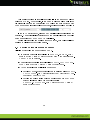
7. Once the IP address is correct, press 'RIGHT' until the end of the line
is reached to validate the new IP address.
8. If you made a mistake and want to cancel the changes, press 'LEFT'
until the start of the line is reached.
10