1
Find & Replace It!
User's Manual
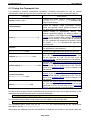
implicitly defines the size of the cache used to process the contents of files. A large value implies
working with a large cache. Since the size of the cache greatly impacts the performance of the
processing (depending on the situation), it is strongly recommended not to increase too much this
value. Indeed, in order to speed up numerous replacements in small amounts of data, it's
recommended to decrease the default value (assuming you don't need to replace huge strings). As
an example, if you replace every char in a file, one by one, with a string consisting of twice the
found letter it's much faster to have the smallest possible size of cache. Conversely, it's much
faster to have a very big cache size when you only search strings without replacing them.
6.7.1 Changing the Encoding Detection Behavior
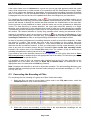
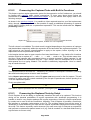
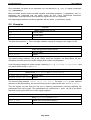
The Preferred text encoding field tells the system which encoding to choose by default when
there is more than one compatible codec detected. Of course, if the encoding detection evaluates
that the encoding is invalid for a given file, it will not be forced.
The option Use preferred text encoding if no acceptable codec is detected forces the
preferred text encoding whenever no acceptable encoding can be automatically proposed. Since
version 2.0.8, this option does not force the preferred codec anymore for binary files.
6.7.2 Doing Backups of Files before Modification
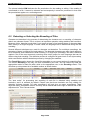
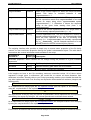
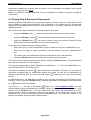
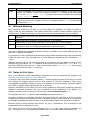
The File backup section allows you to create a backup for each modified files.
1. Mark the Backup modified files check box as shown above;
2. Type a suffix for your backup files into the Backup suffix edit. If a file with the same name
already exists, it will be replaced. So you should consider to update the file suffix between
each manipulation of the original file;
3. Auto increment suffix: Optionally you may select this option for incrementing the suffix so
that each backup will have a unique name (e.g. <a-file>.back.001, <afile>.back.002, etc.). Otherwise, each backup file overwrites the previous one.
6.8 Using the Find & Replace Preview
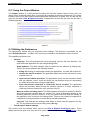
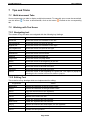
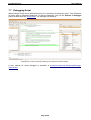
When editing an expression to search for, it is convenient to match it against real data. In order to
achieve this, let's take a tour of the Find & Replace Preview window.
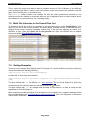
With the preview window you can visualize in one glance what are the strings that match a given
expression, what will be the replacement text, and even mix both views. It gives you an immediate
feed-back on what is going to change, which makes easy to understand the impact of your
replacement within a file without actually modifying its content. Such a realtime visualization is
especially useful whenever you want to build a complex expression to search for. The preview can
also be used as a multi-document editor.
Here are the key features of this tool:
•
check the impact of a given text encoding when applied to a file content;
•
edit a text sample against which you want to match an expression to find;
•
preview matched occurrences of an expression to find inside a given text sample;
•
•
preview resulting content of a text sample after the replacement of all occurrences of your
expression with your replacement pattern;
preview both found expressions and processed replacements inside a text sample;
•
navigate through found occurrences of a specific expression or replacement pattern;
•
WYSIWYG preview for HTML documents.
All these features are of serious help to search and replace strings in multiple files without harm.
Indeed, changing many files using a find and replace strategy, might lead to severe damages if
Page 21/49