1
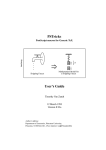
PSTricks:
leecheng
PostScript macros for Generic TeX.
M
g
m
Dripping Faucet
Mathematical Model for
a Dripping Faucet
User’s Guide
Timothy Van Zandt
12 March 1993
Version 0.93a
Author’s address:
Department of Economics, Princeton University,
Princeton, NJ 08544-1021, USA. Internet: [email protected]
Contents
Welcome to PSTricks
1
Part I
3
The Essentials
1 Arguments and delimiters
3
2 Color
4
3 Setting graphics parameters
5
4 Dimensions, coordinates and angles
7
5 Basic graphics parameters
8
Part II
Basic graphics objects
10
6 Lines and polygons
10
7 Arcs, circles and ellipses
11
8 Curves
13
9 Dots
15
10 Grids
17
11
Plots
19
Part III More graphics parameters
24
12 Coordinate systems
24
13 Line styles
24
14 Fill styles
27
15 Arrowheads and such
28
16 Custom styles
31
Part IV Custom graphics
32
17 The basics
32
18 Parameters
32
19 Graphics objects
33
Table of contents
1
20 Safe tricks
36
21 Pretty safe tricks
39
22 For hackers only
39
Part V
Picture Tools
41
23 Pictures
41
24 Placing and rotating whatever
42
25 Repetition
46
26 Axes
47
Part VI Text Tricks
52
27 Framed boxes
52
28 Clipping
54
29 Rotation and scaling boxes
55
Part VII Nodes and Node Connections
58
30 Nodes
59
31 Node connections
60
32 Attaching labels to node connections
66
Part VIII Special Tricks
70
33 Coils and zigzags
70
34 Special coordinates
71
35 Overlays
73
36 The gradient fill style
74
37 Adding color to tables
75
38 Typesetting text along a path
76
39 Stroking and filling character paths
77
40 Importing EPS files
78
Table of contents
2
41 Exporting EPS files
79
Help
82
A Boxes
82
B Tips and More Tricks
85
C Including PostScript code
86
D Troubleshooting
87
Table of contents
3
Welcome to PSTricks
PSTricks is a collection of PostScript-based TEX macros that is compatible with most TEX macro packages, including Plain TEX, LaTEX,
AMSTEX, and AMS-LaTEX. PSTricks gives you color, graphics, rotation, trees and overlays. PSTricks puts the icing (PostScript) on your
cake (TEX)!
To install PSTricks, follow the instructions in the file read-me.pst that
comes with the PSTricks package. Even if PSTricks has already been
installed for you, give read-me.pst a look over.
This User’s Guide verges on being a reference manual, meaning that it is
not designed to be read linearly. Here is a recommended strategy: Finish
reading this brief overview of the features in PSTricks. Then thumb
through the entire User’s Guide to get your own overview. Return to
Part I (Essentials) and read it carefully. Refer to the remaining sections
as the need arises.
When you cannot figure out how to do something or when trouble arises,
check out the appendices (Help). You just might be lucky enough to
find a solution. There is also a LaTEX file samples.pst of samples that is
distributed with PSTricks. Look to this file for further inspiration.
This documentation is written with LaTEX. Some examples use LaTEX
specific constructs and some don’t. However, there is nothing LaTEX
specific about any of the macros, nor is there anything that does not work
with LaTEX. This package has been tested with Plain TEX, LaTEX, AMSLaTEXand AMSTEX, and should work with other TEX macro packages
as well.
pstricks
The main macro file is pstricks.tex/pstricks.sty. Each of the PSTricks
macro files comes with a .tex extension and a .sty extension; these are
equivalent, but the .sty extension means that you can include the file
name as a LaTEX document style option.
There are numerous supplementary macro files. A file, like the one
above and the left, is used in this User’s Guide to remind you that you
must input a file before using the macros it contains.
For most PSTricks macros, even if you misuse them, you will not get
PostScript errors in the output. However, it is recommended that you
resolve any TEX errors before attempting to print your document. A
few PSTricks macros pass on PostScript errors without warning. Use
Welcome to PSTricks
1
PS
these with care, especially if you are using a networked printer, because
PostScript errors can cause a printer to bomb. Such macros are pointed
out in strong terms, using a warning like this one:
Warning: Use macros that do not check for PostScript
errors with care. PostScript errors can cause a printer to
bomb!
Keep in mind the following typographical conventions in this User’s
Guide.
• All literal input characters, i.e., those that should appear verbatim
in your input file, appear in upright Helvetica and Helvetica-Bold
fonts.
• Meta arguments, for which you are supposed to substitute a value
(e.g., angle) appear in slanted Helvetica-Oblique and HelveticaBoldOblique fonts.
• The main entry for a macro or parameter that states its syntax
appears in a large bold font, except for the optional arguments,
which are in medium weight. This is how you can recognize the
optional arguments.
• References to PSTricks commands and parameters within paragraphs are set in Helvetica-Bold.
Welcome to PSTricks
2
I
The Essentials
1 Arguments and delimiters
Here is some nitty-gritty about arguments and delimiters that is really
important to know.
The PSTricks macros use the following delimiters:
Curly braces
Brackets (only for optional arguments)
Parentheses and commas for coordinates
= and , for parameters
{arg}
[arg]
(x,y)
par1=val1, …
Spaces and commas are also used as delimiters within arguments, but
in this case the argument is expanded before looking for the delimiters.
Always use a period rather than a comma to denote the decimal point,
so that PSTricks doesn’t mistake the comma for a delimiter.
The easiest mistake to make with the PSTricks macros is to mess up the
delimiters. This may generate complaints from TEX or PSTricks about
bad arguments, or other unilluminating errors such as the following:
! Use of \get@coor doesn’t match its definition.
! Paragraph ended before \pst@addcoor was complete.
! Forbidden control sequence found while scanning use of \check@arrow.
! File ended while scanning use of \lput.
Delimiters are generally the first thing to check when you get errors with
a PSTricks macro.
Since PSTricks macros can have many arguments, it is useful to know
that you can leave a space or new line between any arguments, except
between arguments enclosed in curly braces. If you need to insert a
new line between arguments enclosed in curly braces, put a comment
character % at the end of the line.
The Essentials
3
As a general rule, the first non-space character after a PSTricks macro
should not be a [ or (. Otherwise, PSTricks might think that the [ or ( is
actually part of the macro. You can always get around this by inserting
a pair {} of braces somewhere between the macro and the [ or (.
2 Color
The grayscales
black, darkgray, gray, lightgray, and white,
and the colors
red, green, blue, cyan, magenta, and yellow
are predefined in PSTricks.
This means that these names can be used with the graphics objects that
are described in later sections. This also means that the command \gray
(or \red, etc.) can be used much like \rm or \tt, as in
{\gray This stuff should be gray.}
The commands \gray, \red, etc. can be nested like the font commands
as well. There are a few important ways in which the color commands
differ from the font commands:
1. The color commands can be used in and out of math mode (there
are no restrictions, other than proper TEX grouping).
2. The color commands affect whatever is in their scope (e.g., lines),
not simply characters.
3. The scope of the color commands does not extend across pages.
4. The color commands are not as robust as font commands when
used inside box macros. See page 89 for details. You can avoid
most problems by explicitly grouping color commands (e.g., enclosing the scope in braces {}) whenever these are in the argument
of another command.1
1
However, this is not necessary with the PSTricks LR-box commands, expect when
\psverbboxtrue is in effect. See Section A.
Color
4
You can define or redefine additional colors and grayscales with the
following commands. In each case, numi is a number between 0 and 1.
Spaces are used as delimiters—don’t add any extraneous spaces in the
arguments.
\newgray{color }{num}
num is the gray scale specification, to be set by PostScript’s setgray
operator. 0 is black and 1 is white. For example:
\newgray{darkgray}{.25}
\newrgbcolor{color }{num1 num2 num3}
num1 num2 num3 is a red-green-blue specification, to be set by
PostScript’s setrgbcolor operator. For example,
\newrgbcolor{green}{0 1 0}
\newhsbcolor{color }{num1 num2 num3}
num1 num2 num3 is an hue-saturation-brightness specification,
to be set by PostScript’s sethsbcolor operator. For example,
\newhsbcolor{mycolor}{.3 .7 .9}
\newcmykcolor{color }{num1 num2 num3 num4}
num1 num2 num3 num4 is a cyan-magenta-yellow-black specification, to be set by PostScript’s newcmykcolor operator. For
example,
\newcmykcolor{hercolor}{.5 1 0 .5}
For defining new colors, the rbg model is a sure thing. hsb is not
recommended. cmyk is not supported by all Level 1 implementations of
PostScript, although it is best for color printing. For more information on
color models and color specifications, consult the PostScript Language
Reference Manual, 2nd Edition (Red Book), and a color guide.
Driver notes:
The command \pstVerb must be defined.
3 Setting graphics parameters
PSTricks uses a key-value system of graphics parameters to customize
the macros that generate graphics (e.g., lines and circles), or graphics
combined with text (e.g., framed boxes). You can change the default
values of parameters with the command \psset, as in
Setting graphics parameters
5
\psset{fillcolor=yellow}
\psset{linecolor=blue,framearc=.3,dash=3pt 6pt}
The general syntax is:
\psset{par1=value1,par2=value2,… }
As illustrated in the examples above, spaces are used as delimiters for
some of the values. Additional spaces are allowed only following the
comma that separates par=value pairs (which is thus a good place to start
a new line if there are many parameter changes). E.g., the first example
is acceptable, but the second is not:
\psset{fillcolor=yellow, linecolor=blue}
\psset{fillcolor= yellow,linecolor =blue }
The parameters are described throughout this User’s Guide, as they are
needed.
Nearly every macro that makes use of graphics parameters allows you
to include changes as an optional first argument, enclosed in square
brackets. For example,
\psline[linecolor=green,linestyle=dotted](8,7)
draws a dotted, green line. It is roughly equivalent to
{\psset{linecolor=green,linestyle=dotted}\psline(8,7)}
For many parameters, PSTricks processes the value and stores it in a
peculiar form, ready for PostScript consumption. For others, PSTricks
stores the value in a form that you would expect. In the latter case, this
User’s Guide will mention the name of the command where the value
is stored. This is so that you can use the value to set other parameters.
E.g.,
\psset{linecolor=\psfillcolor,doublesep=.5\pslinewidth}
However, even for these parameters, PSTricks may do some processing
and error-checking, and you should always set them using \psset or as
optional parameter changes, rather than redefining the command where
the value is stored.
Setting graphics parameters
6
4 Dimensions, coordinates and angles
Whenever an argument of a PSTricks macro is a dimension, the unit is
optional. The default unit is set by the
unit=dim
Default: 1cm
parameter. For example, with the default value of 1cm, the following
are equivalent:
\psset{linewidth=.5cm}
\psset{linewidth=.5}
By never explicitly giving units, you can scale graphics by changing the
value of unit.
You can use the default coordinate when setting non-PSTricks dimensions as well, using the commands
\pssetlength{cmd}{dim}
\psaddtolength{cmd}{dim}
where cmd is a dimension register (in LaTEX parlance, a “length”), and
aTEX’s
dim is a length with optional unit. These are analogous to L
\setlength and \addtolength.
Coordinate pairs have the form (x,y). The origin of the coordinate
system is at TEX’s currentpoint. The command \SpecialCoor lets you use
polar coordinates, in the form (r;a), where r is the radius (a dimension)
and a is the angle (see below). You can still use Cartesian coordinates.
For a complete description of \SpecialCoor, see Section 34.
The unit parameter actually sets the following three parameters:
xunit=dim
yunit=dim
runit=dim
Default: 1cm
Default: 1cm
Default: 1cm
These are the default units for x-coordinates, y-coordinates, and all
other coordinates, respectively. By setting these independently, you can
scale the x and y dimensions in Cartesian coordinate unevenly. After
changing yunit to 1pt, the two \psline’s below are equivalent:
\psset{yunit=1pt}
\psline(0cm,20pt)(5cm,80pt)
\psline(0,20)(5,80)
Dimensions, coordinates and angles
7
The values of the runit, xunit and yunit parameters are stored in the
dimension registers \psunit(also \psrunit), \psxunit and \psyunit.
Angles, in polar coordinates and other arguments, should be a number
giving the angle in degrees, by default. You can also change the units
used for angles with the command
\degrees[num]
num should be the number of units in a circle. For example, you might
use
\degrees[100]
to make a pie chart when you know the shares in percentages. \degrees
without the argument is the same as
\degrees[360]
The command
\radians
is short for
\degrees[6.28319]
\SpecialCoor lets you specify angles in other ways as well.
5 Basic graphics parameters
The width and color of lines is set by the parameters:
linewidth=dim
linecolor=color
Default: .8pt
Default: black
The linewidth is stored in the dimension register \pslinewidth, and the
linecolor is stored in the command \pslinecolor.
The regions delimited by open and closed curves can be filled, as determined by the parameters:
Basic graphics parameters
8
fillstyle=style
fillcolor=color
When fillstyle=none, the regions are not filled. When fillstyle=solid, the
regions are filled with fillcolor. Other fillstyle’s are described in Section
14.
The graphics objects all have a starred version (e.g., \psframe*) which
draws a solid object whose color is linecolor. For example,
\psellipse*(1,.5)(1,.5)
Open curves can have arrows, according to the
arrows=arrows
parameter. If arrows=-, you get no arrows. If arrows=<->, you get
arrows on both ends of the curve. You can also set arrows=-> and
arrows=<-, if you just want an arrow on the end or beginning of the
curve, respectively. With the open curves, you can also specify the
arrows as an optional argument enclosed in {} brackets. This should
come after the optional parameters argument. E.g.,
\psline[linewidth=2pt]{<-}(2,1)
Other arrow styles are described in Section 15
If you set the
showpoints=true/false
Default: false
parameter to true, then most of the graphics objects will put dots at
the appropriate coordinates or control points of the object.2 Section 9
describes how to change the dot style.
2
The parameter value is stored in the conditional \ifshowpoints.
Basic graphics parameters
9
II
Basic graphics objects
6 Lines and polygons
The objects in this section also use the following parameters:
Default: 0pt
linearc=dim
The radius of arcs drawn at the corners of lines by the \psline and
\pspolygon graphics objects. dim should be positive.
Default: 0
framearc=num
In the \psframe and the related box framing macros, the radius
of rounded corners is set, by default, to one-half num times the
width or height of the frame, whichever is less. num should be
between 0 and 1.
cornersize=relative/absolute
Default: relative
If cornersize is relative, then the framearc parameter determines
the radius of the rounded corners for \psframe, as described above
(and hence the radius depends on the size of the frame). If
cornersize is absolute, then the linearc parameter determines the
radius of the rounded corners for \psframe (and hence the radius
is of constant size).
Now here are the lines and polygons:
\psline*[par]{arrows}(x0,y0)(x1,y1)… (xn,yn)
This draws a line through the list of coordinates. For example:
2
1
\psline[linewidth=2pt,linearc=.25]{->}(4,2)(0,1)(2,0)
0
0
1
2
3
4
\qline(coor0)(coor1)
Basic graphics objects
10
This is a streamlined version of \psline that does not pay attention
to the arrows parameter, and that can only draw a single line
segment. Note that both coordinates are obligatory, and there is
no optional argument for setting parameters (use \psset if you
need to change the linewidth, or whatever). For example:
1
\qline(0,0)(2,1)
0
0
1
2
\pspolygon*[par](x0,y0)(x1,y1)(x2,y2)… (xn,yn)
This is similar to \psline, but it draws a closed path. For example:
2
\pspolygon[linewidth=1.5pt](0,2)(1,2)
\pspolygon*[linearc=.2,linecolor=darkgray](1,0)(1,2)(4,0)(4,2)
1
0
0
1
2
3
4
\psframe*[par](x0,y0)(x1,y1)
\psframe draws a rectangle with opposing corners (x0,y0) and
(x1,y1). For example:
2
\psframe[linewidth=2pt,framearc=.3,fillstyle=solid,
fillcolor=lightgray](4,2)
\psframe*[linecolor=white](1,.5)(2,1.5)
1
0
0
1
2
3
4
7 Arcs, circles and ellipses
\pscircle*[par](x0,y0){radius}
This draws a circle whose center is at (x0,y0) and that has radius
radius. For example:
2
1
\pscircle[linewidth=2pt](.5,.5){1.5}
0
-1
-1
0
1
2
\qdisk(coor){radius}
This is a streamlined version of \pscircle*. Note that the two
arguments are obligatory and there is no parameters arguments.
To change the color of the disks, you have to use \psset:
Arcs, circles and ellipses
11
\psset{linecolor=gray}
\qdisk(2,3){4pt}
\pswedge*[par](x0,y0){radius}{angle1}{angle2}
This draws a wedge whose center is at (x0,y0), that has radius
radius, and that extends counterclockwise from angle1 to angle2 .
The angles must be specified in degrees. For example:
2
1
\pswedge[linecolor=gray,linewidth=2pt,fillstyle=solid]{2}{0}{70}
0
0
1
2
\psellipse*[par](x0,y0)(x1,y1)
(x0,y0) is the center of the ellipse, and x1 and y1 are the horizontal
and vertical radii, respectively. For example:
1
0
\psellipse[fillcolor=lightgray](.5,0)(1.5,1)
-1
-1
0
1
2
\psarc*[par]{arrows}(x,y){radius}{angleA}{angleB}
This draws an arc from angleA to angleB , going counter clockwise,
for a circle of radius radius and centered at (x,y). You must include
either the arrows argument or the (x,y) argument. For example:
2
1
\psarc*[showpoints=true](1.5,1.5){1.5}{215}{0}
0
0
1
2
3
See how showpoints=true draws a dashed line from the center to
the arc; this is useful when composing pictures.
\psarc also uses the parameters:
arcsepA=dim
Default: 0pt
angleA is adjusted so that the arc would just touch a line of
width dim that extended from the center of the arc in the
direction of angleA.
arcsepB=dim
Default: 0pt
This is like arcsepA, but angleB is adjusted.
Arcs, circles and ellipses
12
arcsep=dim
This just sets both arcsepA and arcsepB.
Default: 0
These parameters make it easy to draw two intersecting lines and
then use \psarc with arrows to indicate the angle between them.
For example:
3
2
\SpecialCoor
\psline[linewidth=2pt](4;50)(0,0)(4;10)
\psarc[arcsepB=2pt]{->}{3}{10}{50}
1
0
0
1
2
3
4
\psarcn*[par]{arrows}(x,y){radius}{angleA}{angleB}
This is like \psarc, but the arc is drawn clockwise. You can
achieve the same effect using \psarc by switching angleA and
angleB and the arrows.3
8 Curves
\psbezier*[par]{arrows}(x0,y0)(x1,y1)(x2,y2)(x3,y3)
\psbezier draws a bezier curve with the four control points. The
curve starts at the first coordinate, tangent to the line connecting
to the second coordinate. It ends at the last coordinate, tangent to
the line connecting to the third coordinate. The second and third
coordinates, in addition to determining the tangency of the curve
at the endpoints, also “pull” the curve towards themselves. For
example:
\psbezier[linewidth=2pt,showpoints=true]{->}(0,0)(1,4)(2,1)(4,3.5)
3
However, with \pscustom graphics object, described in Part IV, \psarcn is not
redundant.
Curves
13
showpoints=true puts dots in all the control points, and connects
them by dashed lines, which is useful when adjusting your bezier
curve.
\parabola*[par]{arrows}(x0,y0)(x1,y1)
Starting at (x0,y0), \parabola draws the parabola that passes
through (x0,y0) and whose maximum or minimum is (x1,y1). For
example:
3
2
\parabola*(1,1)(2,3)
\psset{xunit=.01}
\parabola{<->}(400,3)(200,0)
1
0
0
1
2
3
4
The next three graphics objects interpolate an open or closed curve
through the given points. The curve at each interior point is perpendicular to the line bisecting the angle ABC, where B is the interior point,
and A and C are the neighboring points. Scaling the coordinates does
not cause the curve to scale proportionately.
The curvature is controlled by the following parameter:
curvature=num1 num2 num3
Default: 1 .1 0
You have to just play around with this parameter to get what
you want. Individual values outside the range -1 to 1 are either
ignored or are for entertainment only. Below is an explanation of
what each number does. A, B and C refer to three consecutive
points.
Lower values of num1 make the curve tighter.
Lower values of num2 tighten the curve where the angle ABC is
greater than 45 degrees, and loosen the curve elsewhere.
num3 determines the slope at each point. If num3 =0, then the
curve is perpendicular at B to the bisection of ABC. If num3 =-1,
then the curve at B is parallel to the line AC. With this value (and
only this value), scaling the coordinates causes the curve to scale
proportionately. However, positive values can look better with
irregularly spaced coordinates. Values less than -1 or greater than
2 are converted to -1 and 2, respectively.
Here are the three curve interpolation macros:
Curves
14
\pscurve*[par]{arrows}(x1,y1) … (xn,yn)
This interpolates an open curve through the points. For example:
2
\pscurve[showpoints=true]{<->}(0,1.3)(0.7,1.8)
(3.3,0.5)(4,1.6)(0.4,0.4)
1
0
0
1
2
3
4
Note the use of showpoints=true to see the points. This is helpful
when constructing a curve.
\psecurve*[par]{arrows}(x1,y1) … (xn,yn)]
This is like \pscurve, but the curve is not extended to the first and
last points. This gets around the problem of trying to determine
how the curve should join the first and last points. The e has
something to do with “endpoints”. For example:
4
3
2
\psecurve[showpoints=true](.125,8)(.25,4)(.5,2)
(1,1)(2,.5)(4,.25)(8,.125)
1
0
0
1
2
3
4
\psccurve*[par]{arrows}(x1,y1) … (xn,yn)
This interpolates a closed curve through the points. c stands for
“closed”. For example:
1
\psccurve[showpoints=true]
(.5,0)(3.5,1)(3.5,0)(.5,1)
0
0
1
2
3
4
9 Dots
The graphics object
\psdots*[par ](x1,y1)(x2,y2)… (xn,yn)
Dots
15
puts a dot at each coordinate. What a “dot” is depends on the value of
the
Default: *
dotstyle=style
parameter. This also determines the dots you get when showpoints=true.
The dot styles are also pretty intuitive:
Style
Example
Style
*
square
o
square*
+
pentagon
triangle
pentagon*
triangle*
|
Example
As with arrows, there is a parameter for scaling the dots:
dotscale=num1 num2
Default: 1
The dots are scaled horizontally by num1 and vertically by num2 . If
you only include one number, the arrows are scaled the same in both
directions.
There is also a parameter for rotating the dots:
dotangle=angle
Default: 0
Thus, e.g., by setting dotangle=45, the + dotstyle gives you an x, and
the square dotstyle gives you a diamond. Note that the dots are first
scaled and then rotated.
The unscaled size of the¨| dot style is controlled by the tbarsize parameter,
and the unscaled size of the remaining dot styles is controlled by the
dotsize. These are described in Section 15. The radius as determined
by the value of dotsize is the radius of solid or open circles. The other
types of dots are of similar size.4
The dot sizes are allowed to depend on the linewidth because of the
showpoints parameter . However, you can set the dot sizes to an absolute
dimension by setting the second number in the dotsize parameter to 0.
E.g.,
\psset{dotsize=3pt 0}
sets the size of the dots to 3pt, independent of the value of linewidth.
4
The polygons are sized to have the same area as the circles. A diamond is just a
rotated square.
Dots
16
10
Grids
PSTricks has a powerful macro for making grids and graph paper:
\psgrid(x0,y0)(x1,y1)(x2,y2)
\psgrid draws a grid with opposing corners (x1,y1) and (x2,y2). The
intervals are numbered, with the numbers positioned at x0 and y0 . The
coordinates are always interpreted as Cartesian coordinates. For example:
2
1
\psgrid(0,0)(-1,-1)(3,2)
0
-1
0
1
2
3
-1
(Note that the coordinates and label positioning work the same as with
\psaxes.)
The main grid divisions occur on multiples of xunit and yunit. Subdivisions are allowed as well. Generally, the coordinates would be given as
integers, without units.
If the (x0,y0) coordinate is omitted, (x1,y1) is used. The default for
(x1,y1) is (0,0). If you don’t give any coordinates at all, then the coordinates of the current \pspicture environment are used or a 10x10 grid is
drawn. Thus, you can include a \psgrid command without coordinates
in a \pspicture environment to get a grid that will help you position
objects in the picture.
The main grid divisions are numbered, with the numbers drawn next to
the vertical line at x0 (away from x2 ) and next to the horizontal line at
x1 (away from y2 ). (x1,y1) can be any corner of the grid, as long as
(x2,y2) is the opposing corner, you can position the labels on any side
you want. For example, compare
1
\psgrid(0,0)(4,1)
0
0
1
2
3
4
and
0
1
2
3
4
1
\psgrid(4,1)(0,0)
0
Grids
17
The following parameters apply only to \psgrid:
Default: .8pt
gridwidth=dim
The width of grid lines.
gridcolor=color
Default: black
The color of grid lines.
Default: 0
griddots=num
If num is positive, the grid lines are dotted, with num dots per
division.
Default: 10pt
gridlabels=dim
The size of the numbers used to mark the grid.
gridlabelcolor=color
Default: black
The color of the grid numbers.
subgriddiv=int
Default: 5
The number of grid subdivisions.
subgridwidth=dim
Default: .4pt
The width of subgrid lines.
subgridcolor=color
Default: gray
The color of subgrid lines.
subgriddots=num
Default: 0
Like griddots, but for subdivisions.
Here is a familiar looking grid which illustrates some of the parameters:
1
0
\psgrid[subgriddiv=1,griddots=10,gridlabels=7pt](-1,-1)(3,1)
-1
-1
0
1
2
3
Note that the values of xunit and yunit are important parameters for
\psgrid, because they determine the spacing of the divisions. E.g., if the
value of these is 1pt, and then you type
\psgrid(0,0)(10in,10in)
Grids
18
you will get a grid with 723 main divisions and 3615 subdivisions!
(Actually, \psgrid allows at most 500 divisions or subdivisions, to limit
the damage done by this kind of mistake.) Probably you want to set unit
to .5in or 1in, as in
\psgrid[unit=.5in](0,0)(20,20)
11
pst-plot
Plots
The plotting commands described in this part are defined in pst-plot.tex/pstplot.sty, which you must load first.
The \psdots, \psline, \pspolygon, \pscurve, \psecurve and \psccurve
graphics objects let you plot data in a variety of ways. However, first
you have to generate the data and enter it as coordinate pairs (x,y). The
plotting macros in this section give you other ways to get and use the
data. (Section 26 tells you how to generate axes.)
To parameter
plotstyle=style
Default: line
determines what kind of plot you get. Valid styles are dots, line, polygon,
curve, ecurve, ccurve. E.g., if the plotstyle is polygon, then the macro
becomes a variant of the \pspolygon object.
You can use arrows with the plot styles that are open curves, but there
is no optional argument for specifying the arrows. You have to use the
arrows parameter instead.
PS
Warning: No PostScript error checking is provided for
the data arguments. Read Appendix C before including
PostScript code in the arguments.
There are system-dependent limits on the amount of data
TEX and PostScript can handle. You are much less likely to
exceed the PostScript limits when you use the line, polygon
or dots plot style, with showpoints=false, linearc=0pt, and
no arrows.
Note that the lists of data generated or used by the plot commands cannot
contain units. The values of \psxunit and \psyunit are used as the unit.
Plots
19
\fileplot*[par]{file}
\plotfile is the simplest of the plotting functions to use. You just
need a file that contains a list of coordinates (without units), such
as generated by Mathematica or other mathematical packages.
The data can be delimited by curly braces { }, parentheses ( ),
commas, and/or white space. Bracketing all the data with square
brackets [ ] will significantly speed up the rate at which the data is
read, but there are system-dependent limits on how much data TEX
can read like this in one chunk. (The [ must go at the beginning
of a line.) The file should not contain anything else (not even
\endinput), except for comments marked with %.
\plotfile only recognizes the line, polygon and dots plot styles,
and it ignores the arrows, linearc and showpoints parameters.
The \listplot command, described below, can also plot data from
file, without these restrictions and with faster TEX processing.
However, you are less likely to exceed PostScript’s memory or
operand stack limits with \plotfile.
If you find that it takes TEX a long time to process your \plotfile command, you may want to use the \PSTtoEPS command
described on page 80. This will also reduce TEX’s memory requirements.
\dataplot*[par]{commands}
\dataplot is also for plotting lists of data generated by other pro-
grams, but you first have to retrieve the data with one of the
following commands:
\savedata{command}[data]
\readdata{command}{file}
data or the data in file should conform to the rules described above
for the data in \fileplot (with \savedata, the data must be delimited
by [ ], and with \readdata, bracketing the data with [ ] speeds things
up). You can concatenate and reuse lists, as in
\readdata{\foo}{foo.data}
\readdata{\bar}{bar.data}
\dataplot{\foo\bar}
\dataplot[origin=(0,1)]{\bar}
The \readdata and \dataplot combination is faster than \fileplot
if you reuse the data. \fileplot uses less of TEX’s memory than
\readdata and \dataplot if you are also use \PSTtoEPS.
Plots
20
As an alignment environment, \psmatrix is similar to AMS-TEX’s \matrix.
There is no argument for specifying the columns. Instead, you can just
use as many columns as you need. The entries are horizontally centered.
Rows are ended by \\. \psmatrix can be used in or out of math mode.
Our first example wasn’t very interesting, because we didn’t make use
of the nodes. Actually, each entry is a node. The name of the node in
row row and column col is {row,col}, with no spaces. Let’s see some
node connections:
X
f
Y
g
h
Z
$
\psmatrix[colsep=1cm]
& X \\
Y & Z
\endpsmatrix
\everypsbox{\scriptstyle}%
\psset{nodesep=3pt,arrows=->}
\ncline{1,2}{2,1}
\tlput{f}
\ncline{1,2}{2,2}
\trput{g}
\ncline[linestyle=dotted]{2,1}{2,2}
\tbput{h}
$
You can include the node connections inside the \psmatrix, in the last
entry and right before \endpsmatrix. One advantage to doing this is that
shortput=tab is the default within a \psmatrix.
$
\begin{psmatrix}
U \\
& X\times_Z Y & X \\
&
Y
& Z
\psset{arrows=->,nodesep=3pt}
\everypsbox{\scriptstyle}
\ncline{1,1}{2,2}_{y}
\ncline[doubleline=true,linestyle=dashed]{-}{1,1}{2,3}ˆ{x}
\ncline{2,2}{3,2}<{q}
\ncline{2,2}{2,3}_{p}
\ncline{2,3}{3,3}>{f}
\ncline{3,2}{3,3}_{g}
\end{psmatrix}
U
x
y
X
Z Y
p
X
q
f
Y
g
Z
$
Mathematical diagrams and graphs
26
You can change the kind of nodes that are made by setting the
mnode=type
Default: R
parameter. Valid types are R, r, C, f, p, circle, oval, dia, tri, dot and
none, standing for \Rnode, \rnode, \Cnode, \fnode, \pnode, \circlenode,
\ovalnode, \dotnode and no node, respectively. Note that for circles,
you use mnode=C and set the radius with the radius parameter.
For example:
A
g
e
f
B
b
E
a
d
c
D
C
\psmatrix[mnode=circle,colsep=1]
& A \\
B & E & C \\
& D &
\endpsmatrix
\psset{shortput=nab,arrows=->,labelsep=3pt}
\small
\ncline{2,2}{2,3}ˆ[npos=.75]{a}
\ncline{2,2}{2,1}ˆ{b}
\ncline{3,2}{2,1}ˆ{c}
\ncarc[arcangle=-40,border=3pt]{3,2}{1,2}
_[npos=.3]{d}ˆ[npos=.7]{e}
\ncarc[arcangle=12]{1,2}{2,1}ˆ{f}
\ncarc[arcangle=12]{2,1}{1,2}ˆ{g}
Note that a node is made only for the non-empty entries. You can also
specify a node for the empty entries by setting the
emnode=type
Default: none
parameter.
You can change parameters for a single entry by starting with entry
with the parameter changes, enclosed in square brackets. Note that the
changes affect the way the node is made, but not contents of the entry
(use \psset for this purpose). For example:
Mathematical diagrams and graphs
27
X
Y
Z
$
\psmatrix[colsep=1cm]
& [mnode=circle] X \\
Y & Z
\endpsmatrix
\psset{nodesep=3pt,arrows=->}
\ncline{1,2}{2,1}
\ncline{1,2}{2,2}
\ncline[linestyle=dotted]{2,1}{2,2}
$
If you want your entry to begin with a [ that is not meant to indicate
parameter changes, the precede it by {}.
You can assign your own name to a node by setting the
Default:
name=name
parameter at the beginning of the entry, as described above. You can
still refer to the node by {row,col}, but here are a few reasons for giving
your own name to a node:
• The name may be easier to keep track of;
• Unlike the {row,col} names, the names you give remain valid even
when you add extra rows or columns to your matrix.
• The names remain valid even when you start a new \psmatrix that
reuses the {row,col} names.
Here a few more things you should know:
• The baselines of the nodes pass through the centers of the nodes.
\psmatrix achieves this by setting the
nodealign=true/false
Default: false
parameter to true. You can also set this parameter outside of
\psmatrix when you want this kind of alignment.
• You can left or right-justify the nodes by setting the
mcol=l/r/c
Default: c
parameter. l, r and c stand for left, right and center, respectively.
• The space between rows and columns is set by the
Mathematical diagrams and graphs
28
rowsep=dim
colsep=dim
Default: 1.5cm
Default: 1.5cm
parameters.
• If you want all the nodes to have a fixed with, set
mnodesize=dim
Default: -1pt
to a positive value.
• If \psmatrix is used in math mode, all the entries are set in math
mode, but you can switch a single entry out of math mode by
starting and ending the entry with $.
• The radius of the c mnode (corresponding to \cnode) is set by the
radius=dim
Default: 2pt
parameter.
• Like in LaTEX, you can end a row with \\[dim] to insert an extra
space dim between rows.
• The command \psrowhookii is executed, if defined, at the beginning of every entry in row ii (row 2), and the command \pscolhookv
is executed at athe beginning of every entry in column v (etc.).
You can use these hooks, for example, to change the spacing between two columns, or to use a special mnode for all the entries
in a particular row.
• An entry can itself be a node. You might do this if you want an
entry to have two shapes.
• If you want an entry to stretch across several (int ) columns, use
the
\psspan{int}
at the end of the entry. This is like Plain TEX’s \multispan, or
LaTEX’s \multicolumn, but the template for the current column (the
first column that is spanned) is still used. If you want wipe out
the template as well, use \multispan{int} at the beginning of the
entry instead. If you just want to wipe out the template, use \omit
before the entry.
Mathematical diagrams and graphs
29
• \psmatrix can be nested, but then all node connections and other
references to the nodes in the {row,col} form for the nested matrix
must go inside the \psmatrix. This is how PSTricks decides
which matrix you are referring to. It is still neatest to put all
the node connections towards the end; just be sure to put them
before \endpsmatrix. Be careful also not to refer to a node until
it actually appears. The whole matrix can itself go inside a node,
and node connections can be made as usual. This is not the same
as connecting nodes from two different \psmatrix’s. To do this,
you must give the nodes names and refer to them by these names.
12
Obsolete put commands
This is old documentation, but these commands will continue to be
supported.
There is also an obsolete command \Lput for putting labels next to node
connections. The syntax is
\Lput{labelsep}[refpoint]{rotation}(pos){stuff }
It is a combination of \Rput and \lput, equivalent to
\lput(pos){\Rput{labelsep}[refpoint]{rotation}(0,0){stuff }}
\Mput is a short version of \Lput with no {rotation} or (pos) argument.
\Lput and \Mput remain part of PSTricks only for backwards compati-
bility.
Here are the node label commands:
\lput*[refpoint]{rotation}(pos){stuff }
The l stands for “label”. Here is an example illustrating the use
of the optional star and :angle with \lput, as well as the use of the
offset parameter with \pcline:
th
g
Len
\pspolygon(0,0)(4,2)(4,0)
\pcline[offset=12pt]{|-|}(0,0)(4,2)
\lput*{:U}{Length}
Obsolete put commands
30
(Remember that with the put commands, you can omit the coordinate if you include the angle of rotation. You are likely to use
this feature with the node label commands.)
With \lput and \rput, you have a lot of control over the position of
the label. E.g.,
label
\pcline(0,0)(4,2)
\lput{:U}{\rput[r]{N}(0,.4){label}}
puts the label upright on the page, with right side located .4
centimeters “above” the position .5 of the node connection (above
if the node connection points to the right). However, the \aput
and \bput commands described below handle the most common
cases without \rput.8
\aput*[labelsep]{angle}(pos){stuff }
stuff is positioned distance \pslabelsep above the node connec-
tion, given the convention that node connections point to the right.
\aput is a node-connection variant of \uput. For example:
e
nus
H
te
ypo
\pspolygon(0,0)(4,2)(4,0)
\pcline[linestyle=none](0,0)(4,2)
\aput{:U}{Hypotenuse}
\bput*[labelsep]{angle}(pos){stuff }
This is like \aput, but stuff is positioned below the node connection.
It is fairly common to want to use the default position and rotation with
these node connections, but you have to include at least one of these
arguments. Therefore, PSTricks contains some variants:
8
There is also an obsolete command \Lput for putting labels next to node connections. The syntax is
\Lput{labelsep}[refpoint]{rotation}(pos){stuff }
It is a combination of \Rput and \lput, equivalent to
\lput(pos){\Rput{labelsep}[refpoint]{rotation}(0,0){stuff }}
\Mput is a short version of \Lput with no {rotation} or (pos) argument. \Lput and
\Mput remain part of PSTricks only for backwards compatibility.
Obsolete put commands
31
\mput*[refpoint]{stuff }
\Aput*[labelsep]{stuff }
\Bput*[labelsep]{stuff }
of \lput, \aput and \bput, respectively, that have no angle or positioning
argument. For example:
1
\cnode*(0,0){3pt}{A}
\cnode*(4,2){3pt}{B}
\ncline[nodesep=3pt]{A}{B}
\mput*{1}
Here is another:
Label
\pcline{<->}(0,0)(4,2)
\Aput{Label}
Obsolete put commands
32
II
13
pstree
Trees
Overview
The node and node connections are perfect tools for making trees. The
file pstree.tex / pstree.sty contains a high-level interface for positioning
the nodes in a tree.
The main tree macro is
\pstree{(root)node}{(sub)trees and (terminal)nodes}
This positions the root node above its successors.
root
\pstree{\Toval{root}}{\TC* \TC* \TC* \TC*}
\pstree produces a box that encloses all the nodes, and whose baseline
passes through the center of the root node.
For most of the nodes described in Section 6 (e.g., \ovalnode), there
is a variant for use within a tree (e.g., \Toval). Note that there is no
distinction between a terminal node and a root node, other than their
position in the \pstree command.
A tree, when included in the list or successors, becomes a subtree.
\pstree{\Tp}{%
\TC*
\pstree{\Tc{3pt}}{\TC* \TC*}
\TC*}
Trees
33
14
Tree Nodes
For most nodes described in Section 6, you can add strip node from the
end of the name and add T add the beginning to obtain a node for use
in trees. The syntax of a tree node is the same as of its corresponding
“normal” node, except that:
• there is always an optional argument for setting graphics parameters, even if the original node did not have one,
• there is no argument for specifying the name of the node, and
• there is never a coordinate argument for positioning the node.
• to set the reference point with \Tr, set the ref parameter.
Here is the list of such tree nodes:
\Tp*[par ]
\Tc*[par ]{dim}
\TC*[par ]
\Tf*[par ]
\Tdot*[par ]
\Tr*[par ]{stuff }
\TR*[par ]{stuff }
\Tcircle*[par ]{stuff }
\Toval*[par ]{stuff }
\Tdia*[par ]{stuff }
\Ttri*[par ]{stuff }
\Rnode is a good choice when you want the baselines of the text in the
nodes to line up horizontally.
X
X˜
x
y
$
\pstree[nodesepB=3pt]{\Tcircle{X}}{%
\TR{\tilde{\tilde{X}}}
\TR{x}
\TR{y}}
$
Compare the preceding example with the next one, which uses \rnode:
Tree Nodes
34
X
X˜
x
y
$
\pstree[nodesepB=3pt]{\Tcircle{X}}{%
\Tr{\tilde{\tilde{X}}}
\Tr{x}
\Tr{y}}
$
There is also a null tree node
\Tn
It is meant to be just a place holder.
\pstree[nodesep=3pt]{\TC*}{%
\pstree{\TC*}{\TC* \Tn}
\pstree{\TC*}{%
\TC*
\pstree{\TC*}{\Tn\TC*}}}
Actually, if I was going to do this a lot I would define some short-cuts:
\def\mytree{\pstree{\TC*}}
\def\ltree#1{\mytree{#1\Tn}}
\def\rtree#1{\mytree{\Tn#1}}
\psset{nodesep=3pt}
\mytree{%
\ltree{\TC*}
\mytree{%
\TC*
\rtree{\TC*}}}
There is also a special tree node that doesn’t have a “normal” version
and that can’t be used as the root node of a whole tree:
\Tfan*[par ]
Tree Nodes
35
This draws a triangle whose base is
fansize=dim
Default: 1cm
and whose opposite corner is the predecessor node, adjusted by the value
of nodesepA and offsetA. For example:
foo
\pstree{\Tcircle{foo}}{%
\Tfan
\Tf*[framesize=4pt]
\pstree{\Tr{\psframebox[framearc=.5]{bar}}}{\Tfan}}
bar
Here is another example illustrating that a \Tfan can have successors:
foo
\pstree{\Tcircle{foo}}{%
\pstree{\Tfan*[linearc=.1]}{%
\Tc*{2pt}
\Tfan[linestyle=dashed]}}
15
Trees
This section describes several graphics parameters for \pstree. Any
settings of graphics parameters for \pstree affects all of its successors,
including subtrees. but not the root node.
The
treemode=R/L/U/D
Default:
parameter controls the direction in which the tree grows. R, L, U and
D stand for “right”, “left”, “up” and “down”, respectively. When you
change the treemode, the treemode of all nested trees changes as well.
For example, here is a tree that grows up, and then to the left:
Trees
36
⊕
⊕
⊕
⊕
\pstree[treemode=U,dotstyle=oplus,dotsize=6pt,
nodesep=2pt]{\Tc{3pt}}{%
\pstree[treemode=L]{\Tc{3pt}}{%
\Tdot
\Tdot}
\Tdot
\Tdot}
When the tree goes up or down, the successors are lined up from left
to right in the order they appear in \pstree’s argument. When the tree
goes left or right, the successors are lined up from top to bottom. As an
afterthought, you might want to flip the order of the nodes. The
treeflip=true/false
Default: false
let’s you do this.
A tree can also be root node. This is useful when the nested tree goes
off in a different direction. If treeB is the root node of treeA, then the
root of treeB is also the root node treeA.
\pstree{%
\pstree[treemode=L]{\Tcircle{root}}{%
\Tr{B}}%
}{%
\Tr{A1}
\Tr{A2}}
root
B
A1
A2
A node can also contain a tree, but that is another story.
The distance between successors and between levels is given by the
treesep=dim
levelsep=*dim
Default: .75cm
Default: 2cm
parameters.
The distance between successors takes into account the size of the
nodes, but the distance between levels does not, at least by default. If
you include the optional * when setting levelsep, the level sep is in
addition to the size of the nodes. However, PSTricks needs a second
run through TEX (without any changes between runs) to get the spacing
right, and it writes to the .aux file with LaTEX, and to the file \jobname.pst
with other macro packages. (Even then, there is no guarantee it will get
the spacing right.)
Here are two exaggerated examples that illustrates the difference between relative and absolute spacing between levels:
Trees
37
\pstree[levelsep=1cm,radius=2pt]{\Tc{3pt}}{%
\TC*
\pstree{\Tc{3pt}}{%
\Tc*{15pt}
\TC*}
\TC*}
\psset{levelsep=*1cm,radius=2pt}
\pstree{\Tc{3pt}}{%
\TC*
\pstree{\Tc{3pt}}{%
\Tc*{15pt}
\TC*}
\TC*}
If you set the
treenodesize=dim
Default: -1pt
to a non-negative value, then PSTricks uses treenodesize as a fixed
size of the successors (in the direction of their neighbors, i.e., a fixed
width for vertical trees and a fixed height/depth for horizontal trees).
For example, sometimes it is esthetically pleasing to smooth over small
variations in the sizes of the nodes. Compare
j
K4
\pstree[nodesepB=-8pt]{\Tc{3pt}}{%
\TR{$j$}%
\TR{$K_4$}%
\TR{$x>y$}}
x>y
with
j
K4
\pstree[treenodesize=.4cm,treesep=.3cm,nodesepB=-8pt]{\Tc{3pt}}{%
\TR{$j$}%
\TR{$K_4$}%
\TR{$x>y$}}
x>y
A subtree’s profile varies from level to level. \pstree has two modes for
fitting subtrees together:
tight With tight fit, the subtrees are fit together so that the minimum
distance on any level is treesep. This is the default.
Trees
38
loose With loose fit, the distance between the subtrees’ bounding boxes
is treesep. Except when you have exceptionally large intermediate nodes, the effect is that the horizontal distance (or vertical
distance, for horizontal trees) between all the terminal nodes is
the same.
You select the mode with the
treefit=tight/loose
Default: tight
parameter.
treefit=tight
treefit=loose
As noted at the beginning of this section, parameter changes made with
\pstree affect all subtrees. However, there are variants of some of these
parameters for making local changes, i.e, changes that affects only the
current level:
thistreesep=dim
thistreenodesize=dim
thistreefit=tight/loose
thislevelsep=*dim
Default:
Default:
Default:
Default:
For example:
\pstree[thislevelsep=.5cm,thistreesep=2cm,radius=2pt]{\Tc*{3pt}}{%
\pstree{\TC*}{\TC* \TC*}
\pstree{\TC*}{\TC* \TC*}}
Trees
39
There are some things you may want set uniformly across a level in the
tree, such as the levelsep. At level n, the command \pstreehookroman(n)
(e.g., \pstreehookii) is executed, if it is defined (the root node of the whole
tree is level 0, the successor tree objects and the node connections from
the root node to these successors is level 1, etc.). In the following
example, the levelsep is changed for level 2, without having to set the
thislevelsep parameter for each of the three subtrees that make of level
2:
\[
\def\pstreehookiii{\psset{thislevelsep=3cm}}
\pstree[treemode=R,levelsep=1cm,radius=2pt]{\Tc{4pt}}{%
\pstree{\TC*}{%
\pstree{\TC*}{\Tr{X_1} \Tr{X_2}}
\pstree{\TC*}{\Tr{Y_1} \Tr{Y_2}}}
\pstree{\TC*}{%
\pstree{\TC*}{\Tr{K_1} \Tr{K_2}}
\pstree{\TC*}{\Tr{J_1} \Tr{J_2}}}}
\]
X1
X2
Y1
Y2
K1
K2
J1
J2
16
Edges
A tree node is really a composite object. In addition to creating a new
node, it also draws a node connection between itself and its predecessor,
if there is one.
Edges
40
When a tree node has made the new node, the command \pssucc is
equal to the name of this node, and \pspred is equal to the name of its
predecessor. Then the tree node executes
\psedge{\pspred}{\pssucc}
You can define \psedge to make whatever node connection you want
(see Section ??). For example, here I use \ncdiag, with armA=0, to
get all the node connections to emanate from the same point in the
predecessor:
\def\psedge{\ncdiag[armA=0,angleB=180,armB=1cm]}
% Or: \renewcommand{\psedge}{ ... }
\pstree[treemode=R,levelsep=3.5cm,framesep=2pt]{\Tc{6pt}}{%
\small \Tcircle{N} \Tcircle{K} \Tcircle{H} \Tcircle{L}}
N
K
H
L
Here is another example with \ncdiagg. Note the use of negative the
armA value so that the corners of the edges are vertically aligned, even
though the nodes have different sizes:
$
\def\psedge#1#2{\ncdiagg[angleA=180, armA=-3cm,
nodesep=4pt]{#2}{#1}}
% Or: \renewcommand{\psedge}[2]{ ... }
\pstree[treemode=R, levelsep=5cm]{\Tc{3pt}}{%
\Tr{z_1\leq y}
\Tr{z_1<y\leq z_2}
\Tr{z_2<y\leq x}
\Tr{x<y}}
$
Edges
41
z1 ≤ y
z1 < y≤ z2
z2 < y ≤ x
x<y
Another way to define \psedge is with the
edge=command
Default: \ncline
parameter. Be sure to enclose the value in braces {} if it contains commas
or other parameter delimiters. This gets messy if your command is
long, and you can’t use arguments like in the preceding example, but for
simple changes it is useful. For example, if I want to switch between
a few node connections frequently, I might define a command for each
node connection, and then use the edge parameter.
\def\dedge{\ncline[linestyle=dashed]}
\pstree[treemode=U,radius=2pt]{\Tc{3pt}}{%
\TC*[edge=\dedge]
\pstree{\Tc{3pt}}{\TC*[edge=\dedge] \TC*}
\TC*}
You can also set edge=none to suppress the node connection.
edge is the only parameter which, when set in a tree node’s parameter
argument, affects the drawing of the node connection (e.g., if you want
to change the nodesep, your edge has to include the parameter change,
or you have to set it before the node).
If you want to draw a node connection between two nodes that are not
direct predecessor and successor, you have to give the nodes a name
that you can refer to, using the name parameter. For example, here I
connect two nodes on the same level:
Edges
42
nature
\pstree[nodesep=3pt,radius=2pt]{\Toval{nature}}{%
\pstree{\Tc[name=top]{3pt}}{\TC* \TC*}
\pstree{\Tc[name=bot]{3pt}}{\TC* \TC*}}
\ncline[linestyle=dashed]{top}{bot}
We conclude with the more examples.
X
root
Y
\def\psedge{\nccurve[angleB=180, nodesepB=3pt]}
\pstree[treemode=R, treesep=1.5, levelsep=3.5]%
{\Toval{root}}{\Tr{X} \Tr{Y} \Tr{Z}}
Z
root
x
y
z
\pstree[nodesepB=3pt, arrows=->, xbbl=15pt,
xbbr=15pt, levelsep=2.5cm]{\Tdia{root}}{%
$
\TR[edge={\ncbar[angle=180]}]{x}
\TR{y}
\TR[edge=\ncbar]{z}
$}
root
\psset{armB=1cm, levelsep=3cm, treesep=1cm,
angleB=-90, angleA=90, arrows=<-, nodesepA=3pt}
\def\psedge#1#2{\ncangle{#2}{#1}}
\pstree[radius=2pt]{\Ttri{root}}{\TC* \TC* \TC* \TC*}
17
Edge and node labels
Right after a node, an edge has typically been drawn, and you can attach
labels using \ncput \tlput, etc.
Edge and node labels
43
With \tlput, \trput, \taput and \tbput, you can align the labels vertically
or horizontally, just like the nodes. This can look nice, at least if the
slopes of the node connections are not too different.
k
r
j
m
i
\pstree[radius=2pt]{\Tp}{%
\psset{tpos=.6}
\TC* \tlput{k}
\pstree{\Tc{3pt} \tlput[labelsep=3pt]{r}}{%
\TC* \tlput{j}
\TC* \trput{i}}
\TC* \trput{m}}
Within trees, the tpos parameter measures this distance from the predecessor to the successor, whatever the orientation of the true. (Outside
of trees it measures the distance from the top to bottom or left to right
nodes.)
PSTricks also sets shortput=tab within trees. This is a special shortput
option that should not be used outside of trees. It implements the
following abbreviations, which depend of the orientation of the true:
Char.
Short for:
Vert. Horiz.
ˆ
\tlput
\taput
_
\trput
\tbput
(The scheme is reversed if treeflip=true.)
left
above
above
right
\psset{tpos=.6}
\pstree[treemode=R, thistreesep=1cm,
thislevelsep=3cm,radius=2pt]{\Tc{3pt}}{%
\pstree[treemode=U, xbbr=20pt]{\Tc{3pt}ˆ{above}}{%
\TC*ˆ{left}
\TC*_{right}}
\TC*ˆ{above}
\TC*_{below}}
below
You can change the character abbreviations with
\MakeShortTab{char1}{char2}
Edge and node labels
44
The \n*put commands can also give good results:
\psset{npos=.6,nrot=:U}
\pstree[treemode=R, thistreesep=1cm,
thislevelsep=3cm]{\Tc{3pt}}{%
\Tc{3pt}\naput{above}
\Tc*{2pt}\naput{above}
\Tc*{2pt}\nbput{below}}
ve
abo
above
belo
w
You can put labels on the nodes using \nput. However, \pstree won’t
take these labels into account when calculating the bounding boxes.
There is a special node label option for trees that does keep track of the
bounding boxes:
˜*[par ]{stuff }
Call this a “tree node label”.
Put a tree node label right after the node to which it applies, before
any node connection labels (but node connection labels, including the
short forms, can follow a tree node label). The label is positioned
directly below the node in vertical trees, and similarly in other trees.
For example:
root
\pstree[radius=2pt]{\Tc{3pt}\nput{45}{\pssucc}{root}}{
\TC*˜{$h$} \TC*˜{$i$} \TC*˜{$j$} \TC*˜{$k$}}
h
i
j
k
Note that there is no “long form” for this tree node label. However, you
can change the single character used to delimit the label with
\MakeShortTnput{char1}
If you find it confusing to use a single character, you can also use a
command sequence. E.g.,
\MakeShortTnput{\tnput}
Edge and node labels
45
You can have multiple labels, but each successive label is positioned
relative to the bounding box that includes the previous labels. Thus,
the order in which the labels are placed makes a difference, and not all
combinations will produce satisfactory results.
You will probably find that the tree node label works well for terminal
nodes, without your intervention. However, you can control the tree
node labels be setting several parameters.
To position the label on any side of the node (left, right, above or below),
set:
Default:
tnpos=l/r/a/b
root
\psframebox{%
\pstree{\Tc{3pt}˜[tnpos=a,tndepth=0pt]{root}}{
\TC*˜[tnpos=l]{$h$}
\TC*˜[tnpos=r]{$i$}}}
h
i
When you leave the argument empty, which is the default, PSTricks
chooses the label position is automatically.
To change the distance between the node and the label, set
tnsep=dim
Default:
When you leave the argument empty, which is the default, PSTricks
uses the value of labelsep. When the value is negative, the distance is
measured from the center of the node.
When labels are positioned below a node, the label is given a minimum
height of
tnheight=dim
Default: \ht\strutbox
Thus, if you add labels to several nodes that are horizontally aligned,
and if either these nodes have the same depth or tnsep is negative, and if
the height of each of the labels is no more than tnheight, then the labels
will also be aligned by their baselines. The default is \ht\strutbox, which
in most TEX formats is the height of a typical line of text in the current
font. Note that the value of tnheight is not evaluated until it is used.
The positioning is similar for labels that go below a node. The label is
given a minimum depth of
Edge and node labels
46
tndepth=dim
Default: \dp\strutbox
For labels positioned above or below, the horizontal reference point of
the label, i.e., the point in the label directly above or below the center
of the node, is set by the href parameter.
When labels are positioned on the left or right, the right or left edge of
the label is positioned distance tnsep from the node. The vertical point
that is aligned with the center of the node is set by
tnyref=num
Default:
When you leave this empty, vref is used instead. Recall that vref gives
the vertical distance from the baseline. Otherwise, the tnyref parameter
works like the yref parameter, giving the fraction of the distance from
the bottom to the top of the label.
18
Details
Both \pstree’s root node argument and successors argument are processed as LR-boxes, and so everything in Appendix ??, including the
treatment of math and verbatim text, applies, except the following. Because \pstree has two arguments, you cannot use \pslongbox to define a
“long” version of \pstree. However, there is a variant \psTree of \pstree
whose syntax is:
\psTree{root node} successors \endpsTree
For example:
\psTree{\Tc{3pt}}
\TC*
\psTree{\Tc{3pt}}
\TC*
\TC*
\endpsTree
\TC*
\endpsTree
LaTEX purists can write \begin{psTree} and \end{psTree} instead.
PSTricks does a pretty good job of positioning the nodes and creating a
box whose size is close to the true bounding box of the tree. However,
Details
47
PSTricks does not take into account the node connections or labels when
calculating the bounding boxes, except the tree node labels.
If, for this or other reasons, you want to fine tune the bounding box of
the nodes, you can set the following parameters:
Default:
Default:
Default:
Default:
Default:
Default:
Default:
Default:
bbl=dim
bbr=dim
bbh=dim
bbd=dim
xbbl=dim
xbbr=dim
xbbh=dim
xbbd=dim
The x versions increase the bounding box by dim, and the others set the
bounding box to dim. There is one parameter for each direction from
the center of the node, left, right, height, and depth.
These parameters affect trees and nodes, and subtrees that switch directions, but not subtrees that go in the same direction as their parent tree
(such subtrees have a profile rather than a bounding box, and should be
adjusted by changing the bounding boxes of the constituent nodes).
Save any fiddling with the bounding box until you are otherwise finished
with the tree.
You can see the bounding boxes by setting the
showbbox=true/false
Default: false
parameter to true. To see the bounding boxes of all the nodes in a tree,
you have to set this parameter before the tree.
In the following example, the labels stick out of the bounding box:
foo
bar
left
right
\psset{tpos=.6,showbbox=true}
\pstree[treemode=U]{\Tc{5pt}}{%
\TR{foo}ˆ{left}
\TR{bar}_{right}}
Here is how we fix it:
foo
left
bar
\psset{tpos=.6,showbbox=true}
\pstree[treemode=U,xbbl=8pt,xbbr=14pt]{\Tc{5pt}}{%
\TR{foo}ˆ{left}
\TR{bar}_{right}}
right
Details
48
Now we can frame the tree:
foo
left
\psframebox[fillstyle=solid,fillcolor=lightgray,framesep=14pt,
linearc=14pt,cornersize=absolute,linewidth=1.5pt]{%
\psset{tpos=.6,border=1pt,nodesepB=3pt}
\pstree[treemode=U,xbbl=8pt,xbbr=14pt]{%
\Tc[fillcolor=white,fillstyle=solid]{5pt}}{%
\TR*{foo}ˆ{left}
\TR*{bar}_{right}}}
bar
right
We would have gotten the same result by changing the bounding box of
the two terminal nodes.
You can also adjust the distance between successors with the
\tspace{dim}
command.
\pstree{\Tc{3pt}}{%
\Tc*{2pt}%
\tspace{1cm}
\TR*{$K_4$}%
\Tc*{2pt}}
K4
To skip levels, use
\skiplevel*[par ]{nodes or subtrees}
\skiplevels*[par ]{int} nodes or subtrees \endskiplevels
These are kind of like subtrees, but with no root node.
\pstree[treemode=R,levelsep=1.8,radius=2pt]{\Tc{3pt}}{
\skiplevel{\Tfan}
\pstree{\Tc{3pt}}{
\TC*
\skiplevels{2}
\pstree{\Tc{3pt}}{\TC* \TC*}
\TC*
\endskiplevels
\pstree{\Tc{3pt}}{
\TC*
\TC*}}}
Details
49
The profile at the missing levels is the same as at the first non-missing
level. You can adjust this with the bounding box parameters. You
get greatest control if you use nested \skiplevel commands instead of
\skiplevels.
\large
\psset{radius=6pt, dotsize=4pt}
\pstree[thislevelsep=0,edge=none,levelsep=2.5cm]{\Tn}{%
\pstree{\TR{Player 1}}{\pstree{\TR{Player 2}}{\TR{Player 3}}}
\psset{edge=\ncline}
\pstree
{\pstree[treemode=R]{\TC}{\Tdot ˜{(0,0,0)} ˆ{N}}}{%
\pstree{\TC[name=A] ˆ{L}}{%
\Tdot ˜{(-10,10.-10)} ˆ{l}
\pstree{\TC[name=C] _{r}}{%
\Tdot ˜{(3,8,-4)} ˆ{c}
\Tdot ˜{(-8,3,4)} _{d}}}
\pstree{\TC[name=B] _{R}}{%
\Tdot ˜{(10,-10.0)} ˆ{l}
\pstree{\TC[name=D]_{r}}{%
\Tdot ˜{(4,8,-3)} ˆ{c}
\Tdot ˜{(0,-5,0)} _{d}}}
}}
\ncbox[linearc=.3,boxsize=.3,linestyle=dashed,nodesep=.4]{A}{B}
\ncarcbox[linearc=.3,boxsize=.3,linestyle=dashed,
arcangle=25,nodesep=.4]{D}{C}
Details
50
N
Player 1
L
• (0,0,0)
R
Player 2
l
Player 3
r
r
•
•
(-10,10.-10)
(10,-10.0)
c
Details
l
d
c
d
•
•
•
•
(3,8,-4)
(-8,3,4)
(4,8,-3)
(0,-5,0)
51
\def\zigzag{\psline(0,0)(.5,1)(1.5,-1)(2,0)}%
\psset{unit=.25,linewidth=1.5pt}
\multips(0,0)(2,0){8}{\zigzag}
multido
PSTricks is distributed with a much more general loop macro, called
\multido. You must input the file multido.tex or multido.sty. See the
documentation multido.doc for details. Here is a sample of what you can
do:
\begin{pspicture}(-3.4,-3.4)(3.4,3.4)
\newgray{mygray}{0} % Initialize ‘mygray’ for benefit
\psset{fillstyle=solid,fillcolor=mygray} % of this line.
\SpecialCoor
\degrees[1.1]
\multido{\n=0.0+.1}{11}{%
\newgray{mygray}{\n}
\rput{\n}{\pswedge{3}{-.05}{.05}}
\uput{3.2}[\n](0,0){\small\n}}
\end{pspicture}
0.3
0.2
0.4
0.1
0.5
0.0
0.6
1.0
0.7
0.8
0.9
All of these loop macros can be nested.
26
pst-plot
Axes
The axes command described in this section is defined in pst-plot.tex /
pst-plot.sty, which you must input first. pst-plot.tex, in turn, will automatically input multido.tex, which is used for putting the labels on the
axes.
Axes
47
The macro for making axes is:
\psaxes*[par ]{arrows}(x0,y0)(x1,y1)(x2,y2)
The coordinates must be Cartesian coordinates. They work the same
way as with \psgrid. That is, if we imagine that the axes are enclosed
in a rectangle, (x1,y1) and (x2,y2) are opposing corners of the rectangle.
(I.e., the x-axis extends from x1 to x2 and the y-axis extends from y1 to
y2 .) The axes intersect at (x0,y0). For example:
3
2
(x2,y2)
(x0,y0)
\psaxes[linewidth=1.2pt,labels=none,
ticks=none]{<->}(2,1)(0,0)(4,3)
1
0
0
1
2
3
(x1,y1)
4
If (x0,y0) is omitted, then the origin is (x1,y1). If both (x0,y0) and (x1,y1)
are omitted, (0,0) is used as the default. For example, when the axes
enclose a single orthont, only (x2,y2) is needed:
1
\psaxes{->}(4,2)
0
0
1
2
3
Labels (numbers) are put next to the axes, on the same side as x1 and
y1. Thus, if we enclose a different orthont, the numbers end up in the
right place:
0
1
2
3
0
\psaxes{->}(4,-2)
-1
Also, if you set the arrows parameter, the first arrow is used for the tips
at x1 and y1, while the second arrow is used for the tips at x2 and y2 .
Thus, in the preceding examples, the arrowheads ended up in the right
place too.12
12
Including a first arrow in these examples would have had no effect because arrows
are never drawn at the origin.
Axes
48
When the axes don’t just enclose an orthont, that is, when the origin
is not at a corner, there is some discretion as to where the numbers
should go. The rules for positioning the numbers and arrows described
above still apply, and so you can position the numbers as you please by
switching y1 and y2 , or x1 and x2 . For example, compare
2
\psaxes{<->}(0,0)(-2.5,0)(2.5,2.5)
1
-2
-1
0
1
2
with what we get when x1 and x2 are switched:
2
\psaxes{<->}(0,0)(2.5,0)(-2.5,2.5)
1
-2
-1
0
1
2
\psaxes puts the ticks and numbers on the axes at regular intervals, using
the following parameters:
Horitontal
Vertical
Dflt Description
Ox=num
Oy=num
0
Label at origin.
Dx=num
Dy=num
1
Label increment.
dx=dim
oy=dim
0pt
Dist btwn labels.
When dx is 0, Dx\psxunit is used instead, and similarly for dy. Hence,
the default values of 0pt for dx and dy are not as peculiar as they seem.
You have to be very careful when setting Ox, Dx, Oy and Dy to noninteger values. multido.tex increments the labels using rudimentary
fixed-point arithmetic, and it will come up with the wrong answer unless Ox and Dx, or Oy and Dy, have the same number of digits to the
right of the decimal. The only exception is that Ox or Oy can always
be an integer, even if Dx or Dy is not. (The converse does not work,
however.)13
13
For example, Ox=1.0 and Dx=1.4 is okay, as is Ox=1 and Dx=1.4, but Ox=1.4 and
Dx=1, or Ox=1.4 and Dx=1.15, is not okay. If you get this wrong, PSTricks won’t
complain, but you won’t get the right labels either.
Axes
49
Note that \psaxes’s first coordinate argument determines the physical
position of the origin, but it doesn’t affect the label at the origin. E.g., if
the origin is at (1,1), the origin is still labeled 0 along each axis, unless
you explicitly change Ox and Oy. For example:
3
2
\psaxes[Ox=-2](-2,0)(2,3)
1
0
-2
-1
0
1
2
The ticks and labels use a few other parameters as well:
labels=all/x/y/none
Default: all
To specify whether labels appear on both axes, the x-axis, the
y-axis, or neither.
showorigin=true/false
Default: true
If true, then labels are placed at the origin, as long as the label
doesn’t end up on one of the axes. If false, the labels are never
placed at the origin.
ticks=all/x/y/none
Default: all
To specify whether ticks appear on both axes, the x-axis, the
y-axis, or neither.
tickstyle=full/top/bottom
Default: full
For example, if tickstyle=top, then the ticks are only on the side
of the axes away from the labels. If tickstyle=bottom, the ticks
are on the same side as the labels. full gives ticks extending on
both sides.
ticksize=dim
Default: 3pt
Ticks extend dim above and/or below the axis.
The distance between ticks and labels is \pslabelsep, which you can
change with the labelsep parameter.
The labels are set in the current font (ome of the examples above were
preceded by \small so that the labels would be smaller). You can do
fancy things with the labels by redefining the commands:
Axes
50
\psxlabel
\psylabel
E.g., if you want change the font of the horizontal labels, but not the
vertical labels, try something like
\def\psxlabel#1{\small #1}
You can choose to have a frame instead of axes, or no axes at all (but
you still get the ticks and labels), with the parameter:
axesstyle=axes/frame/none
Default: axes
The usual linestyle, fillstyle and related paremeters apply.
For example:
3
2
\psaxes[Dx=.5,dx=1,tickstyle=top,axesstyle=frame](-3,3)
1
-1.5 -1.0 -0.5
0
0
The \psaxes macro is pretty flexible, but PSTricks contains some other
tools for making axes from scratch. E.g., you can use \psline and
\psframe to draw axes and frames, respectively, \multido to generate
labels (see the documentation for multido.tex), and \multips to make
ticks.
Axes
51
VI
27
Text Tricks
Framed boxes
The macros for framing boxes take their argument, put it in an \hbox, and
put a PostScript frame around it. (They are analogous to LaTEX’s \fbox).
Thus, they are composite objects rather than pure graphics objects. In
addition to the graphics parameters for \psframe, these macros use the
following parameters:
framesep=dim
Default: 3pt
Distance between each side of a frame and the enclosed box.
boxsep=true/false
Default: true
When true, the box that is produced is the size of the frame or
whatever that is drawn around the object. When false, the box that
is produced is the size of whatever is inside, and so the frame is
“transparent” to TEX. This parameter only applies to \psframebox,
\pscirclebox, and \psovalbox.
Here are the three box-framing macros:
\psframebox*[par]{stuff }
A simple frame (perhaps with rounded corners) is drawn using
\psframe. The * option is of particular interest. It generates a solid
frame whose color is fillcolor (rather than linecolor, as with the
closed graphics objects). Recall that the default value of fillcolor
is white, and so this has the effect of blotting out whatever is
behind the box. For example,
Label
\pspolygon[fillcolor=gray,fillstyle=crosshatch*](0,0)(3,0)
(3,2)(2,2)
\rput(2,1){\psframebox*[framearc=.3]{Label}}
Text Tricks
52
\psdblframebox*[par]{stuff }
This draws a double frame. It is just a variant of \psframebox,
defined by
\newpsobject{psdblframebox}{psframebox}{doublesep=\pslinewidth}
For example,
\psdblframebox[linewidth=1.5pt]{%
\parbox[c]{6cm}{\raggedright A double frame is drawn
with the gap between lines equal to {\tt doublesep}}}
A double frame is drawn with the
gap between lines equal to doublesep
\psshadowbox*[par]{stuff }
This draws a single frame, with a shadow.
Great Idea!!
\psshadowbox{\bf Great Idea!!}
You can get the shadow with \psframebox just be setting the
shadowsize parameter, but with \psframebox the dimensions of
the box won’t reflect the shadow (which may be what you want!).
\pscirclebox*[par]{stuff }
This draws a circle. With boxsep=true, the size of the box is close
to but may be larger than the size of the circle. For example:
You are
\pscirclebox{\begin{tabular}{c} You are \\ here \end{tabular}}
here
\cput*[par]{angle}(x ,y ){stuff }
This combines the functions of \pscirclebox and \rput. It is like
\rput{<angle>}(x0,y0){\string\pscirclebox*[<par>]{<stuff>}}
but it is more efficient. Unlike the \rput command, there is no
argument for changing the reference point; it is always the center
of the box. Instead, there is an optional argument for changing
graphics parameters. For example
Framed boxes
53
1
K1
0
0
\cput[doubleline=true](1,.5){\large $K_1$}
1
2
\psovalbox*[par]{stuff }
This draws an ellipse. If you want an oval with square sides and
rounded corners, then use \psframebox with a positive value for
rectarc or linearc (depending on whether cornersize is relative or
absolute). Here is an example that uses boxsep=false:
At the introductory
price of $13.99, it
pays to act now!
At the introductory price of
\psovalbox[boxsep=false,linecolor=darkgray]{\$13.99},
it pays to act now!
You can define variants of these box framing macros using the \newpsobject command.
If you want to control the final size of the frame, independently of the
aTEX’s \makebox command.
material inside, nest stuff in something like L
28
Clipping
The command
\clipbox[dim]{stuff }
puts stuff in an \hbox and then clips around the boundary of the box, at
a distance dim from the box (the default is 0pt).
The \pspicture environment also lets you clip the picture to the boundary.
The command
\psclip{graphics} … \endpsclip
sets the clipping path to the path drawn by the graphics object(s), until
the \endpsclip command is reached. \psclip and \endpsclip must be
properly nested with respect to TEX grouping. Only pure graphics (those
described in Part II and \pscustom) are permitted. An Overfull \hbox
warning indicates that the graphics argument contains extraneous output
or space. Note that the graphics objects otherwise act as usual, and
the \psclip does not otherwise affect the surrounded text. Here is an
example:
Clipping
54
\parbox{4.5cm}{%
\psclip{\psccurve[linestyle=none](-3,-2)
(0.3,-1.5)(2.3,-2)(4.3,-1.5)(6.3,-2)(8,-1.5)(8,2)(-3,2)}
‘‘One of the best new plays I have seen all year: cool, poetic,
ironic
\ldots” proclaimed {\em The Guardian} upon the London
premiere of this extraordinary play about a Czech director and
his actress wife, confronting exile in America.\vspace{-1cm}
\endpsclip}
“One of the best new plays
I have seen all year: cool,
poetic, ironic …” proclaimed
The Guardian upon the London premiere of this extraordi-
If you don’t want the outline to be painted, you need to include linestyle=none
in the parameter changes. You can actually include more than one graphics object in the argument, in which case the clipping path is set to the
intersection of the paths.
\psclip can be a useful tool in picture environments. For example, here
it is used to shade the region between two curves:
4
3
2
1
0
0
1
2
3
4
\psclip{%
\pscustom[linestyle=none]{%
\psplot{.5}{4}{2 x div}
\lineto(4,4)}
\pscustom[linestyle=none]{%
\psplot{0}{3}{3 x x mul 3 div sub}
\lineto(0,0)}}
\psframe*[linecolor=gray](0,0)(4,4)
\endpsclip
\psplot[linewidth=1.5pt]{.5}{4}{2 x div}
\psplot[linewidth=1.5pt]{0}{3}{3 x x mul 3 div sub}
\psaxes(4,4)
Driver notes: The clipping macros use \pstverbscale and \pstVerb. Don’t be
surprised if PSTricks’s clipping does not work or causes problem—it is never
robust. \endpsclip uses initclip. This can interfere with other clipping operations,
and especially if the TEX document is converted to an Encapsulated PostScript
file. The command \AltClipMode causes \psclip and \endpsclip to use gsave
and grestore instead. This bothers some drivers, such as NeXTTeX’s TeXView,
especially if \psclip and \endpsclip do not end up on the same page.
29
Rotation and scaling boxes
There are versions of the standard box rotation macros:
\rotateleft{stuff }
Rotation and scaling boxes
55
\rotateright{stuff }
\rotatedown{stuff }
stuff is put in an \hbox and then rotated or scaled, leaving the appropriate
Right
Down
Left
amount of spaces. Here are a few uninteresting examples:
\Large\bf \rotateleft{Left} \rotatedown{Down} \rotateright{Right}
There are also two box scaling macros:
\scalebox{num1 num2}{stuff }
If you give two numbers in the first argument, num1 is used to
scale horizontally and num2 is used to scale vertically. If you give
just one number, the box is scaled by the same in both directions.
You can’t scale by zero, but negative numbers are OK, and have
the effect of flipping the box around the axis. You never know
when you need to do something like siht (\scalebox{-1 1}{this}).
\scaleboxto(x ,y ){stuff }
This time, the first argument is a (Cartesian) coordinate, and the
box is scaled to have width x and height (plus depth) y . If one of
the dimensions is 0, the box is scaled by the same amount in both
directions. For example:
Big andlong
\scaleboxto(4,2){Big and long}
PSTricks defines LR-box environments for all these box rotation and
scaling commands:
\pslongbox{Rotateleft}{\rotateleft}
\pslongbox{Rotateright}{\rotateright}
\pslongbox{Rotatedown}{\rotatedown}
\pslongbox{Scalebox}{\scalebox}
\pslongbox{Scaleboxto}{\scaleboxto}
Here is an example where we \Rotatedown for the answers to exercises:
Rotation and scaling boxes
56
Question: How do
Democrats organize a
firing squad?
Question: How do Democrats organize a firing squad?
\begin{Rotatedown}
\parbox{\hsize}{Answer: First they get in a circle, \ldots\hss}%
\end{Rotatedown}
aTEX table
See the documentation of fancybox.sty for tips on rotating a L
or figure environment, and other boxes.
Rotation and scaling boxes
57
Answer: First they get in
a circle, …
VII
pst-node
Nodes and Node Connections
All the commands described in this part are contained in the file pstnode.tex/pst-node.sty.
The node and node connection macros let you connect information
and place labels, without knowing the exact position of what you are
connecting or of where the lines should connect. These macros are
useful for making graphs and trees, mathematical diagrams, linguistic
syntax diagrams, and connecting ideas of any kind. They are the trickiest
tricks in PSTricks!
Although you might use these macros in pictures, positioning and rotating them with \rput, you can actually use them anywhere. For example,
I might do something like this in a guide about page styles:
With the myfooters page
style, the name of the
current section appears
at the bottom of each
page.
\makeatletter
\gdef\ps@temp{\def\@oddhead{}\def\@evenhead{}
\def\@oddfoot{\small\sf
\ovalnode[boxsep=false]{A}{\rightmark}
\nccurve[ncurv=.5,angleB=240,angleA=180,nodesep=6pt]{<-}{A}{B}
\hfil\thepage}
\let\@evenfoot\@oddfoot}
\makeatother
\thispagestyle{temp}
With the {\tt myfooters} page style, the name of the current section
appears at the bottom of each \rnode{B}{page}.
You can use nodes in math mode and in alignment environments as well.
Here is an example of a commutative diagram:
Nodes and Node Connections
58
$
\begin{array}{c@{\hskip 1cm}c}
& \rnode{a}{A}\\[2cm]
\rnode{b}{B} & \rnode{c}{C}
\end{array}
\psset{nodesep=3pt}
\everypsbox{\scriptstyle}
\ncline{->}{a}{b}\Bput{f}
\ncline{->}{a}{c}\Aput{g}
\ncline[linestyle=dotted]{->}{b}{c}\Aput{h}
$
A
f
B
g
h
C
There are three components to the node macros:
Node definitions The node definitions let you assign a name and shape
to an object. See Section 30.
Node connections The node connections connect two nodes, identified
by their names. See Section 31.
Node labels The node label commands let you affix labels to the node
connections. See Section 32.
30
Nodes
PS
The name of a node must contain only letters and numbers, and must
begin with a letter.
Warning: Bad node names can cause PostScript errors.
\rnode[refpoint]{name}{stuff }
This assigns the name to the node, which will have a rectangular
shape for the purpose of making connections, with the “center”
at the reference point (i.e., node connections will point to the
reference point. \rnode was used in the two examples above.
\Rnode(x,y){name}{stuff }
This is like \rnode, but the reference point is calculated differently.
It is set to the middle of the box’s baseline, plus (x,y). If you omit
the (x,y) argument, command
\RnodeRef
Nodes
59
is substituted. The default definition of \RnodeRef is 0,.7ex. E.g,
the following are equivalent:
\Rnode(0,.6ex){stuff}
{\def\RnodeRef{0,.6ex}\Rnode{stuff}}
\Rnode is useful when aligning nodes by their baaelines, such as in
commutative diagrams. With \rnode horizontal node connections
might not be quite horizontal, because of differences in the size
of letters.
\pnode(x,y){name}
This creates a zero dimensional node at the point (x,y) (default
(0,0)).
\cnode*[par](x,y){radius}{name}
This draws a circle and assigns the name to it.
\circlenode*[par]{name}{stuff }
This is a variant of \pscirclebox that gives the node the shape of
the circle.
\cnodeput*[par]{angle}(x,y){name}{stuff }
This is a variant of \cput that gives the node the shape of the
circle.
\ovalnode*[par]{name}{stuff }
This is a variant of \psovalbox that gives the node the shape of
the ellipse.
The reason that there is no \framenode command is that using \psframebox (or \psshadowbox or \psdblframebox) in the argument of \rnode
gives the desired result.
31
Node connections
All the node connection commands begin with nc, and they all have the
same syntax:
\<nodeconnection>[<par>]{<arrows>}{<nodeA>}{<nodeB>}
Node connections
60
A line of some sort is drawn from nodeA to nodeB . Some of the node
connection commands are a little confusing, but with a little experimentation you will figure them out, and you will be amazed at the things
you can do.
The node and point connections can be used with \pscustom. The
beginning of the node connection is attached to the current point by a
straight line, as with \psarc.14
When we refer to the A and B nodes below, we are referring only to the
order in which the names are given as arguments to the node connection
macros.
When a node name cannot be found on the same page as the node
connection command, you get either no node connection or a nonsense
node connection. However, TEX will not report any errors.
The node connections use the following parameters:
Default: 0
nodesep=dim
The border around the nodes added for the purpose of determining
where to connect the lines.
Default: 0
offset=dim
After the node connection point is calculated, it is shift up for
nodeA and down for nodeB by dim, where “up” and “down”
assume that the connecting line points to the right from the node.
arm=dim
Default: 10pt
Some node connections start with a segment of length dim before
turning somewhere.
Default: 0
angle=angle
Some node connections let you specify the angle that the node
connection should connect to the node.
Default: 8
arcangle=angle
This applies only to \ncarc, and is described below.
ncurv=num
Default: .67
This applies only to \nccurve and \pccurve, and is described
below.
14
See page 71 if you want to use the nodes as coordinates in other PSTricks macros.
Node connections
61
loopsize=dim
Default: 1cm
This applies only the \ncloop and \pcloop, and is described below.
You can set these parameters separately for the two nodes. Just add an
A or B to the parameter name. E.g.
\psset{nodesepA=3pt, offsetA=5pt, offsetB=3pt, arm=1cm}
sets nodesep for the A node, but leaves the value for the B node unchanged, sets offset for the A and B nodes to different values, and sets
arm for the A and B nodes to the same value.
Don’t forget that by using the border parameter, you can create the
impression that one node connection passes over another.
Here is a description of the individual node connection commands:
\ncline*[par]{arrows}{nodeA}{nodeB}
This draws a straight line between the nodes. Only the offset and
nodesep parameters are used.
Idea 2
\rput[bl](0,0){\rnode{A}{Idea 1}}
\rput[tr](4,3){\rnode{B}{Idea 2}}
\ncline[nodesep=3pt]{<->}{A}{B}
Idea 1
\ncLine*[par]{arrows}{nodeA}{nodeB}
This is like \ncline, but the labels (with \lput, etc) are positioned
as if the line began and ended at the center of the nodes. This is
useful if you have multiple parallel lines and you want the labels
to line up, even though the nodes are of varying size, e.g., in
commutative diagrams.
\nccurve*[par]{arrows}{nodeA}{nodeB}
This draws a bezier curve between the nodes. It uses the nodesep,
offset, angle and ncurv parameters.
Node B
\rput[bl](0,0){\rnode{A}{\psframebox{Node A}}}
\rput[tr](4,3){\ovalnode{B}{Node B}}
\nccurve[angleB=180]{A}{B}
Node A
Node connections
62
\ncarc*[par]{arrows}{nodeA}{nodeB}
This is actually a variant of \nccurve. I.e., it also connects the
nodes with a bezier curve, using the nodesep, offset, and ncurv
parameters. However, the curve connects to node A at an angle
arcangleA from the line between A and B, and connects to node B
at an angle -arcangleB from the line between B and A. For small,
equal values of angleA and angleB (e.g., the default value of 8)
and with the default value of ncurv, the curve approximates an
arc of a circle. \ncarc is a nice way to connect two nodes with
two lines.
Y
X
\cnodeput(0,0){A}{X}
\cnodeput(3,2){B}{Y}
\psset{nodesep=3pt}
\ncarc{->}{A}{B}
\ncarc{->}{B}{A}
\ncbar*[par]{arrows}{nodeA}{nodeB}
First, lines are drawn attaching to both nodes at an angle angleA
and of lengths armA and armB. Then one of the arms is extended
so that when the two are connected, the finished line contains 3
segments meeting at right angles. Generally, the whole line has
three straight segments. The value of linearc is used for rounding
the corners.
Connect some words!
\rnode{A}{Connect} some \rnode{B}{words}!
\ncbar[nodesep=3pt,angle=-90]{<-**}{A}{B}
\ncdiag*[par]{arrows}{nodeA}{nodeB}
First, the arms are drawn using angle and arm. Then they are
connected with a straight line. Generally, the whole line has three
straight segments. The value of linearc is used for rounding the
corners.
Node A
\rput[tl](0,3){\rnode{A}{\psframebox{Node A}}}
\rput[br](4,0){\ovalnode{B}{Node B}}
\ncdiag[angleA=-90,angleB=90,arm=.5,linearc=.2]{A}{B}
Node B
Node connections
63
\ncdiagg*[par]{arrows}{nodeA}{nodeB}
This is similar to \ncdiag, but only the arm for node A is drawn.
The end of this arm is then connected directly to node B. The
connection typically has two segments. The value of linearc is
used for rounding the corners.
H
T
\cnode(0,0){4pt}{a}
\rput[l](3,1){\rnode{b}{H}}
\rput[l](3,-1){\rnode{c}{T}}
\ncdiagg[angleA=180,armA=2cm,nodesepA=3pt]{b}{a}
\ncdiagg[angleA=180,armA=2cm,nodesepA=3pt]{c}{a}
\ncangle*[par]{arrows}{nodeA}{nodeB}
The node connection points are determined by angleA and angleB
(and nodesep and offset). Then an arm is drawn for node B using
armB. This arm is connected to node A by a right angle, that also
meets node A at angle angleA. Generally, the whole line has three
straight segments, but it can have fewer. The value of linearc is
used for rounding the corners. Simple, right? Here is an example:
Node A
\rput[tl](0,3){\rnode{A}{\psframebox{Node A}}}
\rput[br](4,0){\ovalnode{B}{Node B}}
\ncangle[angleA=-90,angleB=90,arm=.4cm,
linestyle=dashed]{A}{B}
Node B
\ncangles*[par]{arrows}{nodeA}{nodeB}
This is similar to \ncangle, but both armA and armB are used.
The arms are connected by a right angle that meets arm A at a
right angle as well. Generally there are four segments (hence one
more angle than \ncangle, and hence the s in \ncangles). The
value of linearc is used for rounding the corners. Compare this
example with the previous one:
Node A
\rput[tl](0,3){\rnode{A}{\psframebox{Node A}}}
\rput[br](4,0){\ovalnode{B}{Node B}}
\ncangles[angleA=-90,arm=.4cm,linearc=.15]{A}{B}
Node B
Node connections
64
\ncloop*[par]{arrows}{nodeA}{nodeB}
The first segment is armA, then it makes a 90 degree turn to the
left, drawing a segment of length loopsize. The next segment is
again at a right angle; it connects to armB. For example:
A loop
\rnode{a}{\psframebox{\Huge A loop}}
\ncloop[angleB=180,loopsize=1,arm=.5,linearc=.2]{->}{a}{a}
\nccircle*[par]{arrows}{node}{radius}
This draws a circle from a node to itself. It is the only node
connection command of this sort. The circle starts at angle angleA and goes around the node counterclockwise, at a distance
nodesepA from the node.
The node connection commands make interesting drawing tools as well,
as an alternative to \psline for connecting two points. There are variants
of the node connection commands for this purpose. Each begins with
pc (for “point connection”) rather than nc. E.g.,
\pcarc{<->}(3,4)(6,9)
gives the same result as
\pnode(3,4){A}\pnode(6,9){B}\pcarc{<->}{A}{B}
Only \ncLine and \nccircle do not have pc variants:
\pcline*[par]{arrows}(x1,y1)(x2,y2)
Like \ncline.
\pccurve*[par]{arrows}(x1,y1)(x2,y2)
Like \nccurve.
\pcarc*[par]{arrows}(x1,y1)(x2,y2)
Like \ncarc.
\pcbar*[par]{arrows}(x1,y1)(x2,y2)
Like \ncbar.
\pcdiag*[par]{arrows}(x1,y1)(x2,y2)
Like \ncdiag.
Node connections
65
\pcangle*[par]{arrows}(x1,y1)(x2 ,y2)
Like \ncangle.
\pcloop*[par]{arrows}(x1,y1)(x2,y2)
Like \ncloop.
32
Attaching labels to node connections
Now we come to the commands for attaching labels to the node connections. The node label command must come right after the node
connection to which the label is to be attached. You can attach more
than one label to a node connection, and a label can include more nodes.
The node label commands must end up on the same TEX page as the
node connection to which the label corresponds.
The coordinate argument in other PSTricks put commands is a single
number in the node label commands: (pos). This number selects a point
on the node connection, roughly according to the following scheme:
Each node connection has potentially one or more segments, including
the arms and connecting lines. A number pos between 0 and 1 picks
a point on the first segment from node A to B, (fraction pos from the
beginning to the end of the segment), a number between 1 and 2 picks
a number on the second segment, and so on. Each node connection has
its own default value of the positioning coordinate, which is used by
some short versions of the label commands.
Here are the details for each node connection:
Connection
Segments
Range
Default
1
1
1
3
0≤ pos≤ 1
0≤ pos≤ 1
0≤ pos≤ 1
0≤ pos≤ 3
0.5
\ncloop
3
2
3
5
0≤ pos≤ 3
0≤ pos≤ 2
0≤ pos≤ 3
0≤ pos≤ 4
\nccircle
1
0≤ pos≤ 1
\ncline
\nccurve
\ncarc
\ncbar
\ncdiag
\ncdiagg
\ncangle
0.5
0.5
1.5
1.5
0.5
1.5
2.5
0.5
There is another difference between the node label commands and other
put commands. In addition to the various ways of specifying the angle
Attaching labels to node connections
66
of rotation for \rput, with the node label commands the angle can be
of the form {:angle}. In this case, the angle is calculated after rotating
the coordinate system so that the node connection at the position of the
label points to the right (from nodes A to B). E.g., if the angle is {:U},
then the label runs parallel to the node connection.
Here are the node label commands:
\lput*[refpoint]{rotation}(pos){stuff }
The l stands for “label”. Here is an example illustrating the use
of the optional star and :angle with \lput, as well as the use of the
offset parameter with \pcline:
\pspolygon(0,0)(4,2)(4,0)
\pcline[offset=12pt]{|-|}(0,0)(4,2)
\lput*{:U}{Length}
gth
Len
(Remember that with the put commands, you can omit the coordinate if you include the angle of rotation. You are likely to use
this feature with the node label commands.)
With \lput and \rput, you have a lot of control over the position of
the label. E.g.,
el
\pcline(0,0)(4,2)
\lput{:U}{\rput[r]{N}(0,.4){label}}
lab
puts the label upright on the page, with right side located .4
centimeters “above” the position .5 of the node connection (above
if the node connection points to the right). However, the \aput
and \bput commands described below handle the most common
cases without \rput.15
15
There is also an obsolete command \Lput for putting labels next to node connections. The syntax is
\Lput{<labelsep>}[<refpoint>]{<rotation>}(<pos>){<stuff>}
It is a combination of \Rput and \lput, equivalent to
\lput(<pos>){\Rput{<labelsep>}[<refpoint>]{<rotation>}(0,0){<stuff>}}
\Mput is a short version of \Lput with no {rotation} or (pos) argument. \Lput and
\Mput remain part of PSTricks only for backwards compatibility.
Attaching labels to node connections
67
\aput*[labelsep]{angle}(pos){stuff }
stuff is positioned distance \pslabelsep above the node connection, given the convention that node connections point to the right.
\aput is a node-connection variant of \uput. For example:
e
nus
te
ypo
H
\pspolygon(0,0)(4,2)(4,0)
\pcline[linestyle=none](0,0)(4,2)
\aput{:U}{Hypotenuse}
\bput*[labelsep]{angle}(pos){stuff }
This is like \aput, but stuff is positioned below the node connection.
It is fairly common to want to use the default position and rotation with
these node connections, but you have to include at least one of these
arguments. Therefore, PSTricks contains some variants:
\mput*[refpoint]{stuff }
\Aput*[labelsep]{stuff }
\Bput*[labelsep]{stuff }
of \lput, \aput and \bput, respectively, that have no angle or positioning
argument. For example:
1
\cnode*(0,0){3pt}{A}
\cnode*(4,2){3pt}{B}
\ncline[nodesep=3pt]{A}{B}
\mput*{1}
Here is another:
Label
\pcline{<->}(0,0)(4,2)
\Aput{Label}
Now we can compare \ncline with \ncLine, and \rnode with \Rnode.
First, here is a mathematical diagram with \ncLine and \Rnode:
Attaching labels to node connections
68
\[
\setlength{\arraycolsep}{1cm}
\def\tX{\tilde{\tilde{X}}}
\begin{array}{cc}
\Rnode{a}{(X-A,N-A)} & \Rnode{b}{(\tX,a)}\\[1.5cm]
\Rnode{c}{(X,N)} & \Rnode{d}{\LARGE(\tX,N)}\\[1.5cm]
\end{array}
\psset{nodesep=5pt,arrows=->}
\everypsbox{\scriptstyle}
\ncLine{a}{b}\Aput{a}
\ncLine{a}{c}\Bput{r}
\ncLine[linestyle=dashed]{c}{d}\Bput{b}
\ncLine{b}{d}\Bput{s}
\]
(X – A; N – A)
a
˜ a)
(X;
s
r
(X; N)
˜ N)
(X;
b
Here is the same one, but with \ncline and \rnode instead:
a
(X – A; N – A)
s
r
(X; N)
Driver notes:
˜ a)
(X;
b
˜ N)
(X;
The node macros use \pstVerb and \pstverbscale.
Attaching labels to node connections
69
VIII
33
pst-coil
Special Tricks
Coils and zigzags
The file pst-coil.tex/pst-coil.sty (and optionally the header file pst-coil.pro)
defines the following graphics objects for coils and zigzags:
\pscoil*[par ]{arrows}(x0,y0)(x1,y1)
\psCoil*[par ]{angle1}{angle2}
\pszigzag*[par ]{arrows}(x0,y0)(x1,y1)
These graphics objects use the following parameters:
coilwidth=dim
coilheight=num
coilarm=dim
coilaspect=angle
coilinc=angle
Default: 1cm
Default: 1
Default: .5cm
Default: 45
Default: 10
All coil and zigzag objects draw a coil or zigzag whose width (diameter)
is coilwidth, and with the distance along the axes for each period (360
degrees) equal to
coilheight x coilwidth.
Both \pscoil and \psCoil draw a “3D” coil, projected onto the xz-axes.
The center of the 3D coil lies on the yz-plane at angle pcoilaspect to
the z-axis. The coil is drawn with PostScript’s lineto, joining points that
lie at angle coilinc from each other along the coil. Hence, increasing
coilinc makes the curve smoother but the printing slower. \pszigzag
does not use the coilaspect and coilinc parameters.
\pscoiland \pszigzag connect (x0,y0) and (x1,y1), starting and ending
with straight line segments of length coilarmA and coilarmB, resp. Setting coilarm is the same as setting coilarmA and coilarmB.
Here is an example of \pscoil:
Special Tricks
70
\pscoil[coilarm=.5cm,linewidth=1.5pt,coilwidth=.5cm]{<-|}(4,2)
Here is an example of \pszigzag:
\pszigzag[coilarm=.5,linearc=.1]{<->}(4,0)
Note that \pszigzag uses the linearc parameters, and that the beginning
and ending segments may be longer than coilarm to take up slack.
\psCoil just draws the coil horizontally from angle1 to angle2 . Use \rput
to rotate and translate the coil, if desired. \psCoil does not use the
coilarm parameter. For example, with coilaspect=0 we get a sine curve:
\psCoil[coilaspect=0,coilheight=1.33,
coilwidth=.75,linewidth=1.5pt]{0}{1440}
pst-node
pst-coil.tex also contains coil and zigzag node connections. You must
also load pst-node.tex / pst-node.sty to use these. The node connections
are:
\nccoil*[par ]{arrows}{nodeA}{nodeB}
\nczigzag*[par ]{arrows}{nodeA}{nodeB}
\pccoil*[par ]{arrows}(x1,y1)(x2,y2)
\pczigzag*[par ]{arrows}(x1,y1)(x2,y2)
The end points are chosen the same as for \ncline and \pcline, and otherwise these commands work like \pscoil and \pszigzag. For example:
\cnode(.5,.5){.5}{A}
\cnode[fillstyle=solid,fillcolor=lightgray](3.5,2.5){.5}{B}
\nccoil[coilwidth=.3]{<->}{A}{B}
34
Special coordinates
The command
Special coordinates
71
\SpecialCoor
enables a special feature that lets you specify coordinates in a variety
of ways, in addition to the usual Cartesian coordinates.16 Processing is
slightly slower and less robust, which is why this feature is available
on demand rather than by default, but you probably won’t notice the
difference.
Here are the coordinates you can use:
(x,y) The usual Cartesian coordinate. E.g., (3,4).
(r;a) Polar coordinate, with radius r and angle a. The default unit for r
is unit. E.g., (3;110).
(node) The center of node. E.g., (A).
([par]node) The position relative to node determined using the angle,
nodesep and offset parameters. E.g., ([angle=45]A).
(!ps) Raw PostScript code. ps should expand to a coordinate pair. The
units xunit and yunit are used. For example, if I want to use a
polar coordinate (3; 110) that is scaled along with xunit and yunit,
I can write
(!3 110 cos mul 3 110 sin mul)
(coor1|coor2) The x coordinate from coor1 and the y coordinate from
coor2 . coor1 and coor2 can be any other coordinates for use with
\SpecialCoor. For example, (A|1in;30).
\SpecialCoor also lets you specify angles in several ways:
num A number, as usual, with units given by the \degrees command.
16
There is an obsolete command \Polar that causes coordinates in the form (r ,a) to
be interpreted as polar coordinates. The use of \Polar is not recommended because it
does not allow one to mix Cartesian and polar coordinates the way \SpecialCoor does,
and because it is not as apparent when examining an input file whether, e.g., (3,2) is a
Cartesian or polar coordinate. The command for undoing \Polar is \Cartesian. It has
an optional argument for setting the default units. I.e.,
\Cartesian(<x>,<y>)
has the effect of
\psset{xunit=<x>,yunit=<y>}
\Cartesian can be used for this purpose without using \Polar.
Special coordinates
72
(coor) A coordinate, indicating where the angle points to. Be sure to
include the (), in addition to whatever other delimiters the angle
argument uses. For example, the following are two ways to draw
an arc of .8 inch radius from 0 to 135 degrees:
\SpecialCoor
\psarc(0,0){.8in}{0}{135}
\psarc(0,0){.8in}{0}{(-1,1)}
!ps Raw PostScript code. ps should expand to a number. The same
units are used as with num.
The command
\NormalCoor
disables the \SpecialCoor features.
35
Overlays
Overlays are mainly of interest for making slides, and the overlay macros
described in this section are mainly of interest to TEX macro writers who
want to implement overlays in a slide macro package. For example, the
seminar.sty package, a LaTEX style for notes and slides, uses PSTricks to
implement overlays.
Overlays are made by creating an \hbox and then outputting the box
several times, printing different material in the box each time. The box
is created by the commands
\overlaybox stuff \endoverlaybox
LaTEX users can instead write:
\begin{overlaybox} <stuff> \end{overlaybox}
The material for overlay string should go within the scope of the command
\psoverlay{string}
Overlays
73
string can be any string, after expansion. Anything not in the scope of
any \psoverlay command goes on overlay main, and material within the
scope of \psoverlay{all} goes on all the overlays. \psoverlay commands
can be nested and can be used in math mode.
The command
\putoverlaybox{string}
then prints overlay string .
Here is an example:
\overlaybox
\psoverlay{all}
\psframebox[framearc=.15,linewidth=1.5pt]{%
\psoverlay{main}
\parbox{3.5cm}{\raggedright
Foam Cups Damage Environment {\psoverlay{one} Less than
Paper Cups,} Study Says.}}
\endoverlaybox
\putoverlaybox{main} \hspace{.5in} \putoverlaybox{one}
Foam Cups Damage
Environment
Less
than Paper Cups,
Study Says.
Driver notes:
36
gradient
Overlays use \pstVerb and \pstverbscale.
The gradient fill style
The file gradient.tex/gradient.sty, along with the PostScript header file
gradient.pro, defines the gradient fillstyle, for gradiated shading. This
fillstyle uses the following parameters:
gradbegin=color
Default: gradbegin
The starting and ending color.
gradend=color
Default: gradend
The color at the midpoint.
The gradient fill style
74
gradlines=int
Default: 500
The number of lines. More lines means finer gradiation, but
slower printing.
gradmidpoint=num
Default: .9
The position of the midpoint, as a fraction of the distance from
top to bottom. num should be between 0 and 1.
gradangle=angle
Default: 0
The image is rotated by angle.
gradbegin and gradend should preferably be rgb colors, but grays and
cmyk colors should also work. The definitions of the colors gradbegin
and gradend are:
\newrgbcolor{gradbegin}{0 .1 .95}
\newrgbcolor{gradend}{0 1 1}
Here are two ways to change the gradient colors:
\newrgbcolor{gradbegin}{1 .4 0}
and
\psset{gradbegin=blue}
Try this example:
\psframe[fillstyle=gradient,gradangle=45](10,-20)
37
colortab
Adding color to tables
The file colortab.tex/colortab.sty contains macros that, when used with
color commands such as those in PSTricks, let you color the cells and
lines in tables. See colortab.doc for more information.
Adding color to tables
75
38
textpath
Typesetting text along a path
The file textpath.tex/textpath.sty defines the command \pstextpath, for
typesetting text along a path. It is a remarkable trick, but there are some
caveats:
• textpath.tex only works with certain DVI-to-PS drivers. Here is
what is currently known:
– It works with Rokicki’s dvips, version 5.487 or later (at least
up to v5.495).
– It does not work with earlier versions of dvips.
– It does not work with TeXview (to preview files with NeXTTeX 3.0, convert the .dvi file to a PostScript file with dvips -o
and use Preview).
– “Does not work” means that it has no effect, for better or
for worse.
– This may work with other drivers. The requirement is that
the driver only use PostScript’s show operator, unbound and
unloaded, to show characters.
• You must also have installed the PostScript header file textpath.ps,
and \pstheader must be properly defined in pstricks.con for your
driver.
• Like other PSTricks that involve rotating text, this works best
with PostScript (outline) fonts.
• PostScript rendering with textpath.tex is slow.
Because of all this, no samples are shown here. However, there is a test
file tp-test.tex and PostScript output tp-test.ps that are distributed with
PSTricks.
Here is the command:
\pstextpath[pos](x,y){graphics object}{text}
text is placed along the path, from beginning to end, defined by the
PSTricks graphics object. (This object otherwise behaves normally. Set
linestyle=none if you don’t want it to appear.)
text can only contain characters. No TeX rules, no PSTricks, and no
other \special’s. (These things don’t cause errors; they just don’t work
Typesetting text along a path
76
right.) Math mode is OK, but math operators that are built from several
characters (e.g., large integral signs) may break. Entire boxes (e.g.,
\parbox) are OK too, but this is mainly for amusement.
pos is either
l
c
justify on beginning of path
center on path
r
justify on end of path.
The default is l.
(x,y) is an offset. Characters are shifted distance x along path, and are
shifted up by y . “Up” means with respect to the path, at whatever point
on the path corresponding to the middle of the character. (x,y) must be
Cartesian coordinates. Both coordinates use \psunit as the default. The
default coordinate is (0,\TPoffset), where \TPoffset a command whose
default value is -.7ex. This value leads to good spacing of the characters.
Remember that ex units are for the font in effect when \pstextpath occurs,
not inside the text argument.
More things you might want to know:
• Like with \rput and the graphics objects, it is up to you to leave
space for \pstextpath.
• Results are unpredictable if text is wider than length of path.
• \pstextpath leaves the typesetting to TEX. It just intercepts the show
operator to remap the coordinate system.
39
charpath
Stroking and filling character paths
The file charpath.tex/charpath.sty defines the command:
\pscharpath*[par ]{text}
It strokes and fills the text character paths using the PSTricks linestyle
and fillstyle.
The restrictions on DVI-to-PS drivers listed on page 76 for \pstextpath
apply to \pscharpath. Furthermore, only outline (PostScript) fonts are
affected.
Stroking and filling character paths
77
Sample input and output files chartest.tex and chartest.ps are distributed
with PSTricks.
With the optional *, the character path is not removed from the PostScript
environment at the end. This is mainly for special hacks. For example, you can use \pscharpath* in the first argument of \pstextpath, and
thus typeset text along the character path of some other text. See the
sample file denis1.tex. (However, you cannot combine \pscharpath and
\pstextpath in any other way. E.g., you cannot typeset character outlines
along a path, and then fill and stroke the outlines with \pscharpath.)
The command
\pscharclip*[par ]{text} ... \endpscharclip
works just like \pscharpath, but it also sets the clipping path to the
character path. You may want to position this clipping path using \rput
inside \pscharclip’s argument. Like \psclip and \endpsclip, \pscharclip
and \endpscharclip should come on the same page and should be properly nested with respect to TEX groups (unless \AltClipMode is in effect).
The file denis2.tex contains a sample of \pscharclip.
40
Importing EPS files
PSTricks does not come with any facility for including Encapsulated
PostScript files, because there are other very good and well-tested
macros for exactly that. If using Rokicki’s dvips, then try epsf.tex/epsf.sty,
by the man himself!
What PSTricks is good for is embellishing your EPS picture. You can
include an EPS file in in the argument of \rput, as in
\rput(3,3){\epsfbox{myfile.eps}}
and hence you can include an EPS file in the \pspicture environment.
Turn on \psgrid, and you can find the coordinates for whatever graphics
or text you want to add. This works even when the picture has a weird
bounding box, because with the arguments to \pspicture you control the
bounding box from TEX’s point of view.
This isn’t always the best way to work with an EPS file, however. If the
PostScript file’s bounding box is the size you want the resulting picture
to be, after your additions, then try
Importing EPS files
78
\hbox{<picture objects> \epsfbox{<file.eps>}
This will put all your picture objects at the lower left corner of the EPS
file. \epsfbox takes care of leaving the right amount of space.
If you need to determine the bounding box of an EPS file, then you
can try of the automatic bounding box calculating programs, such as
bbfig (distributed with Rokicki’s dvips). However, all such programs
are easily fooled; the only sure way to determine the bounding box is
visually. \psgrid is a good tool for this.
41
pst2eps
Exporting EPS files
You must load pst2eps.tex or pst2eps.sty to use the PSTricks macros
described in this section.
If you want to export an EPS file that contains both graphics and text,
then you need to be using a DVI-to-PS driver that suports such a feature. If you just want to export pure graphics, then you can use the
\PSTricksEPS command. Both of these options are described in this
section.
Newer versions of Rokicki’s dvips support an -E option for creating EPS
files from TEX .dvi files. E.g.,
dvipsfoo:dvi – E – ofoo:eps
Your document should be a single page. dvips will find a tight bounding
box that just encloses the printed characters on the page. This works
best with outline (PostScript) fonts, so that the EPS file is scalable and
resolution independent.
There are two inconvenient aspects of this method. You may want a
different bounding box than the one calculated by dvips (in particular,
dvips ignores all the PostScript generated by PSTricks when calculating
the bounding box), and you may have to go out of your way to turn off
any headers and footers that would be added by output routines.
PSTricks contains an environment that tries to get around these two
problems:
\TeXtoEPS
stuff
\endTeXtoEPS
Exporting EPS files
79
This is all that should appear in your document, but headers and whatever
that would normally be added by output routines are ignored. dvips will
again try to find a tight bounding box, but it will treat stuff as if there
was a frame around it. Thus, the bounding box will be sure to include
stuff , but might be larger if there is output outside the boundaries of this
box. If the bounding box still isn’t right, then you will have to edit the
%%BoundingBox <llx lly urx ury>
specification in the EPS file by hand.
If your goal is to make an EPS file for inclusion in other documents,
then dvips -E is the way to go. However, it can also be useful to generate
an EPS file from PSTricks graphics objects and include it in the same
document,17 rather than just including the PSTricks graphics directly,
because TEX gets involved with processing the PSTricks graphics only
when the EPS file is initially created or updated. Hence, you can edit
your file and preview the graphics, without having to process all the
PSTricks graphics each time you correct a typo. This speed-up can be
significant with complex graphics such as \pslistplot’s with a lot of data.
To create an EPS file from PSTricks graphics objects, use
\PSTtoEPS[par ]{file}{graphics objects}
The file is created immediately, and hence you can include it in the same
document (after the \PSTtoEPS command) and as many times as you
want. Unlike with dvips -E, only pure graphics objects are processed
(e.g., \rput commands have no effect).
\PSTtoEPS cannot calculate the bounding box of the EPS file. You have
to specify it yourself, by setting the following parameters:
bbllx=dim
bblly=dim
bburx=dim
bbury=dim
Default: -1pt
Default: -1pt
Default: 1pt
Default: 1pt
Note that if the EPS file is only to be included in a PSTricks picture with
\rput you might as well leave the default bounding box.
\PSTricksEPS also uses the following parameters:
17
See the preceding section on importing EPS files.
Exporting EPS files
80
headerfile=file
Default: s
()This parameter is for specifying PostScript header files that are
to be included in the EPS file. The argument should contain one
or more file names, separated by commas. If you have more than
one file, however, the entire list must be enclosed in braces {}.
headers=none/all/user
Default: none
When none, no header files are included. When all, the header files
used by PSTricks plus the header files specified by the headerfile
parameter are included. When user, only the header files specified
by the headerfile parameter are included. If the EPS file is to be
included in a TEX document that uses the same PSTricks macros
and hence loads the relevant PSTricks header files anyway (in
particular, if the EPS file is to be included in the same document),
then headers should be none or user.
Exporting EPS files
81
Help
A Boxes
Many of the PSTricks macros have an argument for text that is processed
in restricted horizontal mode (in LaTEX parlance, LR-mode) and then
transformed in some way. This is always the macro’s last argument,
and it is written {stuff } in this User’s Guide. Examples are the framing,
rotating, scaling, positioning and node macros. I will call these “LRbox” macros, and use framing as the leading example in the discussion
below.
In restricted horizontal mode, the input, consisting of regular characters
and boxes, is made into one (long or short) line. There is no linebreaking, nor can there be vertical mode material such as an entire
displayed equation. However, the fact that you can include another box
means that this isn’t really a restriction.
For one thing, alignment environments such as \halign or LaTEX’s tabular
are just boxes, and thus present no problem. Picture environments and
the box macros themselves are also just boxes. Actually, there isn’t a
single PSTricks command that cannot be put directly in the argument
of an LR-box macro. However, entire paragraphs or other vertical
mode material such as displayed equations need to be nested in a \vbox
or LaTEX \parbox or minipage. LaTEX users should see fancybox.sty and
its documentation, fancybox.doc, for extensive tips and trick for using
LR-box commands.
The PSTricks LR-box macros have some features that are not found in
most other LR-box macros, such as the standard LaTEX LR-box commands.
With LaTEX LR-box commands, the contents is always processed in
text mode, even when the box occurs in math mode. PSTricks, on
the other hand, preserves math mode, and attempts to preserve the
math style as well. TEX has four math styles: text, display, script and
scriptscript. Generally, if the box macro occurs in displayed math (but
not in sub- or superscript math), the contents are processed in display
style, and otherwise the contents are processed in text style (even here
the PSTricks macros can make mistakes, but through no fault of their
own). If you don’t get the right style, explicitly include a \textstyle,
\displaystyle, \scriptstyle or \scriptscriptstyle command at the beginning of
Help
82
the box macro’s argument.
In case you want your PSTricks LR-box commands to treat math in the
same as your other LR-box commands, you can switch this feature on
and off with the commands
\psmathboxtrue
\psmathboxfalse
You can have commands (such as, but not restricted to, the math style
commands) automatically inserted at the beginning of each LR-box
using the
\everypsbox{commands}
command.18
If you would like to define an LR-box environment name from an LRbox command cmd , use
\pslongbox{name}{cmd}
For example, after
\pslongbox{MyFrame}{\psframebox}
you can write
\MyFrame <stuff>\endMyFrame
instead of
\psframebox{<stuff>}
Also, LaTEX users can write
\begin{MyFrame} <stuff>\end{MyFrame}
It is up to you to be sure that cmd is a PSTricks LR-box command; if it
isn’t, nasty errors can arise.
Environments like have nice properties:
18
This is a token register.
Boxes
83
• The syntax is clearer when stuff is long.
• It is easier to build composite LR-box commands. For example,
here is a framed minipage environment for LaTEX:
\pslongbox{MyFrame}{\psframebox}
\newenvironment{fminipage}%
{\MyFrame\begin{minipage}}%
{\end{minipage}\endMyFrame}
• You include verbatim text and other \catcode tricks in stuff .
The rest of this section elaborates on the inclusion of verbatim text
in LR-box environments and commands, for those who are interested.
fancybox.sty also contains some nice verbatim macros and tricks, some
of which are useful for LR-box commands.
The reason that you cannot normally include verbatim text in an LRbox commands argument is that TEX reads the whole argument before
processing the \catcode changes, at which point it is too late to change
the category codes. If this is all Greek to you,19 then just try this LaTEX
example to see the problem:
\psframebox{\verb+\foo{bar}+}
The LR-box environments defined with \pslongbox do not have this
problem because stuff is not processed as an argument. Thus, this
works:
\pslongbox{MyFrame}{\psframebox}
\MyFrame \verb+\foo{bar}+\endMyFrame
\foo{bar}
The commands
\psverbboxtrue
\psverbboxfalse
switch into and out of, respectively, a special PSTricks mode that lets
you include verbatim text in any LR-box command. For example:
19
Incidentally, many foreign language macros, such as greek.tex, use \catcode tricks
which can cause problems in LR-box macros.
Boxes
84
\psverbboxtrue
\psframebox{\verb+\foo{bar}+}
\foo{bar}
However, this is not as robust. You must explicitly group color commands in stuff , and LR-box commands that usually ignore spaces that
follow {stuff } might not do so when \psverbboxtrue is in effect.
B Tips and More Tricks
1 How do I rotate/frame this or that with LaTEX?
See fancybox.sty and its documentation.
2 How can I suppress the PostScript so that I can use my document with
a non-PostScript dvi driver?
Put the command
\PSTricksOff
at the beginning of your document. You should then be able to print
or preview drafts of your document (minus the PostScript, and perhaps
pretty strange looking) with any dvi driver.
3 How can I improve the rendering of halftones?
This can be an important consideration when you have a halftone in the
background and text on top. You can try putting
\pstverb{106 45 {dup mul exch dup mul add 1.0 exch sub} setscreen}
before the halftone, or in a header (as in headers and footers, not as in
PostScript header files), if you want it to have an effect on every page.
setscreen is a device-dependent operator.
Tips and More Tricks
85
4 What special characters can be active with PSTricks?
C Including PostScript code
To learn about the PostScript language, consult Adobe’s PostScript Language Tutorial and Cookbook (the “Blue Book”), or Henry McGilton
and Mary Campione’s PostScript by Example (1992). Both are published by Addison-Wesley. You may find that the Appendix of the Blue
Book, plus an understanding of how the stack works, is all you need to
write simple code for computing numbers (e.g., to specify coordinates
or plots using PostScript).
You may want to define TEX macros for including PostScript fragments
in various places. All TEX macros are expanded before being passed
on to PostScript. It is not always clear what this means. For example,
suppose you write
\SpecialCoor
\def\mydata{23 43}
\psline(!47 \mydata add)
\psline(!47 \mydata\ add)
\psline(!47 \mydata˜add)
\psline(!47 \mydata{} add)
You will get a PostScript error in each of the \psline commands. To see
what the argument is expanding to, try use TEX’s \edef and \show. E.g.,
\def\mydata{23 43}
\edef\temp{47 \mydata add}
\show\temp
\edef\temp{47 \mydata\ add}
\show\temp
\edef\temp{47 \mydata˜add}
\show\temp
\edef\temp{47 \mydata{} add}
\show\temp
TEX expands the code, assigns its value to \temp, and then displays the
value of \temp on your console. Hit return to procede. You fill find that
the four samples expand, respectively, to:
47
47
47
47
23
23
23
23
43add
43\ add
43\penalty \@M \ add
43{} add
Including PostScript code
86
All you really wanted was a space between the 43 and add. The command \space will do the trick:
\psline(!47 \mydata\space add)
You can include balance braces { }; these will be passed on verbatim to
PostScript. However, to include an unbalanced left or right brace, you
have to use, respectively,
\pslbrace
\psrbrace
Don’t bother trying \} or \{.
Whenever you insert PostScript code in a PSTricks argument, the dictionary on the top of the dictionary stack is tx@Dict, which is PSTrick’s
main dictionary. If you want to define you own variables, you have two
options:
Simplest Always include a @ in the variable names, because PSTricks
never uses @ in its variables names. You are at a risk of overflowing the tx@Dict dictionary, depending on your PostScript interpreter. You are also more likely to collide with someone else’s
definitions, if there are multiple authors contributing to the document.
Safest Create a dictionary named TDict for your scratch computations.
Be sure to remove it from the dictionary stack at the end of any
code you insert in an argument. E.g.,
TDict 10 dict def TDict begin <your code> end
D Troubleshooting
1 Why does the document bomb in the printer when the first item in a LaTEX
file is a float?
When the first item in a LaTEX file is a float, \special’s in the preamble
are discarded. In particular, the \special for including PSTricks’s header
file is lost. The workaround is to but something before the float, or to
include the header file by a command-line option with your dvi-to-ps
driver.
Troubleshooting
87
2 I converted a .dvi file to PostScript, and then mailed it to a colleague. It
prints fine for me but bombs on her printer.
Here is the most likely (but not the only) cause of this problem. The
PostScript files you get when using PSTricks can contain long lines.
This should be acceptable to any proper PostScript interpreter, but the
lines can get chopped when mailing the file. There is no way to fix
this in PSTricks, but you can make a point of wrapping the lines of
your PostScript files when mailing them. E.g., on UNIX you can use
uuencode and uudecode, or you can use the following AWK script to
wrap the lines:
#! /bin/sh
# This script wraps all lines
# Usage (if script is named wrap):
#
wrap < infile > outfile
awk ’
BEGIN {
N = 78
# Max line length
}
{ if (length($0)<=N)
print
else {
currlength = 0
for (i = 1; i <=NF; i++) {
if ((currlength = currlength + length($i) + 1) > N) {
printf
printf
currlength = length($i)
}
else
printf \ %s
}
printf
}
} ’
3 The color commands cause extraneous vertical space to be inserted.
For example, this can happen if you start a LaTEX \parbox or a p{} column
with a color command. The solution usually is to precede the color
command with \leavevmode.
4 The color commands interfere with other color macros I use.
Try putting the command \altcolormode at the beginning of your
document. This may or may not help. Be extra careful that the scope of
Troubleshooting
88
color commands does not extend across pages. This is generally a less
robust color scheme.
5 How do I stop floats from being the same color as surrounding material?
That’s easy: Just put an explicit color command at the beginning of the
float, e.g., \black.
6 When I use some color command in box macros or with \setbox, the
colors get all screwed up.
If \mybox is a box register, and you write
\green Ho Hum.
\setbox\mybox=\hbox{Foo bar \blue fee fum}
Hi Ho. \red Diddley-dee
\box\mybox hum dee do
then when \mybox is inserted, the current color is red and so Foo bar
comes out red (rather than green, which was the color in effect when the
box was set). The command that returns from \blue to the current color
green, when the box is set, is executed after the \hbox is closed, which
means that Hi Ho is green, but hum dee do is still blue.
This odd behavior is due to the fact that TEX does not support color
internally, the way it supports font commands. The first thing to do is to
explicitly bracket any color commands inside the box. Second, be sure
that the current color is black when setting the box. Third, make other
explicit color changes where necessary if you still have problems. The
color scheme invoked by \altcolormode is slightly better behaved if you
follow the first two rules.
Note that various box macros use \setbox and so these anomalies can
arise unexpectedly.
Troubleshooting
89
Index
\AltClipMode, 55, 78
\altcolormode, 88, 89
angle (parameter), 61, 62, 63, 72
angleA (parameter), 63–65
angleB (parameter), 63, 64
\Aput, 68
\aput, 67, 68, 68
arcangle (parameter), 61
arcangleA (parameter), 63
arcangleB (parameter), 63
arcsep (parameter), 13
arcsepA (parameter), 12, 12, 13
arcsepB (parameter), 12, 13
arm (parameter), 61, 63
armA (parameter), 63–65
armB (parameter), 63–65
arrowinset (parameter), 30, 30
arrowlength (parameter), 30, 30
\arrows, 40
arrows (parameter), 9, 11, 19, 20, 28,
\closepath, 34, 36, 36
\cnode, 60
\cnodeput, 60
\code, 39, 40
coilarm (parameter), 70, 70, 71
coilarmA (parameter), 70
coilarmB (parameter), 70
coilaspect (parameter), 70, 70, 71
coilheight (parameter), 70, 70
coilinc (parameter), 70, 70
coilwidth (parameter), 70, 70
\coor, 39, 40
cornersize (parameter), 10, 10, 54
\cput, 53, 60
curvature (parameter), 14
\curveto, 39, 39
bbllx (parameter), 80
bblly (parameter), 80
bburx (parameter), 80
bbury (parameter), 80
\black, 89
\blue, 89
border (parameter), 25, 25, 33, 62
bordercolor (parameter), 25, 25
boxsep (parameter), 52, 53, 54
\Bput, 68
\bput, 67, 68, 68
bracketlength (parameter), 30
dash (parameter), 25
dashed (parameter), 33
\dataplot, 20, 20, 21
\degrees, 8, 8, 72
\dim, 39
dimen (parameter), 26
\DontKillGlue, 42
dotangle (parameter), 16, 16
dotscale (parameter), 16
dotsep (parameter), 25
dotsize (parameter), 16, 30
dotstyle (parameter), 16, 16
dotted (parameter), 33
doublecolor (parameter), 25, 26
doubleline (parameter), 25, 25, 26, 33
doublesep (parameter), 25, 25
Dx (parameter), 49, 49
dx (parameter), 49, 49
Dy (parameter), 49, 49
dy (parameter), 49
\Cartesian, 72, 72
\circlenode, 60
\clipbox, 54
\closedshadow, 38
\endoverlaybox, 73
\endpscharclip, 78, 78
\endpsclip, 54, 54, 55, 78
\endpspicture, 41
29, 48
arrowscale (parameter), 30, 30
arrowsize (parameter), 30
axesstyle (parameter), 51
90
\endTeXtoEPS, 79
\everypsbox, 83
\file, 40
\fileplot, 20, 20
\fill, 33, 37
fillcolor (parameter), 9, 27, 28, 52
fillstyle (parameter), 9, 27, 28, 32, 33,
51, 74, 77
framearc (parameter), 10, 10
\framenode, 60
framesep (parameter), 52
gradangle (parameter), 75
gradbegin (parameter), 74, 75
gradend (parameter), 74, 75
gradlines (parameter), 75
gradmidpoint (parameter), 75
\gray, 4
\grestore, 37, 37, 38
gridcolor (parameter), 18
griddots (parameter), 18, 18
gridlabelcolor (parameter), 18
gridlabels (parameter), 18
gridwidth (parameter), 18
\gsave, 37, 37, 38
hatchangle (parameter), 27, 27
hatchcolor (parameter), 27
hatchsep (parameter), 27
hatchwidth (parameter), 27
headerfile (parameter), 81, 81
headers (parameter), 81, 81
\KillGlue, 42
labels (parameter), 50
labelsep (parameter), 44, 50
liftpen (parameter), 35, 35, 37
linearc (parameter), 10, 10, 19–21, 54,
63, 64, 71
linecolor (parameter), 8, 8, 9, 24, 28,
32, 33, 52
linestyle (parameter), 24, 25, 28, 32,
33, 51, 55, 76, 77
INDEX
\lineto, 39, 39
linetype (parameter), 33, 33
linewidth (parameter), 8, 8, 11, 16, 24,
28–30, 32, 33
\listplot, 20, 21, 21
loopsize (parameter), 62, 65
\Lput, 67, 67
\lput, 62, 67, 67, 68
\movepath, 38
\moveto, 36, 36
\Mput, 67, 67
\mput, 68
\mrestore, 38, 38
\msave, 38, 38
\multido, 47, 51
\multips, 46, 46, 51
\multirput, 46, 46
\ncangle, 64, 64, 66
\ncangles, 64, 64
\ncarc, 61, 63, 63, 65, 66
\ncbar, 63, 65, 66
\nccircle, 65, 65, 66
\nccoil, 71
\nccurve, 61, 62, 63, 65, 66
\ncdiag, 63, 64–66
\ncdiagg, 64, 66
\ncLine, 62, 65, 68
\ncline, 62, 62, 65, 66, 68, 69, 71
\ncloop, 62, 65, 66
ncurv (parameter), 61, 62, 63
\nczigzag, 71
\newcmykcolor, 5
\newgray, 5
\newhsbcolor, 5
\newpath, 36
\newpsobject, 31, 31, 54
\newpsstyle, 31, 31
\newrgbcolor, 5
nodesep (parameter), 61, 62–64, 72
nodesepA (parameter), 65
\NormalCoor, 73
offset (parameter), 61, 62–64, 67, 72
91
\openshadow, 38
origin (parameter), 24, 33
\ovalnode, 60
\overlaybox, 73
Ox (parameter), 49, 49, 50
Oy (parameter), 49, 49, 50
oy (parameter), 49, 49
\parabola, 14, 14
parameters:
Dx, 49, 49
Dy, 49, 49
Ox, 49, 49, 50
Oy, 49, 49, 50
angleA, 63–65
angleB, 63, 64
angle, 61, 62, 63, 72
arcangleA, 63
arcangleB, 63
arcangle, 61
arcsepA, 12, 12, 13
arcsepB, 12, 13
arcsep, 13
armA, 63–65
armB, 63–65
arm, 61, 63
arrowinset, 30, 30
arrowlength, 30, 30
arrowscale, 30, 30
arrowsize, 30
arrows, 9, 11, 19, 20, 28, 29, 48
axesstyle, 51
bbllx, 80
bblly, 80
bburx, 80
bbury, 80
bordercolor, 25, 25
border, 25, 25, 33, 62
boxsep, 52, 53, 54
bracketlength, 30
coilarmA, 70
coilarmB, 70
coilarm, 70, 70, 71
coilaspect, 70, 70, 71
INDEX
coilheight, 70, 70
coilinc, 70, 70
coilwidth, 70, 70
cornersize, 10, 10, 54
curvature, 14
dashed, 33
dash, 25
dimen, 26
dotangle, 16, 16
dotscale, 16
dotsep, 25
dotsize, 16, 30
dotstyle, 16, 16
dotted, 33
doublecolor, 25, 26
doubleline, 25, 25, 26, 33
doublesep, 25, 25
dx, 49, 49
dy, 49
fillcolor, 9, 27, 28, 52
fillstyle, 9, 27, 28, 32, 33, 51, 74,
77
framearc, 10, 10
framesep, 52
gradangle, 75
gradbegin, 74, 75
gradend, 74, 75
gradlines, 75
gradmidpoint, 75
gridcolor, 18
griddots, 18, 18
gridlabelcolor, 18
gridlabels, 18
gridwidth, 18
hatchangle, 27, 27
hatchcolor, 27
hatchsep, 27
hatchwidth, 27
headerfile, 81, 81
headers, 81, 81
labelsep, 44, 50
labels, 50
liftpen, 35, 35, 37
92
linearc, 10, 10, 19–21, 54, 63, 64,
71
linecolor, 8, 8, 9, 24, 28, 32, 33,
52
linestyle, 24, 25, 28, 32, 33, 51,
55, 76, 77
linetype, 33, 33
linewidth, 8, 8, 11, 16, 24, 28–30,
32, 33
loopsize, 62, 65
ncurv, 61, 62, 63
nodesepA, 65
nodesep, 61, 62–64, 72
offset, 61, 62–64, 67, 72
origin, 24, 33
oy, 49, 49
plotpoints, 22, 22
plotstyle, 19, 19, 34
pspicture, 41
rbracketlength, 30
rectarc, 54
runit, 7, 8
shadowangle, 26, 26
shadowcolor, 26, 26
shadowsize, 26, 26, 53
shadow, 26, 26, 33
showorigin, 50
showpoints, 9, 12, 14–16, 19–21,
33
style, 31
subgridcolor, 18
subgriddiv, 18
subgriddots, 18
subgridwidth, 18
swapaxes, 24, 33
tbarsize, 16, 30
ticksize, 50
tickstyle, 50, 50
ticks, 50
unit, 7, 7, 19, 72
xunit, 7, 8, 17, 18, 72
yunit, 7, 7, 8, 17, 18, 72
\parametricplot, 22, 22, 23
\pcangle, 66
INDEX
\pcarc, 65
\pcbar, 65
\pccoil, 71
\pccurve, 61, 65
\pcdiag, 65
\pcline, 65, 67, 71
\pcloop, 62, 66
\pczigzag, 71
\plotfile, 20
plotpoints (parameter), 22, 22
plotstyle (parameter), 19, 19, 34
\pnode, 60
\Polar, 72, 72
\psaddtolength, 7
\psarc, 12, 12, 13, 61
\psarcn, 13, 13
\psaxes, 17, 48, 49–51
\psbezier, 13, 13, 34, 35
\psborder, 25
\psccurve, 15, 19
\pscharclip, 78, 78
\pscharpath, 77, 78
\pscircle, 11, 26
\pscircle*, 11
\pscirclebox, 52, 53, 53, 60
\psclip, 54, 54, 55, 78
\psCoil, 70, 70, 71
\pscoil, 70, 70, 71
\pscurve, 15, 15, 19, 34, 37
\pscustom, 13, 32, 32–34, 36, 37, 39,
46, 54, 61
\psdblframebox, 53, 60
\psdots, 15, 19, 34
\psecurve, 15, 19
\psellipse, 12, 26
\psfill, 32
\psframe, 9, 10, 11, 11, 26, 51, 52
\psframebox, 52, 52–54, 60
\psgrid, 17, 17–19, 34, 48, 78, 79
\pshatchcolor, 27
\pslabelsep, 44, 50, 68
\pslbrace, 87
\psline, 7, 10, 10, 11, 19, 22, 31, 34,
51, 65, 86
93
\pslinecolor, 8
\pslinewidth, 8
\pslongbox, 83, 84
\psmathboxfalse, 83
\psmathboxtrue, 83
\psovalbox, 52, 54, 60
\psoverlay, 73, 74
\pspicture, 17, 41, 41, 42, 54, 78
pspicture (parameter), 41
\psplot, 21, 21–23
\pspolygon, 10, 11, 19, 28
\psrbrace, 87
\psrunit, 8
\psset, 5, 6, 6, 11, 41
\pssetlength, 7
\psshadowbox, 53, 60
\pstextpath, 76, 76, 77
\pstheader, 76
\PSTricksEPS, 79, 80
\PSTricksOff, 85
\pstroke, 32
\pstrotate, 46
\PSTtoEPS, 20, 80, 80
\pstunit, 32
\pstVerb, 5, 42, 46, 55, 69, 74
\pstverb, 32
\pstverbscale, 42, 55, 69, 74
\psunit, 8, 77
\psverbboxfalse, 84
\psverbboxtrue, 4, 84, 85
\pswedge, 12, 26
\psxlabel, 51
\psxunit, 8, 19
\psylabel, 51
\psyunit, 8, 19
\pszigzag, 70, 70, 71
\putoverlaybox, 74
\qdisk, 11, 34
\qline, 10, 34
\radians, 8
rbracketlength (parameter), 30
\rcoor, 40
INDEX
\rcurveto, 39
\readdata, 20, 20, 21
rectarc (parameter), 54
\red, 4
\rlineto, 39
\Rnode, 59, 60, 68
\rnode, 59, 59, 60, 68, 69
\RnodeRef, 59, 60
\rotate, 38
\Rotatedown, 56
\rotatedown, 56
\rotateleft, 55
\rotateright, 55
\Rput, 45, 45, 67
\rput, 41, 43, 43–46, 53, 58, 67, 71,
78, 80
runit (parameter), 7, 8
\savedata, 20, 20
\scale, 38
\scalebox, 56
\scaleboxto, 56
\setcolor, 40
shadow (parameter), 26, 26, 33
shadowangle (parameter), 26, 26
shadowcolor (parameter), 26, 26
shadowsize (parameter), 26, 26, 53
showorigin (parameter), 50
showpoints (parameter), 9, 12, 14–16,
19–21, 33
\SpecialCoor, 7, 8, 72, 72, 73
\stroke, 33, 36
style (parameter), 31
subgridcolor (parameter), 18
subgriddiv (parameter), 18
subgriddots (parameter), 18
subgridwidth (parameter), 18
\swapaxes, 38
swapaxes (parameter), 24, 33
tbarsize (parameter), 16, 30
\TeXtoEPS, 79
ticks (parameter), 50
ticksize (parameter), 50
94
tickstyle (parameter), 50, 50
\TPoffset, 77
\translate, 38
unit (parameter), 7, 7, 19, 72
\uput, 44, 44, 45, 68
xunit (parameter), 7, 8, 17, 18, 72
yunit (parameter), 7, 7, 8, 17, 18, 72
INDEX
95