1
NEW_CW_manual_EN.qxd
9/20/05
9:10 AM
Page 6
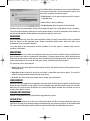
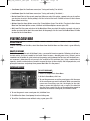
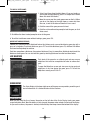
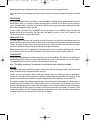
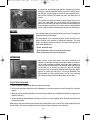
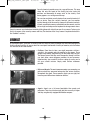
The Cold War Options window that you run from the Windows
Start menu has three tabs. To access the option controls, click
the tab for the options you want to adjust:
• Video Options: Set the game resolution and full-screen or
windowed mode.
• Sound: Select a sound card/driver.
• Troubleshooting: Reset all options to their defaults.
Additional video and audio options can be set from within the game. See “Game Options Screen” for details.
To exit the Cold War Options window and save the option settings, click OK at the bottom of the window. To
exit the Cold War Options window without saving the new settings, click Cancel.
VIDEO OPTIONS
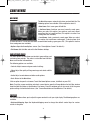
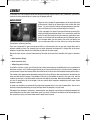
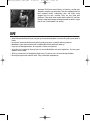
On the Video options tab, select the screen resolution at which you want to run Cold War. Select a resolution
from the choices on the drop-down menu. Higher resolution provides better detail, but might cause
performance issues on slower computers.
To run the game in full-screen mode, click the checkbox. To run the game in a window, make sure this
checkbox is unchecked.
SOUND OPTIONS
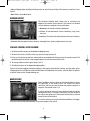
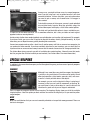
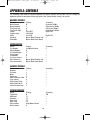
On the Sound options tab, select the sound device that you want to use for Cold War. During installation, the
game automatically selects an appropriate sound device. To change sound devices, select the new device
from the drop-down menu. Check your hardware documentation to determine which sound option(s) will
work on your computer. To turn off all of the game sounds, select No Sound from the menu.
The Sound tab also has three buttons:
• Default: Reset the sound options to their original settings. The default device usually provides the best
audio experience.
• Compatible: Allow the game to search for and select a compatible sound device option. Try using this
option if you have problems with the default sound device.
• No Sound: Turn off all of the game sounds (music, dialog, and sound effects).
TROUBLESHOOTING
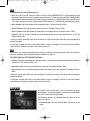
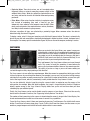
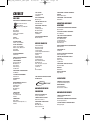
Select this tab if you experience any problems during the game. Click the Reset all options to default values
button to reset the options to the settings that were automatically selected when the game was installed.
Note that this resets not only the options set in the Cold War Options window, but also those set on the
in-game Game Options Screen.
STARFORCE COPY PROTECTION
Cold War is copy protected using the StarForce copy protection system.
THE READ ME FILE
The Read Me file contains all of the latest information about Cold War, including information about any
additions or changes to the game that were incorporated after this manual was printed. To view the Read Me
file, select Latest information about Cold War from the Cold War folder on the Windows Start menu.
6