1
Note:
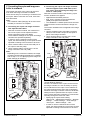
• When manually specifying the IP address of the
image controller
Since the IP address of the copier is one number higher than the IP address of the image
controller, consecutively numbered IP
addresses must be available.
(Example: Image controller: 192.168.1.10;
Copier: 192.168.1.11)
However, “xxx.xxx.xxx.255” cannot be specified
for the IP address of the image controller if it is
set manually.
• When using DHCP to specify the IP address of
the image controller
Use the IP address assigned by the DHCP
server for the IP address of the image controller
and copier
• Depending on the connection method, the
image controller TCP/IP settings are different.
For details, refer to step 11 in “VI. Specifying
basic image controller settings (IP address)”.
With this connection method, be careful of the timing for turning on the image controller and the
copier. For details on the timing, refer to the end of
this manual.
VI. Specifying basic image controller settings (IP address)
Specify the default settings for the image controller.
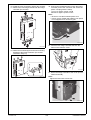
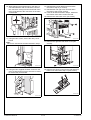
1. Turn on the image controller.
2. Turn on the copier.
3. [Language Setup] appears in the lower center of
the screen in the copier’s touch panel.
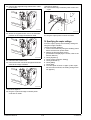
4. Press the [Utility/Counter] key on the copier.
5. Touch [Controller Details].
Note:
If [Controller Details] does not appear, wait a short
while, and then repeat steps 3 and 4.
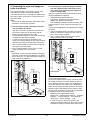
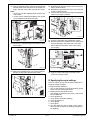
11. Specify settings for the following.
IP Address:
Image controller IP address
Subnet Mask:
Subnet mask for the connected network
Gateway
Address:
IP address of the default
gateway
Obtain IP for
Engine:
Set whether to obtain the IP
address of the copier.
The setting is different
depending on the connection method used in
“V. Connecting the copier
and image controller to a
network”.
a: No
b: Yes
If “Yes” is selected, the IP
address of the copier
appears next to “Engine IP
Address” included in
“Device Information” on
Configuration Sheet.
Note:
First check with your network administrator for the
settings that should be entered.
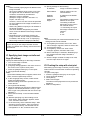
12. Touch [Menu] three times, select “Yes” when
“Save Changes” appears, and then select “OK”.
13. Touch [Printer Setup].
14. Touch [Menu], select “Yes” when “Save
Changes” appears, and then select “OK”.
15. When “Exit Setup” is selected, “Rebooting system” appears and the image controller is
restarted.
16. After the image controller is ready to be used,
turn the copier off, then on again.
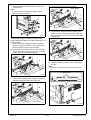
6. In the Language Setup screen, select the language and market region.
After the settings have been specified, the controller reboots.
7. When the password is entered, the Setup screen
appears. The default password is “Fiery.1”. (Be
sure to type in the password with the correct capitalization.)
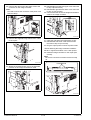
8. Select “Server Setup” in the Controller Details
screen.
9. Without specifying any other settings, touch
[Exit]. When “Save Changes” appears, select
“Yes”, and then select “OK”.
10. In the same way, select “Network Setup”. After
selecting “Protocol Setup”, then “IPv4 Setup”,
select “Ethernet Setup”. Set “Enable AutoIP
Configuration” to “No”, and then select “OK”.
Y110511-5
E-19
Installation Manual