1
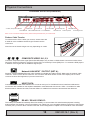
Physical Connections
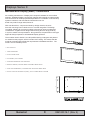
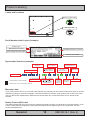
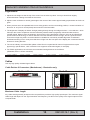
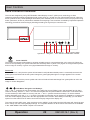
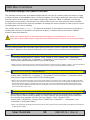
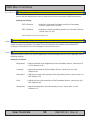
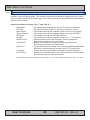
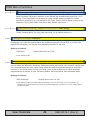
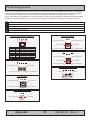
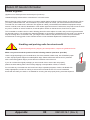
Connection area of unit (illustration)
3 x BNC, Composite Video IN
USB Touch
RJ45 Network
RS-232 COM
2 x DVI-D In
RS-422/RS-485 COM
2 x VGA/RGB In
VGA/RGB Out
Power Input AC
Grounding Screw
Potmeter Port Power Input DC
Note: 19 inch unit used as example above, please review specifications for your actual model.
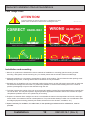
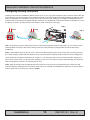
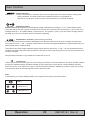
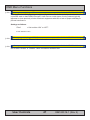
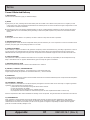
Reduce Cable Tension
To reduce tension of the cables you connect, secure them with
a cable tie to the available chassis hinges located near the
connectors.
Note: Amount of chassis hinges can vary depending on model.
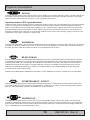
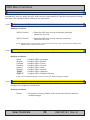
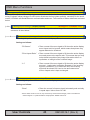
COMPOSITE VIDEO IN 1,2,3:
Connect a Composite Video signal (PAL/NTSC/SECAM) to any of these 3 x BNC female connectors to allow video
feed to be used as Full Screen, Picture-In-Picture (PIP) or Picture-By-Picture (PBP) from i.e. cameras & DVD players
in addition to the regular DVI or RGB/VGA signal input.
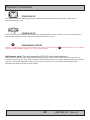
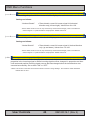
Network/LAN INPUT / OUTPUT (NET A):
USB TOUCH:
Supports 10/100/1000Mbps Ethernet (LAN). Suitable for twisted pair cables CAT.5E. Make sure the network cable
connector ”clicks” into the RJ-45 connector. This connector will allow remote control of the display unit to control
common functions like brightness, input source and more.
Connect a TYPE A USB Cable between this connector and your PC. Suitable drivers to install and calibrate the
touchscreen are available on the separate installation media delivered with the unit. USB1.1 is suitable for cable
distances above 10meter/32.8 feet, whereas USB2.0 is suitable from less than 10meter/32.8 feet distances.
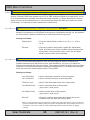
RS-422 / RS-485 COM I/O:
The COM (non-isolated RS-422/485) allows functionality to communicate with serial based equipment including
external buzzer functionality. Connect and fasten your cables from your compatible external equipment to the Phoenix
Terminal (3.81) connector block. Please review the “Pinout Assignments” chapter in this manual for more information.
18
IND100133-48
INB100519-1 (Rev 2)