1
Introduction
Presentation
« RPGMapMaker » is a tool for drawing maps with polygonal grids. This kind of maps is used in Role Playing
Games, but of course can be designed for any other pur poses.
In addition to having most of the capabilities of a real
painting program (such as lines, rectangles, ovals and
rounded rectangles, drawing and filling with color and pat tern, text, rubber, pipettes tools, etc.), « RPGMapMaker »
has also unique features that greatly simplify the building
of this kind of map, such as:
•
•
•
•
•
•
•
•
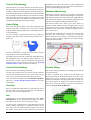
Various kinds of grids. You can create a grid map
made of hexes (well suited for world, region or village
maps), or squares (well suited for dungeon maps) or
lozenges (well suited for pseudo-3D castle and dun geon maps).
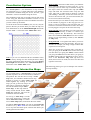
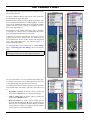
Ten layers static maps. Four pre-allocated layers (one
for the grid, one for drawing, one for terrain tiles and
one for text and lines) and six extra layers allocated on
demand (two for drawing, two for terrain tiles, and two
for text and lines). For example you can change a poly gon color without losing the terrain that lies on top of
it, build a map for the DM eyes only, and a map for his
players, etc.
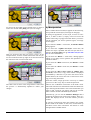
Interactive maps. Static maps can be linked between
each other like in a hypertext document. This allows
you for example designing a continent, then zoomingin to a country, then zooming-in to a city, then zoom ing-in to a house, then zooming-in to the cellar of the
house, then zooming-in to the dungeon beneath the
house, etc. Of course, you can also zoom-out.
Links to external files. You can attach files (for example notes, comments, etc.) to a static map. The files
must be stored in a subfolder within the map folder.
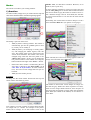
Layers managers. This feature allows you allocating
and freeing the additional layers, clearing layers, copy ing a layer into another layer, choosing which layer is
visible and which is not, selecting which layer is the
active one (an active layer is a layer where drawing oc curs), and choosing which layer will be involved in a
selection.
Various dimension units. You can specify the map dimensions in either cm or m or km. Alternatively, you
may prefer to use the ft, ya or mi dimension units.
Grid polygon color filling in just two clicks (three, if
using patterns). One selects the color and one selects
the filling area.
Predefined terrains tiles. « RPGMapMaker » comes
with several predefined libraries for building regions,
villages, castles and dungeons. They are available in
either black and white or in colors and their tile sizes
range from 12 by 12 to 40 by 40 pixels, in 4 pixels in -
•
•
•
•
•
•
•
•
•
•
•
•
•
•
3 / 50
crements (i.e. 12 x 12, 16 x 16, 20 x 20, 24 x 24, 28 x
28, 32 x 32, 36 x 36, and 40 x 40).
Terrains editor. If you do not like the terrain tiles and
wish to modify them, the terrain editor goes here for
that purpose. Of course, if you are talented, you can
also create terrain tiles from thin air!
Terrain Organizer. This tool allows you quickly reorganizing a terrain library, transferring tiles between libraries and importing tiles.
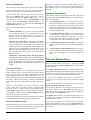
Random terrain generator. This tool allows you generating random terrains made of up to five different
“regions” (for example water, mountain, plain, desert,
etc.) and aligned on the grid polygons.
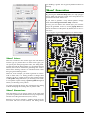
Random maze generator. This tool allows you generating random mazes, caverns and dungeons. For dun geons, rooms’ number can be generated.
Fractal terrain generator. This tool allows you generating realistic terrains using physical models. Three
different algorithms are available for generating
worlds, archipelagos and islands.
Line with arrows of various shapes. In addition, you
can add a distance between the ends of a line. The dis tance is automatically adjusted when you change the
map dimension units.
Drawing contexts. You can memorize up to 40 foreground colors, background colors and patterns for fur ther utilization.
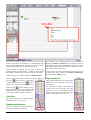
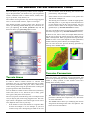
Textures. This pallet allows you using the Color
Filling and Grid Polygon Color Filling tools with textures (instead of the current fill foreground color, fill
background color and fill pattern).
Selective drag or clear. As the map is made of several
layers, you can specify which map layer(s) you want to
drag or clear.
Intelligent copy and paste. As the map is made of
several layers, you can specify which active layer (or a
portion of it) you want to transfer into the clipboard
and on which active layer you want to paste the clip board contents.
Intelligent external drop. You can choose the portion
of an external drop to insert into the chosen active lay er.
Multiple levels of Undo. By default, the application is
configured with 16 levels of undo, but if you need
more levels, this can be changed in the application
preferences. The terrain editor has also several levels
of undo as well as the clipboard window.
Models. Using a special script, you can create maps
with a predefined appearance for the grid layer (a grid
with a legend for example). In addition, you can further
modify the script to alter the grid layer appearance.
Layer Scripts. You can attach a script to a layer. This
script contains directives that allow you drawing into
the layer as if you were using drawing tools.