1
Chapter 17: Setting Your Preferences
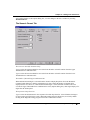
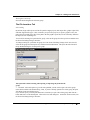
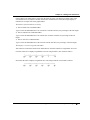
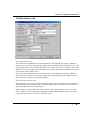
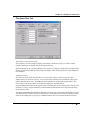
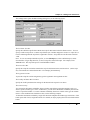
5) The Default Multi-ASCII Import Plot XY drop-down list controls the default setting in the Plot
Designation Column list of the Import Multiple ASCII dialog box.
XY1: Origin will import all the columns. Origin assumes the first column contains X values and all
remaining columns contain Y values. In this case, the "1" indicates that the last character "Y" is repeated
for all remaining columns.
DXY1: Origin will import all the columns. Origin assumes the first column contains values that should be
disregarded. Origin assumes the second column contains X values and the remaining columns contain Y
values. "1" indicates that the last character "Y" is repeated for all remaining columns.
XY: Origin will import the first and second columns as X and Y values respectively.
XY2: Origin will import all the columns. However, in this case Origin assumes the first column contains
X1 values, the second column contains Y1 values, the third column contains X2 values, the fourth column
contains Y2 values, and so on. In this case, the "2" indicates that the last two characters "X" and "Y" are
repeated for all remaining columns.
XYE: Origin will import the first, second, and third columns as X, Y, and Y error values respectively.
XYZ: Origin will import the first, second, and third columns as X, Y, and Z values respectively.
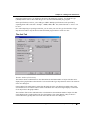
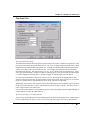
6) The Use Numeric as Preferred Column Type check box controls whether all columns in all new
worksheets are of Numeric or of Text & Numeric type (default). If you are planning on sharing your
Origin project with a colleague who has Origin 4.1, you should select this check box. Failing to do this
could cause a loss in data when the project is opened in Origin 4.1.
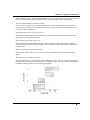
7) Select the Use Toolbar Spacer check box to display a toolbar spacer below the menu bar. The toolbar
spacer ensures that the toolbar area remains at a fixed width when changing the active window. The height
of the toolbar spacer is determined by the maximum height required to display all the selected toolbars for
any of the windows in the project.
(To hide the toolbar spacer, right-click in the toolbar spacer region and select Hide Toolbar Spacer from
the shortcut menu.)
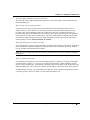
8) The Display Bitmaps in Menus check box controls whether or not bitmaps display next to menu
commands. Menu commands that have toolbar button access have bitmaps that display to the left of the
command.
Setting Your Preferences with the Options Dialog Box • 620