1
5.3. CUSTOMIZING YOUR Z3PLUS SYSTEM
47
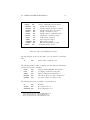
respectively. Assuming that all the files have been put into Z3PLUS.LBR,
the loading command would be as follows:
Z3PLUS Z3PLUS.LBR SUPER.Z3P DEFCP3.ZRL
SUPERFCP.ZRL SUPERRCP.ZRL DEFAULT.NDR
DEFAULT.Z3T<cr >
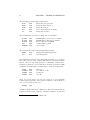
That’s an awful lot of typing! A good way to simplify things is to enter
this command line as a script in the ALIAS.CMD file, perhaps under
the name SUPER. Then to change systems while a Z3PLUS system is
already running, all you have to type (assuming ARUNZ is the extended
command processor) is
SUPER<cr >
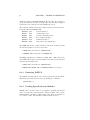
On a “cold” load from CP/M you can use the following trick. Invoke the
system as a secondary load by including the alias command in a CP/M
multiple command line as follows:
Z3PLUS!SUPER<cr >
This will cause the standard default Z3PLUS system to load, but it will
chain immediately to the “SUPER” system. You end up having to load
two systems, but Z3PLUS is so fast that you will hardly notice. It will be
faster than typing that long command line and will probably be faster
than running a SUBMIT job (you could put the long command line in
SUPER.SUB).
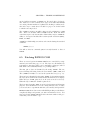
Modifying the Default Definitions
Another way to make custom configurations is to modify the existing
default Z3P files. This approach has the advantage that the default
systems can be loaded using very simple command lines. Z3PLUS automatically specifies the modules to be loaded with these configurations,
so we do not have to do it.
This imposes some constraints on the kinds of changes that can readily
be made to the default definitions. Changing the drive vector (DRVEC),
maximum drive and user, initial path, startup command name, and
printer/CRT characteristics to match your system and preferences
makes perfect sense.