1
B
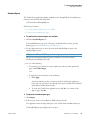
Using Copy Down and Fill Down
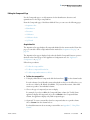
This appendix describes the Copy Down and Fill Down commands that you can use to make
entering column values easier.
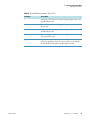
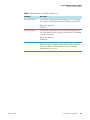
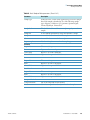
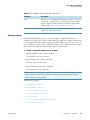
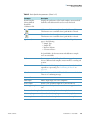
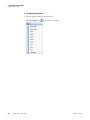
You can use the Fill Down command for the Sample Name, Sample ID, Vial Position, and
Sample Level columns.
You can use the Copy Down command for the Sample Type, Vial Position, Injection Volume,
Dilution, and Sample Level columns.
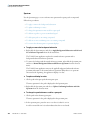
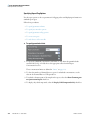
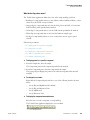
Follow these procedures
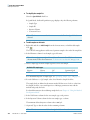
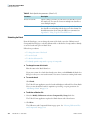
• To automatically enter sequential column values
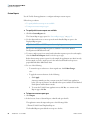
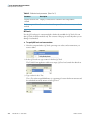
• To automatically copy column values
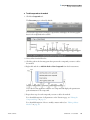
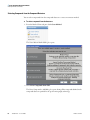
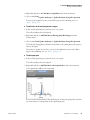
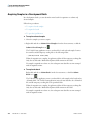
• To use Copy Down or Fill Down for a range of samples
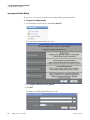
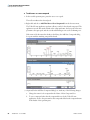
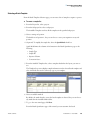
Y To automatically enter sequential column values
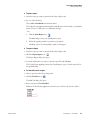
1. Enter a value for the first row of the fill down sequence.
This does not have to be the first sample row. You can begin the fill down procedure from
any row in the sequence.
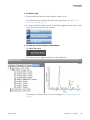
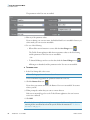
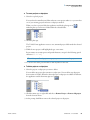
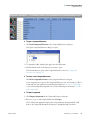
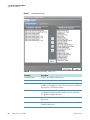
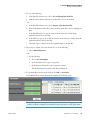
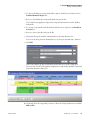
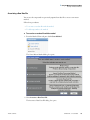
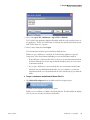
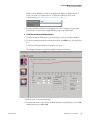
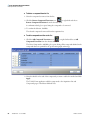
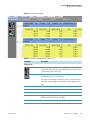
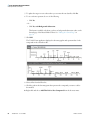
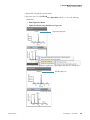
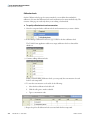
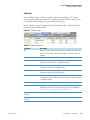
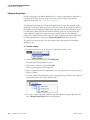
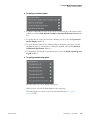
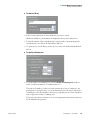
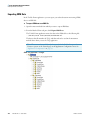
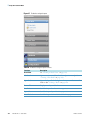
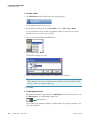
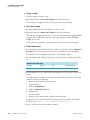
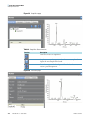
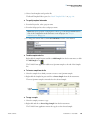
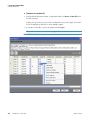
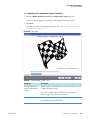
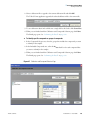
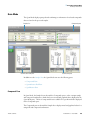
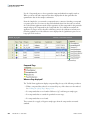
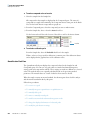
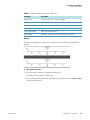
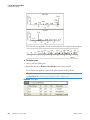
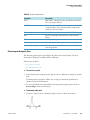
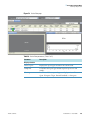
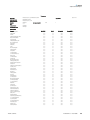
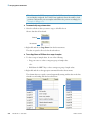
2. Select the cell whose value is the first in the fill down sequence.
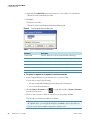
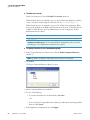
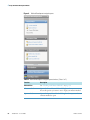
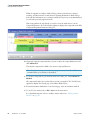
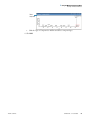
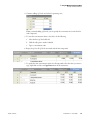
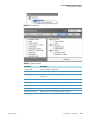
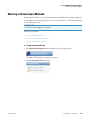
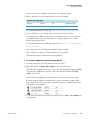
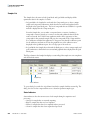
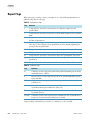
Observe that this cell is selected.
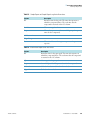
Selected
Not selected
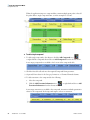
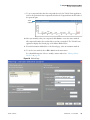
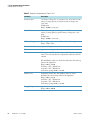
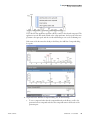
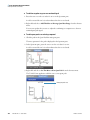
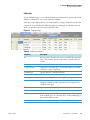
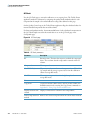
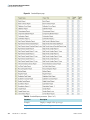
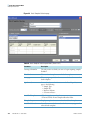
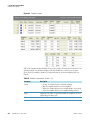
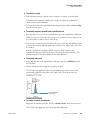
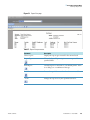
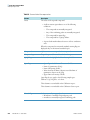
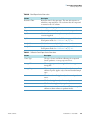
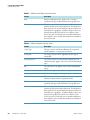
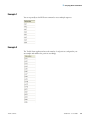
You can repeatedly use the Fill Down command to create multiple sequences. See
“Example 1” on page 311.
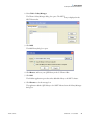
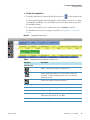
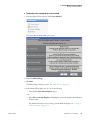
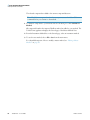
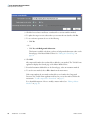
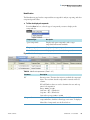
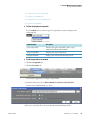
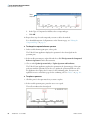
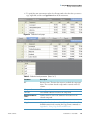
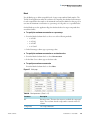
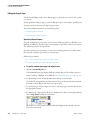
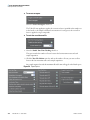
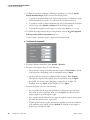
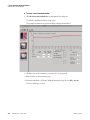
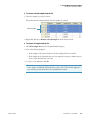
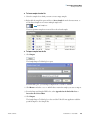
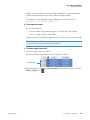
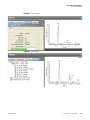
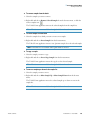
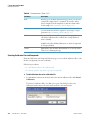
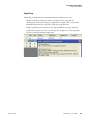
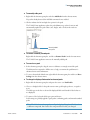
3. Right-click and choose Fill Down from the shortcut menu.
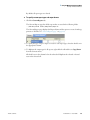
The application enters sequential column values starting with the value in the selected
row and ending with the last row in the column.
Thermo Scientific
ToxLab Forms 3.1 User Guide
309