1
PC
a
PC
he
e
as
elect
re
on.
up
Viewing phone files on your
PC
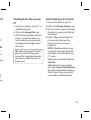
1 Connect your phone to your PC as
outlined previously.
2 Click on the Manage Files icon.
3 All the documents, flash contents,
images, sounds and videos you
have saved onto your phone will
be displayed on the right side of
the screen.
TIP! Viewing the contents of your
phone on your PC helps you to
arrange files, organize documents
and remove content that you no
longer need.
Synchronizing your contacts
1 Connect the phone to your PC.
2 Click on the Manage Contacts icon.
3 Your PC will now import and display
all contacts saved to your SIM card
and handset.
4 Click on File and select Save. You
can now select the target and
where you want to save your
contacts to.
NOTE: To backup contacts saved
to your SIM card, click on the SIM
card folder on the left side of your
PC screen.
Right-click your contacts and then
Select All.
Right-click at the same position
and select Copy to Phone Memory.
Now click on the handset folder on
the left side of the screen and all
your numbers will be displayed.
49