1
Universal USB – to – Analog Interface
6.3. Questions & Answers
(this chapter is subject to be updated regularly)
Q: What power supplies is this interface for?
A: Primarily for our power supplies which have got an analog interface. But you can also add own
user configurable device as long as their specs meet the specs of the interface given on page 1
Q: I have only a notebook ready to use it with the interface, will it work?
A: Yes. The USB ports of common PC or notebook should provide up to 500mA, which is sufficient
for the interface. For detailed information, please refer to the technical specs of your computer,
before you connect an interface.
Q: Why do the “older” power supplies don’t provide status signals like OVP or OT on the screen?
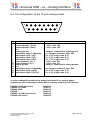
A: They still provide these signals, but they’re not used by the interface because the specification of
the analog socket has been configured to meet future versions and new types of power supplies
provided to you by EA. You MUST never connect any status signal output from any power
supply via custom-made cables to the status signal inputs of the interface unless you are sure
these outputs are of type “open collector” !!!
Q: Where can I get updated versions of the software or the manual?
A: In the download area of the Elektroautomatik web page
Q: What about alternative applications and features, which are not supported by this software, like
to control multiple UTAs at once from a PC or predefined, automated sequence control?
A: Generally, the interface supports these features. There are several ways to realize this :
1. an according software is user-created with LabView (ready-to-use VIs, which serve to control the
UTA and thus the power supplies are included on the CD or available for download at the download
section of the EA website (see link above))
2. an according software is user-created with C/C++/VB or similiar (a guide and a DLL which serves
to control the UTA and thus the power supplies are included on the CD or available for download at
the download section of the EA website (see link above))
3. other solutions by request respectively as guide and/or utility, available in the download section of
the EA website (see link above)
Q: The UTA12 Control software won’t find any UTA12 or my application does not either.
A: Most probably the driver isn’t correctly installed. Following solutions:
1. Make sure you can find the UTA12 hardware under “USB controllers” in the Windows device
manager (also see chapter 1.). If not present, check cabling. If cabling is OK, Windows probably
uses a driver from a similar hardware, like a “USB-to-Serial converter cable”, which is quite
common these days. If the cable is currently not used, you may either uninstall the driver and
install the driver from our included CD or setup the driver to not use the VCP feature. See chapter
1, item 5 for details. Then the UTA12 should work.
2. Unplug and replug the UTA12 in order to reset it and try again. If the USB driver does not close
the UTA12 correctly or the user application does not, the UTA12 will be blocked.
© Elektroautomatik GmbH & Co. KG, 2008
Changes and errors are reserved.
Date: 02/10/2012
page 21 of 22